
Add a page to your app menu
Build Your App · AppPresser 文件
Add a page to your app menu
本文尚未翻譯,因此以英文顯示。
Your app journey: step 4 of 9, Add pages and features. New here? Read Start here: build your app with AppPresser first.
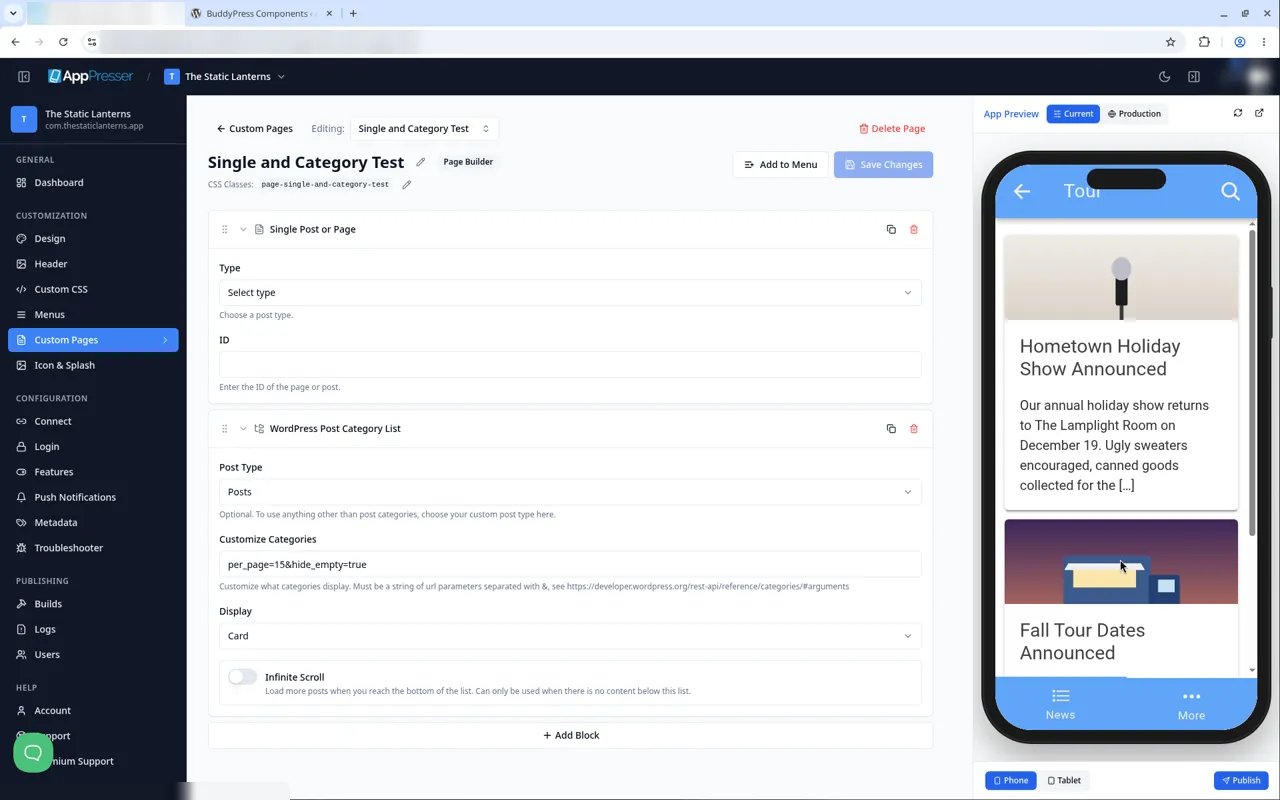
What you'll do: Add a new page to one of your app menus so people can open it. A new page does not show in your app until you do this. The example page has two blocks: one post and a list of your post categories.
Before you start
- Connect your app to your WordPress website. See Connect your WordPress site and turn on Features.
- Publish the post and the categories you want on your WordPress website.
Make the page
- In the left menu, under Customization, click Custom Pages.
- Click Add New Page. A window titled Add New Page opens.
- In Title, type a title. Under Page Type, keep Page Builder selected, then click Create Page.
Click Add Block, then click the Single Post or Page block.
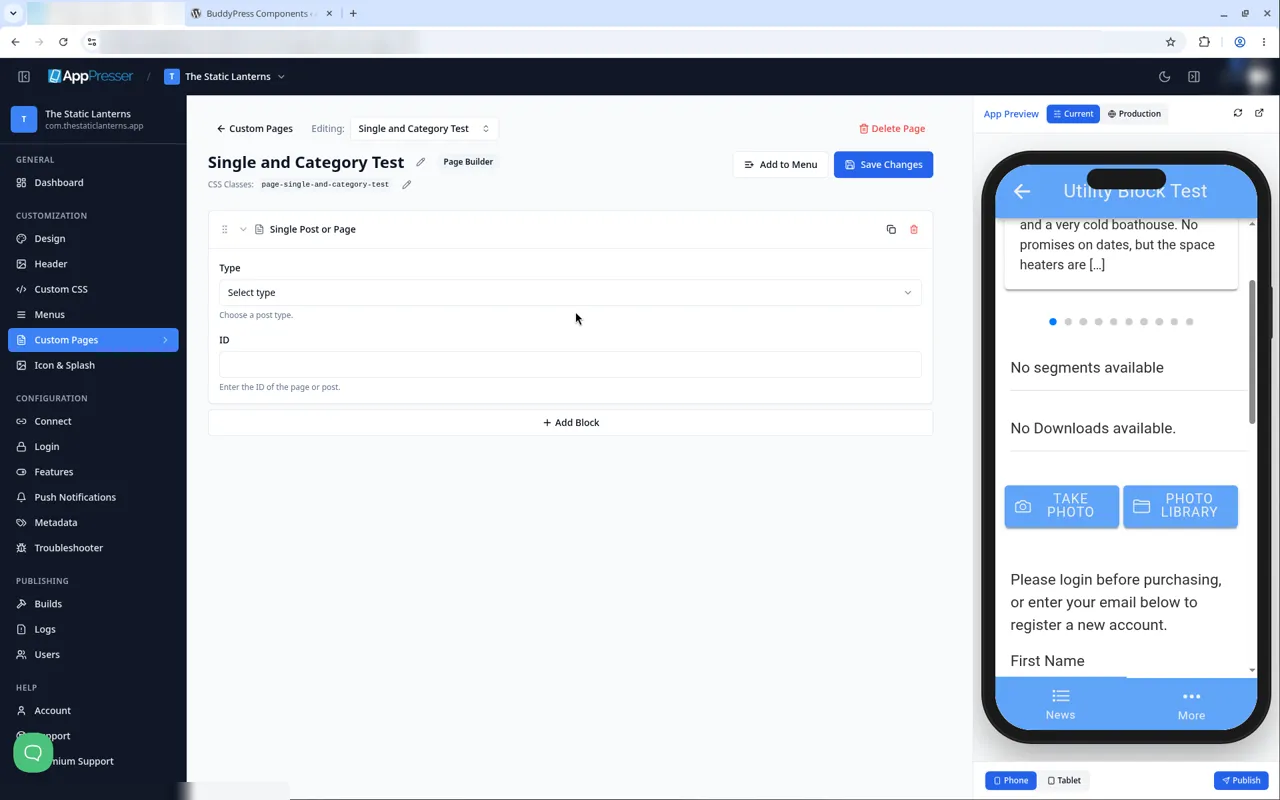
Under Type, choose Post or Page.
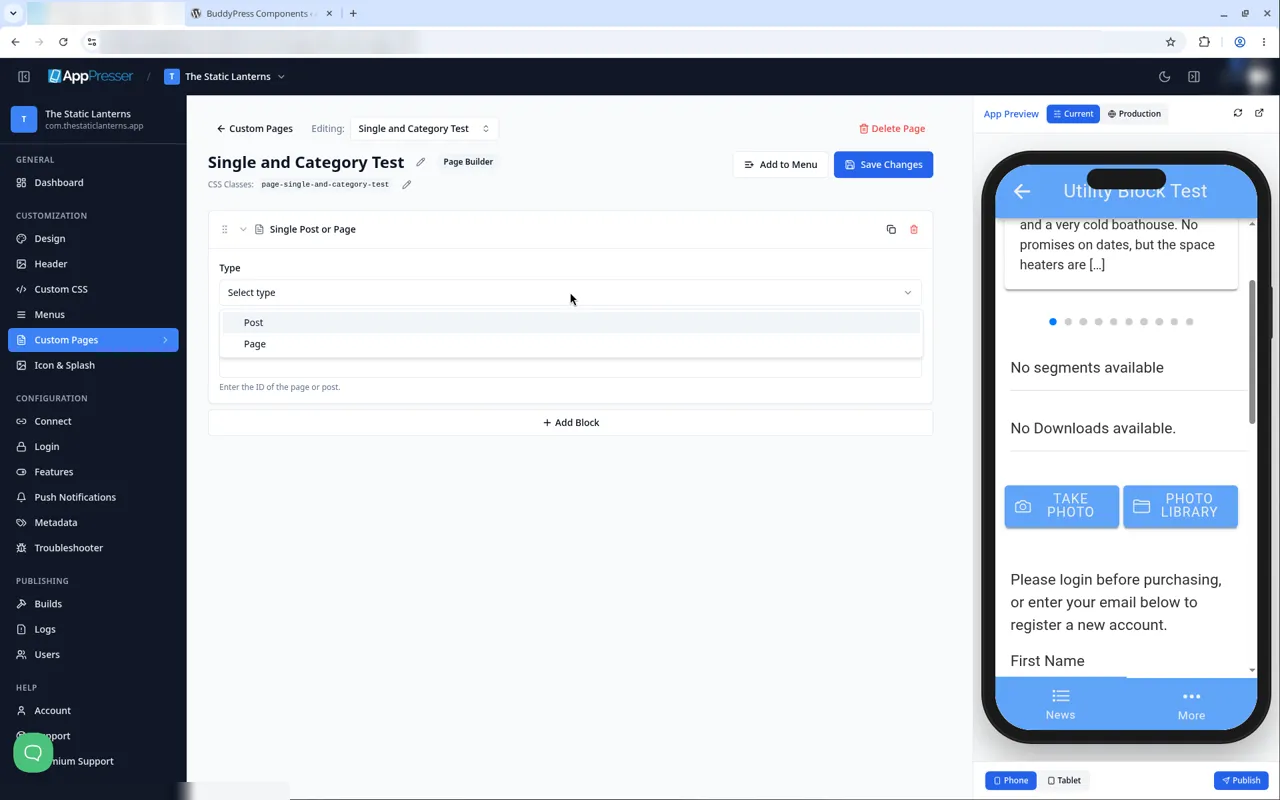
In ID, type the post's ID number. See Show one post or page (Single Post or Page block) to learn how to find it.
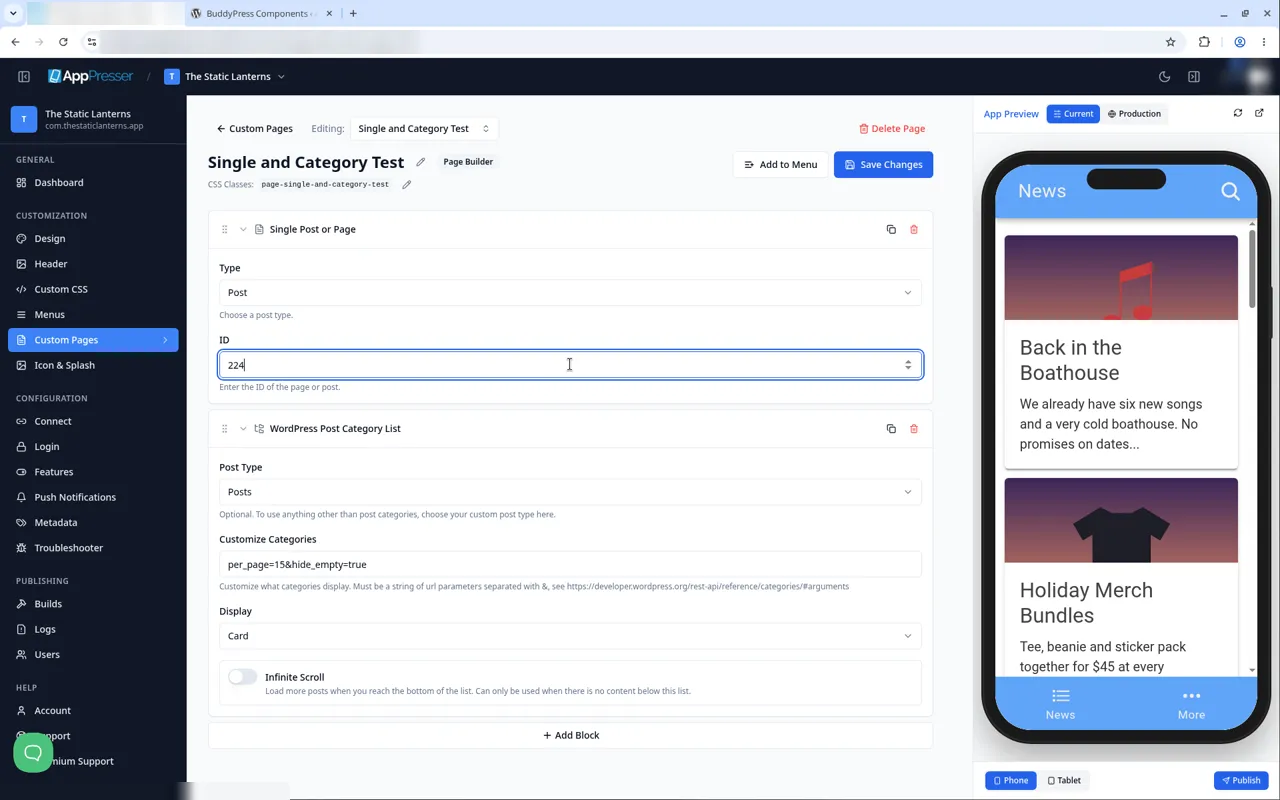
Click Add Block again, then click the WordPress Post Category List block. Its settings can stay as they are.
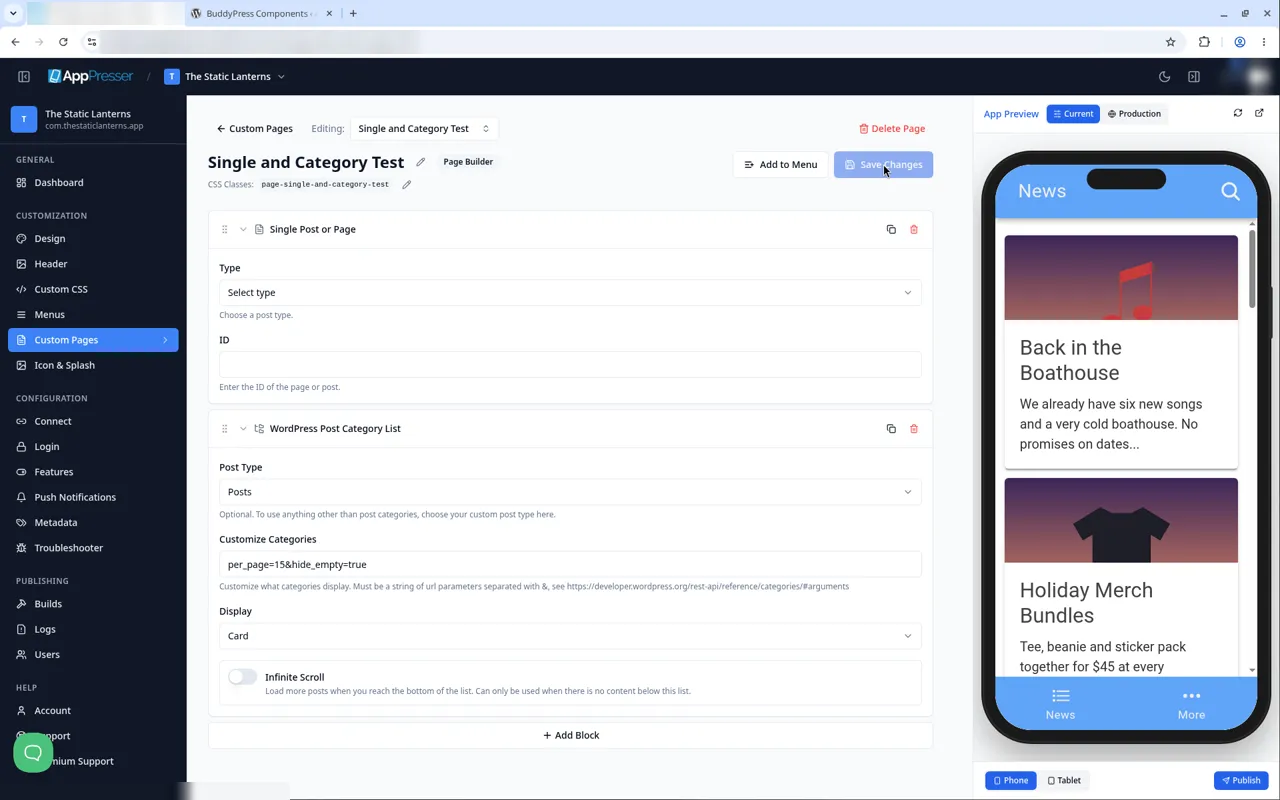
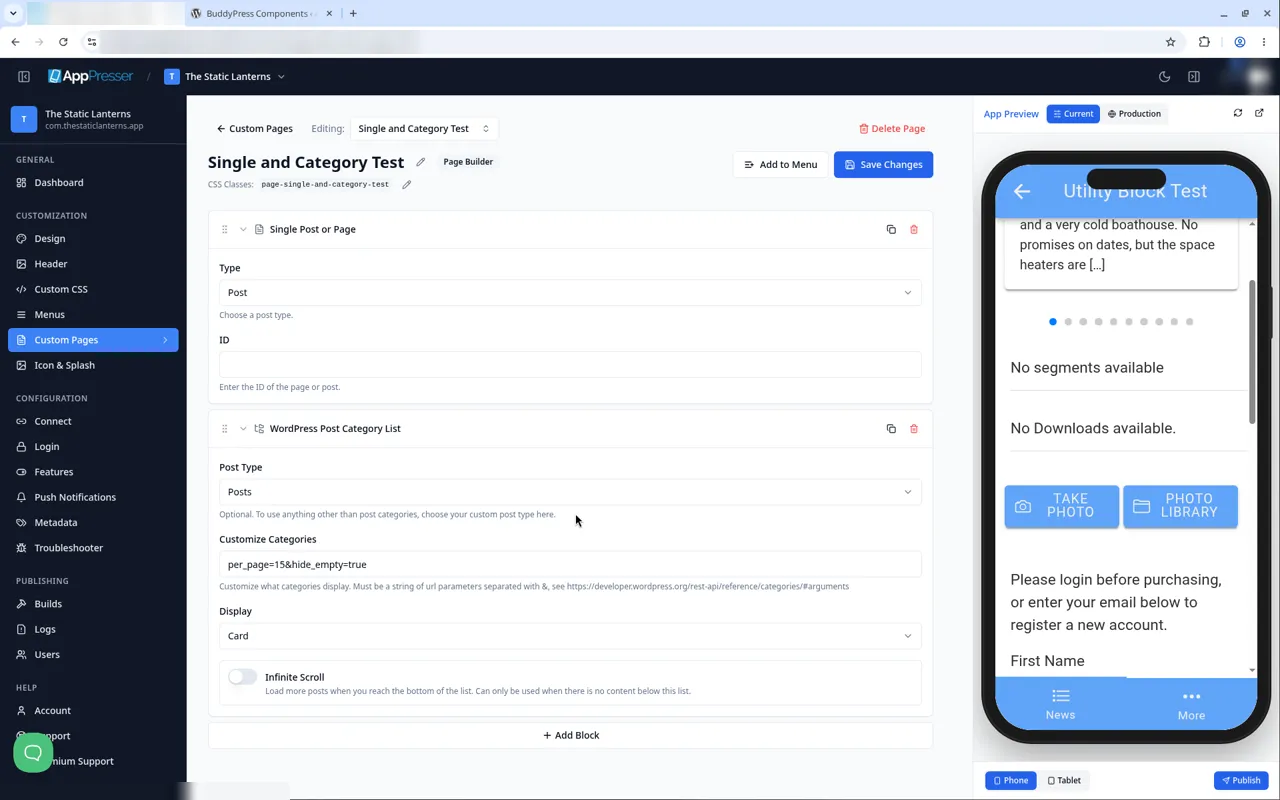
- Click Save Changes at the top of the editor.
Add the page to a menu
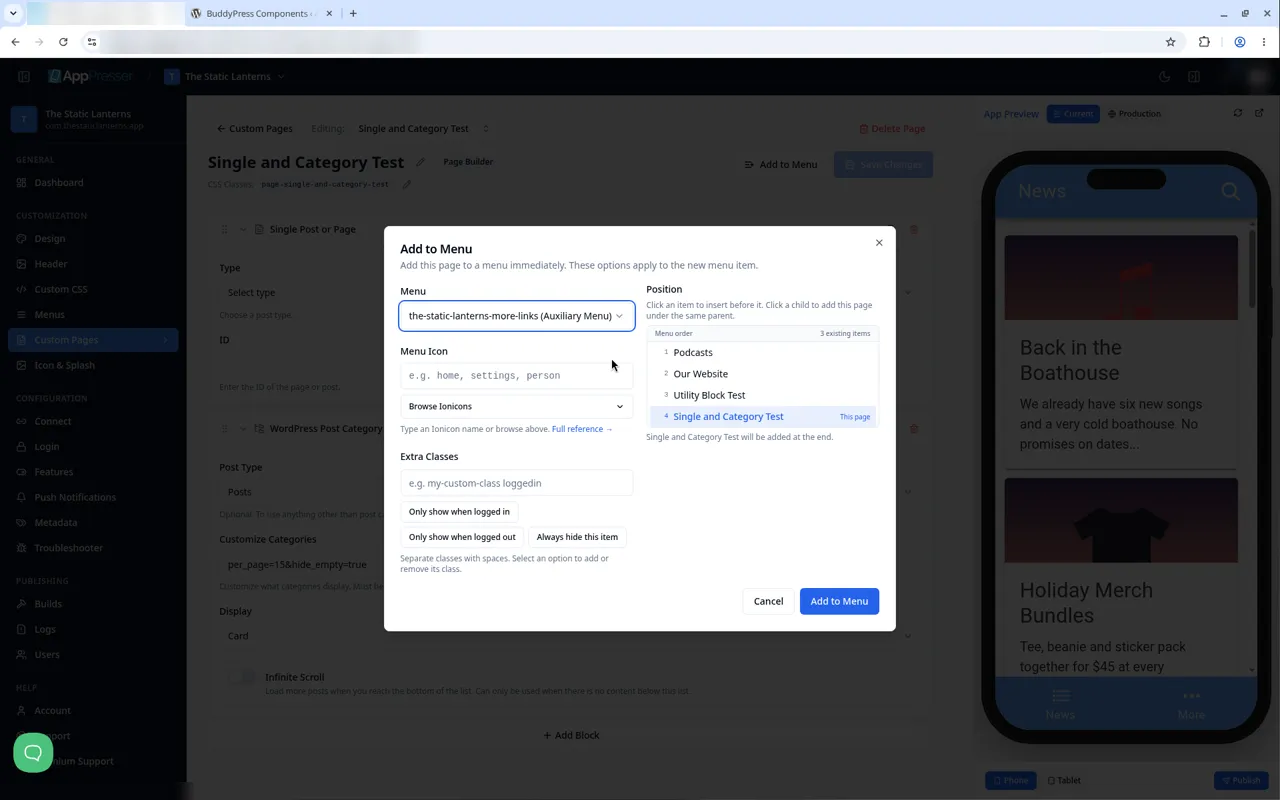
- In the page editor, click Add to Menu. A window opens.
- Under Menu, choose a menu. For example, choose your auxiliary (extra links) menu to list the page under More, or your tabs menu to add a tab at the bottom of the app.
- Under Position, click the item the page should go before. If you skip this, it goes at the end.
- If you want, type or browse for an icon under Menu Icon.
- Click Add to Menu.
Open the page in the preview
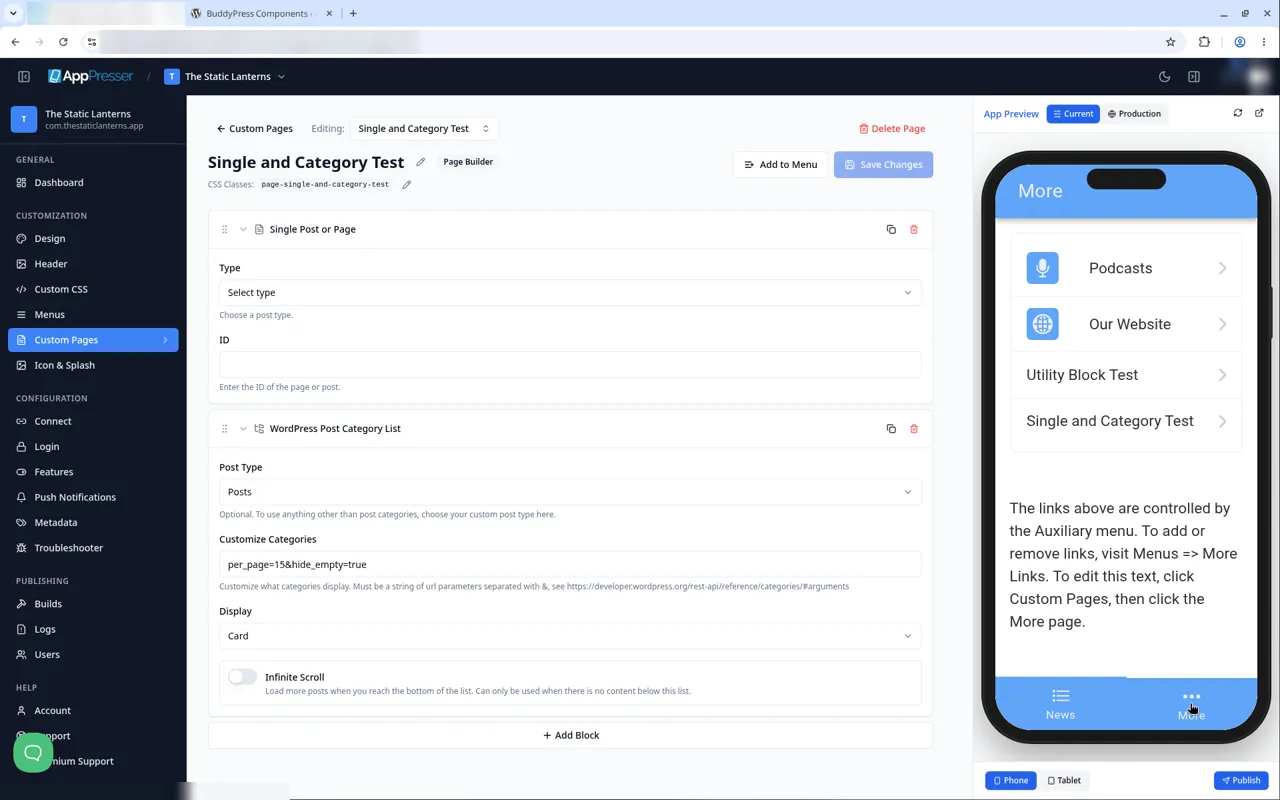
- In the App Preview, click More, or click the new tab.
- Click your page.
The category list shows a box for each category.
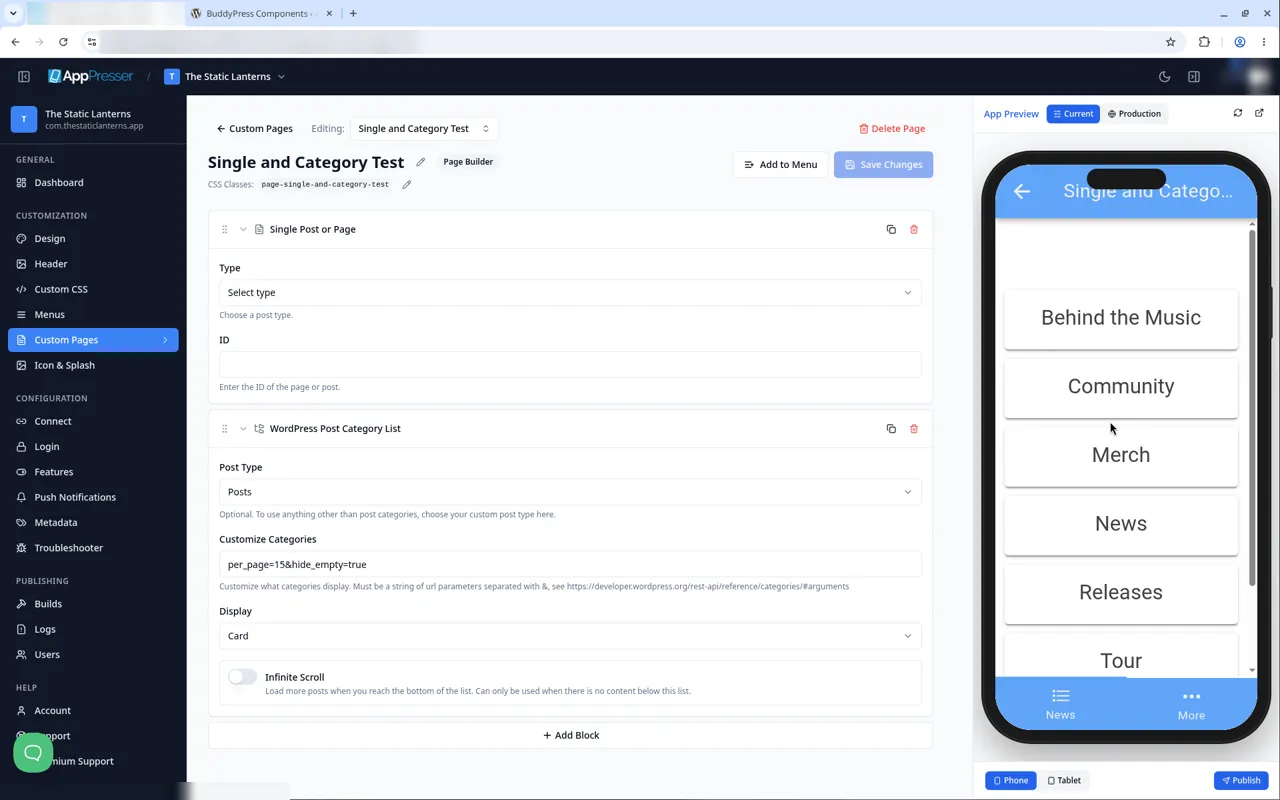
Click a category to see its posts.
Tips
Tips
- To move a block, drag it by its handle (the dots on the left). Click the arrow to fold it closed.
- To copy a block, click the Duplicate icon.
- To turn a setting on or off, click the switch itself, not the words next to it.
- After you save, open the page in the App Preview and check your changes.
Careful: The trash icon removes a block right away. Check before you click.
You're done when your new page opens from the menu in the App Preview.
Next step
Related articles
這篇文章對您有幫助嗎?
輸入時結果會即時更新。按斜槓鍵(/)可跳轉到搜尋。
沒有找到?
我們的支援團隊可協助解決設定、建置和應用程式商店相關問題。