
Show your WordPress posts (WordPress Post List block)
Build Your App · AppPresser 文件
Show your WordPress posts (WordPress Post List block)
本文尚未翻譯,因此以英文顯示。
Your app journey: step 4 of 9, Add pages and features. New here? Read Start here: build your app with AppPresser first.
What you'll do: Show a list of posts from your WordPress website, such as your blog or news, with the WordPress Post List block. People tap a post to read it in the app.
Before you start
- Connect your app to your WordPress website. See Connect your WordPress site and turn on Features.
- Publish at least one post on your website.
Add the block
- In the left menu, under Customization, click Custom Pages.
- Click the name of the page you want to change. To make a new page instead, click Add New Page, type a title, keep Page Builder selected and click Create Page.
- Below the last block on the page, click Add Block.
- In Search blocks…, type WordPress Post List, then click the block. It is added to the bottom of the page.
- Leave the settings as they are to show your newest posts, or change them. See Settings below.
- Click Save Changes at the top of the editor.
- To see a new page in the App Preview, add it to a menu. See Add a page to your app menu.
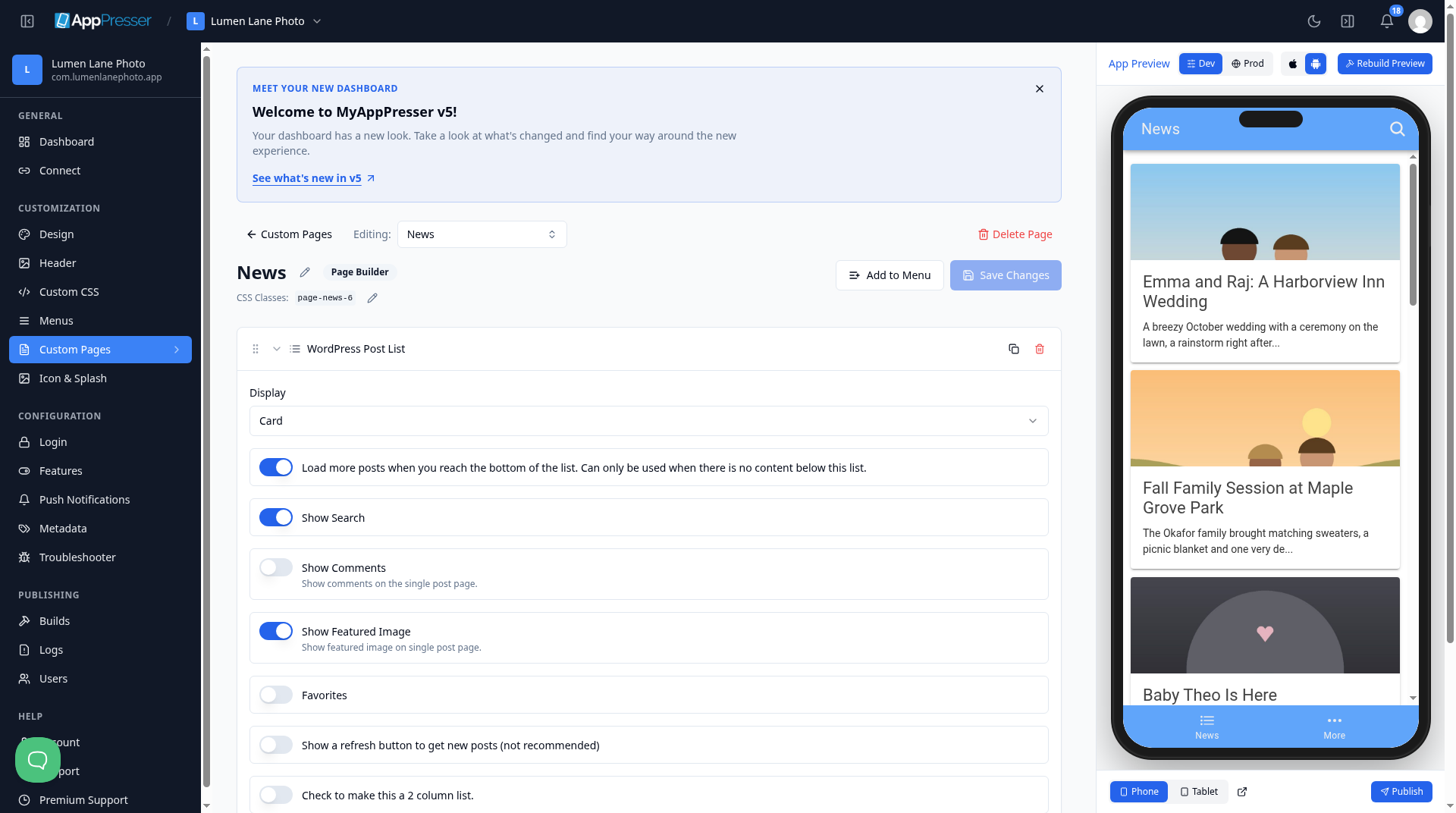
What you see in the app
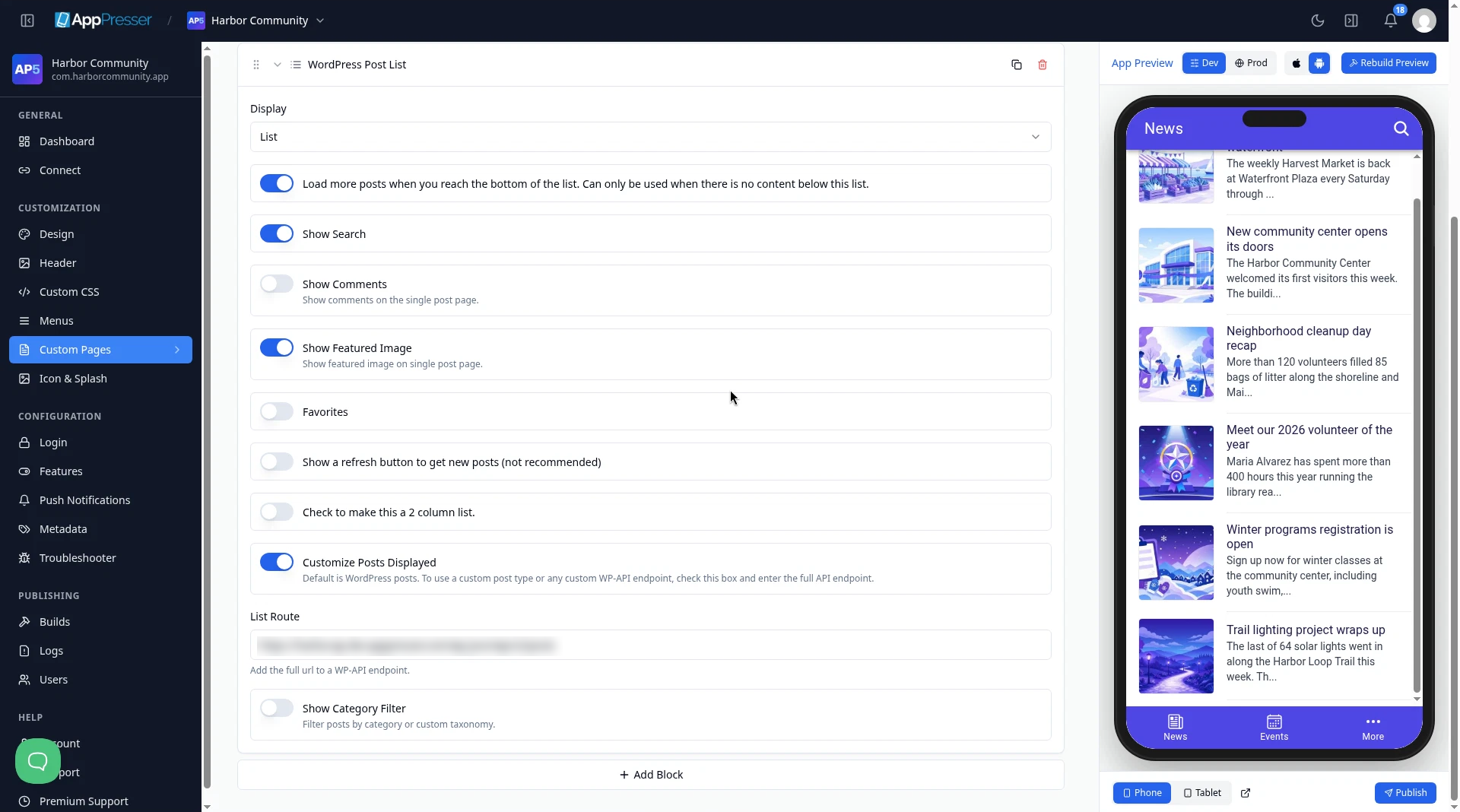
Your posts show as cards, with the newest first. Each card has the post's main picture (the featured image), its title and a short summary.
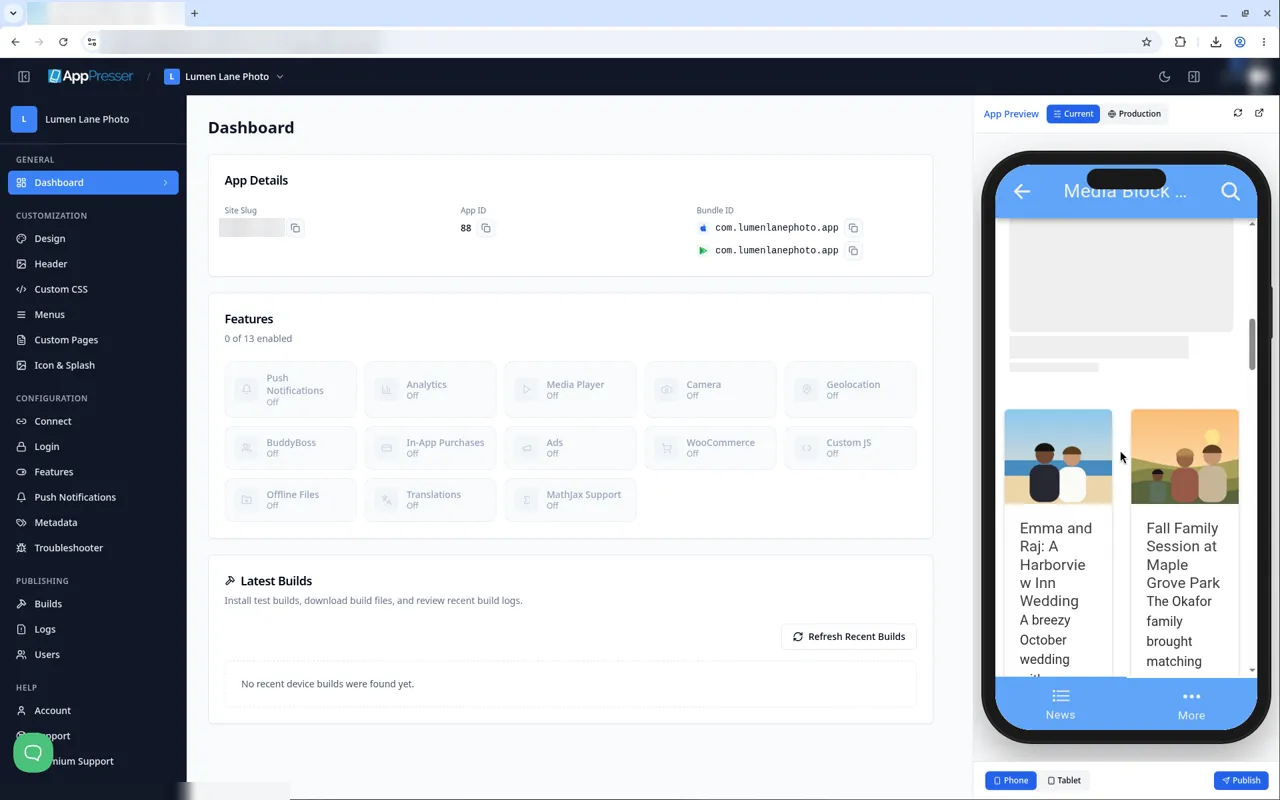
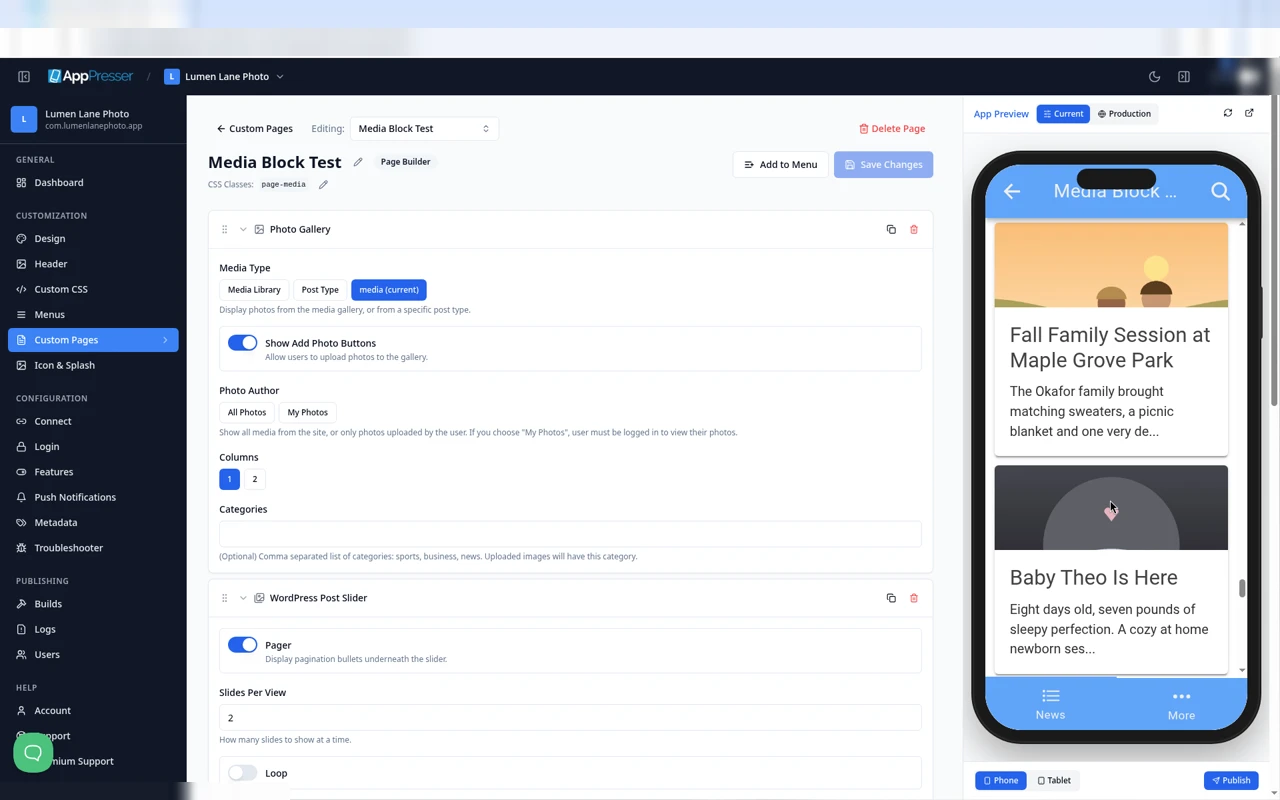
Many starter pages already use this block. For example, a Static Homepage can show your posts under its welcome text. This shot shows a starter Home page with the App Preview loaded.
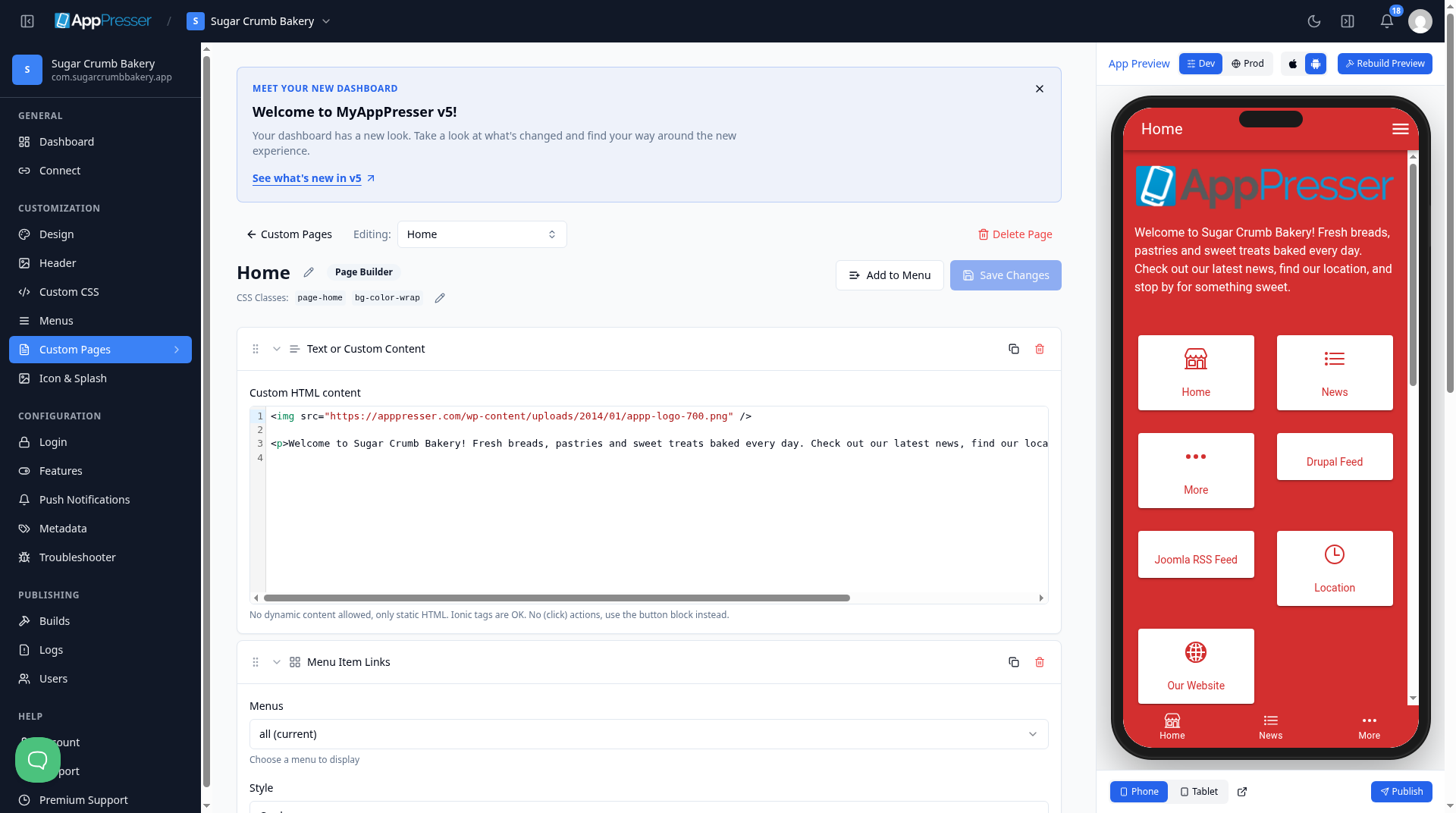
Settings
Swipe sideways to see the rest of this table.
| Setting | What it does |
|---|---|
| Display | How each post looks: Card or List. It starts on Card. |
| Load more posts when you reach the bottom of the list | Loads more posts when someone scrolls to the bottom. Use it only if nothing else is below the list. |
| Show Search | Adds a search button. It starts on. |
| Show Comments | Shows comments on the single post page. |
| Show Featured Image | Shows the post's main picture (featured image) on the single post page. |
| Favorites | Lets people save posts they like. |
| Show a refresh button to get new posts (not recommended) | Adds a refresh button to the list. The block marks this as not recommended. |
| Check to make this a 2 column list. | Shows two posts in each row. |
| Customize Posts Displayed | Shows a custom post type or another WP-API list instead of your posts. See Show a custom post type or another list below. |
| Show Category Filter | Adds a filter so people can pick a category. Choose the kind of category in Taxonomy. |
Show a custom post type or another list
By default the block shows your WordPress posts. It can also show a custom post type, such as events, or any other WP-API list. The WP-API (WordPress REST API) is the set of web addresses WordPress uses to send content to apps.
- Turn on Customize Posts Displayed. Its help text says: "Default is WordPress posts. To use a custom post type or any custom WP-API endpoint, check this box and enter the full API endpoint."
- In List Route, type the full web address of the list. Its help text says: "Add the full url to a WP-API endpoint." For example, an events list from The Events Calendar plugin is https://yoursite.com/wp-json/wp/v2/tribe_events?_embed. Put your own website address in place of yoursite.com.
- Click Save Changes.
- Check the new list in the App Preview.
Tip: The address must send items in the same shape as WordPress posts. Adding ?_embed to the address, as in the example, includes each item's featured image.
For lists that do not come from WordPress, see Show posts from any API (Custom Post List block).
Tips
Tips
- To move a block, drag it by its handle (the dots on the left). Click the arrow to fold it closed.
- To copy a block, click the Duplicate icon.
- To turn a setting on or off, click the switch itself, not the words next to it.
- After you save, open the page in the App Preview and check your changes.
Careful: The trash icon removes a block right away. Check before you click.
You're done when the block shows on your page in the App Preview.
Next step
Show posts from any API (Custom Post List block)
Related articles
這篇文章對您有幫助嗎?
輸入時結果會即時更新。按斜槓鍵(/)可跳轉到搜尋。
沒有找到?
我們的支援團隊可協助解決設定、建置和應用程式商店相關問題。