
Preview your app (App Preview)
Build Your App · AppPresser 文件
Preview your app (App Preview)
本文尚未翻譯,因此以英文顯示。
Your app journey: step 5 of 9, Preview your app. New here? Read Start here: build your app with AppPresser first.
What you'll do: Use the App Preview on the right of the builder to see how your app looks and works, and check every change before you build.
Before you start
- Open your app in the builder. See Get to know the app builder.
Use the preview
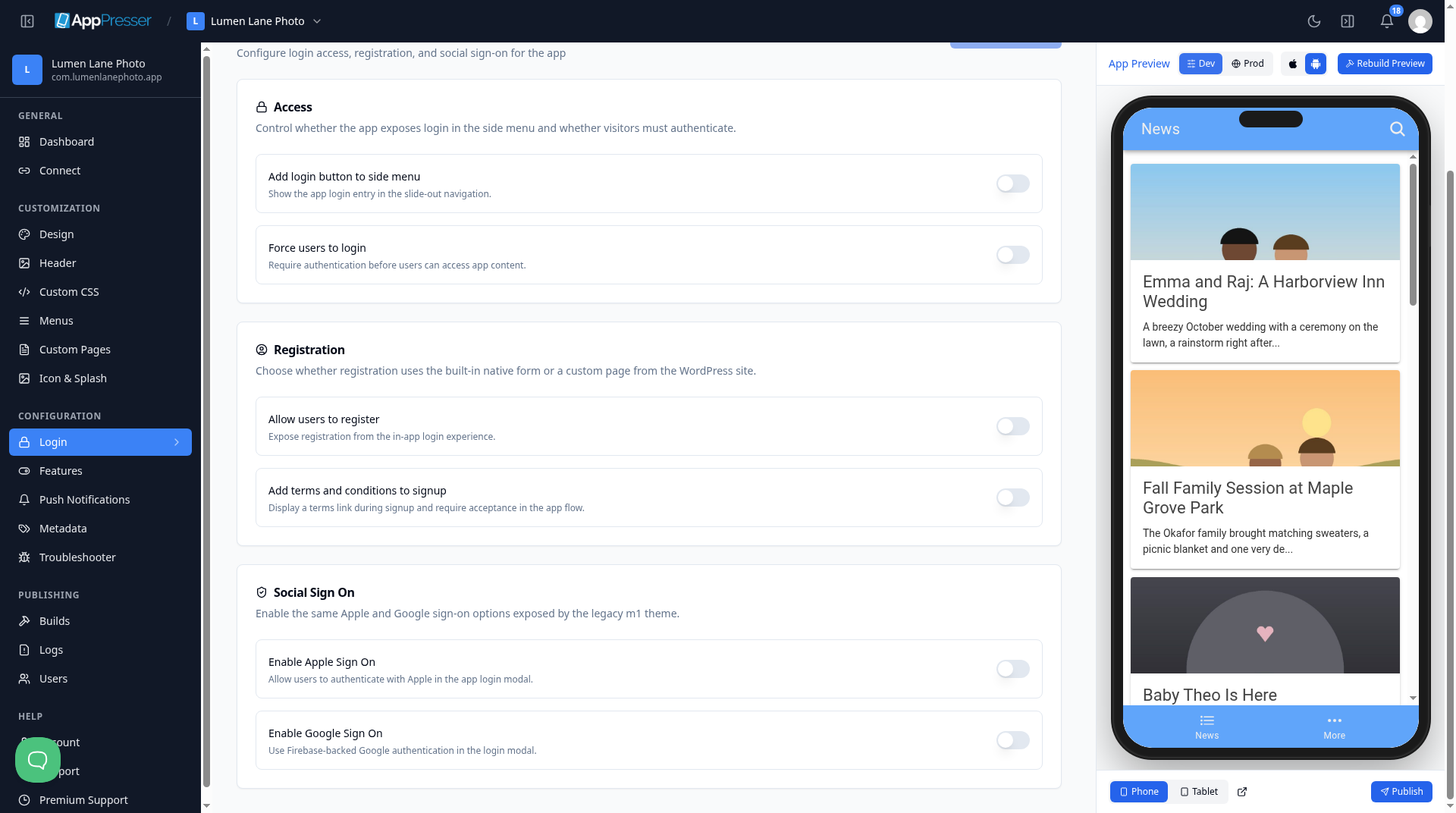
- Find the phone on the right side of the builder, under App Preview. It is your app.
- Click around in it as you would tap on a real phone. Open the menus and pages.
- At the top, click Dev to see your latest changes.
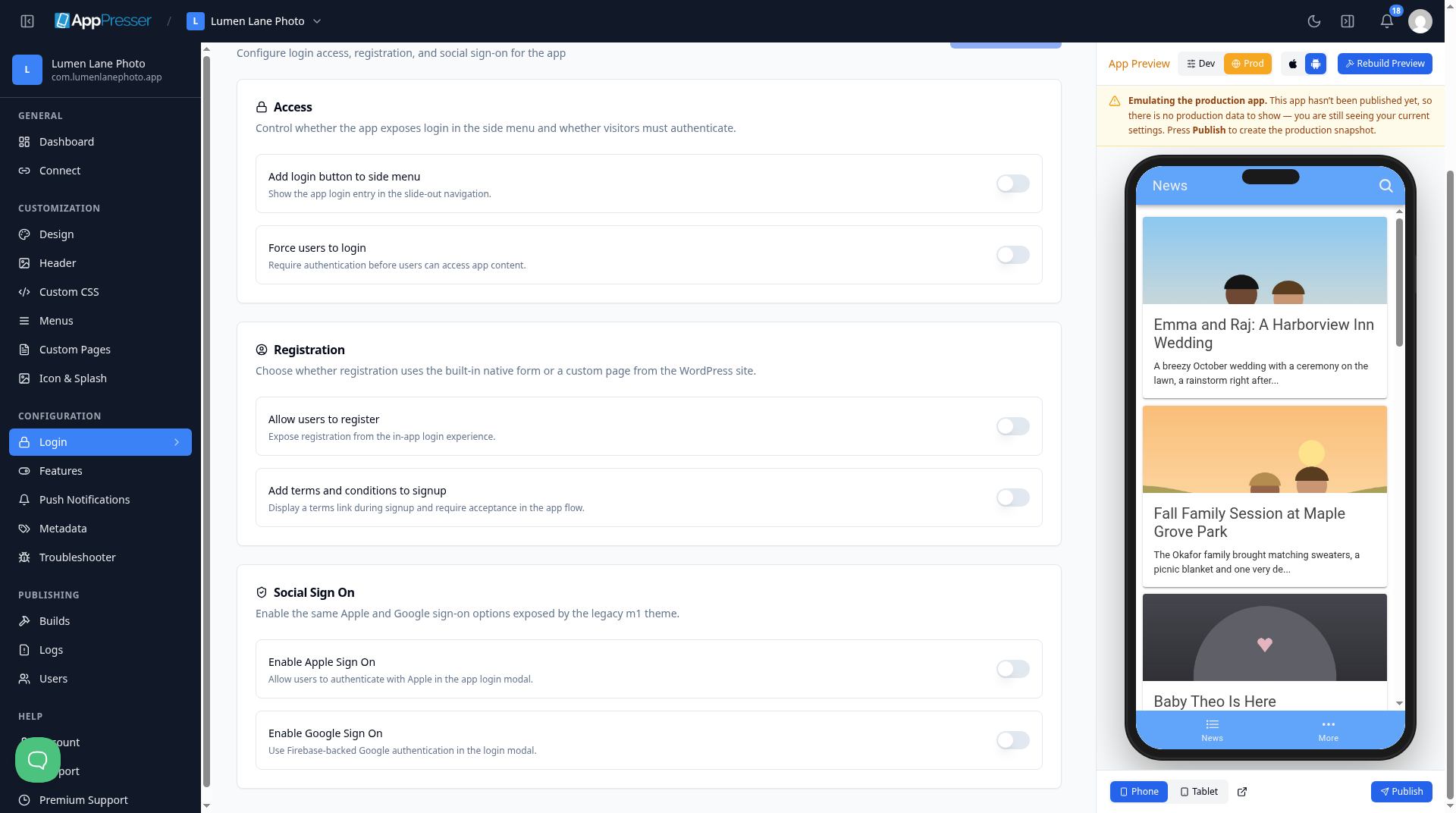
- Click Prod to see the version people get after you publish. If you have not published yet, a yellow note says: "Emulating the production app. This app hasn't been published yet, so there is no production data to show — you are still seeing your current settings. Press Publish to create the production snapshot."
- To see the iPhone or Android look, click the Apple icon (iOS preview styles) or the Android icon (Android preview styles) at the top.
- At the bottom, click Phone or Tablet to change the screen size.
To open the preview in its own browser tab, click the Open App Preview in a new tab icon next to Tablet.
When the preview does not show your changes
- At the top of the preview, click Rebuild Preview one time.
- Wait 3 to 5 minutes. Do not click it again while it runs.
Careful: Some things work only in the app on a real phone, such as playing media, the camera and buying. The preview shows them, but clicking them may show a message asking you to try on a device.
You're done when you can open each page of your app in the preview.
Next step
Build your iOS and Android apps (Builds tab)
Related articles
這篇文章對您有幫助嗎?
輸入時結果會即時更新。按斜槓鍵(/)可跳轉到搜尋。
沒有找到?
我們的支援團隊可協助解決設定、建置和應用程式商店相關問題。