
Preview your app (App Preview)
Build Your App · AppPresser Docs
Preview your app (App Preview)
This article has not been translated yet, so it is shown in English.
Your app journey: step 5 of 9, Preview your app. New here? Read Start here: build your app with AppPresser first.
What you'll do: Use the App Preview on the right of the builder to see how your app looks and works, and check every change before you build.
Before you start
- Open your app in the builder. See Get to know the app builder.
Use the preview
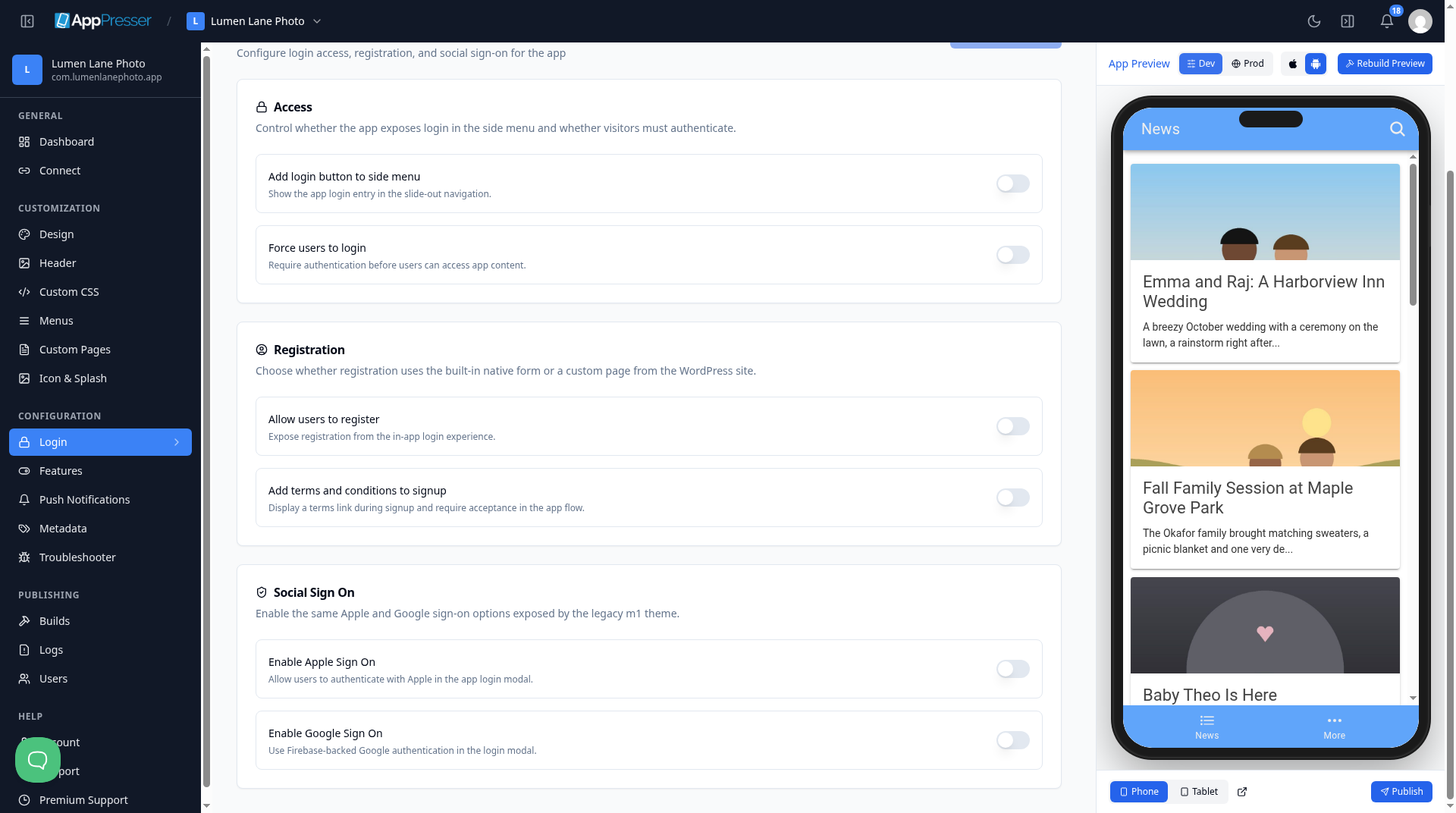
- Find the phone on the right side of the builder, under App Preview. It is your app.
- Click around in it as you would tap on a real phone. Open the menus and pages.
- At the top, click Dev to see your latest changes.
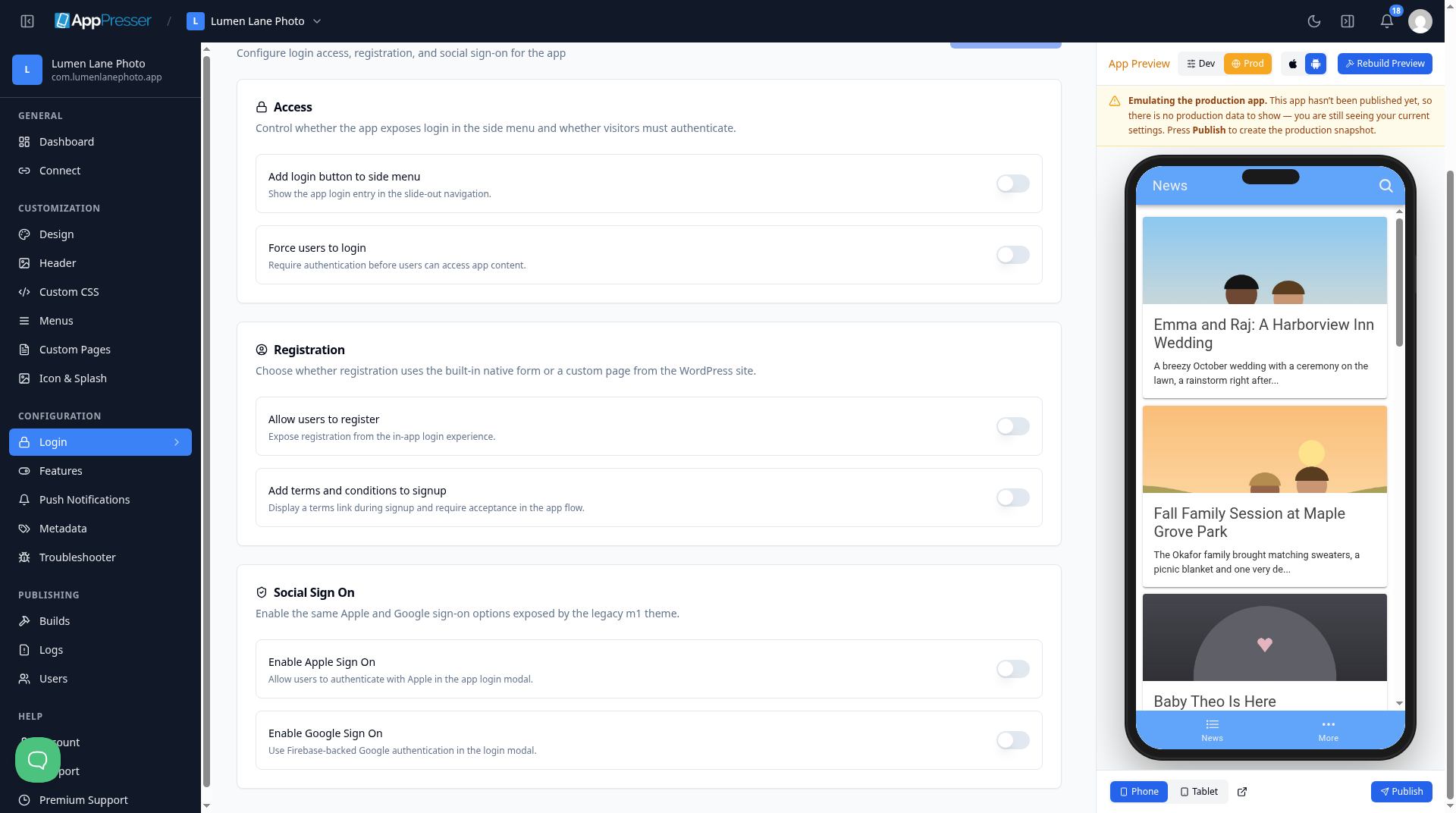
- Click Prod to see the version people get after you publish. If you have not published yet, a yellow note says: "Emulating the production app. This app hasn't been published yet, so there is no production data to show — you are still seeing your current settings. Press Publish to create the production snapshot."
- To see the iPhone or Android look, click the Apple icon (iOS preview styles) or the Android icon (Android preview styles) at the top.
- At the bottom, click Phone or Tablet to change the screen size.
To open the preview in its own browser tab, click the Open App Preview in a new tab icon next to Tablet.
When the preview does not show your changes
- At the top of the preview, click Rebuild Preview one time.
- Wait 3 to 5 minutes. Do not click it again while it runs.
Careful: Some things work only in the app on a real phone, such as playing media, the camera and buying. The preview shows them, but clicking them may show a message asking you to try on a device.
You're done when you can open each page of your app in the preview.
Next step
Build your iOS and Android apps (Builds tab)
Related articles
War das hilfreich?
Ergebnisse aktualisieren sich während der Eingabe. Slash drücken, um zur Suche zu springen.
Nicht gefunden?
Unser Support-Team hilft bei Einrichtung, Builds und App Store-Fragen.