
Set up your app header (Header)
Build Your App · AppPresser 文件
Set up your app header (Header)
本文尚未翻譯,因此以英文顯示。
Your app journey: step 3 of 9, Connect and set up. New here? Read Start here: build your app with AppPresser first.
What you'll do: Add your logo to the header, the bar at the top of your app, and choose how the status bar and share button look.
Before you start
- Open your app in the builder. See Get to know the app builder.
- Have your logo ready as a PNG picture file.
Add your header logo
- In the left menu, under Customization, click Header.
- Under Header Logo, click Upload file.
- Choose your PNG logo file. It uploads right away.
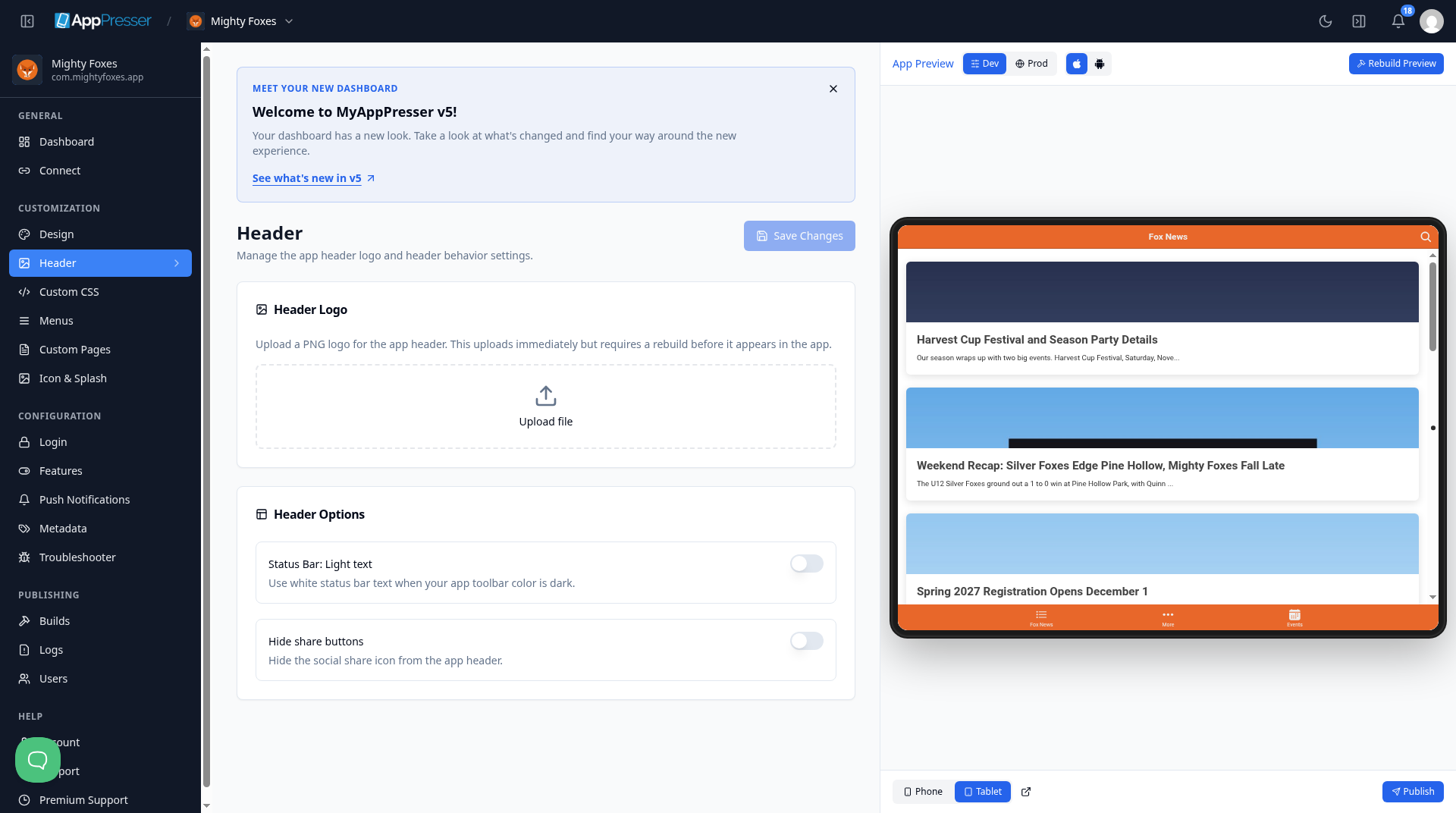
Careful: Your new logo shows in your app only after you make a new build. See Build your iOS and Android apps (Builds tab).
Choose your header options
- Under Header Options, turn on Status Bar: Light text if your app toolbar color is dark. This makes the status bar text white. The status bar is the thin strip at the very top of the phone with the time and battery.
- To hide the share icon in your app header, turn on Hide share buttons.
- Click Save Changes at the top right.
You're done when your logo is uploaded and Save Changes is gray again.
Next step
Set up your menus and bottom tabs (Menus)
Related articles
這篇文章對您有幫助嗎?
輸入時結果會即時更新。按斜槓鍵(/)可跳轉到搜尋。
沒有找到?
我們的支援團隊可協助解決設定、建置和應用程式商店相關問題。