
Set up your app header (Header)
Build Your App · Docs AppPresser
Set up your app header (Header)
This article has not been translated yet, so it is shown in English.
Your app journey: step 3 of 9, Connect and set up. New here? Read Start here: build your app with AppPresser first.
What you'll do: Add your logo to the header, the bar at the top of your app, and choose how the status bar and share button look.
Before you start
- Open your app in the builder. See Get to know the app builder.
- Have your logo ready as a PNG picture file.
Add your header logo
- In the left menu, under Customization, click Header.
- Under Header Logo, click Upload file.
- Choose your PNG logo file. It uploads right away.
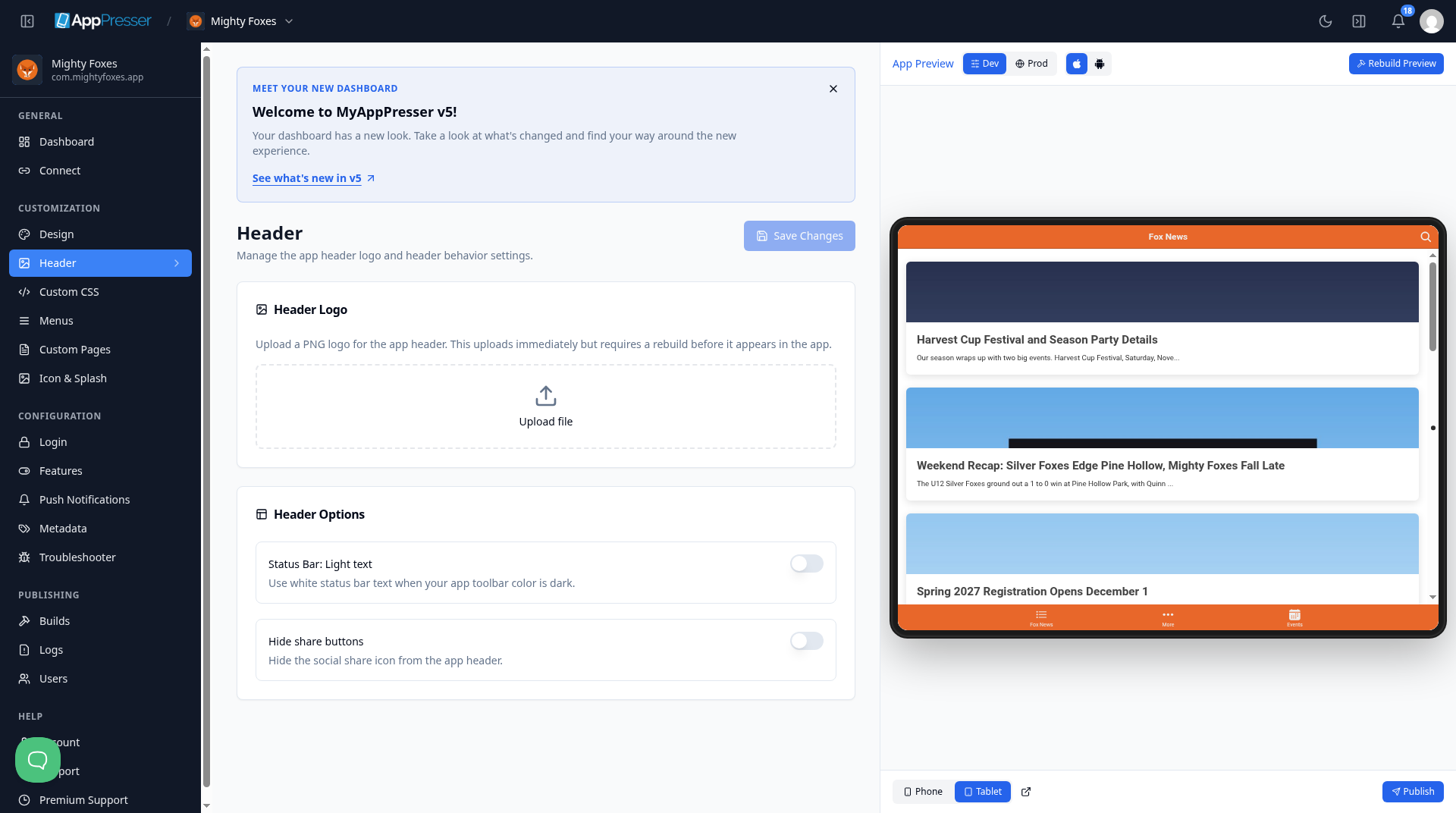
Careful: Your new logo shows in your app only after you make a new build. See Build your iOS and Android apps (Builds tab).
Choose your header options
- Under Header Options, turn on Status Bar: Light text if your app toolbar color is dark. This makes the status bar text white. The status bar is the thin strip at the very top of the phone with the time and battery.
- To hide the share icon in your app header, turn on Hide share buttons.
- Click Save Changes at the top right.
You're done when your logo is uploaded and Save Changes is gray again.
Next step
Set up your menus and bottom tabs (Menus)
Related articles
Isto foi útil?
Os resultados atualizam enquanto você digita. Pressione barra para ir à pesquisa.
Não encontrou?
A nossa equipa de suporte pode ajudar com configuração, builds e dúvidas sobre lojas.