
Show a product slider (WooCommerce Slider block)
Build Your App · AppPresser 文件
Show a product slider (WooCommerce Slider block)
本文尚未翻譯,因此以英文顯示。
Your app journey: step 4 of 9, Add pages and features. New here? Read Start here: build your app with AppPresser first.
What you'll do: Show your products as slides that shoppers swipe left and right. It is good for showing your best products at the top of a page.
Before you start
- Install and activate the WooCommerce plugin on your WordPress website, with some published products. WooCommerce is the WordPress plugin for running an online shop.
- Install and activate the AppCommerce plugin, AppPresser's add-on for WooCommerce, on your WordPress website.
- Connect your app to your WordPress website. See Connect your WordPress site and turn on Features.
Add the block
- In the left menu, under Customization, click Custom Pages.
- Click the name of the page you want to change. To make a new page instead, click Add New Page, type a title, keep Page Builder selected and click Create Page.
- Below the last block on the page, click Add Block.
- In Search blocks…, type WooCommerce Slider, then click the block. It is added to the bottom of the page.
- Leave the settings as they are to show all your products, or change them. See Settings below.
- Click Save Changes at the top of the editor.
- To see a new page in the App Preview, add it to a menu. See Add a page to your app menu.
What you see in the app
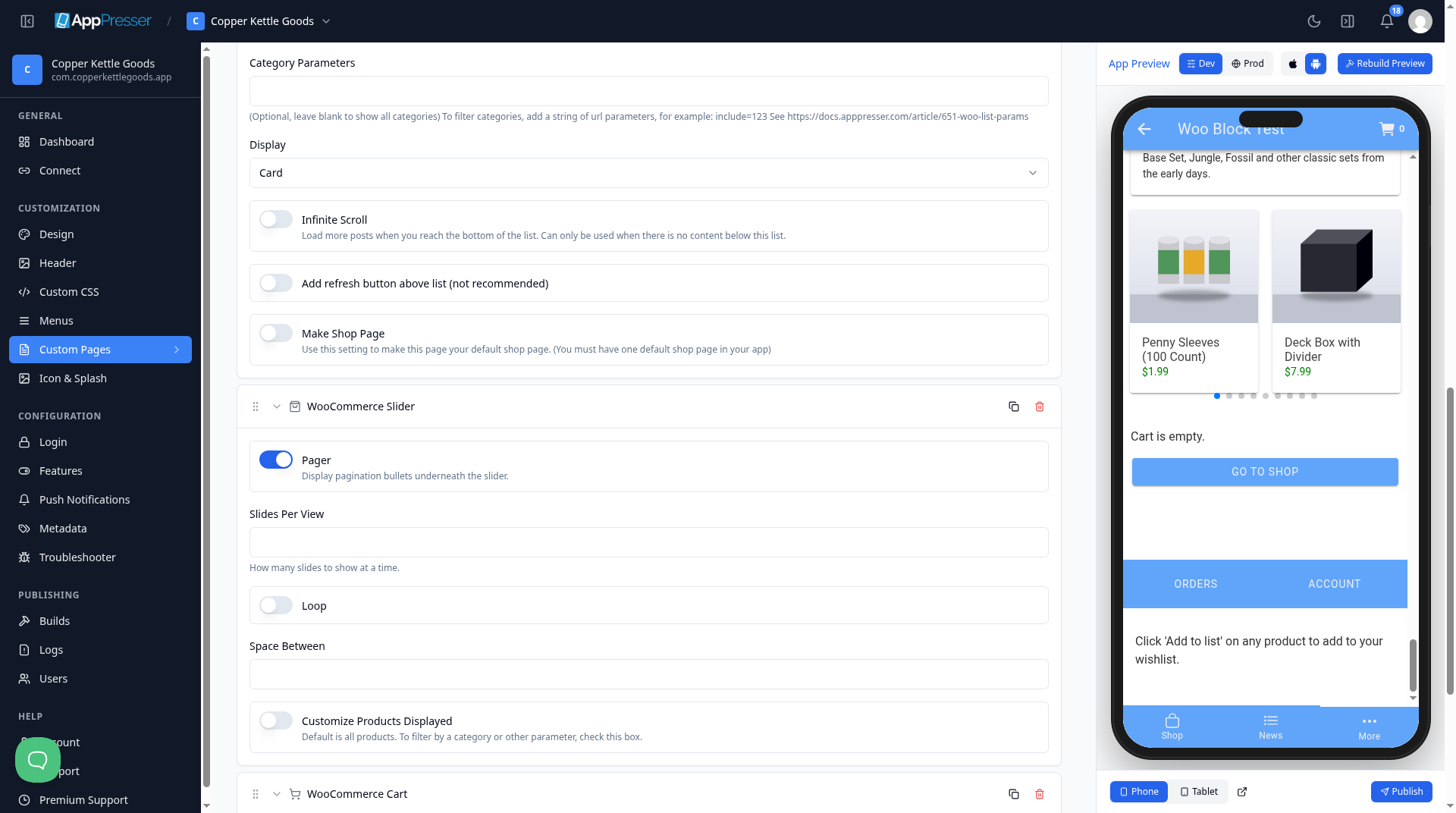
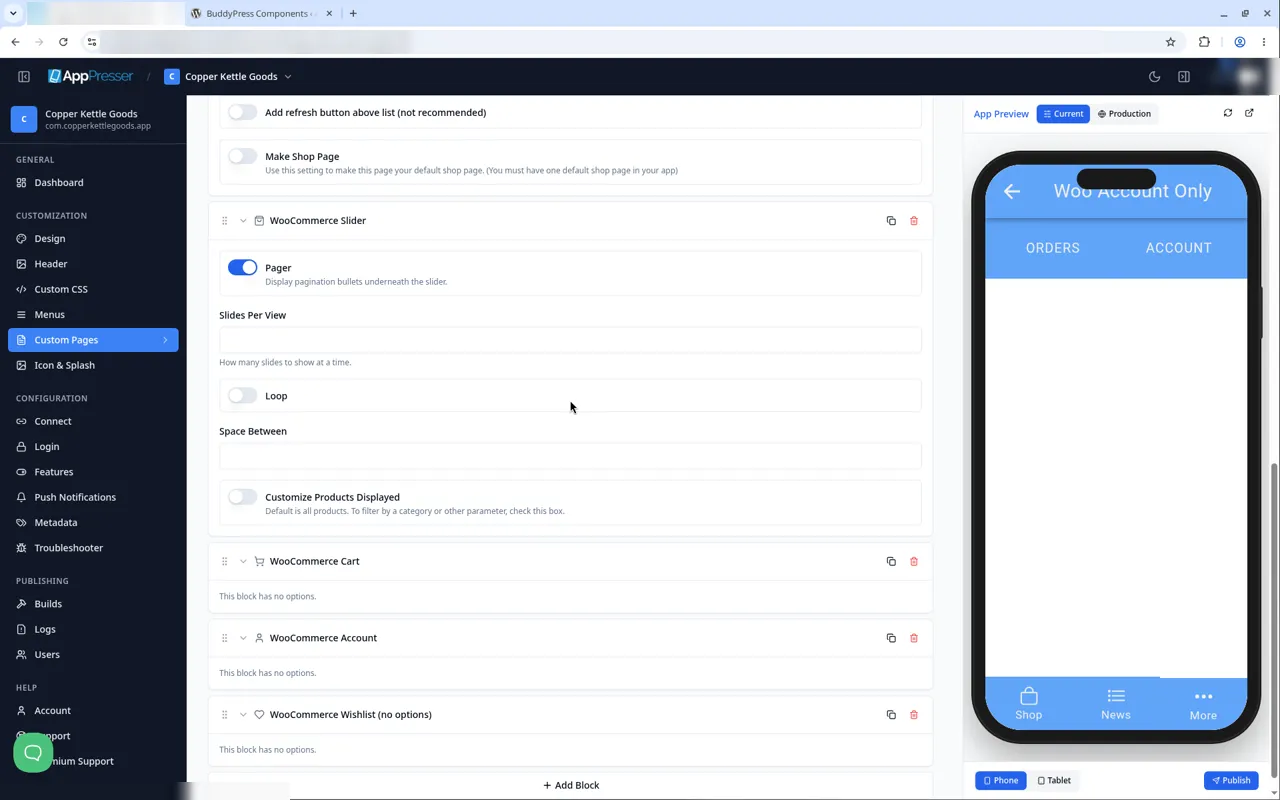
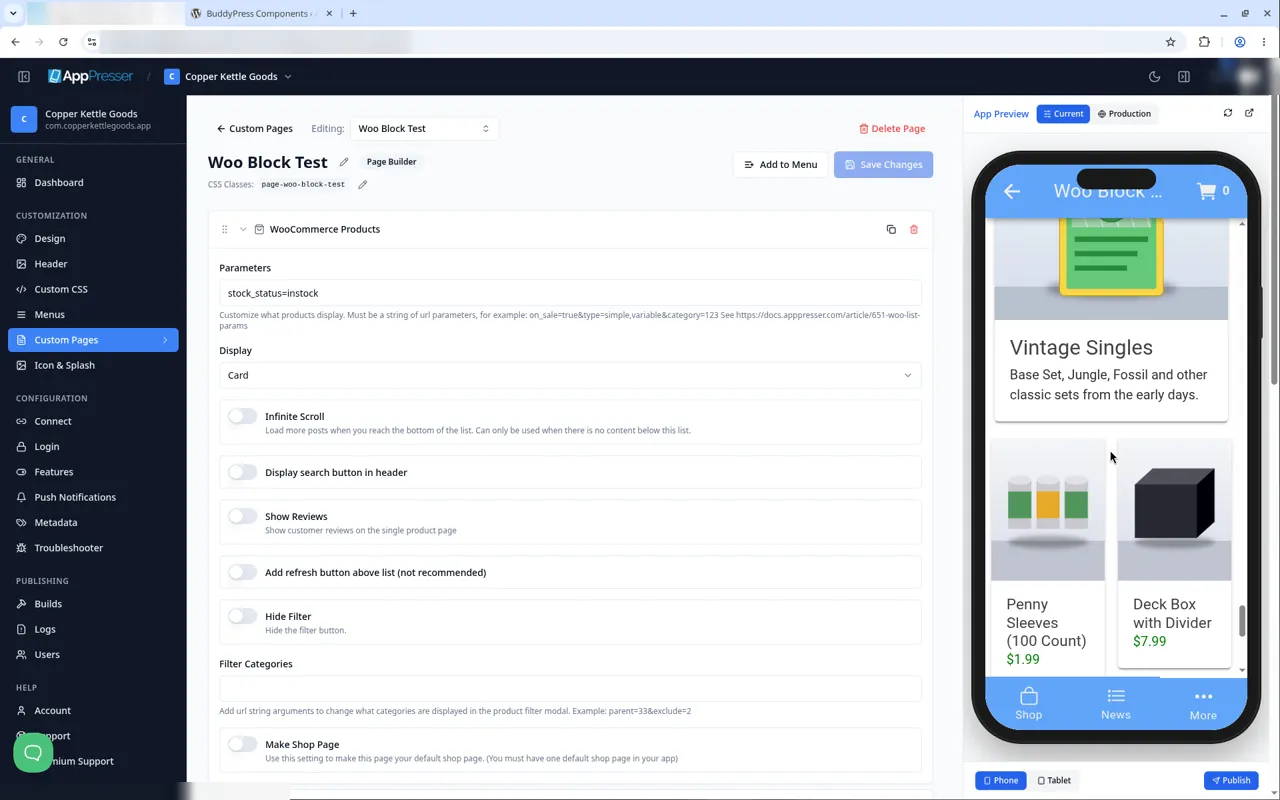
Your products show as cards in a row. Shoppers swipe to see the next one. The dots under the slider show how many slides there are.
Settings
Swipe sideways to see the rest of this table.
| Setting | What it does |
|---|---|
| Pager | Shows dots under the slider. On at the start. |
| Slides Per View | How many slides show at once. |
| Loop | Goes back to the first slide after the last one. |
| Space Between | The space between slides. |
| Customize Products Displayed | Shows only some products, for example one category. For advanced users. |
Tips
Tips
- To move a block, drag it by its handle (the dots on the left). Click the arrow to fold it closed.
- To copy a block, click the Duplicate icon.
- To turn a setting on or off, click the switch itself, not the words next to it.
- After you save, open the page in the App Preview and check your changes.
Careful: The trash icon removes a block right away. Check before you click.
You're done when the block shows on your page in the App Preview.
Next step
Add a shopping cart (WooCommerce Cart block)
Related articles
這篇文章對您有幫助嗎?
輸入時結果會即時更新。按斜槓鍵(/)可跳轉到搜尋。
沒有找到?
我們的支援團隊可協助解決設定、建置和應用程式商店相關問題。