
Build app pages with blocks (Custom Pages)
Build Your App · AppPresser 文档
Build app pages with blocks (Custom Pages)
本文尚未翻译,因此以英文显示。
Your app journey: step 4 of 9, Add pages and features. New here? Read Start here: build your app with AppPresser first.
What you'll do: Make the pages of your app on the Custom Pages screen by stacking blocks. A block is one piece of a page, like a title, a button or a list of posts.
Before you start
- Connect your app to your WordPress website. See Connect your WordPress site and turn on Features.
Make a new page
- In the left menu, under Customization, click Custom Pages. A list of your pages opens.
- Click Add New Page. A window titled Add New Page opens.
- In Title, type a page title, for example About Us.
- Under Page Type, keep Page Builder selected. This is the type that uses blocks. The other types are Custom HTML and Media Playlist.
- Click Create Page. Or click Cancel to close the window without creating a page.
This guide covers Page Builder pages.
Add blocks to the page
- Below the last block on the page, click Add Block. The Add Block window opens.
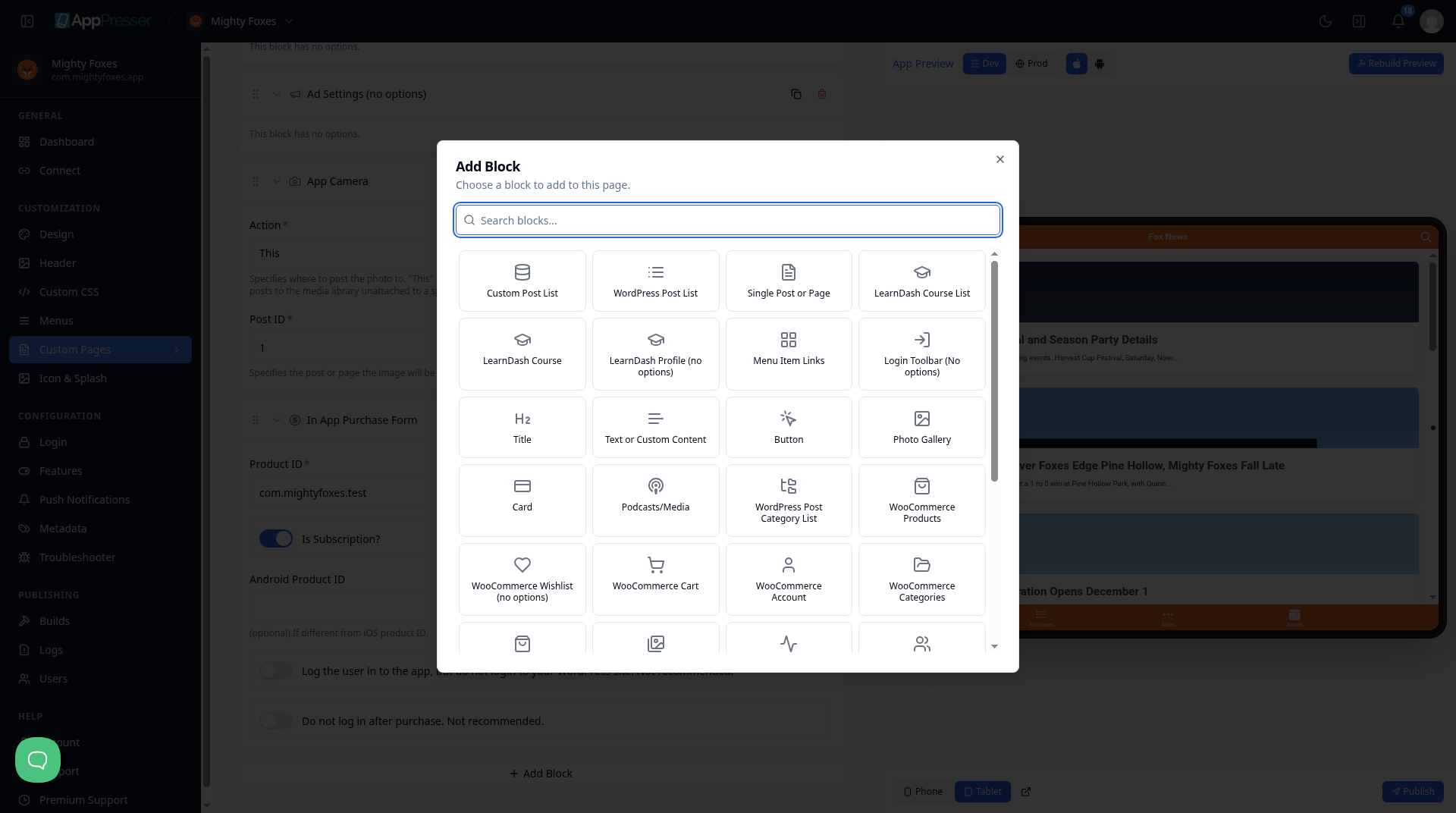
- Type the block name in Search blocks…, or scroll the list.
- Click the block. It is added to the bottom of the page.
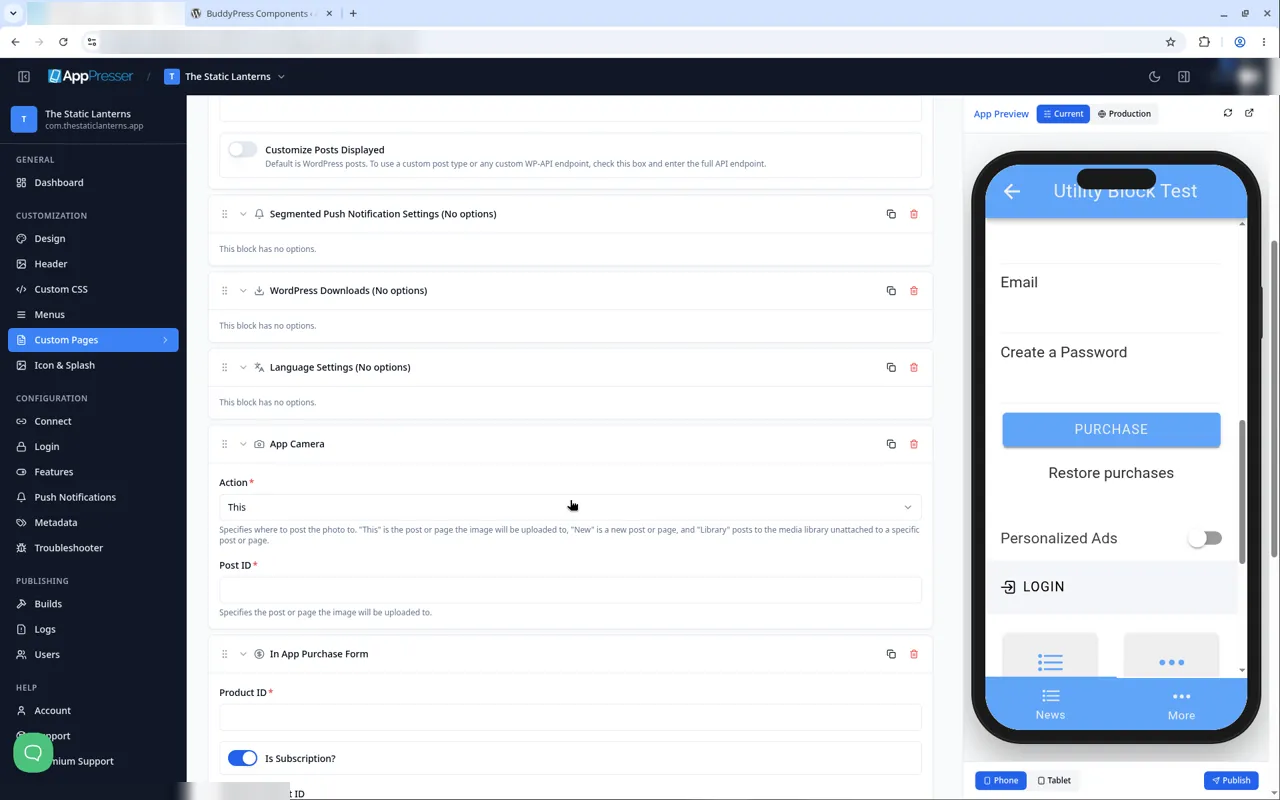
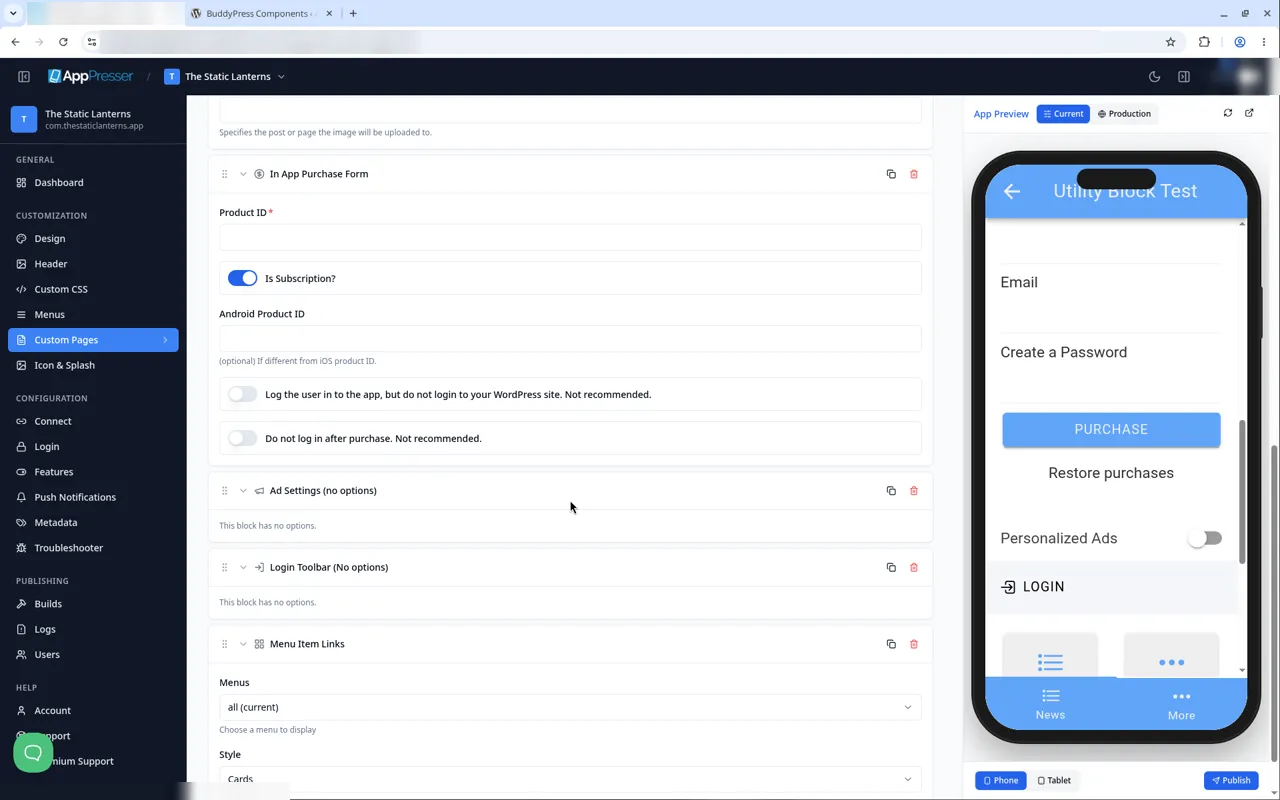
- Fill in the block's settings. A box marked with * must be filled in.
- Add more blocks the same way.
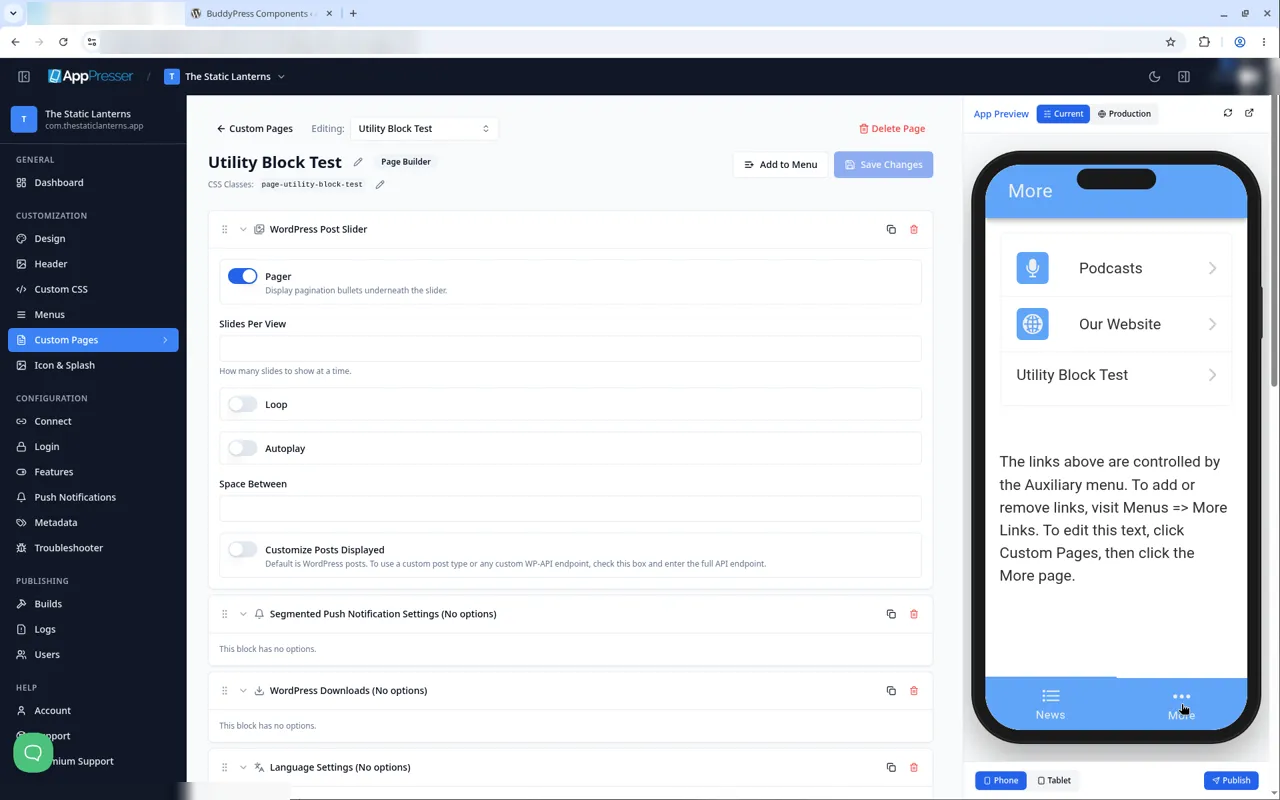
- Click Save Changes at the top of the editor.
Show the page in your app
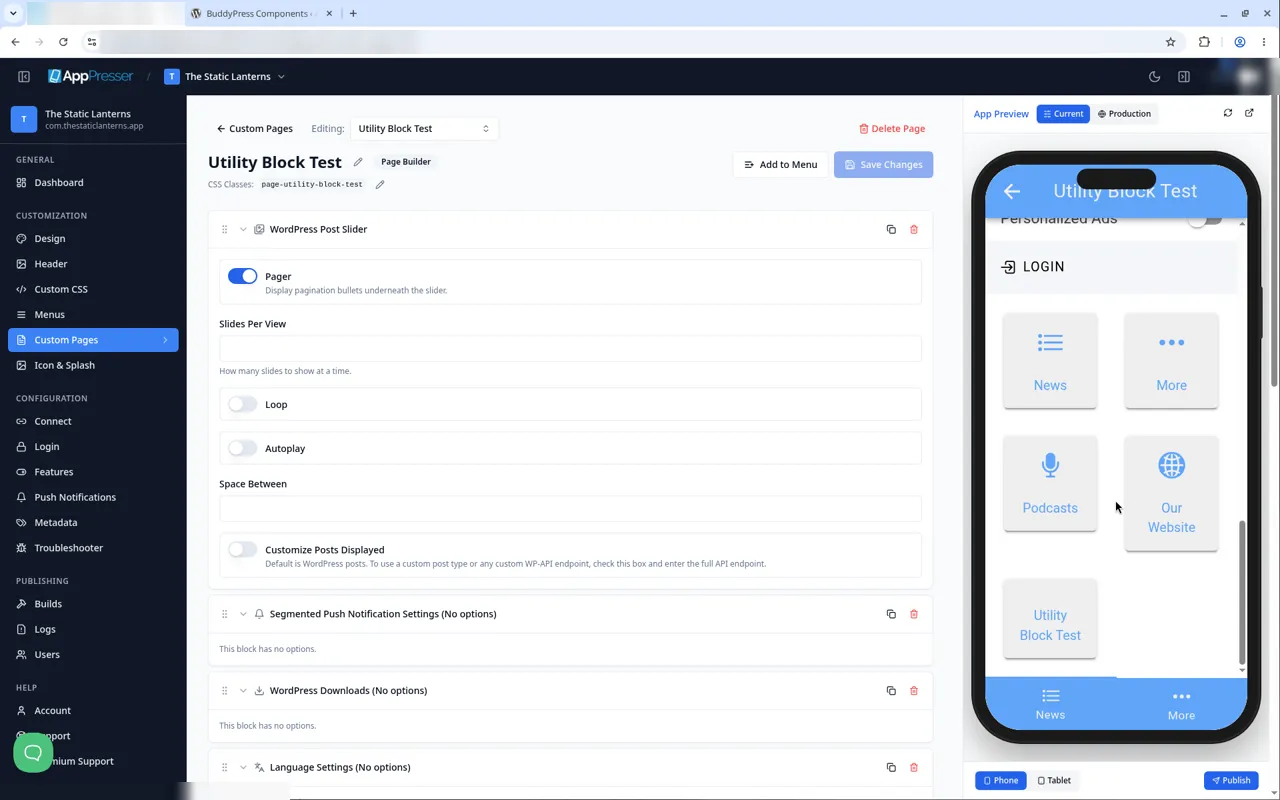
A new page shows in your app only after you add it to a menu. See Add a page to your app menu for the steps. Then open the page from that menu in the App Preview.
Some blocks only work on a real phone
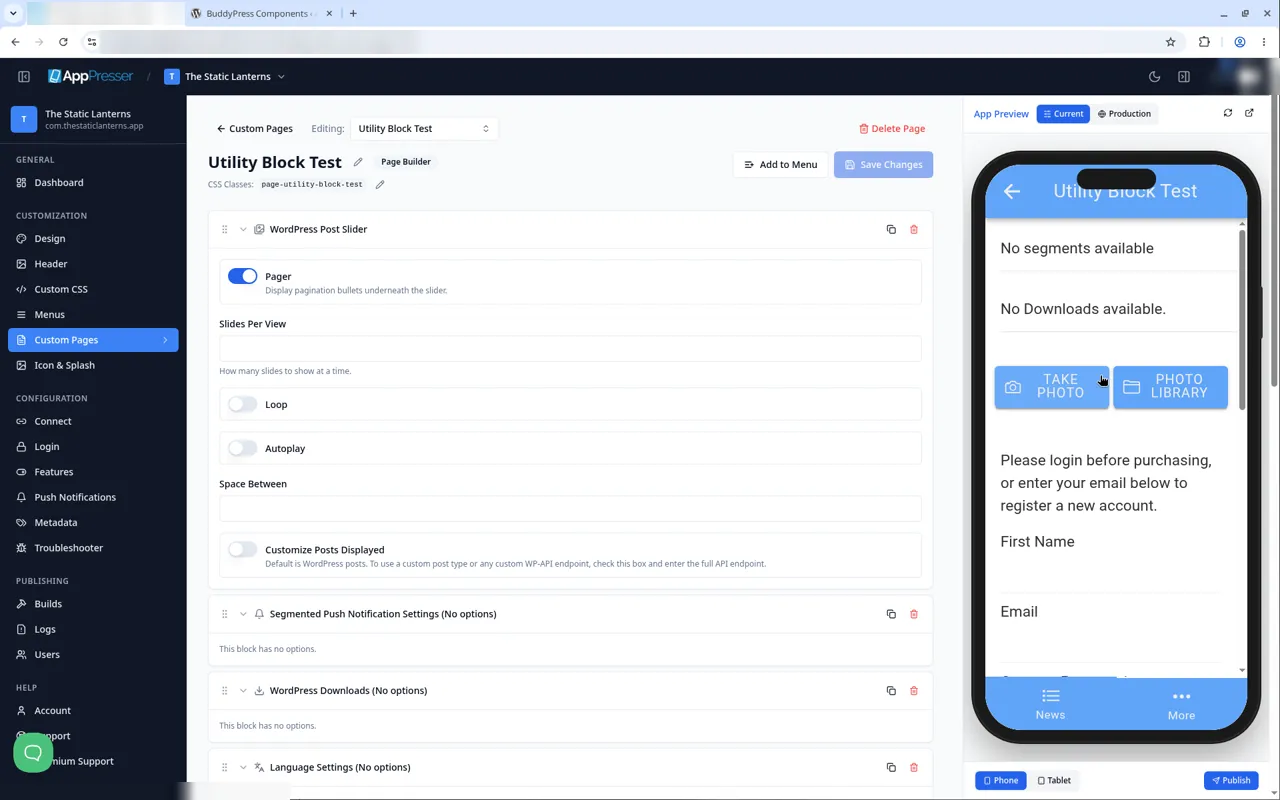
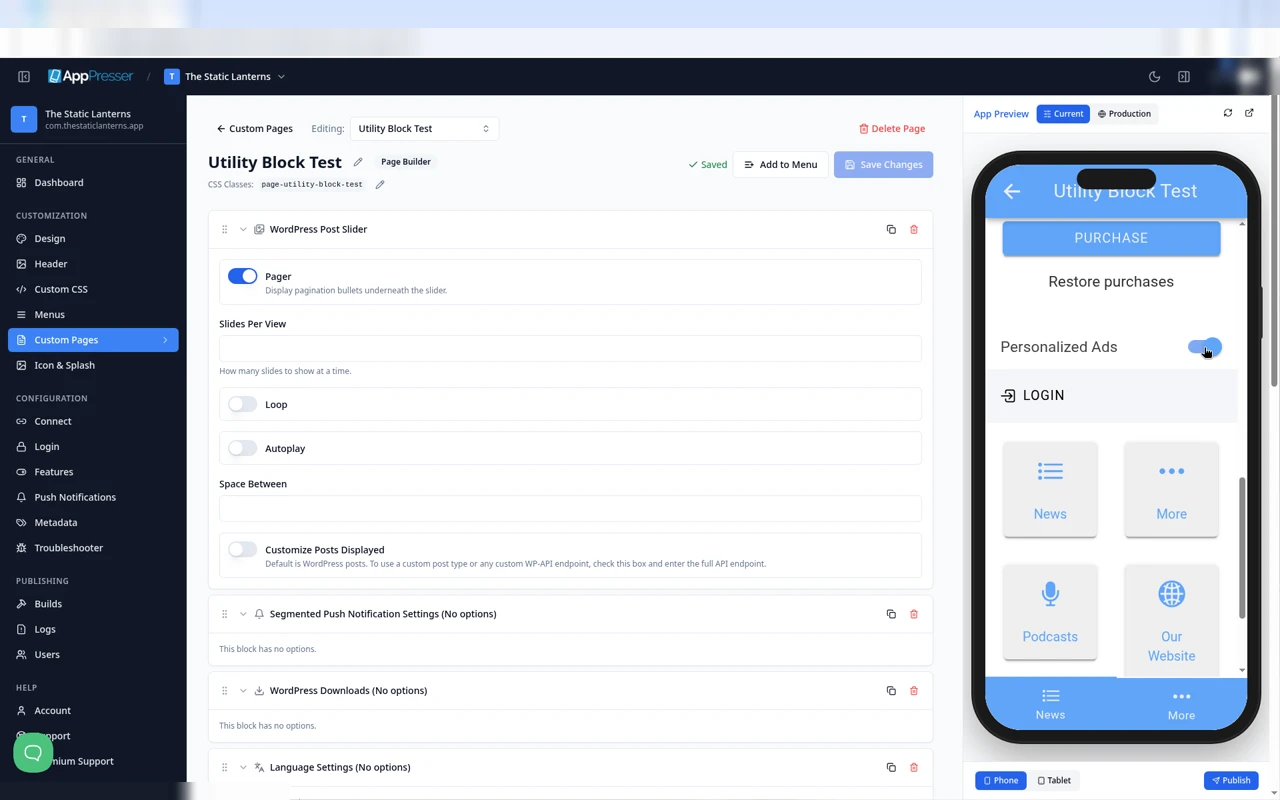
The App Preview shows these blocks, but some parts work only in the app on a phone:
- App Camera: taking or picking a photo.
- In App Purchase Form: buying.
- Segmented Push Notification Settings, WordPress Downloads and Ad Settings: these need features that only run on a phone.
All the blocks you can add
WordPress content
- Show your WordPress posts (WordPress Post List block)
- Show posts from any API (Custom Post List block): a list from any public JSON web address
- Show your post categories (WordPress Post Category List block)
- Show a post slider (WordPress Post Slider block)
- Show one post or page (Single Post or Page block)
- Show your events (Events block)
- Show podcasts, audio and video (Podcasts/Media block)
- Add menu tiles to a page (Menu Item Links block)
- Show downloaded media (WordPress Downloads block)
Building blocks
- Add a heading (Title block)
- Add your own text and pictures (Text or Custom Content block)
- Add a button (Button block)
- Add a card (Card block)
- Add a photo gallery (Photo Gallery block)
- Add a login bar (Login Toolbar block)
Phone features
- Let people upload photos (App Camera block)
- Sell in-app purchases (In App Purchase Form block)
- Let people choose personalized ads (Ad Settings block)
- Let people choose their push topics (Segmented Push Notification Settings block)
- Let people choose a language (Language Settings block)
WooCommerce (online shop)
- Show your products (WooCommerce Products block)
- Show your product categories (WooCommerce Categories block)
- Show a product slider (WooCommerce Slider block)
- Add a shopping cart (WooCommerce Cart block)
- Add a wishlist (WooCommerce Wishlist block)
- Show orders and account details (WooCommerce Account block)
LearnDash (online courses)
- Show a list of courses (LearnDash Course List block)
- Show one course (LearnDash Course block)
- Show a student profile (LearnDash Profile block)
- Show courses from your website (LearnDash Courses (Iframes) block)
BuddyPress and BuddyBoss (community)
- Show your community activity feed (BuddyPress/Boss Activity block)
- Show your community members (BuddyPress/Boss Members block)
- Show your community groups (BuddyPress/Boss Groups block)
- Add private messages (BuddyPress/Boss Messages block)
- Add a member profile (BuddyPress/Boss Profile block)
Tips
Tips
- To move a block, drag it by its handle (the dots on the left). Click the arrow to fold it closed.
- To copy a block, click the Duplicate icon.
- To turn a setting on or off, click the switch itself, not the words next to it.
- After you save, open the page in the App Preview and check your changes.
Careful: The trash icon removes a block right away. Check before you click.
You're done when your page has the blocks you want and you have clicked Save Changes.
Next step
Related articles
这篇文章对您有帮助吗?
输入时结果会实时更新。按斜杠键(/)可跳转到搜索。
没有找到?
我们的支持团队可协助解决设置、构建和应用商店相关问题。