
Add your app icon and splash screen (Icon & Splash)
Build Your App · AppPresser 文档
Add your app icon and splash screen (Icon & Splash)
本文尚未翻译,因此以英文显示。
Your app journey: step 3 of 9, Connect and set up. New here? Read Start here: build your app with AppPresser first.
What you'll do: Add your app icon, the small picture people tap on their home screen, and your splash screen, the picture that shows while your app opens.
Before you start
- Make an icon picture: a .png file, 1024 by 1024 pixels, with no see-through (transparent) parts.
- Make a splash picture: a .png file, 2732 by 2732 pixels, with no see-through parts.
Tip: Not sure how to start? Click Download sample image next to the size rules in each section. You get a picture in the right size to design on.
Add your app icon
- In the left menu, under Customization, click Icon & Splash.
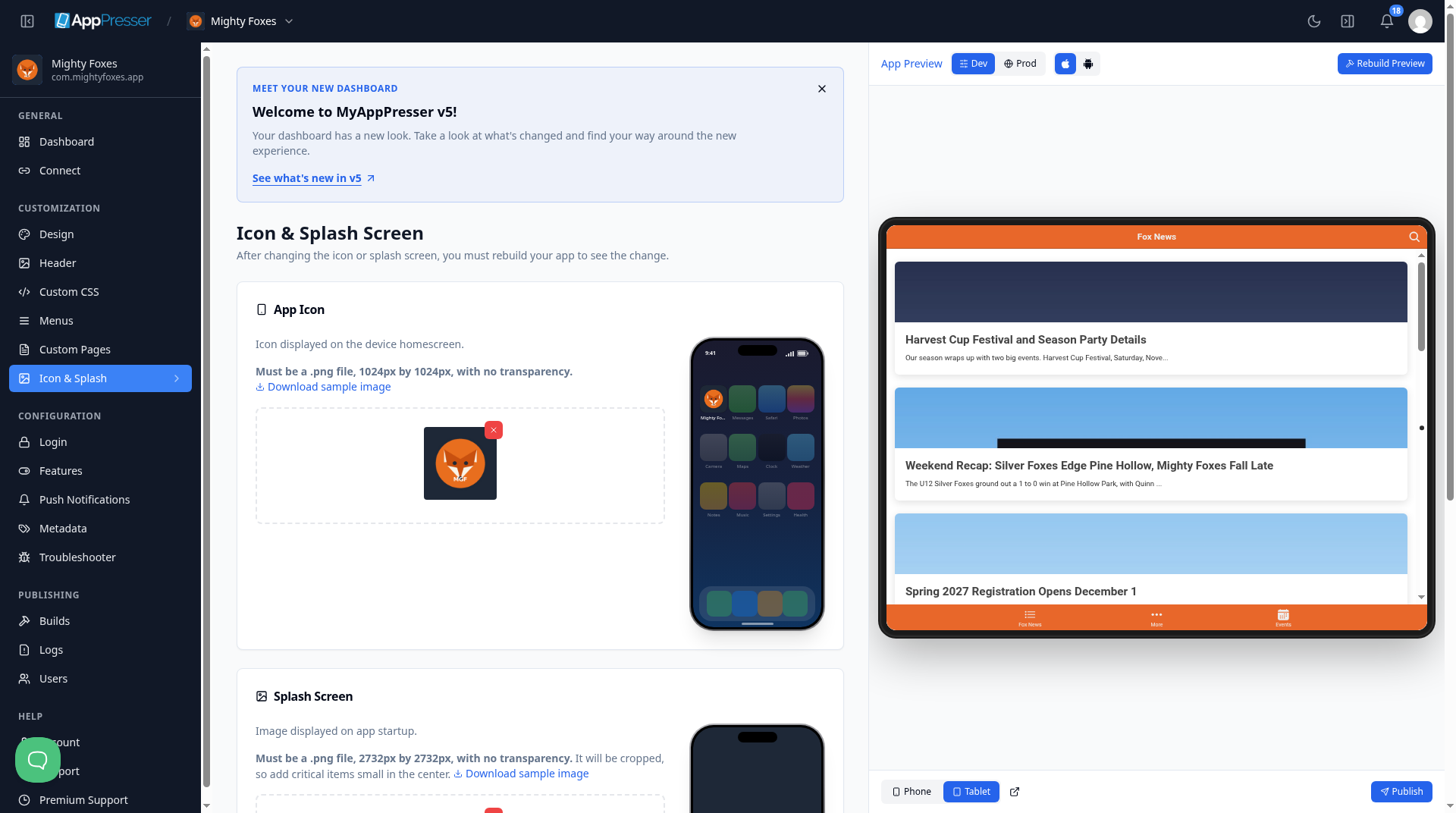
- Under App Icon, click Upload file.
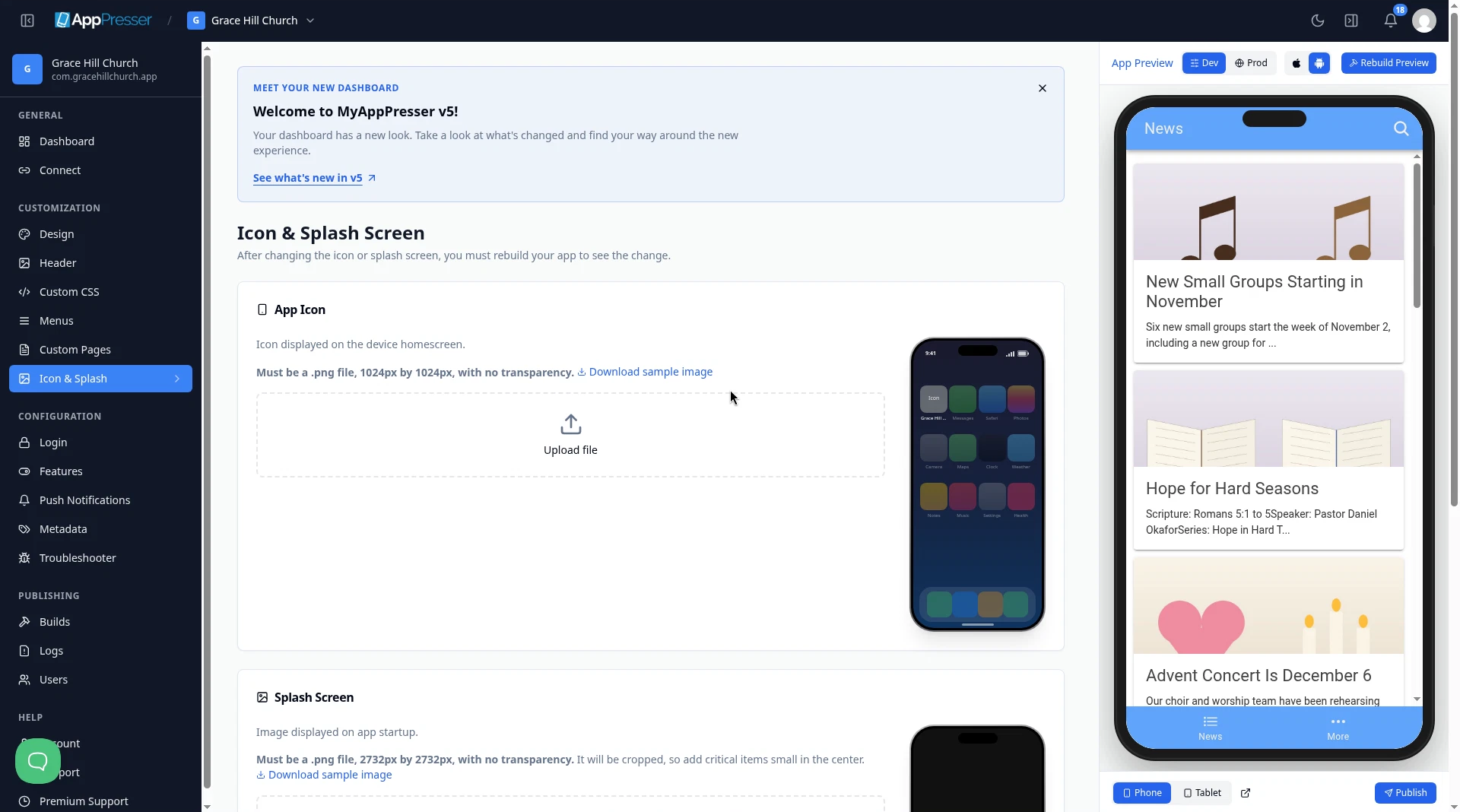
Choose your 1024 by 1024 .png file. The phone picture next to the box shows how your icon looks on a home screen.
Add your splash screen
- Under Splash Screen, click Upload file.
- Choose your 2732 by 2732 .png file. Check Splash Preview to see how it looks.
Careful: The splash picture gets cut off at the edges on some phones. Keep your logo and any words small and in the middle.
Choose background colors
- Under Background Colors, pick a Splash Background Color. It shows around your splash picture on phones with a different screen shape.
- Pick an Icon Background Color. On Android, your icon sits on a layer of this color.
- Click Save.
Choose colors that match your pictures for a seamless look.
Careful: You see the new icon and splash screen only after you make a new build of your app. See Build your iOS and Android apps (Builds tab).
You're done when your icon and splash pictures show on the Icon & Splash Screen page and Save is gray again.
Next step
Related articles
这篇文章对您有帮助吗?
输入时结果会实时更新。按斜杠键(/)可跳转到搜索。
没有找到?
我们的支持团队可协助解决设置、构建和应用商店相关问题。