
Choose your app colors and fonts (Design)
Build Your App · AppPresser 文档
Choose your app colors and fonts (Design)
本文尚未翻译,因此以英文显示。
Your app journey: step 3 of 9, Connect and set up. New here? Read Start here: build your app with AppPresser first.
What you'll do: Choose your app's colors and fonts on the Design screen, and check how they look in the App Preview.
Before you start
- Open your app in the builder. See Get to know the app builder.
- Have your brand colors ready as hex codes. A hex code is a short code for a color, like #387ef5. Most design tools show them.
Choose your colors
- In the left menu, under Customization, click Design.
- Under App Colors, click the box for a color, for example Header / Tab Background.
- Type a hex code, for example #387ef5. You can also type a short code like #fff.
- Do the same for each color you want to change.
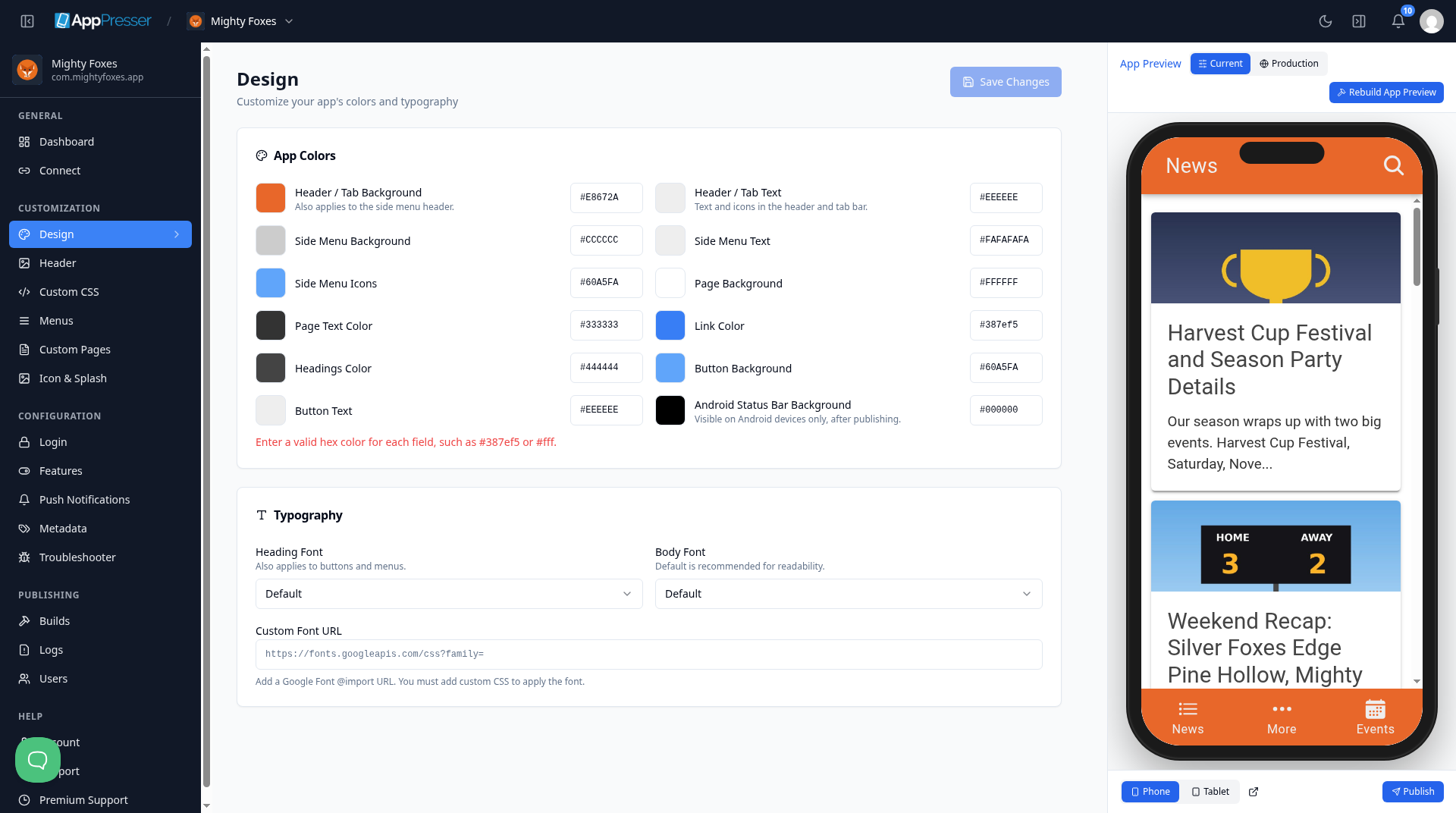
You can change these colors: Header / Tab Background, Header / Tab Text, Side Menu Background, Side Menu Text, Side Menu Icons, Page Background, Page Text Color, Link Color, Headings Color, Button Background, Button Text and Android Status Bar Background.
Tip: Pick text colors that are easy to read on their background. Dark text on a light background is easiest to read.
Choose your fonts
- Under Typography, choose a Heading Font. It is also used for buttons and menus.
- Choose a Body Font. This is the font for normal text. Default is a good choice.
- To use a Google Font, paste its @import web address in Custom Font URL. Then add a CSS rule on the Custom CSS screen to apply it. See Add your own styles (Custom CSS).
Save
- Click Save Changes at the top right.
- Check your colors and fonts in the App Preview on the right.
You're done when your new colors and fonts show in the App Preview.
Next step
Set up your app header (Header)
Related articles
这篇文章对您有帮助吗?
输入时结果会实时更新。按斜杠键(/)可跳转到搜索。
没有找到?
我们的支持团队可协助解决设置、构建和应用商店相关问题。