
Show your community activity feed (BuddyPress/Boss Activity block)
Build Your App · AppPresser 文档
Show your community activity feed (BuddyPress/Boss Activity block)
本文尚未翻译,因此以英文显示。
Your app journey: step 4 of 9, Add pages and features. New here? Read Start here: build your app with AppPresser first.
What you'll do: Show your community's activity feed: posts from members and groups, newest first, with likes and comments.
Before you start
- Install and activate the BuddyPress or BuddyBoss plugin on your WordPress website. These plugins add a community to your site, with members, groups and messages.
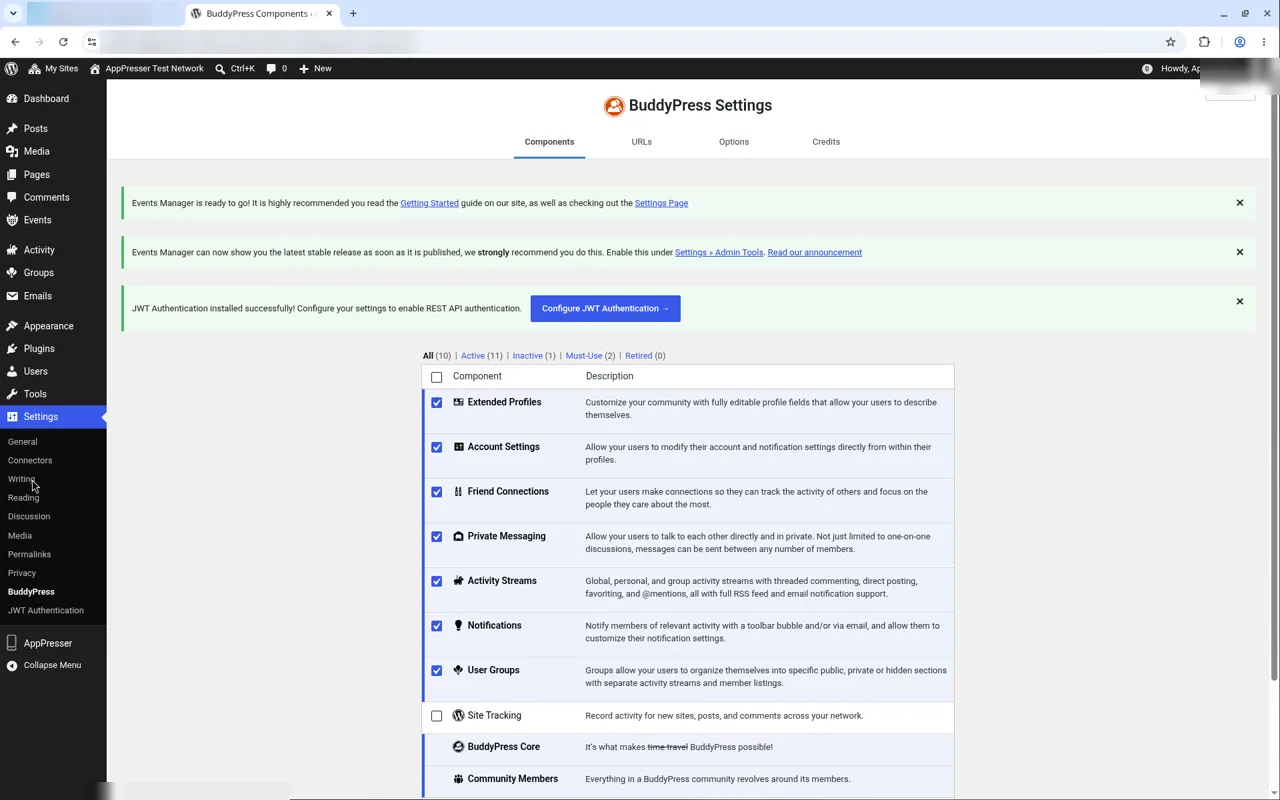
- In BuddyPress, turn on the User Groups, Friend Connections and Private Messaging parts. You find them in your WordPress admin under Settings, then BuddyPress, then the Components tab.
- Install and activate the AppCommunity plugin, AppPresser's add-on for BuddyPress and BuddyBoss, on your WordPress website.
- Connect your app to your WordPress website. See Connect your WordPress site and turn on Features.
Add the block
- In the left menu, under Customization, click Custom Pages.
- Click the name of the page you want to change. To make a new page instead, click Add New Page, type a title, keep Page Builder selected and click Create Page.
- Below the last block on the page, click Add Block.
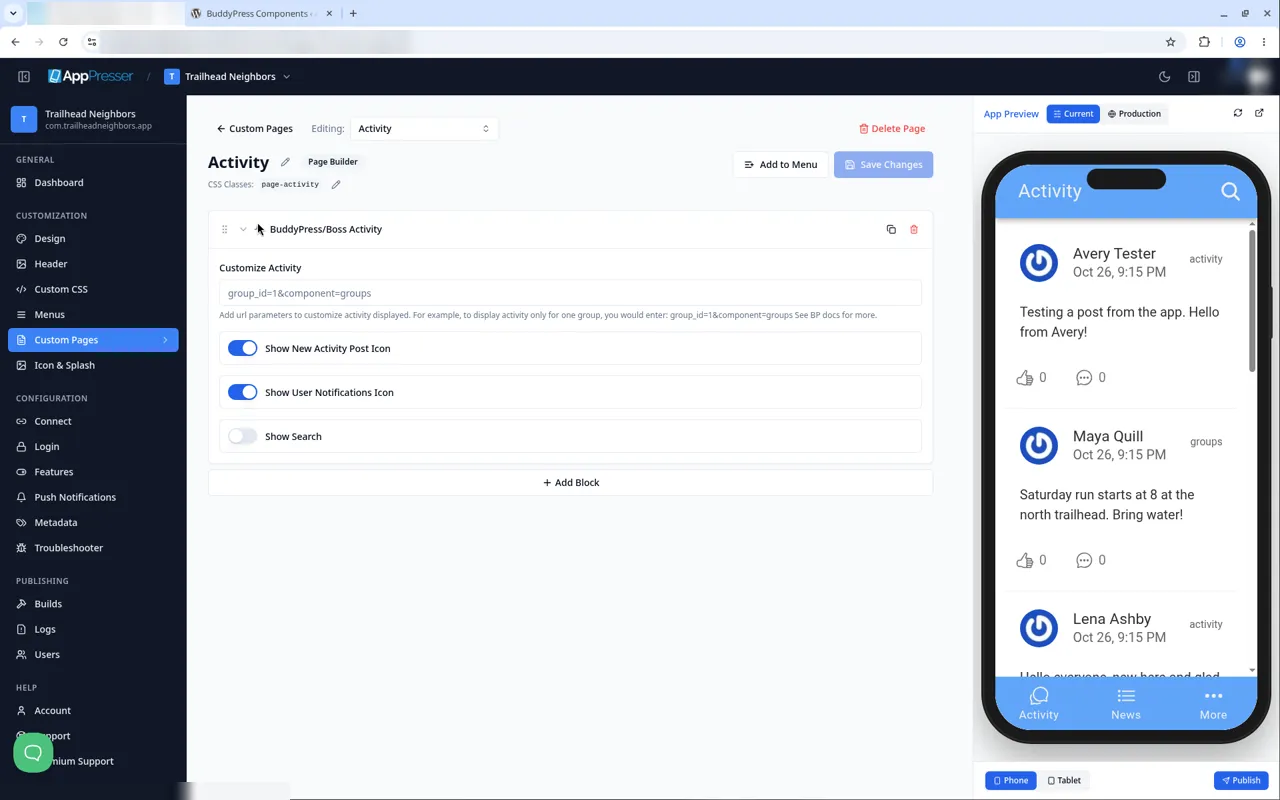
- In Search blocks…, type BuddyPress/Boss Activity, then click the block. It is added to the bottom of the page.
- Leave Customize Activity empty to show all activity. For advanced users, it can show only some activity, for example one group.
- Turn Show New Activity Post Icon, Show User Notifications Icon and Show Search on or off. The first two are on at the start. The post icon lets members post an update, the bell shows their notices and search adds a search icon.
- Click Save Changes at the top of the editor.
- To see a new page in the App Preview, add it to a menu. See Add a page to your app menu.
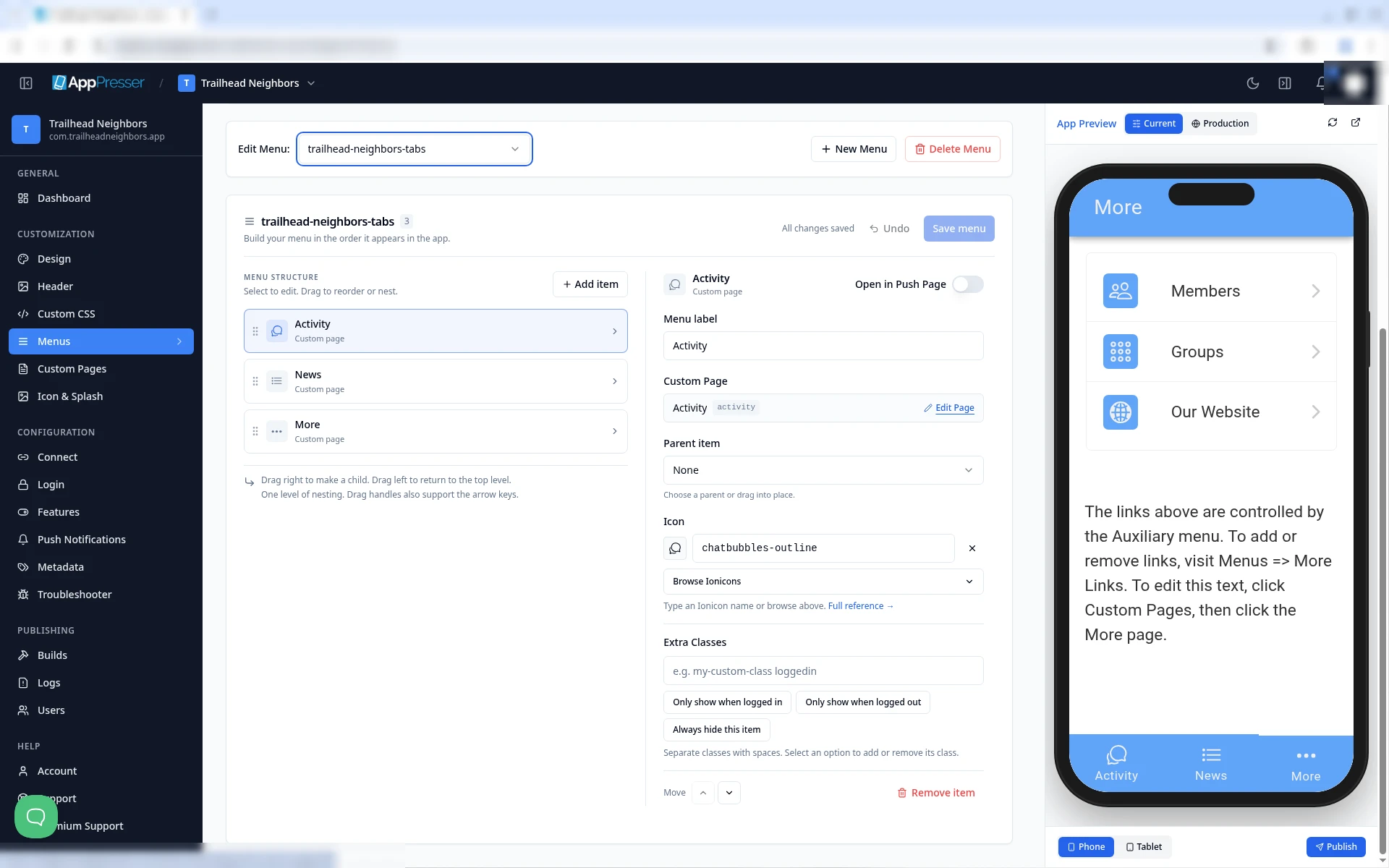
If you chose BuddyPress or BuddyBoss when you made your app, AppPresser already made Activity, Groups, Members, Member Profile and Messages pages. The Activity tab at the bottom of your app opens the Activity page.
What you see in the app
The feed shows posts from your members. Visitors who are not logged in can read the feed too.
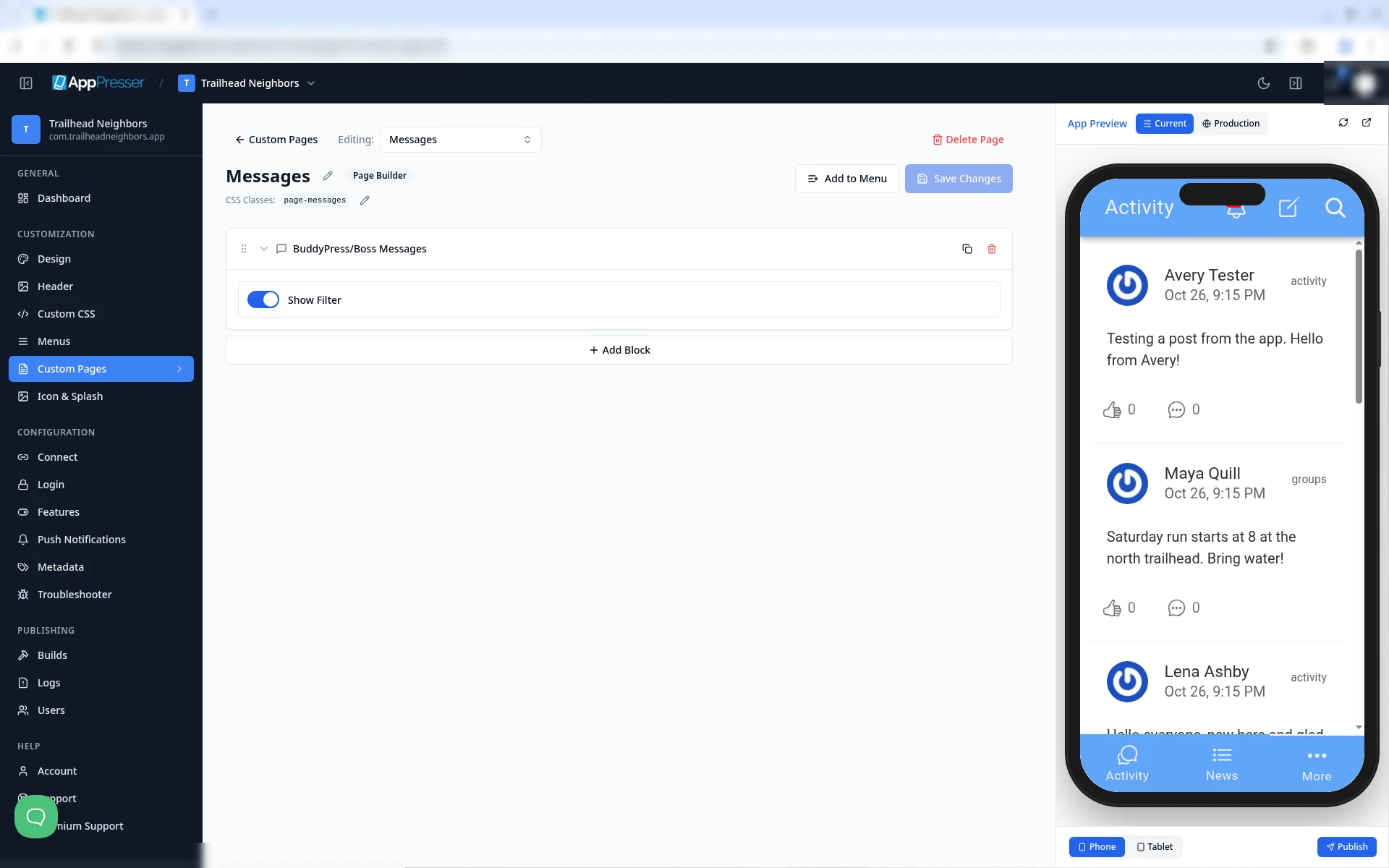
When a member is logged in, the top of the page also shows a bell for their notices and a pencil to post a new update.
Check it as a logged-in member
The App Preview starts logged out, the way a new visitor sees your app. To see what a member sees:
- Make a test member on your WordPress website. Do not use your admin account.
- In the App Preview on the right, click More at the bottom, then click Members.
- Click any member in the list. A Login window opens.
- Type the test member's Username and Password, then click SUBMIT. The preview goes back to the Activity tab, and Messages and Member Profile now show in the More menu.
Tips
Tips
- To move a block, drag it by its handle (the dots on the left). Click the arrow to fold it closed.
- To copy a block, click the Duplicate icon.
- To turn a setting on or off, click the switch itself, not the words next to it.
- After you save, open the page in the App Preview and check your changes.
Careful: The trash icon removes a block right away. Check before you click.
You're done when the block shows on your page in the App Preview.
Next step
Show your community members (BuddyPress/Boss Members block)
Related articles
这篇文章对您有帮助吗?
输入时结果会实时更新。按斜杠键(/)可跳转到搜索。
没有找到?
我们的支持团队可协助解决设置、构建和应用商店相关问题。