
Choose your app colors and fonts (Design)
Build Your App · Docs AppPresser
Choose your app colors and fonts (Design)
This article has not been translated yet, so it is shown in English.
Your app journey: step 3 of 9, Connect and set up. New here? Read Start here: build your app with AppPresser first.
What you'll do: Choose your app's colors and fonts on the Design screen, and check how they look in the App Preview.
Before you start
- Open your app in the builder. See Get to know the app builder.
- Have your brand colors ready as hex codes. A hex code is a short code for a color, like #387ef5. Most design tools show them.
Choose your colors
- In the left menu, under Customization, click Design.
- Under App Colors, click the box for a color, for example Header / Tab Background.
- Type a hex code, for example #387ef5. You can also type a short code like #fff.
- Do the same for each color you want to change.
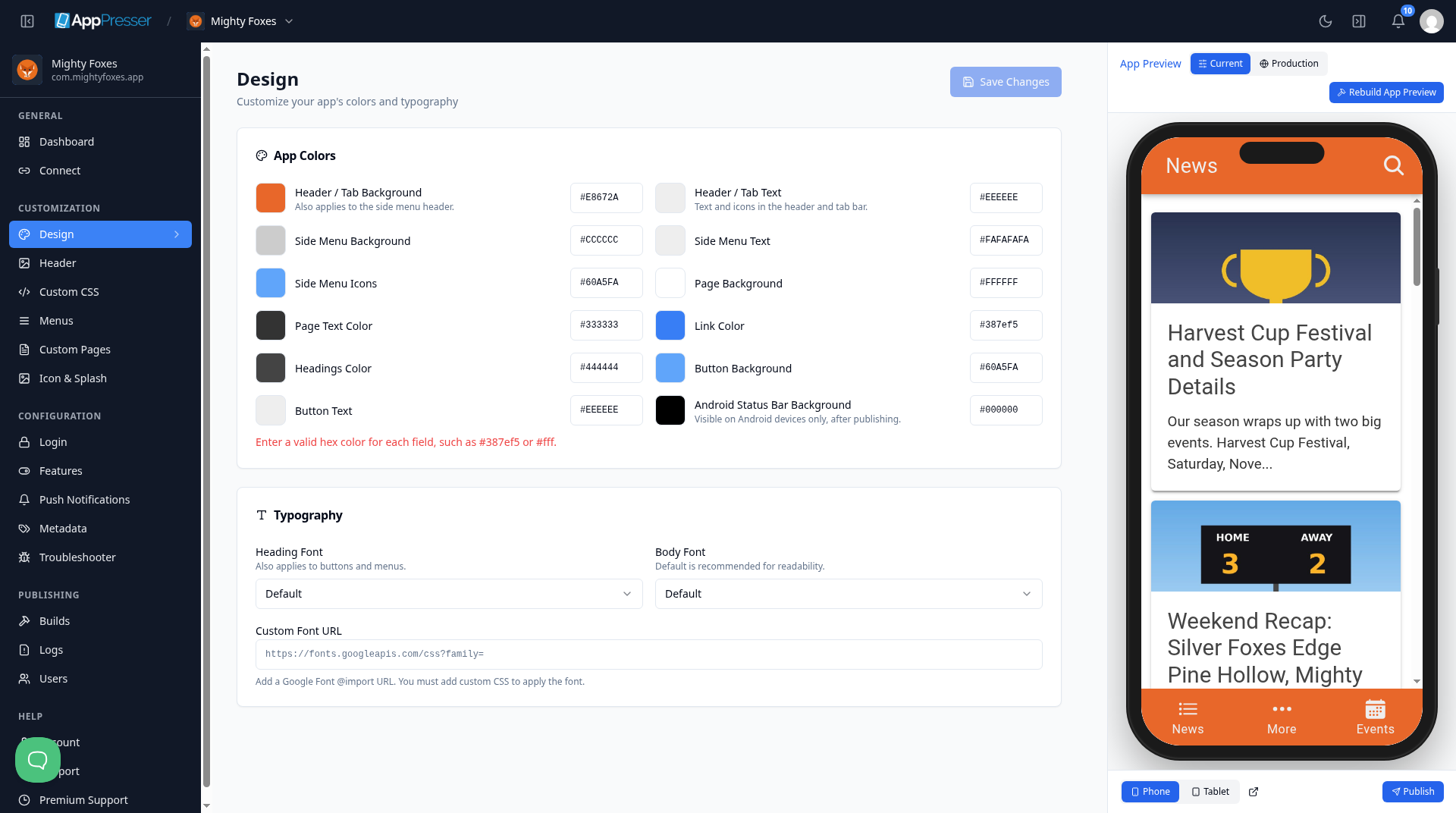
You can change these colors: Header / Tab Background, Header / Tab Text, Side Menu Background, Side Menu Text, Side Menu Icons, Page Background, Page Text Color, Link Color, Headings Color, Button Background, Button Text and Android Status Bar Background.
Tip: Pick text colors that are easy to read on their background. Dark text on a light background is easiest to read.
Choose your fonts
- Under Typography, choose a Heading Font. It is also used for buttons and menus.
- Choose a Body Font. This is the font for normal text. Default is a good choice.
- To use a Google Font, paste its @import web address in Custom Font URL. Then add a CSS rule on the Custom CSS screen to apply it. See Add your own styles (Custom CSS).
Save
- Click Save Changes at the top right.
- Check your colors and fonts in the App Preview on the right.
You're done when your new colors and fonts show in the App Preview.
Next step
Set up your app header (Header)
Related articles
Isto foi útil?
Os resultados atualizam enquanto você digita. Pressione barra para ir à pesquisa.
Não encontrou?
Nossa equipe de suporte pode ajudar com configuração, builds e dúvidas sobre lojas.