
Add your own styles (Custom CSS)
Build Your App · Docs AppPresser
Add your own styles (Custom CSS)
This article has not been translated yet, so it is shown in English.
Your app journey: step 3 of 9, Connect and set up. New here? Read Start here: build your app with AppPresser first.
What you'll do: Add your own CSS to fine-tune how your app looks, beyond what the Design screen offers. CSS is code that controls how things look, like text size or colors.
Before you start
- Know a little CSS, or have CSS ready from someone who does.
- Try the Design screen first. It changes colors and fonts without code. See Choose your app colors and fonts (Design).
Add your CSS
- In the left menu, under Customization, click Custom CSS.
- Type or paste your CSS in the CSS Editor.
- Check the App Preview on the right. Your change shows there right away.
- Click Save Changes at the top right.
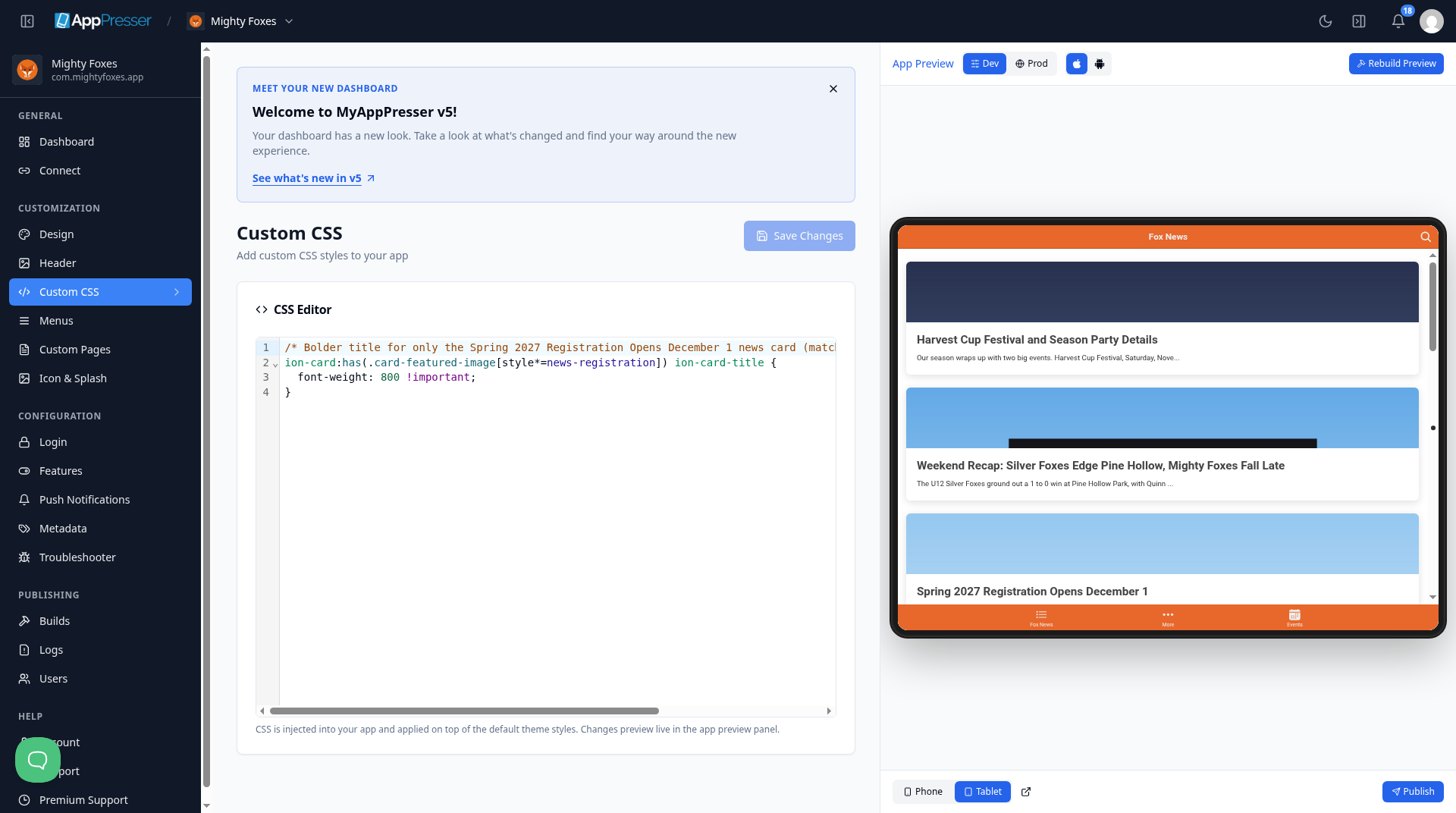
Your CSS is added on top of the app's default styles.
Tip: Want a Google Font? Add its address in Custom Font URL on the Design screen. Then use CSS here to apply the font.
Careful: Change one thing at a time and check the preview. If something looks wrong, delete your last change and save again.
You're done when your change shows in the App Preview and Save Changes is gray again.
Next step
Build app pages with blocks (Custom Pages)
Related articles
Cela vous a-t-il été utile ?
Les résultats se mettent à jour pendant la saisie. Appuyez sur slash pour aller à la recherche.
Vous ne trouvez pas ?
Notre équipe d’assistance peut aider pour la configuration, les builds et les questions sur les boutiques.