
Show your products (WooCommerce Products block)
Build Your App · AppPresser Docs
Show your products (WooCommerce Products block)
இந்தக் கட்டுரை இன்னும் மொழிபெயர்க்கப்படவில்லை, எனவே ஆங்கிலத்தில் காட்டப்படுகிறது.
Your app journey: step 4 of 9, Add pages and features. New here? Read Start here: build your app with AppPresser first.
What you'll do: Show the products from your online shop with the WooCommerce Products block. Shoppers tap a product to see it and add it to their cart.
Before you start
- Install and activate the WooCommerce plugin on your WordPress website, with some published products. WooCommerce is the WordPress plugin for running an online shop.
- Install and activate the AppCommerce plugin, AppPresser's add-on for WooCommerce, on your WordPress website.
- Connect your app to your WordPress website. See Connect your WordPress site and turn on Features.
Add the block
- In the left menu, under Customization, click Custom Pages.
- Click the name of the page you want to change. To make a new page instead, click Add New Page, type a title, keep Page Builder selected and click Create Page.
- Below the last block on the page, click Add Block.
- In Search blocks…, type WooCommerce Products, then click the block. It is added to the bottom of the page.
- Leave the settings as they are to show products that are in stock, or change them. See Settings below.
- Click Save Changes at the top of the editor.
- To see a new page in the App Preview, add it to a menu. See Add a page to your app menu.
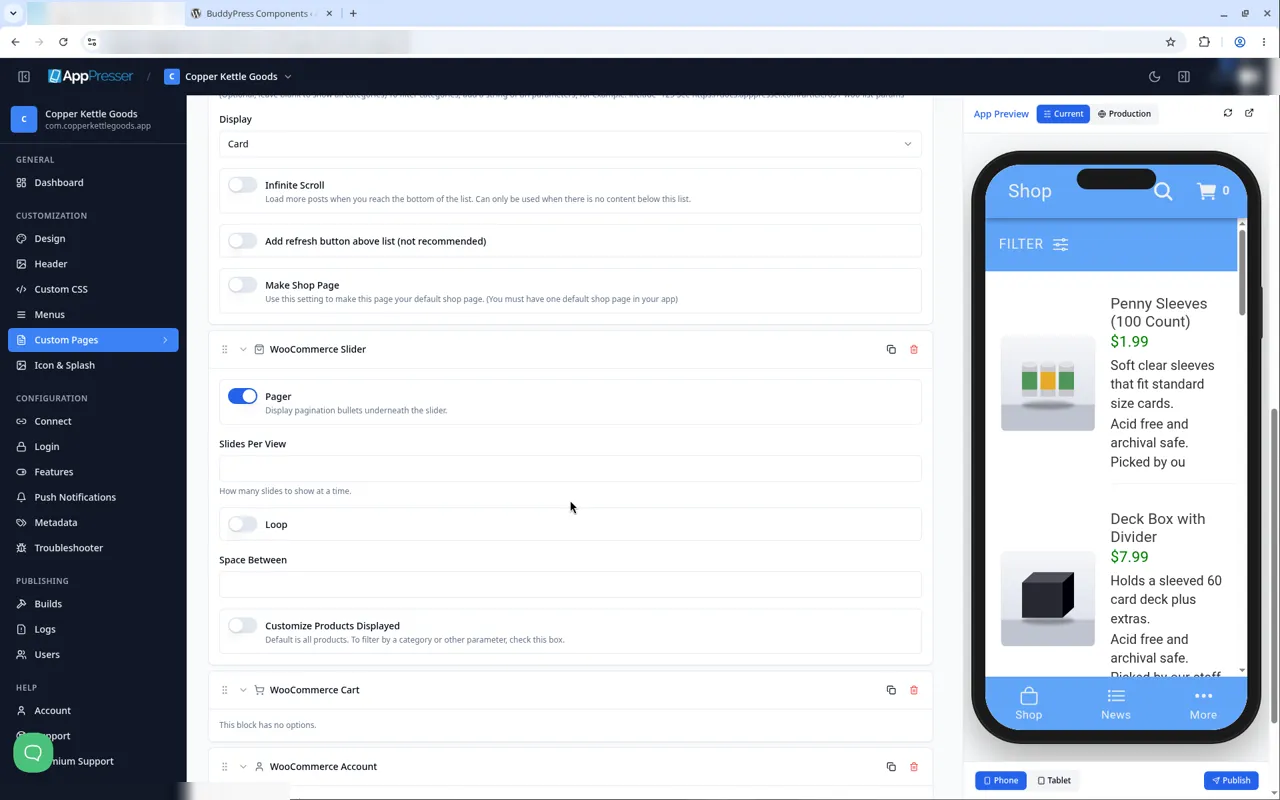
If you chose WooCommerce when you made your app, AppPresser already made Shop, Categories, Cart and Account pages for you. The Shop page uses this block.
What you see in the app
Each product shows its picture, name, price and a short description. The list can show gray boxes for 10 to 20 seconds while it loads.
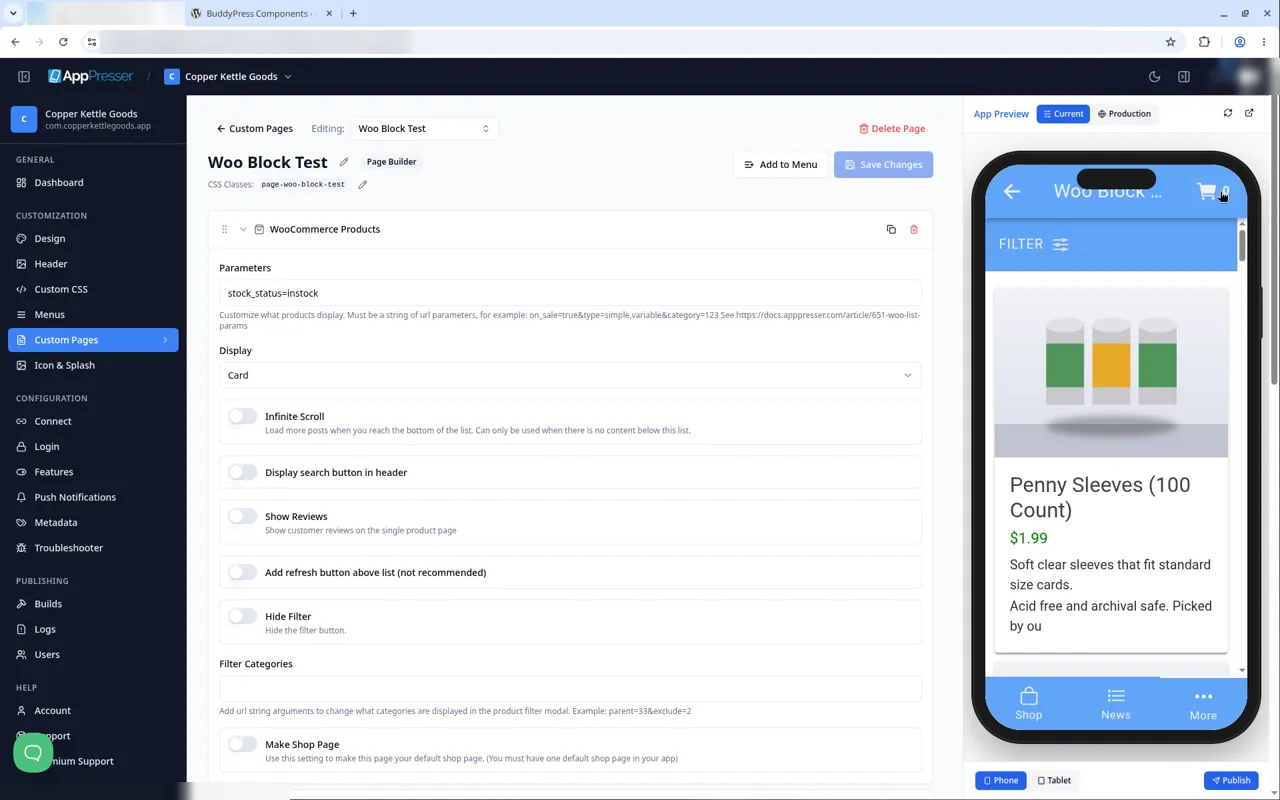
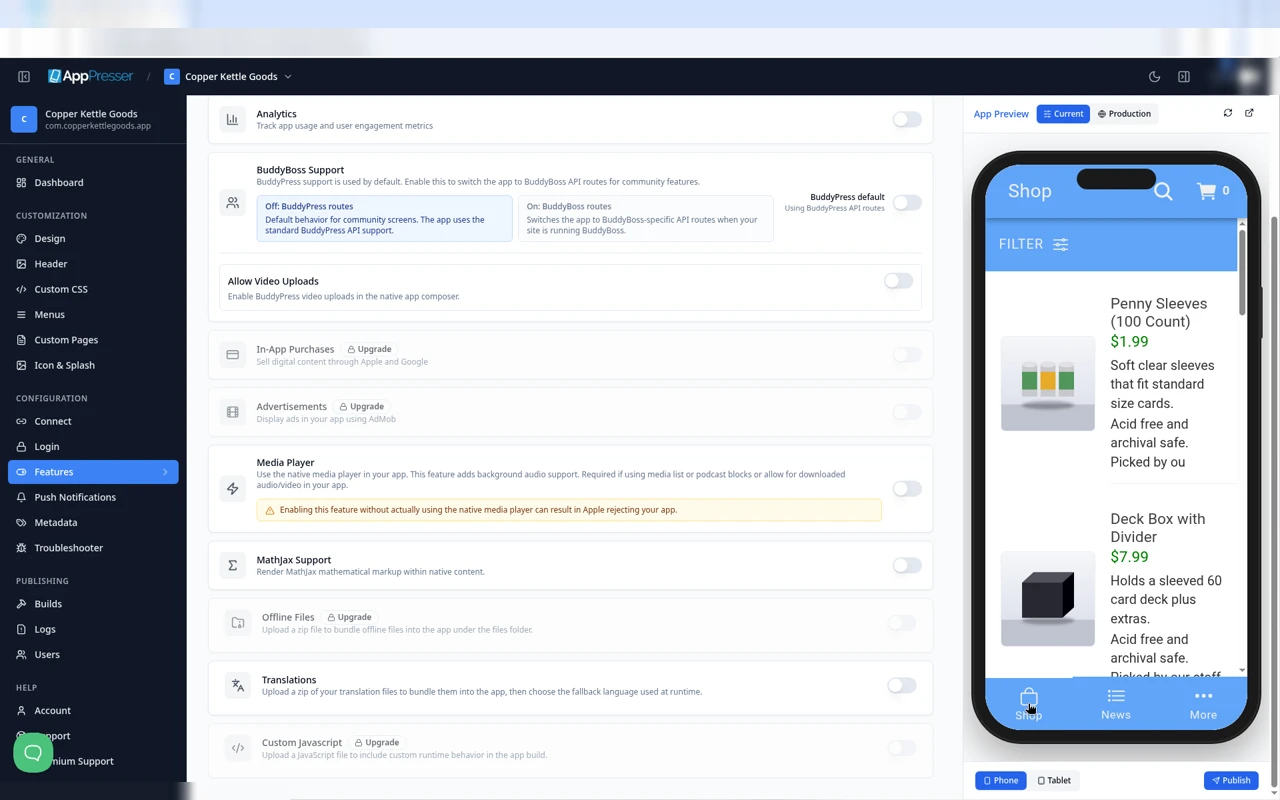
Shoppers tap a product to open it. The product page shows the picture, a share button, a heart for the wishlist, the name, the price and the description.
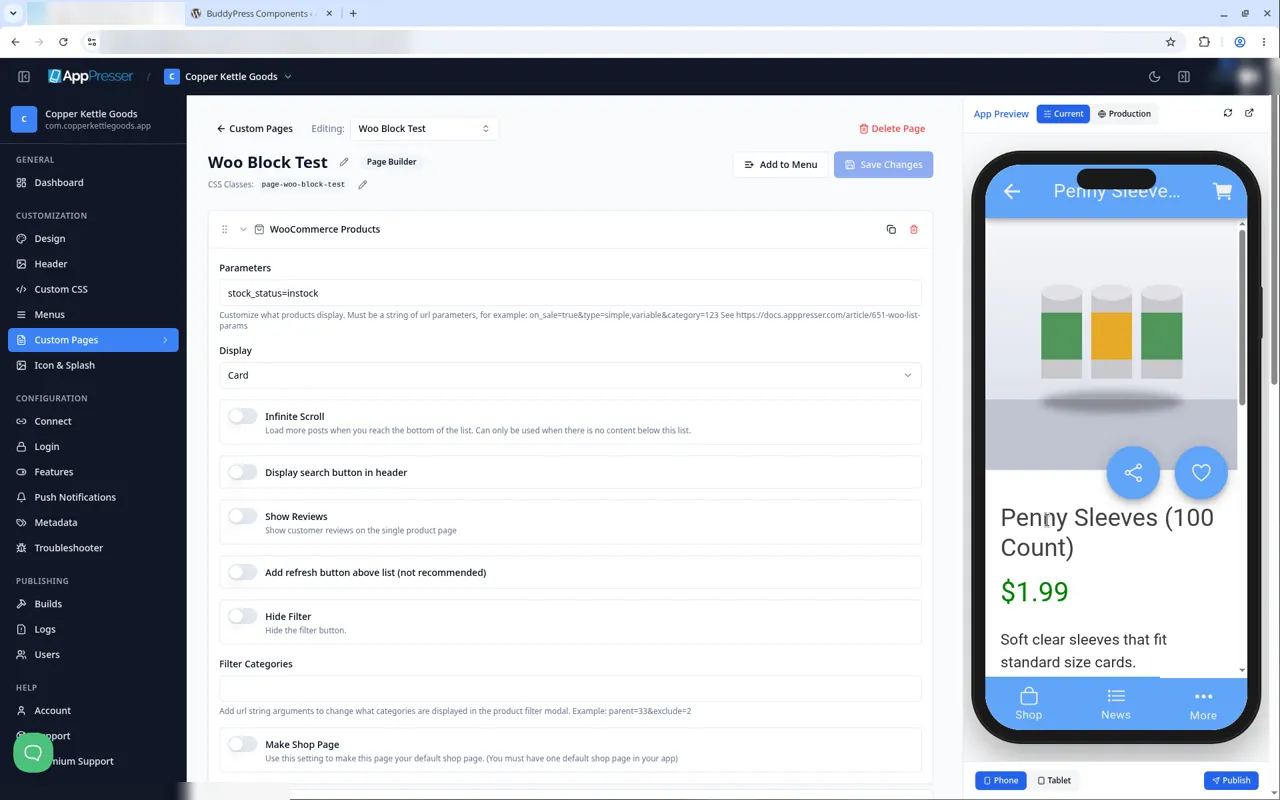
They use the minus and plus buttons to change the Quantity.
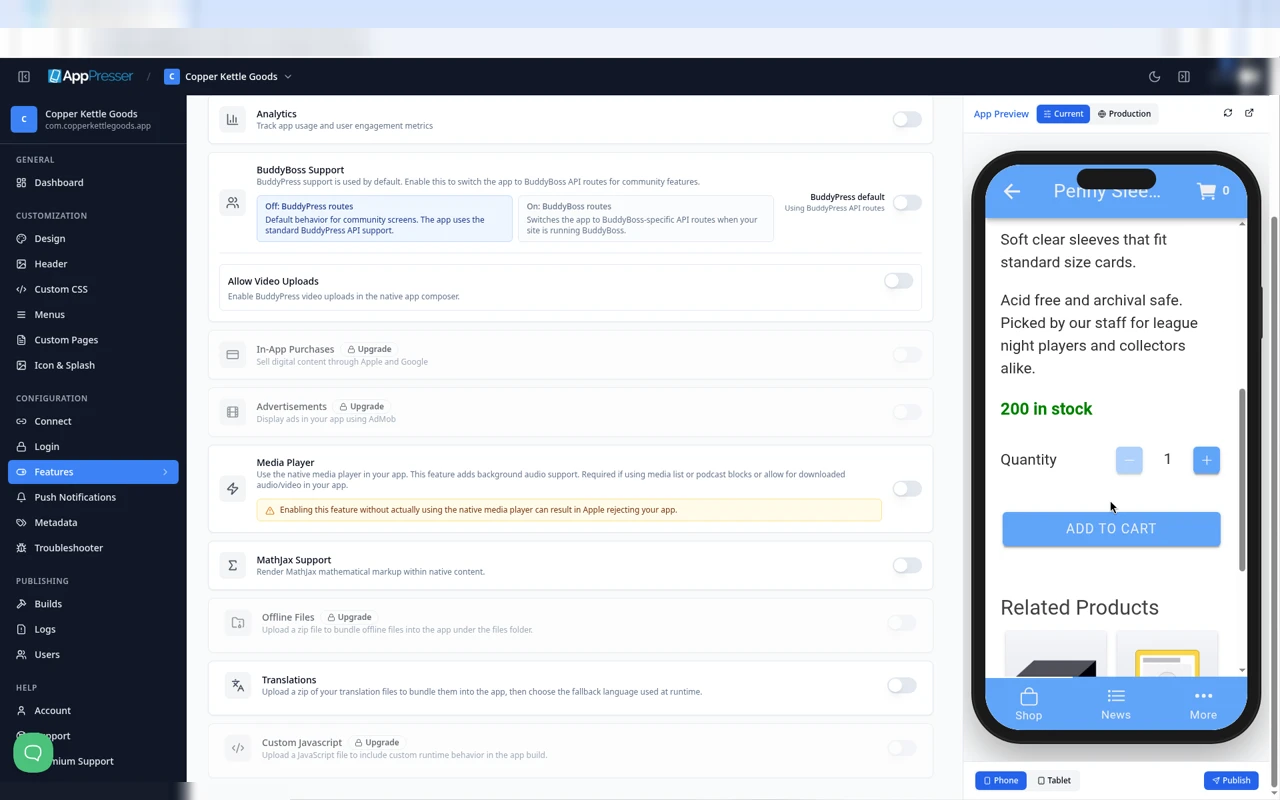
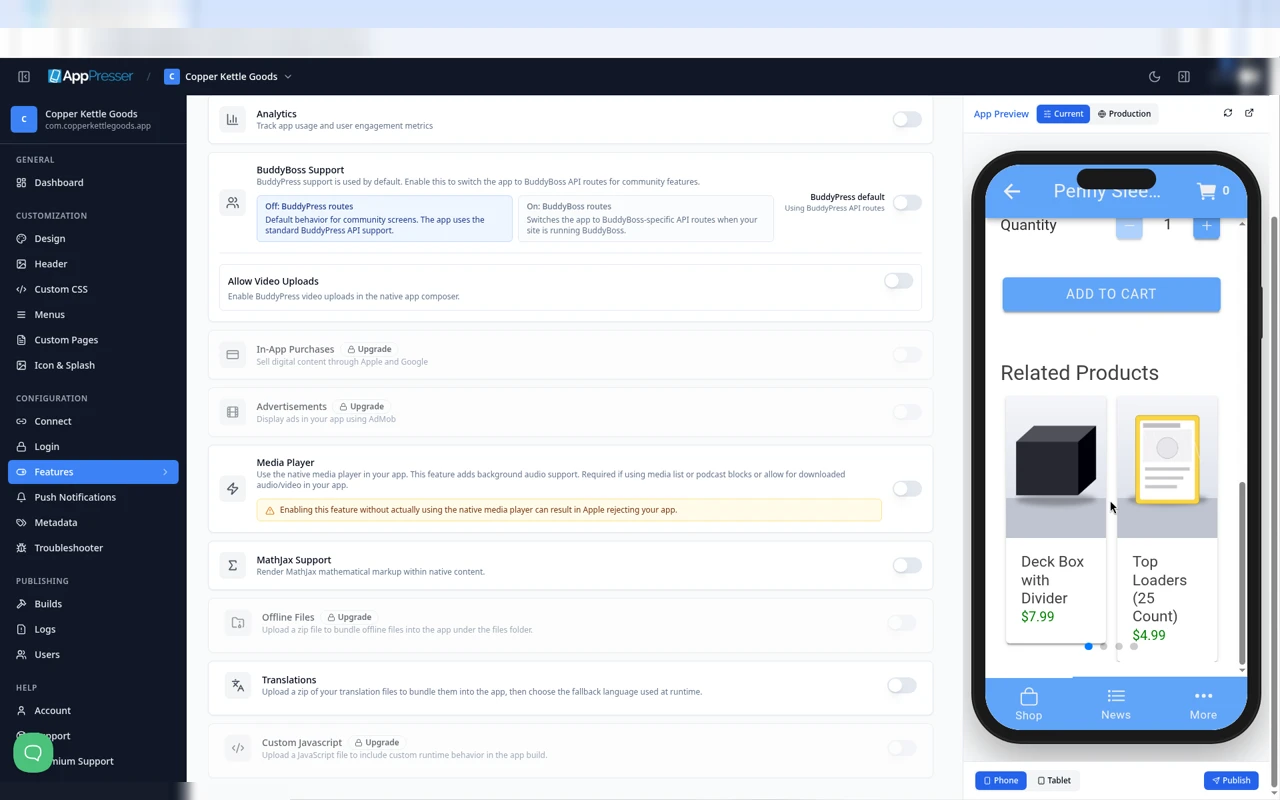
Under the description, Related Products shows other products.
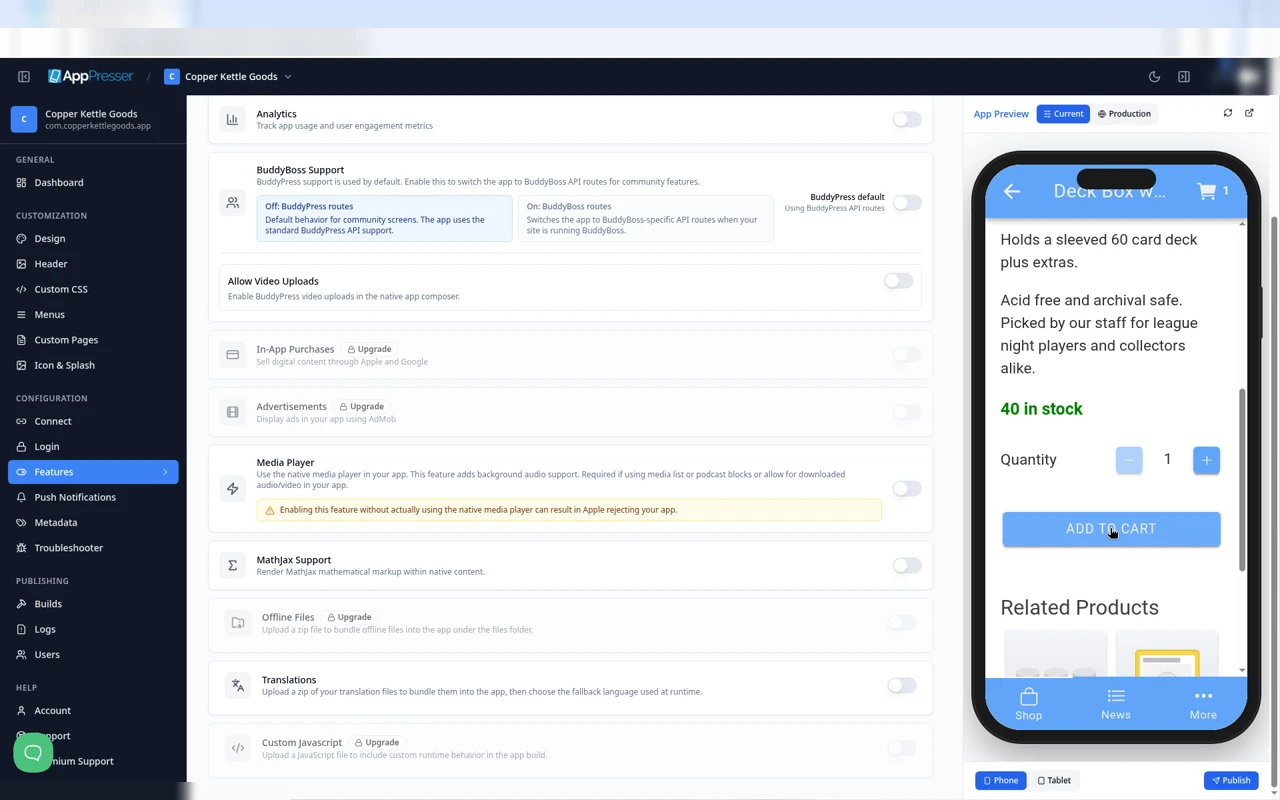
When they tap ADD TO CART, the cart icon at the top shows how many items are in the cart.
Settings
Swipe sideways to see the rest of this table.
| Setting | What it does |
|---|---|
| Parameters | Chooses which products show. It starts as stock_status=instock, which shows only products in stock. |
| Display | How each product looks. It starts on Card. |
| Infinite Scroll | Loads more products when shoppers reach the bottom. Use it only if nothing else is below the list. |
| Display search button in header | Adds a search button at the top of the page. |
| Show Reviews | Shows reviews on the product page. |
| Add refresh button above list (not recommended) | Adds a refresh button. |
| Hide Filter | Hides the filter button. |
| Filter Categories | Limits which categories show in the filter. For advanced users. |
| Make Shop Page | Makes this page your app's main shop page. Your app needs one. |
Tips
Tips
- To move a block, drag it by its handle (the dots on the left). Click the arrow to fold it closed.
- To copy a block, click the Duplicate icon.
- To turn a setting on or off, click the switch itself, not the words next to it.
- After you save, open the page in the App Preview and check your changes.
Careful: The trash icon removes a block right away. Check before you click.
You're done when the block shows on your page in the App Preview.
Next step
Show your product categories (WooCommerce Categories block)
Related articles
இது உதவியாக இருந்ததா?
தட்டச்சு செய்யும்போதே முடிவுகள் புதுப்பிக்கப்படும். தேடலுக்குச் செல்ல ஸ்லாஷ் அழுத்துங்கள்.
கிடைக்கவில்லையா?
எங்கள் ஆதரவுக் குழு அமைவு, உருவாக்கம் மற்றும் app store கேள்விகளில் உதவ முடியும்.