
Add a card (Card block)
Build Your App · AppPresser Docs
Add a card (Card block)
இந்தக் கட்டுரை இன்னும் மொழிபெயர்க்கப்படவில்லை, எனவே ஆங்கிலத்தில் காட்டப்படுகிறது.
Your app journey: step 4 of 9, Add pages and features. New here? Read Start here: build your app with AppPresser first.
What you'll do: Add a card, a box with a picture, a title, a subtitle and some text, that people can tap to open a page. Cards are good for news, offers or opening hours.
Before you start
- If you want a picture, find its web address. See Get a picture's address below.
Add the block
- In the left menu, under Customization, click Custom Pages.
- Click the name of the page you want to change. To make a new page instead, click Add New Page, type a title, keep Page Builder selected and click Create Page.
- Below the last block on the page, click Add Block.
- In Search blocks…, type Card, then click the block. It is added to the bottom of the page.
- Type a Title.
- If you want, type a Subtitle. It shows in smaller words under the title.
- Type your text in Content. You can use HTML here (the simple code web pages are written in).
- If you want, type a Link. Use a page slug (the page's short name from Custom Pages) or a web address.
- If you want, paste a picture address into Featured Image. A picture about 600 pixels wide and 400 pixels tall works best.
- Click Save Changes at the top of the editor.
- To see a new page in the App Preview, add it to a menu. See Add a page to your app menu.
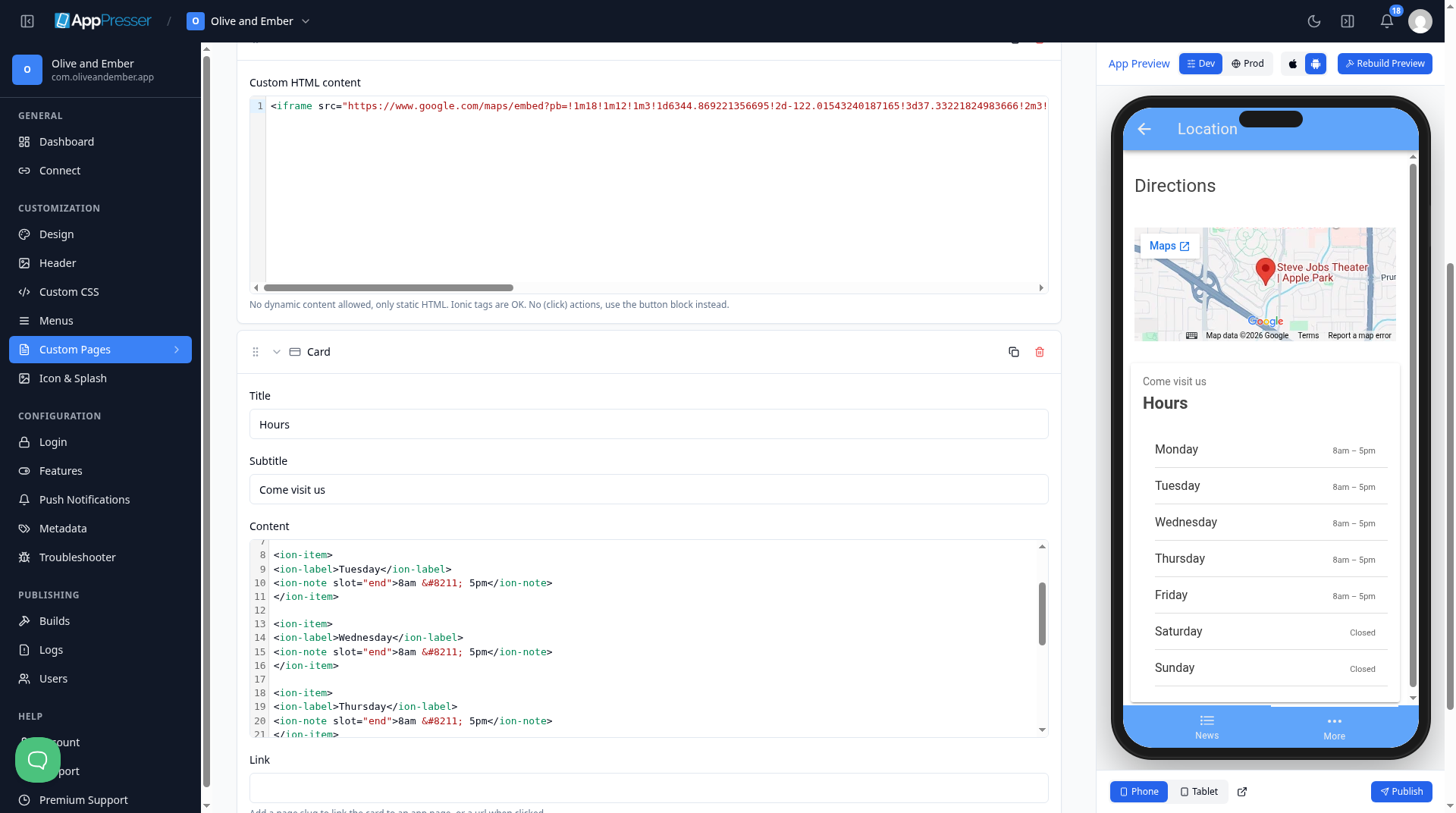
Get a picture's address
- In your WordPress admin, click Media, then Library.
- Click the picture.
- Copy the File URL.
- Paste it into Featured Image.
What you see in the app
The card shows on the page. For example, a "Come visit us" card can show your opening hours.
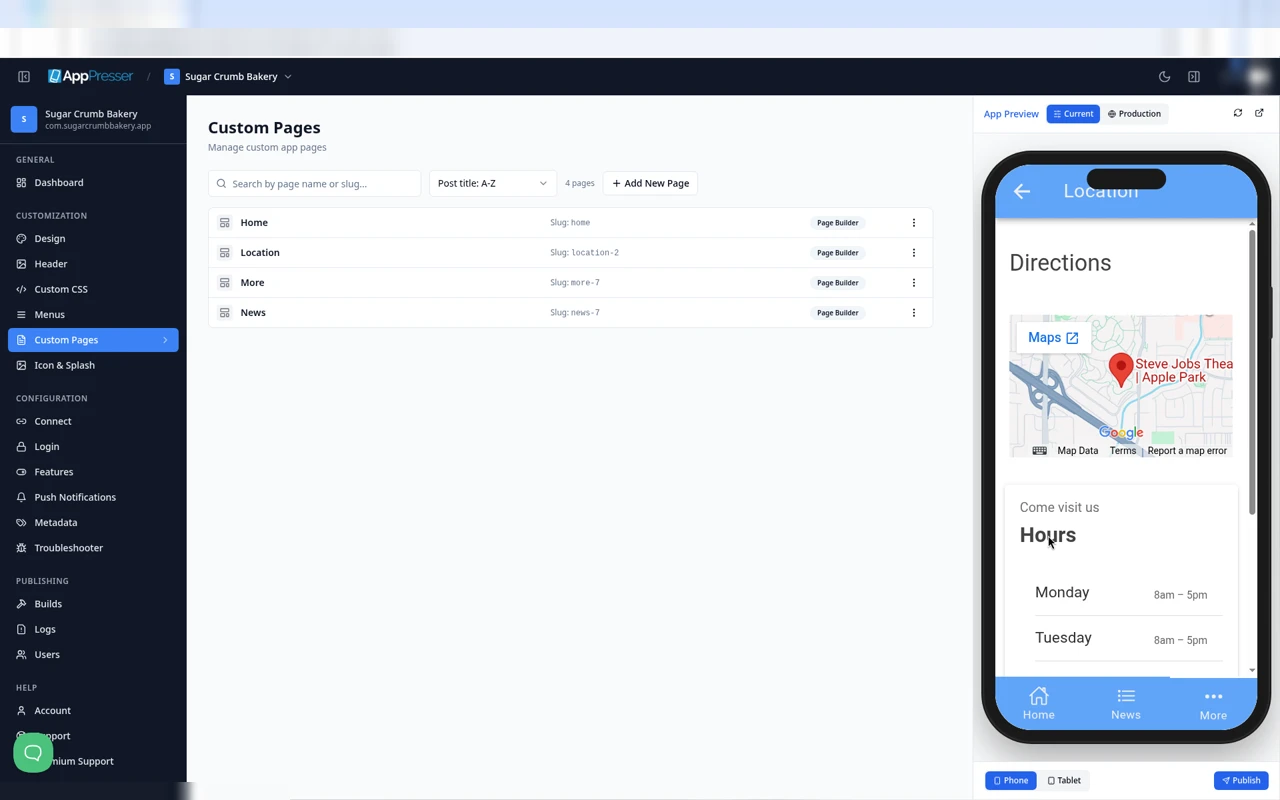
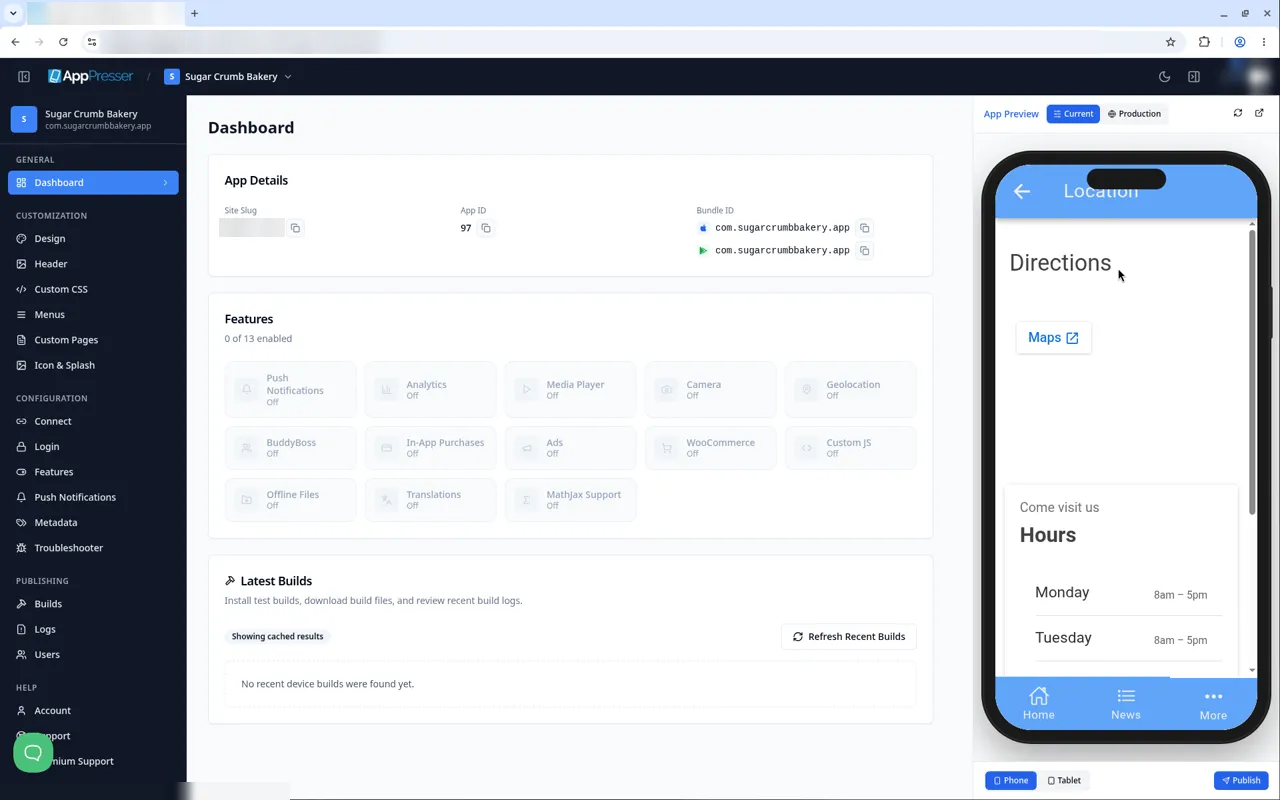
A card with no Link does nothing when tapped.
Tips
Tips
- To move a block, drag it by its handle (the dots on the left). Click the arrow to fold it closed.
- To copy a block, click the Duplicate icon.
- To turn a setting on or off, click the switch itself, not the words next to it.
- After you save, open the page in the App Preview and check your changes.
Careful: The trash icon removes a block right away. Check before you click.
You're done when the block shows on your page in the App Preview.
Next step
Add menu tiles to a page (Menu Item Links block)
Related articles
இது உதவியாக இருந்ததா?
தட்டச்சு செய்யும்போதே முடிவுகள் புதுப்பிக்கப்படும். தேடலுக்குச் செல்ல ஸ்லாஷ் அழுத்துங்கள்.
கிடைக்கவில்லையா?
எங்கள் ஆதரவுக் குழு அமைவு, உருவாக்கம் மற்றும் app store கேள்விகளில் உதவ முடியும்.