
Show downloaded media (WordPress Downloads block)
Build Your App · AppPresser Docs
Show downloaded media (WordPress Downloads block)
இந்தக் கட்டுரை இன்னும் மொழிபெயர்க்கப்படவில்லை, எனவே ஆங்கிலத்தில் காட்டப்படுகிறது.
Your app journey: step 4 of 9, Add pages and features. New here? Read Start here: build your app with AppPresser first.
What you'll do: Add a page that lists the media files each person has downloaded in your app.
Before you start
- To play downloaded audio or video, turn on the Media Player feature for your app. See Turn on app features (Features).
Add the block
This block has no settings.
- In the left menu, under Customization, click Custom Pages.
- Click the name of the page you want to change. To make a new page instead, click Add New Page, type a title, keep Page Builder selected and click Create Page.
- Below the last block on the page, click Add Block.
- In Search blocks…, type WordPress Downloads, then click the block. It is added to the bottom of the page.
- Click Save Changes at the top of the editor.
- To see a new page in the App Preview, add it to a menu. See Add a page to your app menu.
What you see in the app
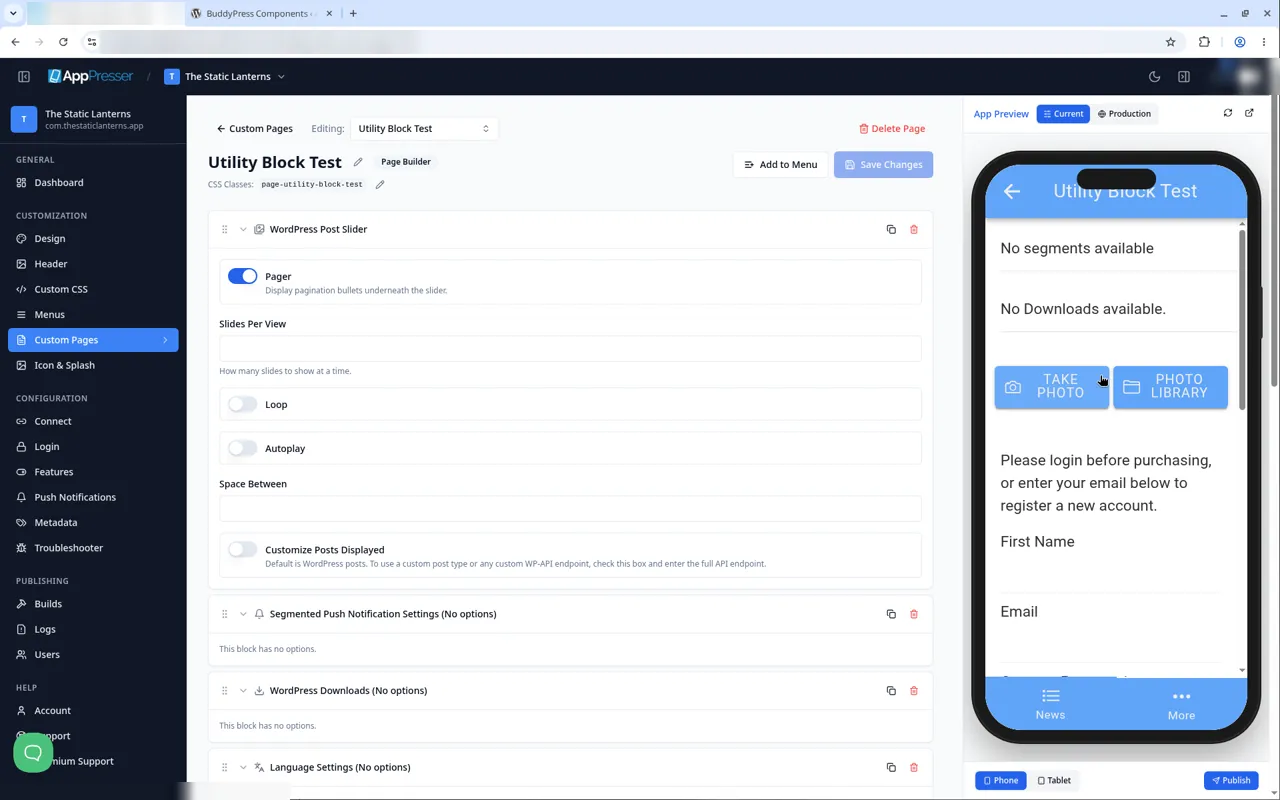
The block lists each person's downloads. When there are none yet, it says "No Downloads available."
Tips
Tips
- To move a block, drag it by its handle (the dots on the left). Click the arrow to fold it closed.
- To copy a block, click the Duplicate icon.
- To turn a setting on or off, click the switch itself, not the words next to it.
- After you save, open the page in the App Preview and check your changes.
Careful: The trash icon removes a block right away. Check before you click.
You're done when the block shows on your page in the App Preview.
Next step
Show your products (WooCommerce Products block)
Related articles
இது உதவியாக இருந்ததா?
தட்டச்சு செய்யும்போதே முடிவுகள் புதுப்பிக்கப்படும். தேடலுக்குச் செல்ல ஸ்லாஷ் அழுத்துங்கள்.
கிடைக்கவில்லையா?
எங்கள் ஆதரவுக் குழு அமைவு, உருவாக்கம் மற்றும் app store கேள்விகளில் உதவ முடியும்.