
Sign in to your AppPresser dashboard
Getting Started · AppPresser Docs
Sign in to your AppPresser dashboard
Your app journey: step 1 of 9, Sign up and sign in. New here? Read Start here: build your app with AppPresser first.
What you'll do: Sign in to your AppPresser dashboard at myapppresser.com, reset a forgotten password and sign out.
Before you start
- An AppPresser account. See Get your AppPresser account.
Sign in
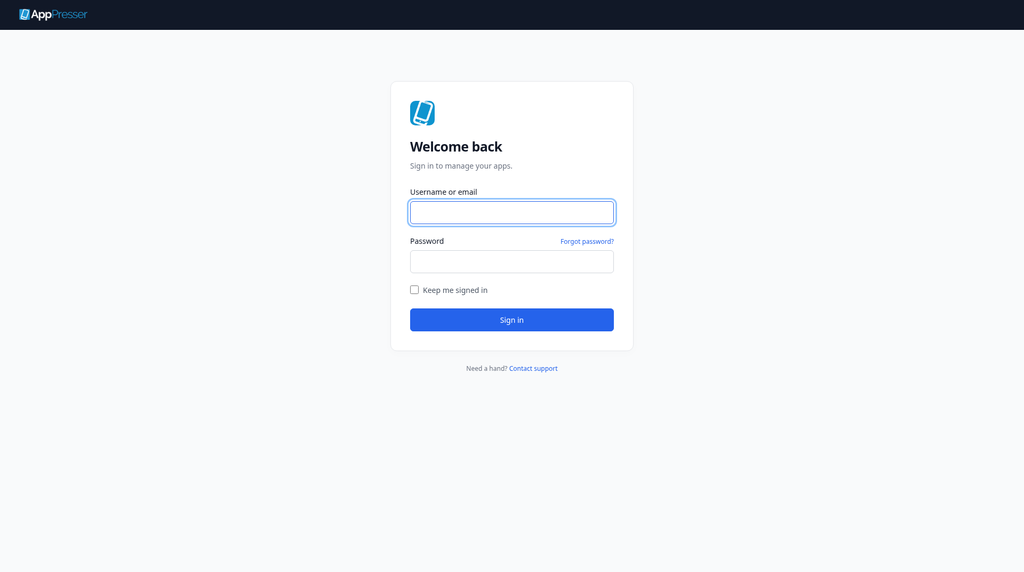
- Go to myapppresser.com.
- In Username or email, type your username or your email address.
- In Password, type your password.
- To stay signed in on this computer, check Keep me signed in. Leave it unchecked on a shared computer.
Click Sign in.
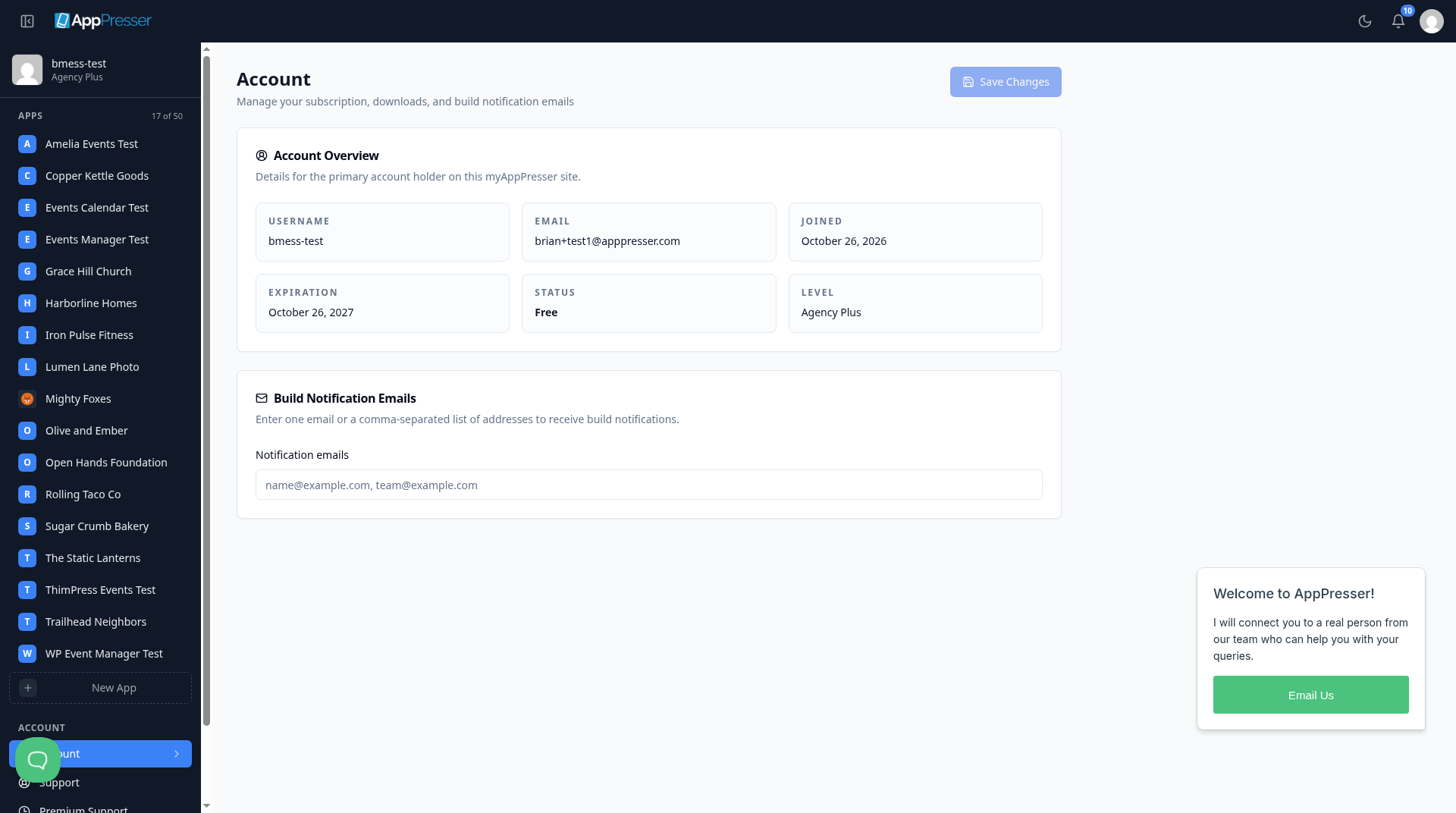
Your Account page opens.
Forgot your password?
- On the sign-in page, click Forgot password? next to Password.
- Follow the steps on the screen.
Still stuck? Click Contact support at the bottom of the sign-in page.
Sign out
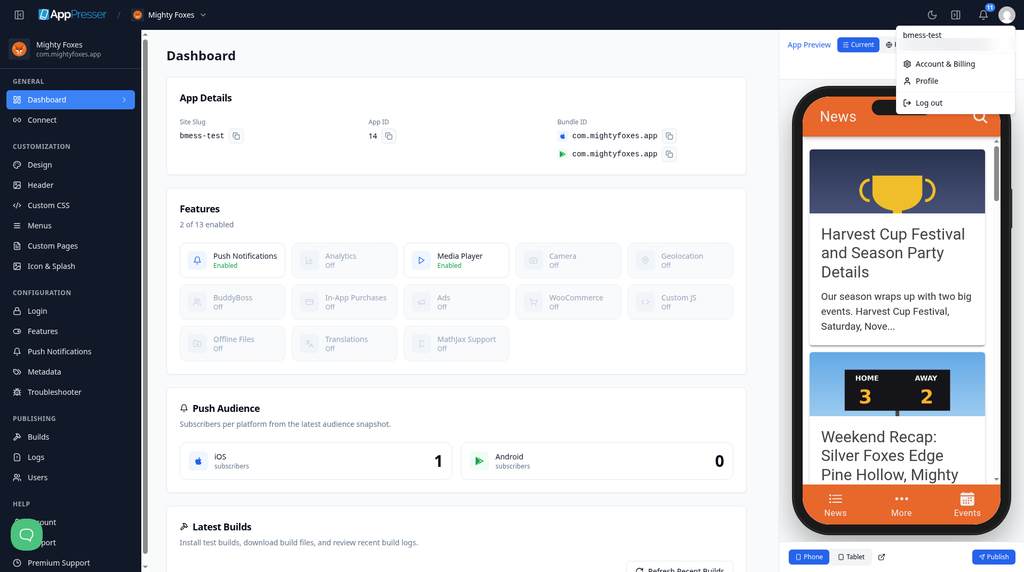
- Click your picture (your avatar) at the top right.
Click Log out.
You're done when you click Sign in and your Account page opens.
Next step
A quick tour of your AppPresser dashboard
Related articles
Was this helpful?
Results update as you type. Press slash to jump to search.
Can’t find it?
Our support team can help with setup, builds and app store questions.