
Sign in to your AppPresser dashboard
Getting Started · AppPresser Docs
Sign in to your AppPresser dashboard
Dit artikel is nog niet vertaald en wordt daarom in het Engels getoond.
Your app journey: step 1 of 9, Sign up and sign in. New here? Read Start here: build your app with AppPresser first.
What you'll do: Sign in to your AppPresser dashboard at myapppresser.com, reset a forgotten password and sign out.
Before you start
- An AppPresser account. See Get your AppPresser account.
Sign in
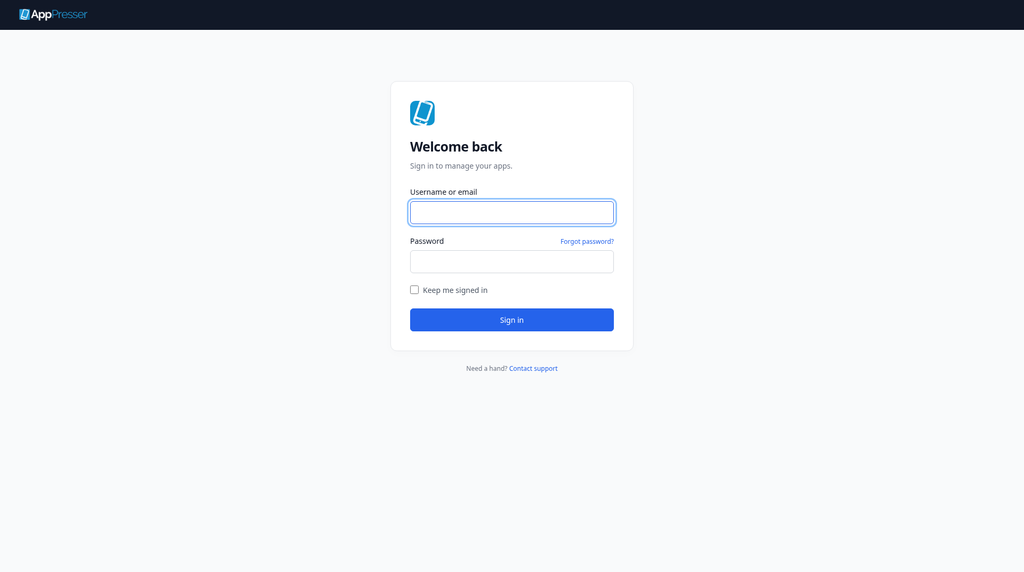
- Go to myapppresser.com.
- In Username or email, type your username or your email address.
- In Password, type your password.
- To stay signed in on this computer, check Keep me signed in. Leave it unchecked on a shared computer.
Click Sign in.
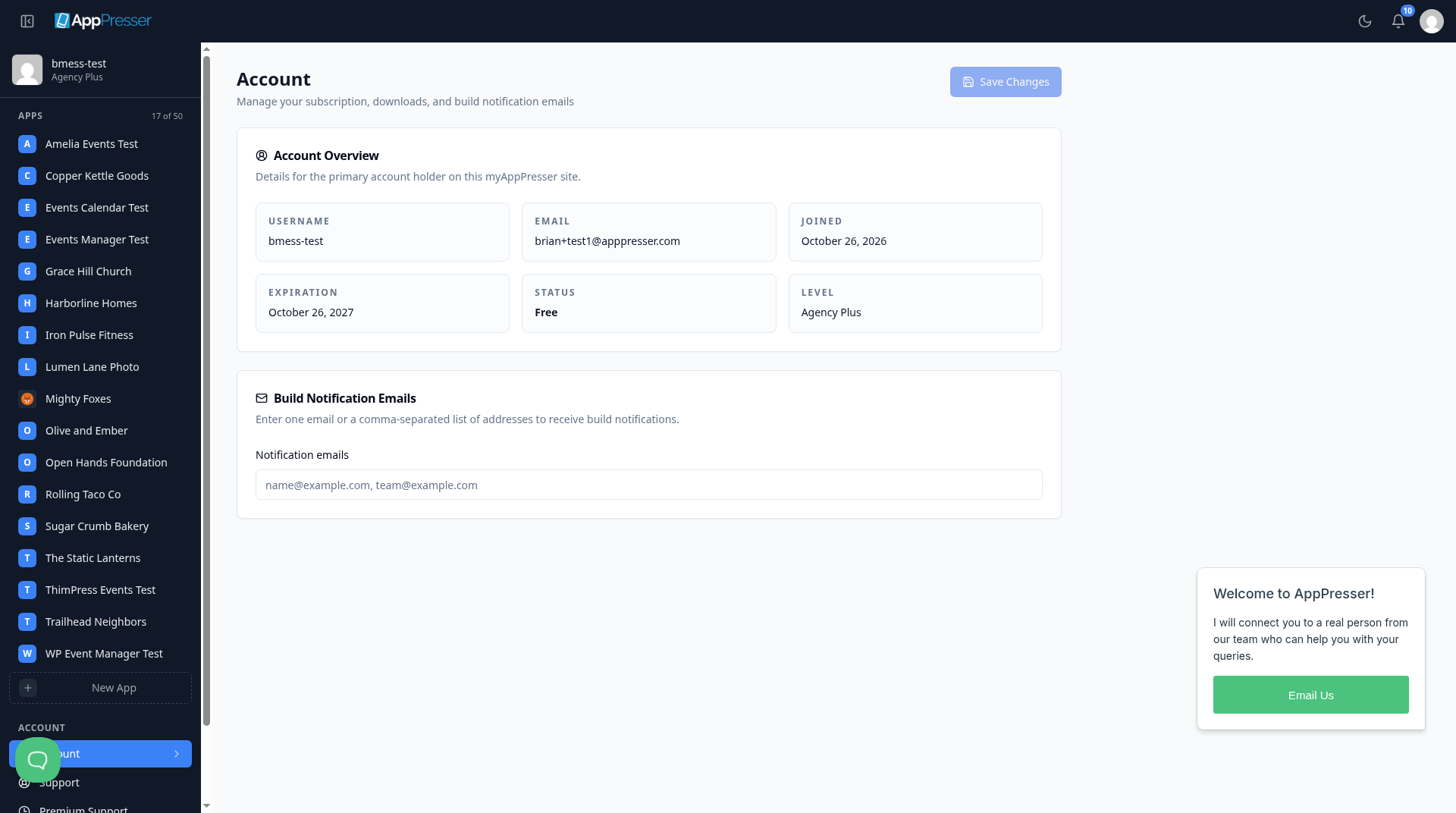
Your Account page opens.
Forgot your password?
- On the sign-in page, click Forgot password? next to Password.
- Follow the steps on the screen.
Still stuck? Click Contact support at the bottom of the sign-in page.
Sign out
- Click your picture (your avatar) at the top right.
Click Log out.
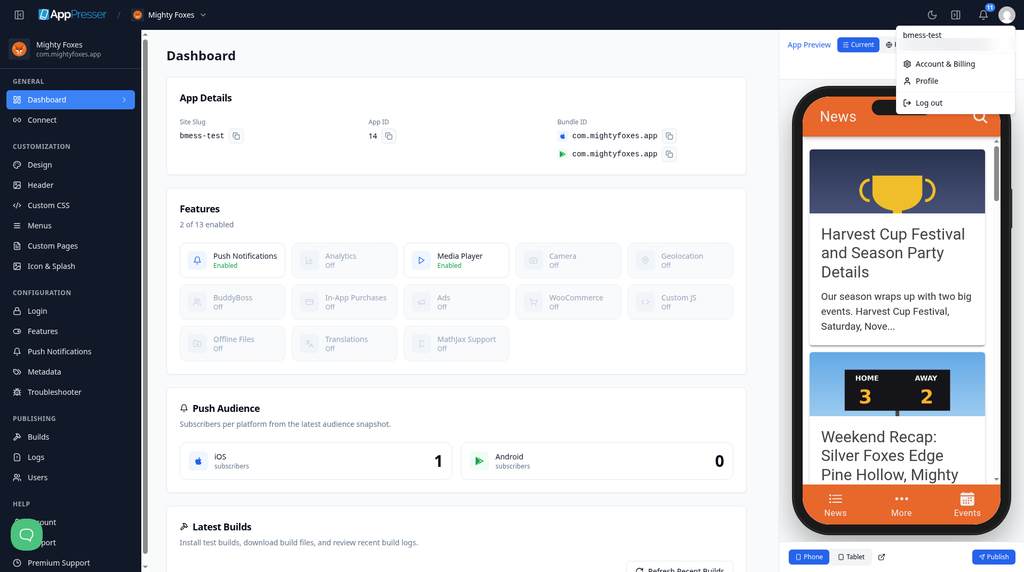
You're done when you click Sign in and your Account page opens.
Next step
A quick tour of your AppPresser dashboard
Related articles
Was dit nuttig?
Resultaten worden bijgewerkt terwijl u typt. Druk op slash om naar zoeken te gaan.
Kunt u het niet vinden?
Ons ondersteuningsteam kan helpen bij het instellen, bouwen en app store vragen.