
Sign in to your AppPresser dashboard
Getting Started · AppPresser 文件
Sign in to your AppPresser dashboard
本文尚未翻譯,因此以英文顯示。
Your app journey: step 1 of 9, Sign up and sign in. New here? Read Start here: build your app with AppPresser first.
What you'll do: Sign in to your AppPresser dashboard at myapppresser.com, reset a forgotten password and sign out.
Before you start
- An AppPresser account. See Get your AppPresser account.
Sign in
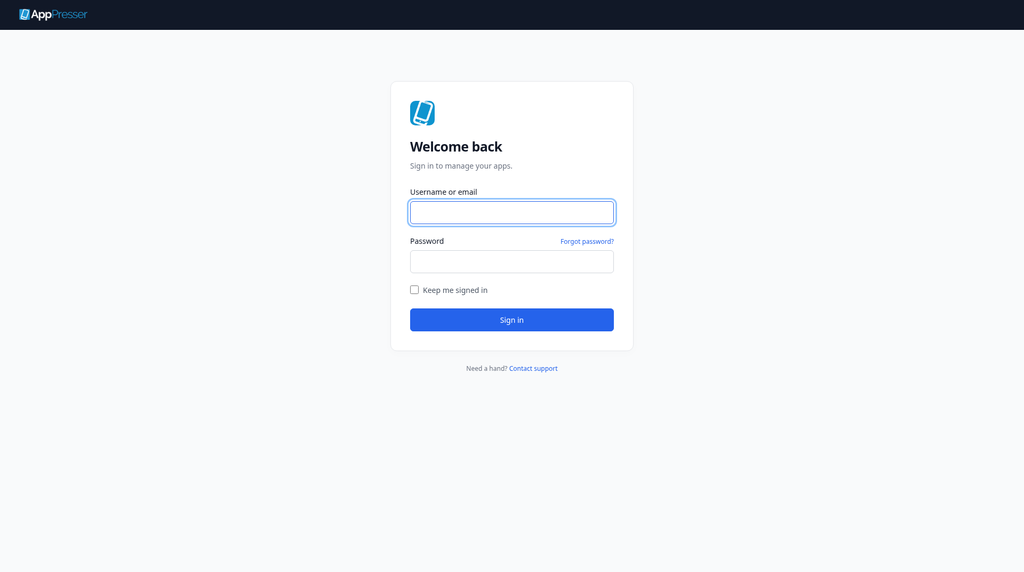
- Go to myapppresser.com.
- In Username or email, type your username or your email address.
- In Password, type your password.
- To stay signed in on this computer, check Keep me signed in. Leave it unchecked on a shared computer.
Click Sign in.
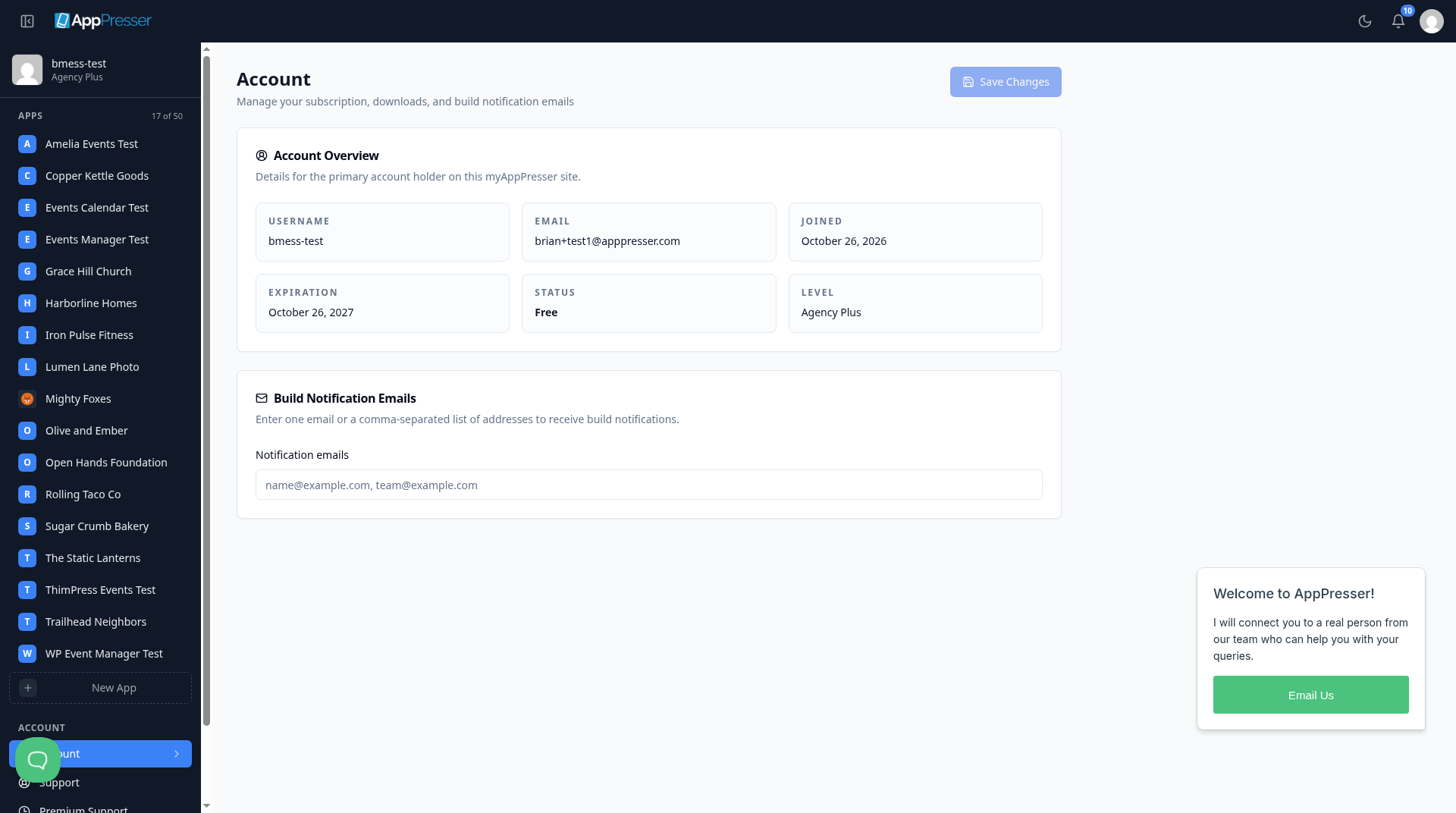
Your Account page opens.
Forgot your password?
- On the sign-in page, click Forgot password? next to Password.
- Follow the steps on the screen.
Still stuck? Click Contact support at the bottom of the sign-in page.
Sign out
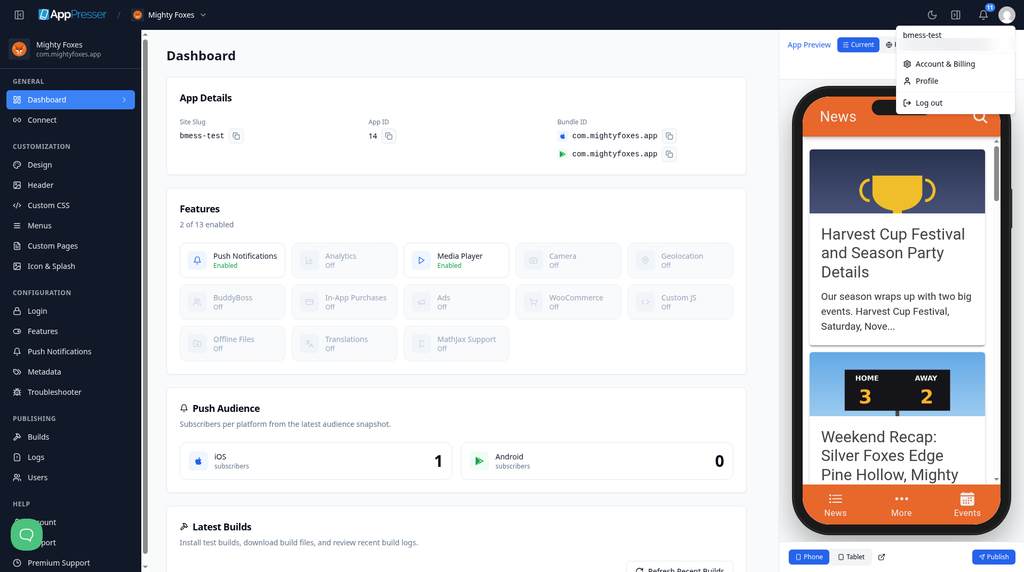
- Click your picture (your avatar) at the top right.
Click Log out.
You're done when you click Sign in and your Account page opens.
Next step
A quick tour of your AppPresser dashboard
Related articles
這篇文章對您有幫助嗎?
輸入時結果會即時更新。按斜槓鍵(/)可跳轉到搜尋。
沒有找到?
我們的支援團隊可協助解決設定、建置和應用程式商店相關問題。