
A quick tour of your AppPresser dashboard
Getting Started · AppPresser 文件
A quick tour of your AppPresser dashboard
本文尚未翻譯,因此以英文顯示。
Your app journey: step 1 of 9, Sign up and sign in. New here? Read Start here: build your app with AppPresser first.
What you'll do: Learn where everything is on your AppPresser dashboard, the place where you manage your account and your apps.
Before you start
- Sign in at myapppresser.com. See Sign in to your AppPresser dashboard.
The welcome box
At the top of the app builder screens, a Welcome to MyAppPresser v5! box appears.
- To learn what changed in version 5, click See what's new in v5.
- To close the box, click the X (Dismiss welcome message).
The sidebar (left side)
- Apps. A list of your apps. The number at the top, for example "17 of 50", shows how many apps you have and how many your plan allows. Click an app to open it.
- New App. The button at the bottom of the list. Click it to make a new app.
- Account. Your account details. See Your account page.
- Support and Premium Support. Ways to get help from the AppPresser team.
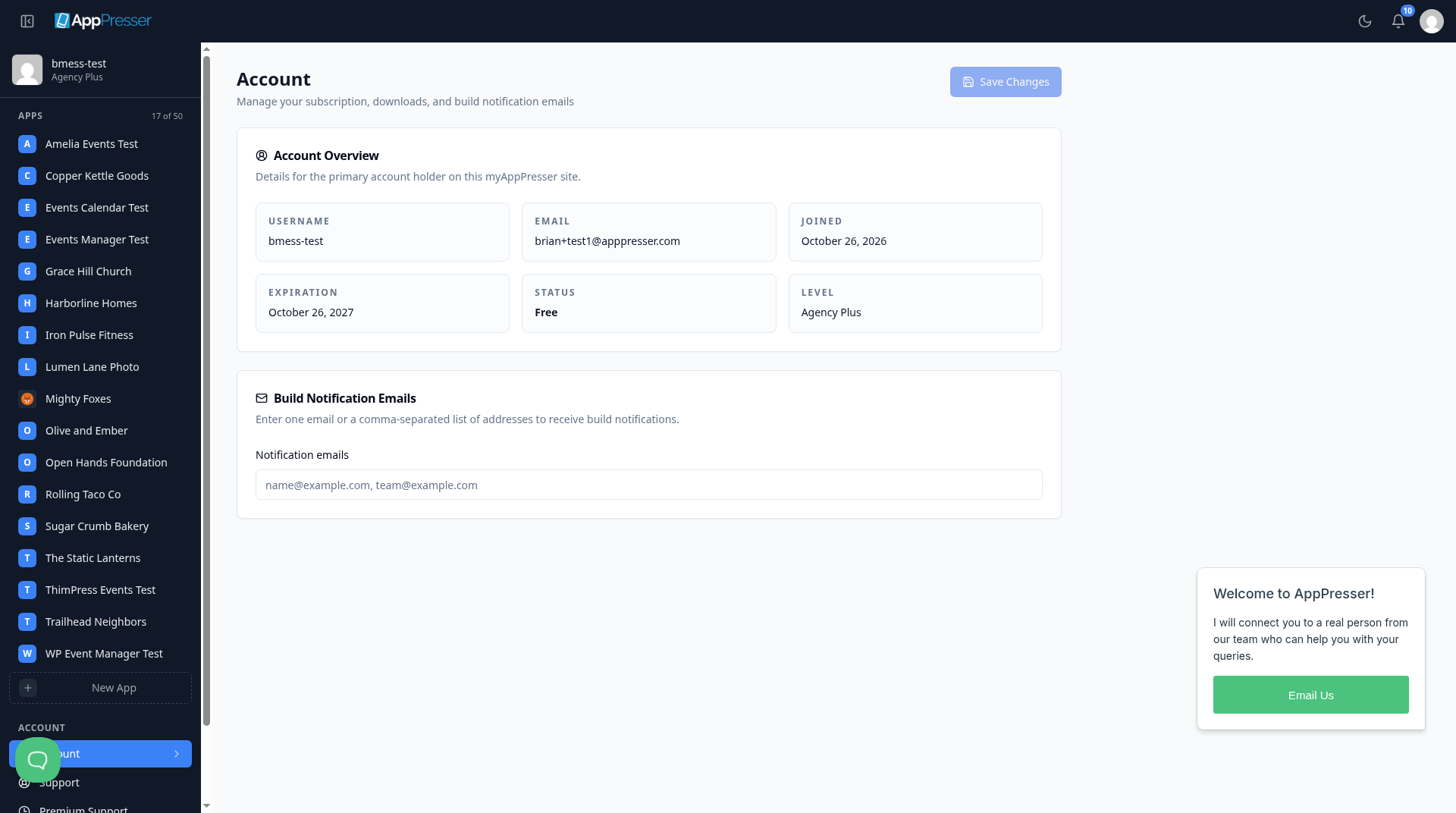
To hide the sidebar, click the square icon at the top left. Click it again to show the sidebar.
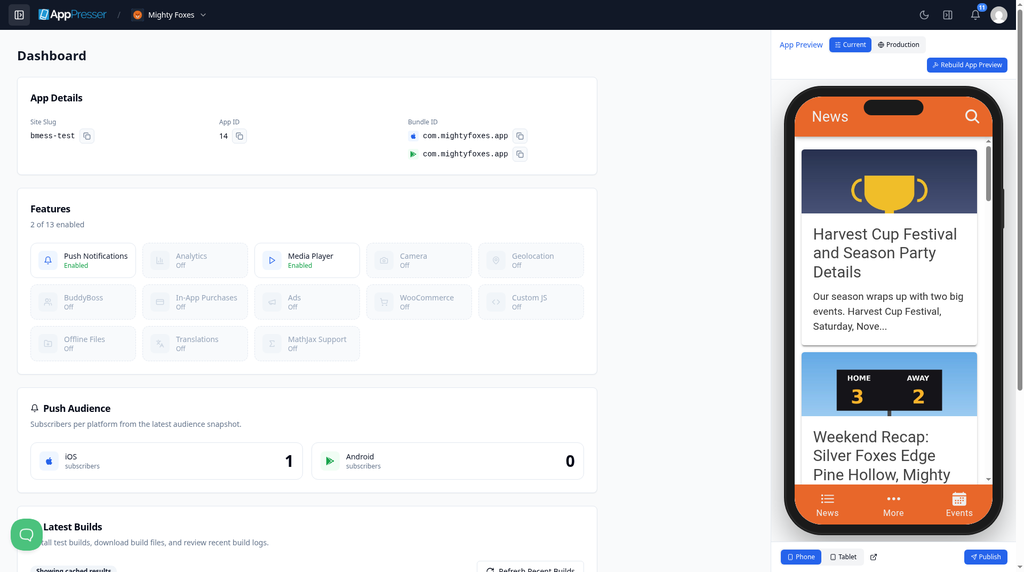
The top bar (top right)
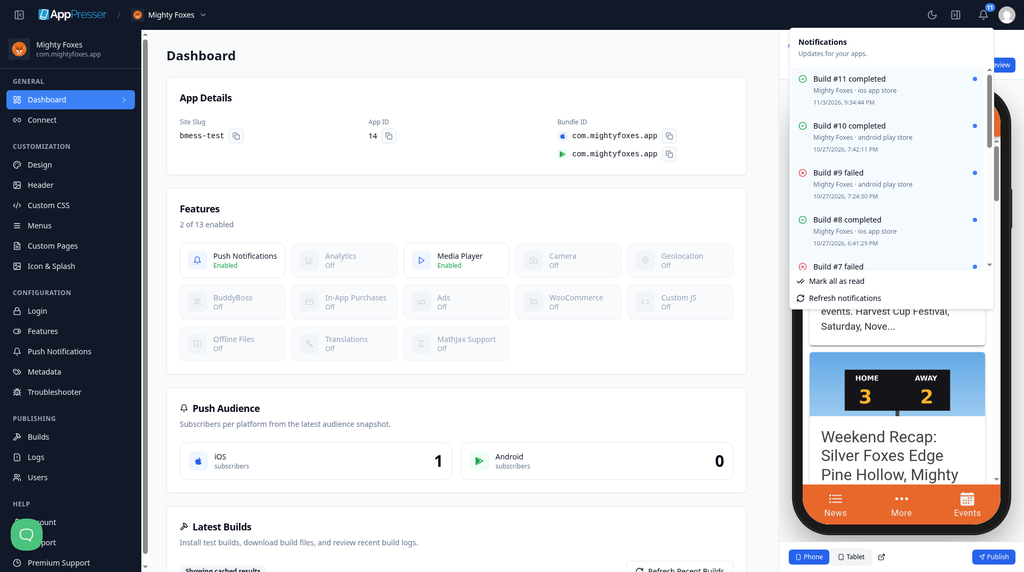
- Bell. Shows notices about your apps, for example when a build is finished. A build is the app file AppPresser makes for phones. Click Mark all as read to clear the unread count.
- Moon. Switches between light colors and dark colors (dark mode).
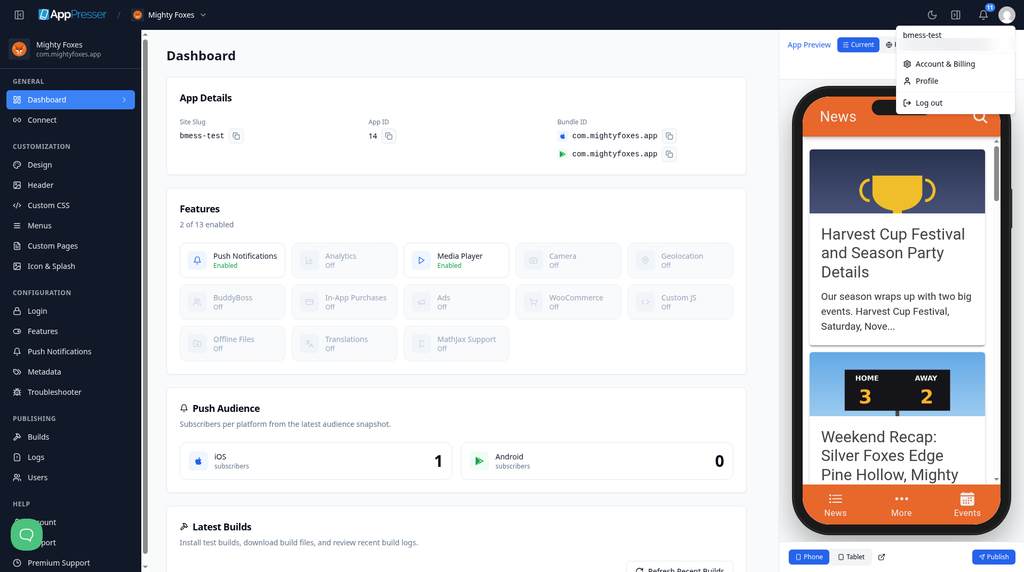
- Avatar. Your picture. Click it to see Account & Billing, Profile and Log out.
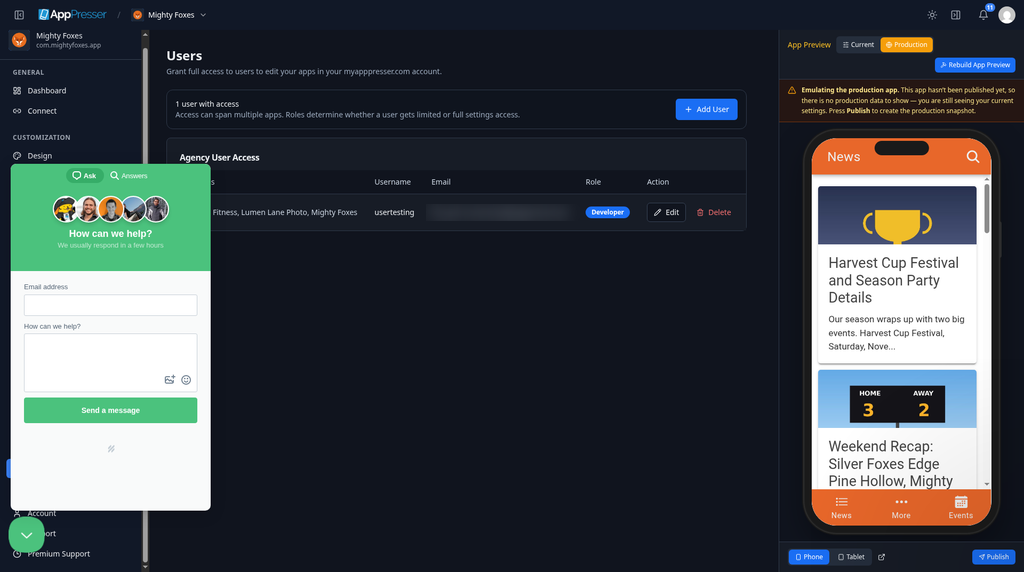
Get help from the chat bubble
The round chat bubble at the bottom left opens a help window.
- Click the chat bubble.
- Type your email address and your question.
- Click Send a message. A person on the AppPresser team will reply.
You're done when you can find your apps, the bell, dark mode and your avatar menu.
Next step
Related articles
這篇文章對您有幫助嗎?
輸入時結果會即時更新。按斜槓鍵(/)可跳轉到搜尋。
沒有找到?
我們的支援團隊可協助解決設定、建置和應用程式商店相關問題。