
Your account page
Getting Started · AppPresser Docs
Your account page
Your app journey: step 1 of 9, Sign up and sign in. New here? Read Start here: build your app with AppPresser first.
What you'll do: Check your account details on the Account page and choose who gets emails about your builds.
Before you start
- Sign in at myapppresser.com. See Sign in to your AppPresser dashboard.
Open your Account page
- Click Account in the sidebar. You also land here each time you sign in.
What you see
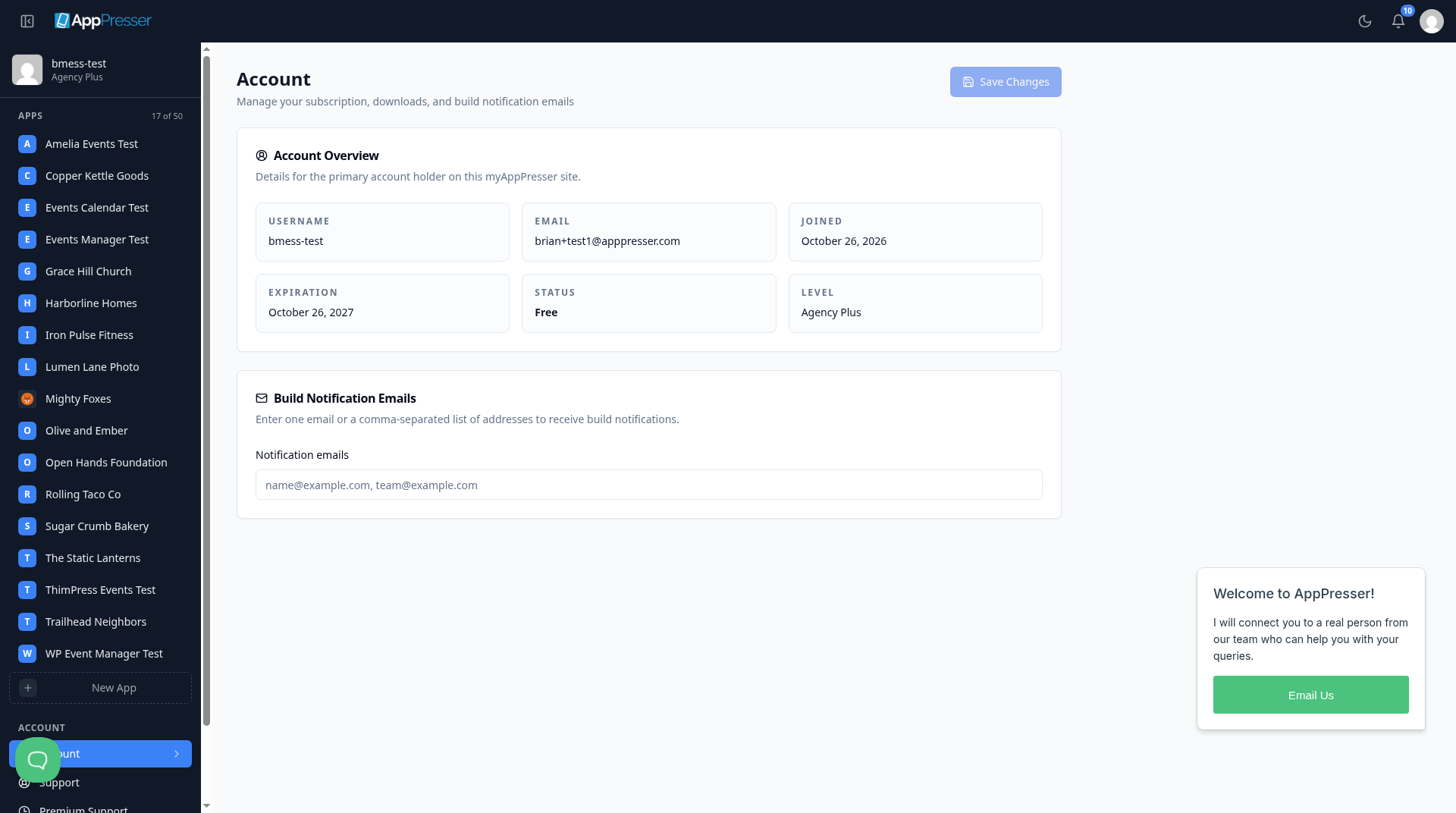
Under Account Overview you see:
- Username. The name you sign in with.
- Email. Your account email address.
- Joined. The day your account started.
- Expiration. The end date shown for your plan.
- Status and Level. Details about your plan.
Choose who gets build emails
A build is the app file AppPresser makes for phones. AppPresser can email you when a build is done.
- Under Build Notification Emails, click in Notification emails.
- Type one email address. To add more, put a comma between them. For example: name@example.com, team@example.com
- Click Save Changes at the top right. The button stays gray until you change something.
Billing and profile
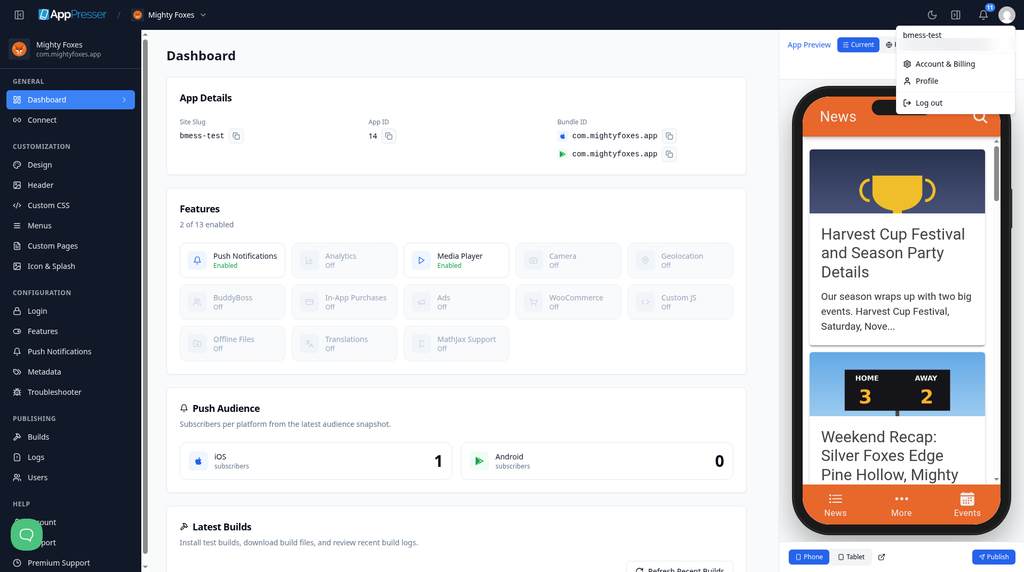
- Click your picture (your avatar) at the top right.
Click Account & Billing or Profile.
You're done when your build email addresses are saved under Build Notification Emails.
Next step
Connect your WordPress site and turn on Features
Related articles
Was this helpful?
Results update as you type. Press slash to jump to search.
Can’t find it?
Our support team can help with setup, builds and app store questions.