
Add a login bar (Login Toolbar block)
Build Your App · Dokumentacja AppPresser
Add a login bar (Login Toolbar block)
Ten artykuł nie został jeszcze przetłumaczony, dlatego jest wyświetlany po angielsku.
Your app journey: step 4 of 9, Add pages and features. New here? Read Start here: build your app with AppPresser first.
What you'll do: Add a login bar to a page with the Login Toolbar block. People use it to log in to your app with their WordPress username and password.
Before you start
- Make sure the people who will log in have an account on your WordPress website.
Add the block
This block has no settings.
- In the left menu, under Customization, click Custom Pages.
- Click the name of the page you want to change. To make a new page instead, click Add New Page, type a title, keep Page Builder selected and click Create Page.
- Below the last block on the page, click Add Block.
- In Search blocks…, type Login Toolbar, then click the block. It is added to the bottom of the page.
- Click Save Changes at the top of the editor.
- To see a new page in the App Preview, add it to a menu. See Add a page to your app menu.
What you see in the app
When nobody is logged in, the page shows a LOGIN bar.
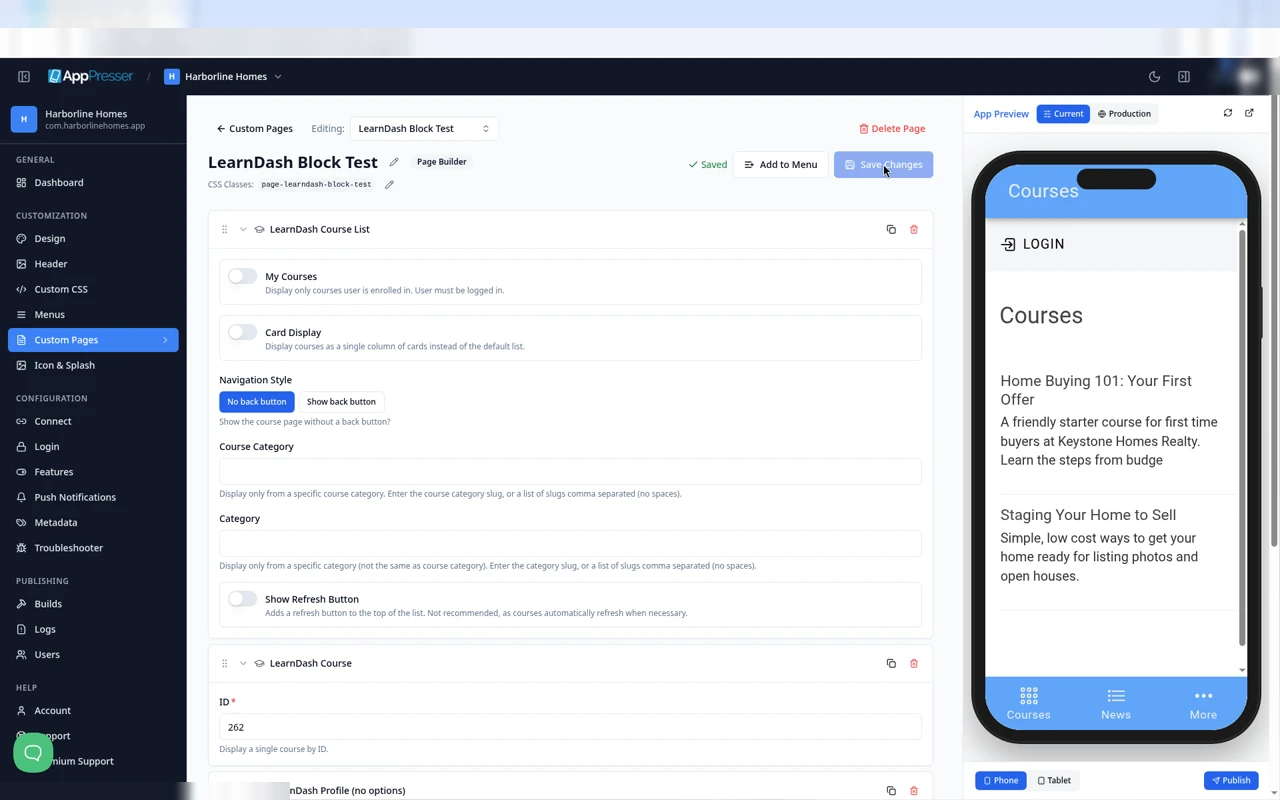
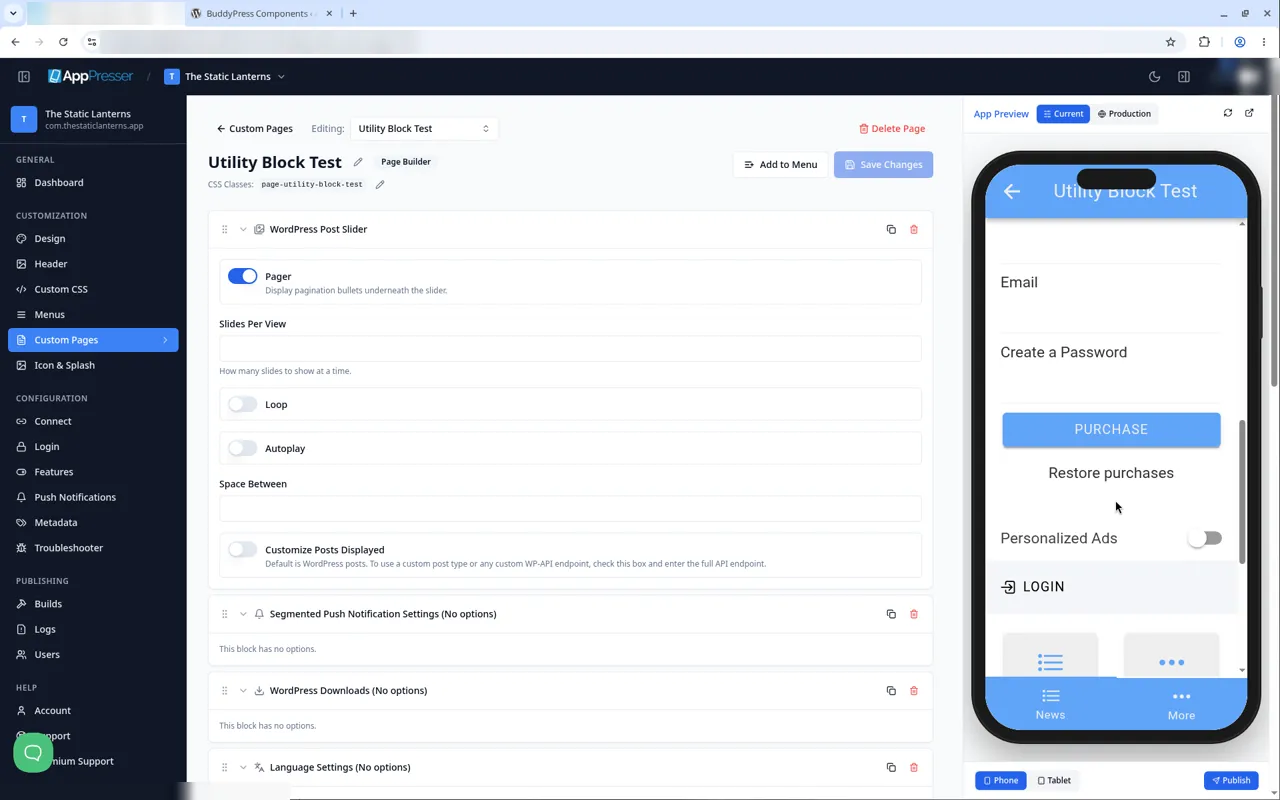
To log in, people do this:
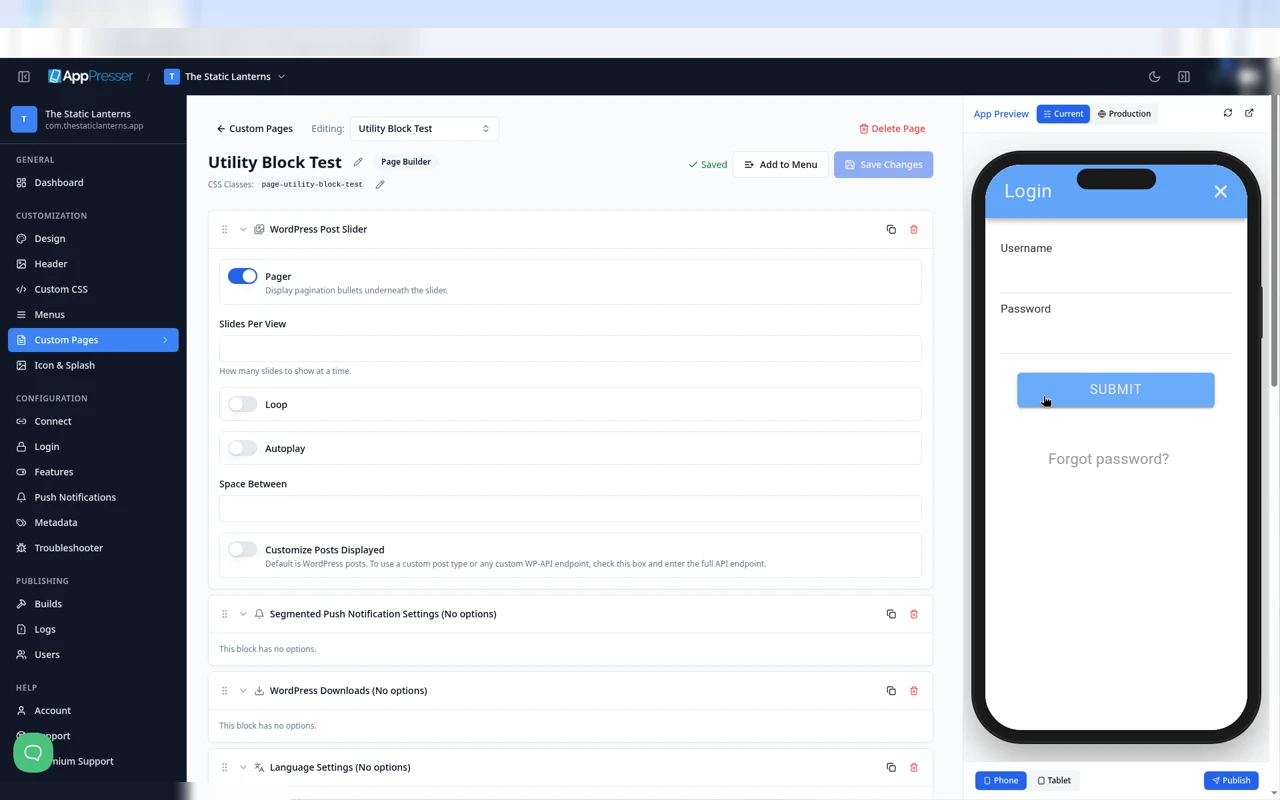
- Tap LOGIN. The Login window opens.
- Type their Username and Password.
- Tap SUBMIT. Wait a few seconds.
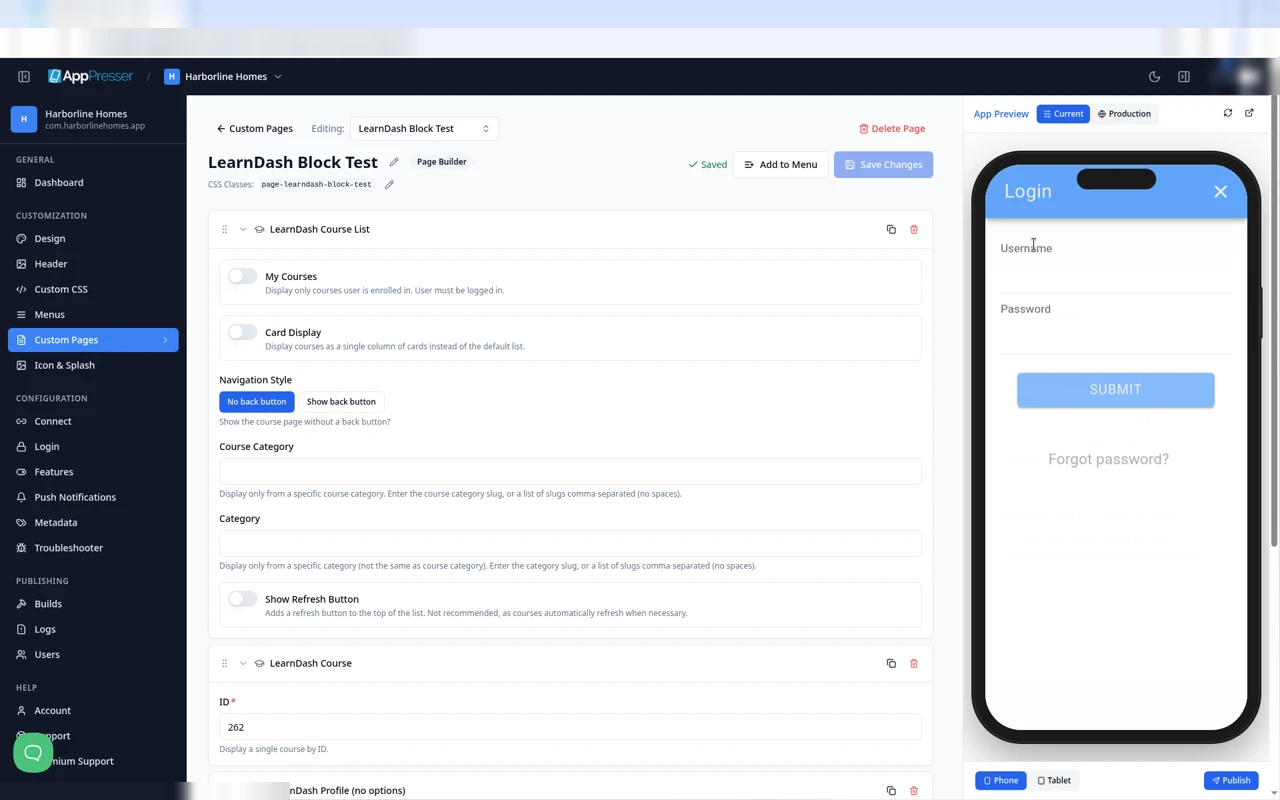
To close the Login window without logging in, they tap the X at the top.
After someone logs in, the bar shows LOGOUT and their profile picture. If they have no picture, a gray circle shows.
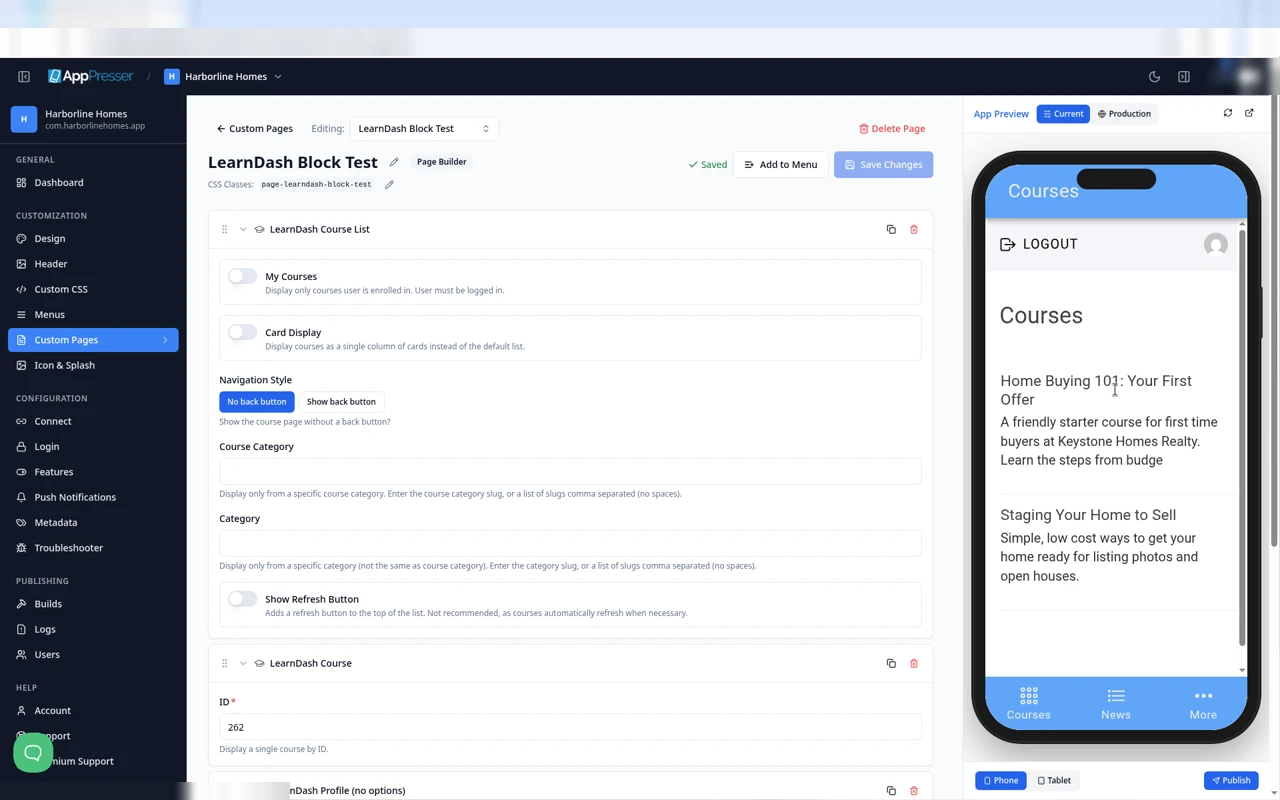
If you chose LearnDash when you made your app, the Courses page AppPresser made for you already has this block.
Tips
Tips
- To move a block, drag it by its handle (the dots on the left). Click the arrow to fold it closed.
- To copy a block, click the Duplicate icon.
- To turn a setting on or off, click the switch itself, not the words next to it.
- After you save, open the page in the App Preview and check your changes.
Careful: The trash icon removes a block right away. Check before you click.
You're done when the block shows on your page in the App Preview.
Next step
Show your WordPress posts (WordPress Post List block)
Related articles
Czy to było pomocne?
Wyniki aktualizują się podczas pisania. Naciśnij ukośnik, aby przejść do wyszukiwania.
Nie mogą Państwo znaleźć?
Nasz zespół wsparcia pomoże w konfiguracji, buildach i sprawach sklepów z aplikacjami.