
Build your iOS and Android apps (Builds tab)
Build Your App · Dokumentacja AppPresser
Build your iOS and Android apps (Builds tab)
Ten artykuł nie został jeszcze przetłumaczony, dlatego jest wyświetlany po angielsku.
Your app journey: step 6 of 9, Build your app. New here? Read Start here: build your app with AppPresser first.
What you'll do: Check your setup, start a build and download the result on the Builds screen. A build is the app file AppPresser makes so your app can go on a phone or into the app stores.
Before you start
- Set up your app and check it in the App Preview.
- For iPhone (iOS), get your Apple signing files in place. See Get your iOS app signed: certificates, profiles and the AppPresser setup request.
- For Android, you need nothing extra for a test build. To put your app on Google Play, see Publish your Android app to Google Play (step by step).
You can build for Android before your iOS setup is finished.
Open the Builds screen
- Open your app in the builder.
- In the left menu, under Publishing, click Builds.
You see Release Details, an iOS card, an Android card and Recent Builds And Logs.
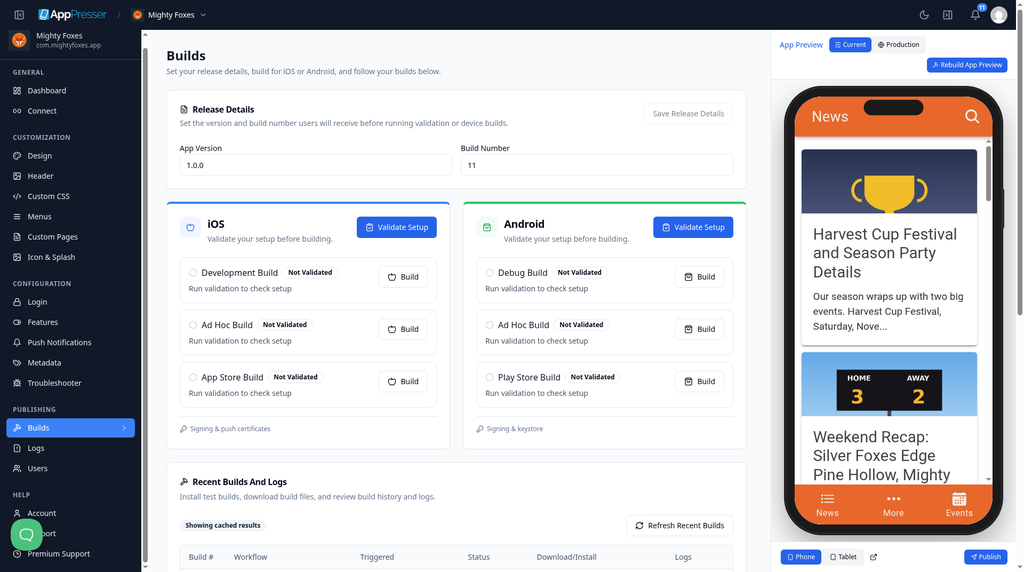
Words you will see
Swipe sideways to see the rest of this table.
| Word | What it means |
|---|---|
| Validate Setup | Checks that everything is ready before you build. It does not build anything or change anything. After the first check, the button may say Re-Validate. |
| Not Validated | You have not run the check yet, or you changed something since. |
| Ready | The check passed. You can build. |
| Issues Found | The check found something to fix. |
| Development Build and Ad Hoc Build (iOS) | Test builds for phones you have listed with Apple. |
| App Store Build (iOS) | The build for TestFlight and the App Store. |
| Debug Build and Ad Hoc Build (Android) | Test builds for Android phones. |
| Play Store Build (Android) | The build for Google Play. It makes a signed .aab file, which is the file Google Play wants. |
Step 1: Set the version
- Under Release Details, check the App Version (for example 1.0.0) and the Build Number. These are the numbers people and the app stores see.
- If you changed anything, click Save Release Details.
Step 2: Check your setup
- On the iOS or Android card, click Validate Setup.
- Wait for each row to show its status.
- If a row shows Ready, go to Step 3.
- If a row shows Issues Found, fix the problems listed. For iOS, click Signing & push certificates under the card. For Android, click Signing & keystore under the card.
- Click Re-Validate.
On the iOS card, a new app shows Not Validated until your Apple signing files are in place. This is normal.
Step 3: Start a build
- On the row you want, for example Debug Build or Play Store Build, click Build one time.
- The page says Build started. Follow its progress below. Do not click Build again.
A build takes several minutes. You can keep working. The notification bell shows when it finishes.
Step 4: Check the result
- Scroll down to Recent Builds And Logs.
- Click Refresh Recent Builds to see the newest status.
- Look at the Status column:
- In Progress: the build is still running.
- Completed: the build is done.
- Failed: the build did not finish. Click View Log in the Logs column to see why.
- To get your file, click the link in the Download/Install column.
The first Play Store Build usually shows Failed but still gives you a .aab file to download. This is expected. Publish your Android app to Google Play (step by step) explains why.
Fix signing later
At the bottom of the Builds screen, Repair Utilities keeps the signing tools in one place. For iOS, it has iOS signing & push certificates, Provisioning profiles and App Store submission credentials. For Android, it has Android signing & keystore and Google Play deployment.
Keep your signing files and passwords in a password manager. Never email them.
You're done when your build shows Completed in Recent Builds And Logs and you have downloaded the file.
Next step
Get your iOS app signed: certificates, profiles and the AppPresser setup request
Related articles
Czy to było pomocne?
Wyniki aktualizują się podczas pisania. Naciśnij ukośnik, aby przejść do wyszukiwania.
Nie mogą Państwo znaleźć?
Nasz zespół wsparcia pomoże w konfiguracji, buildach i sprawach sklepów z aplikacjami.