
Show one course (LearnDash Course block)
Build Your App · AppPresser डॉक्युमेंटेशन
Show one course (LearnDash Course block)
हा लेख अद्याप भाषांतरित झालेला नाही, त्यामुळे तो इंग्रजीत दाखवला आहे.
Your app journey: step 4 of 9, Add pages and features. New here? Read Start here: build your app with AppPresser first.
What you'll do: Show one course on an app page, with its title, Course Description and Course Content (the list of lessons).
Before you start
- Install and activate the LearnDash LMS and AppLMS plugins on your WordPress website. See Show a list of courses (LearnDash Course List block).
- Find the ID number of the course. An ID is the number WordPress gives each course. See Find the course ID below.
Add the block
- In the left menu, under Customization, click Custom Pages.
- Click the name of the page you want to change. To make a new page instead, click Add New Page, type a title, keep Page Builder selected and click Create Page.
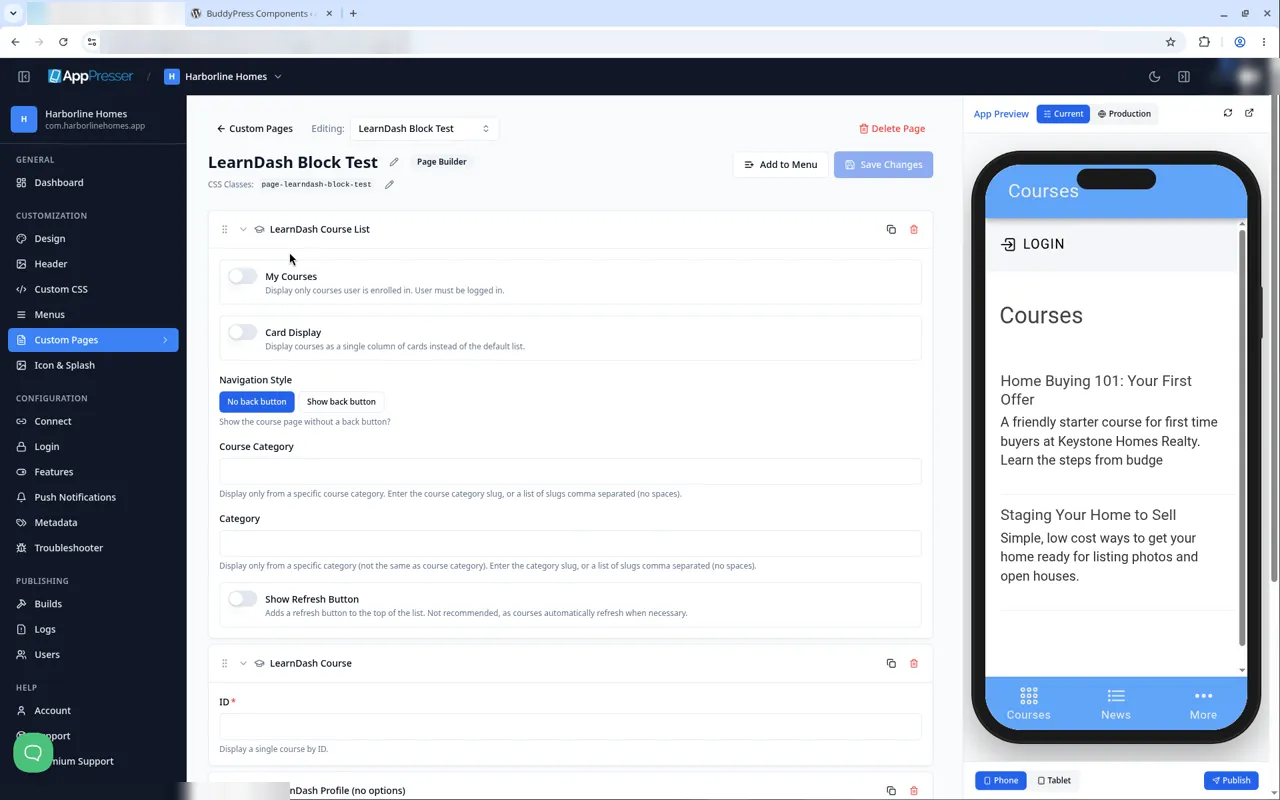
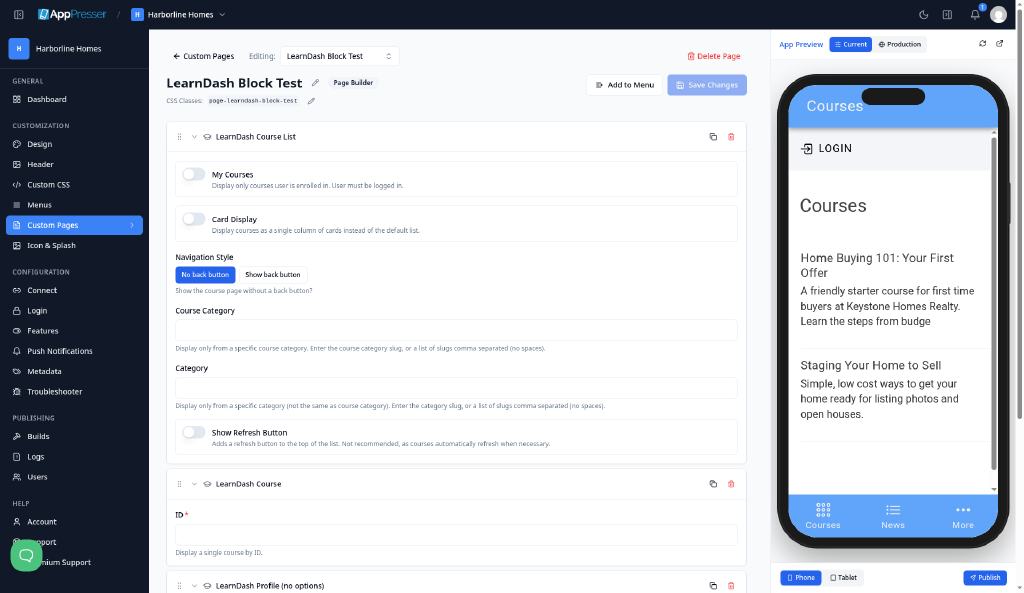
- Below the last block on the page, click Add Block.
- In Search blocks…, type LearnDash Course, then click the block. It is added to the bottom of the page.
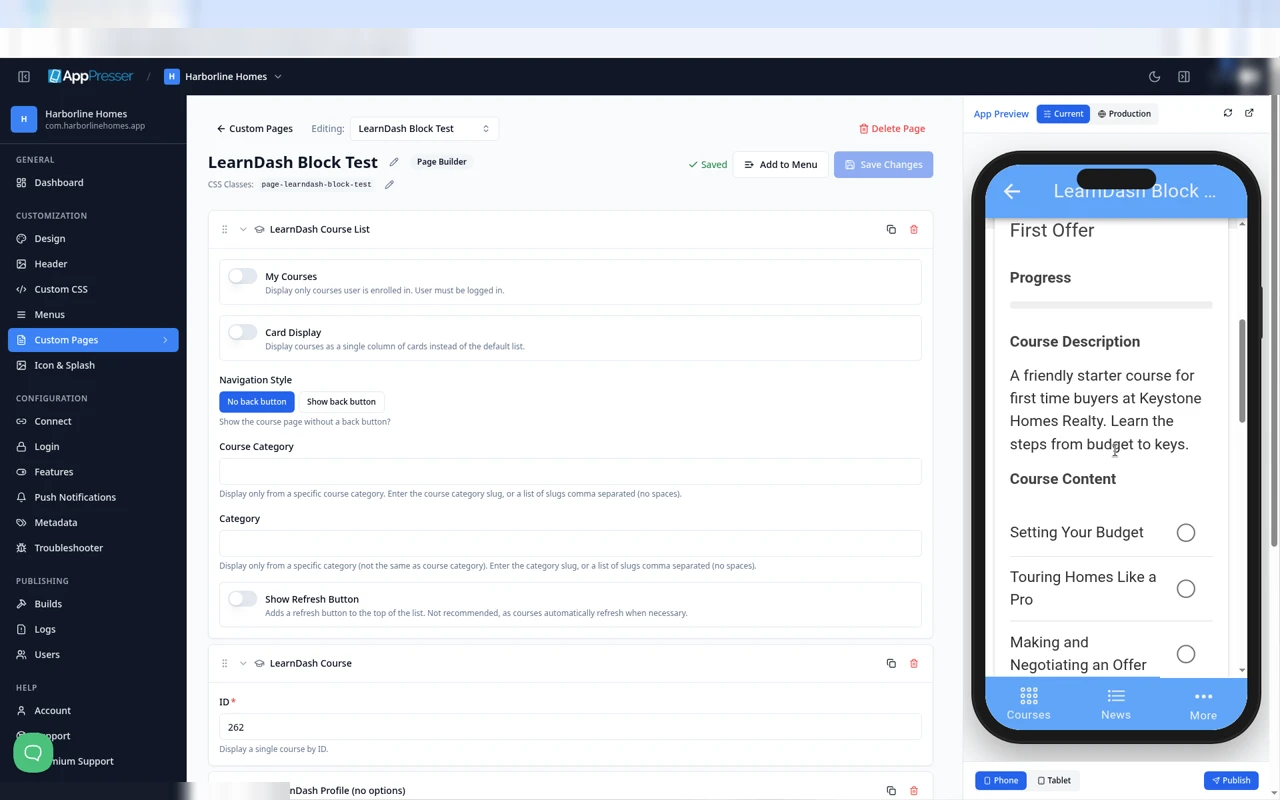
In ID, type the course ID number. This box is required.
- Click Save Changes at the top of the editor.
- To see a new page in the App Preview, add it to a menu. See Add a page to your app menu.
Find the course ID
- In your WordPress admin, click LearnDash LMS, then Courses.
- Click the course to open it.
- Look at the web address at the top of your browser. The number after post= is the ID, for example 262.
What you see in the app
The page shows the course title, Course Description and Course Content with the lessons.
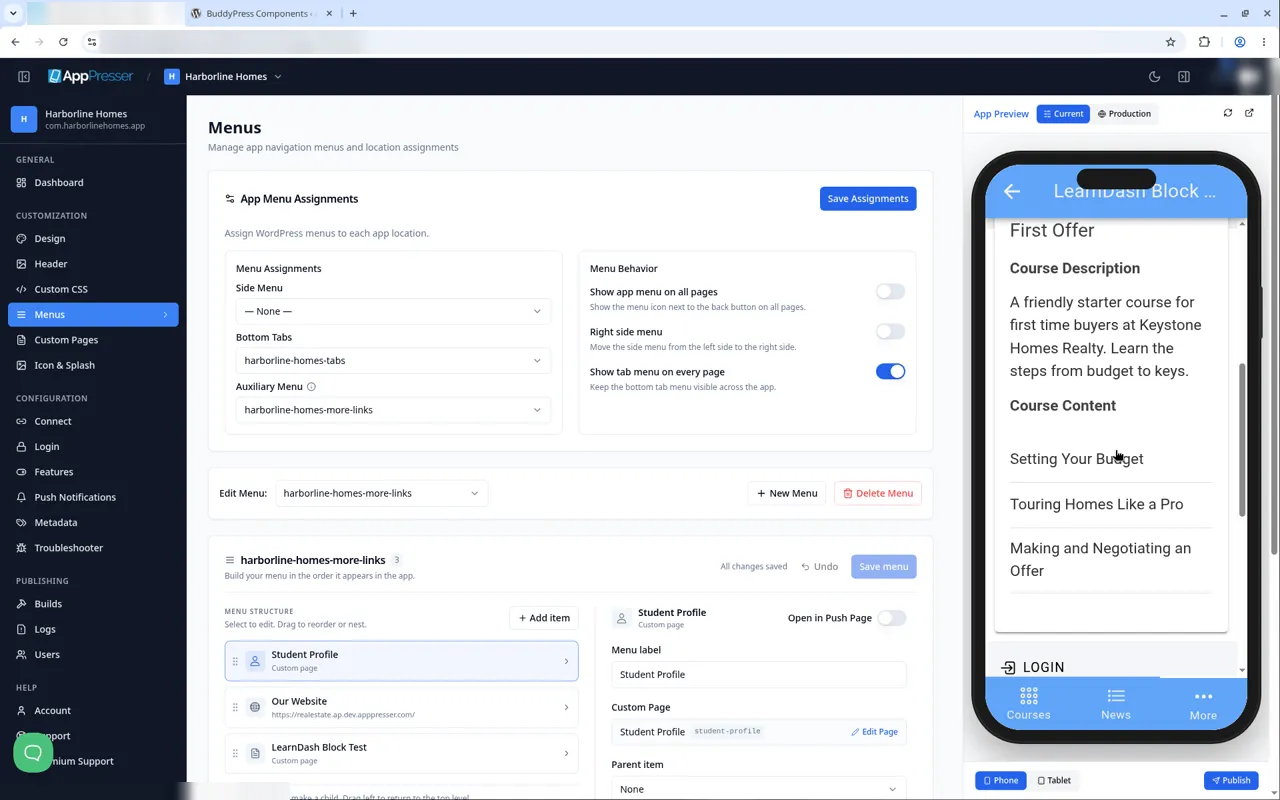
When a student is logged in, they also see a Progress bar. Each lesson has a circle that gets a check mark when the student finishes it.
Tips
Tips
- To move a block, drag it by its handle (the dots on the left). Click the arrow to fold it closed.
- To copy a block, click the Duplicate icon.
- To turn a setting on or off, click the switch itself, not the words next to it.
- After you save, open the page in the App Preview and check your changes.
Careful: The trash icon removes a block right away. Check before you click.
You're done when the block shows on your page in the App Preview.
Next step
Show a student profile (LearnDash Profile block)
Related articles
हे उपयुक्त होते का?
आपण टाइप करताच निकाल अपडेट होतात. शोधाकडे जाण्यासाठी स्लॅश दाबा.
सापडत नाही?
आमची सहाय्य टीम सेटअप, बिल्ड्स आणि app store विषयक प्रश्नांमध्ये मदत करू शकते.