
Add a button (Button block)
Build Your App · התיעוד של AppPresser
Add a button (Button block)
מאמר זה טרם תורגם, ולכן הוא מוצג באנגלית.
Your app journey: step 4 of 9, Add pages and features. New here? Read Start here: build your app with AppPresser first.
What you'll do: Add a button people can tap. A button can open another page in your app, open a web page, play media or open the login window.
Before you start
- To open a page in your app, find the page's slug. A slug is the short name of the page. It shows next to each page name on the Custom Pages screen, for example Slug: news.
- To open a web page, have its full address ready, starting with https://.
Add the block
- In the left menu, under Customization, click Custom Pages.
- Click the name of the page you want to change. To make a new page instead, click Add New Page, type a title, keep Page Builder selected and click Create Page.
- Below the last block on the page, click Add Block.
- In Search blocks…, type Button, then click the block. It is added to the bottom of the page.
- In Text, replace the starting words "Click Here" with words that say what the button does, like "Get directions".
- Under Action, choose what the button does: Open App Page, Open Webpage, Play Media or Open login modal. The login modal is the login window.
- In Link, type the page slug or the web address.
- If you want, choose a Width: Inline, Block or Full.
- If you want, add an Icon, a small picture on the button. Click Browse Ionicons to find an icon name.
- If you added an icon, choose an Icon Position: Start, End or Icon Only.
- Click Save Changes at the top of the editor.
- To see a new page in the App Preview, add it to a menu. See Add a page to your app menu.
What you see in the app
The button shows on the page. When people tap it, it does its action.
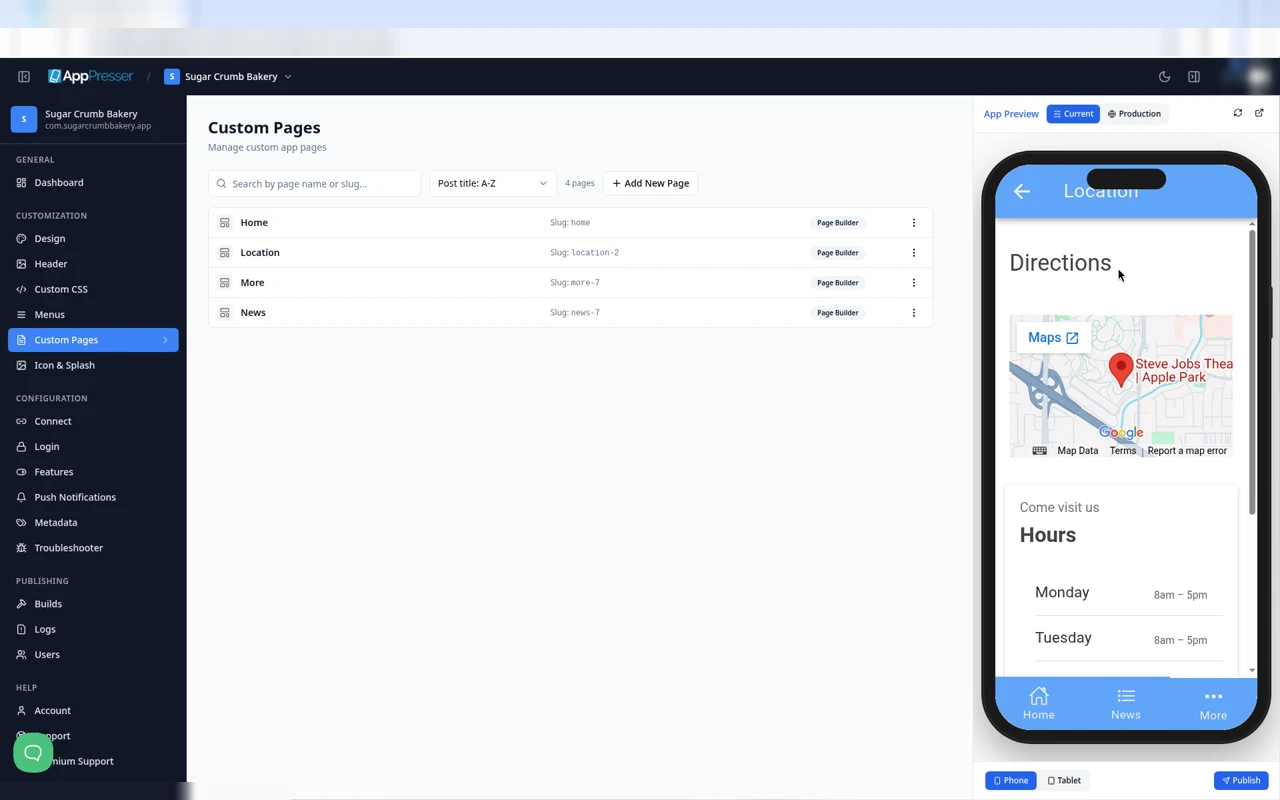
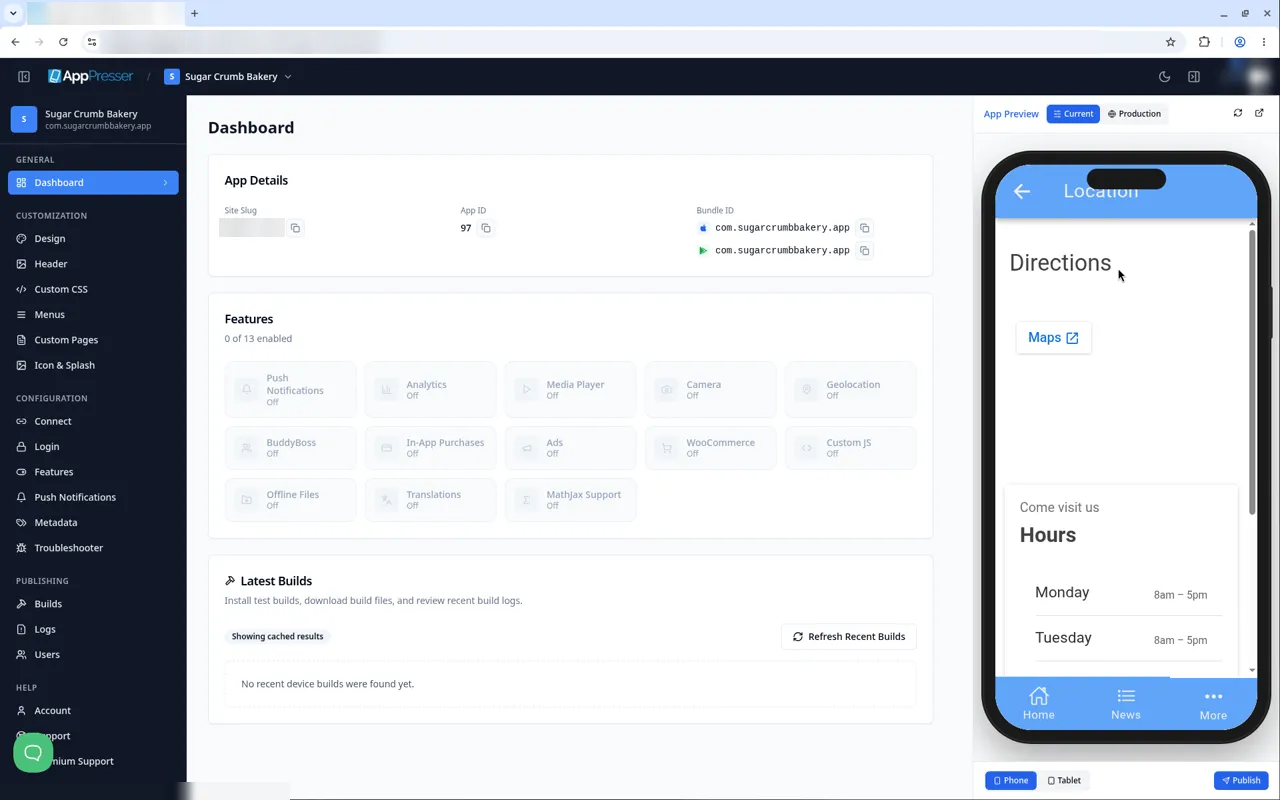
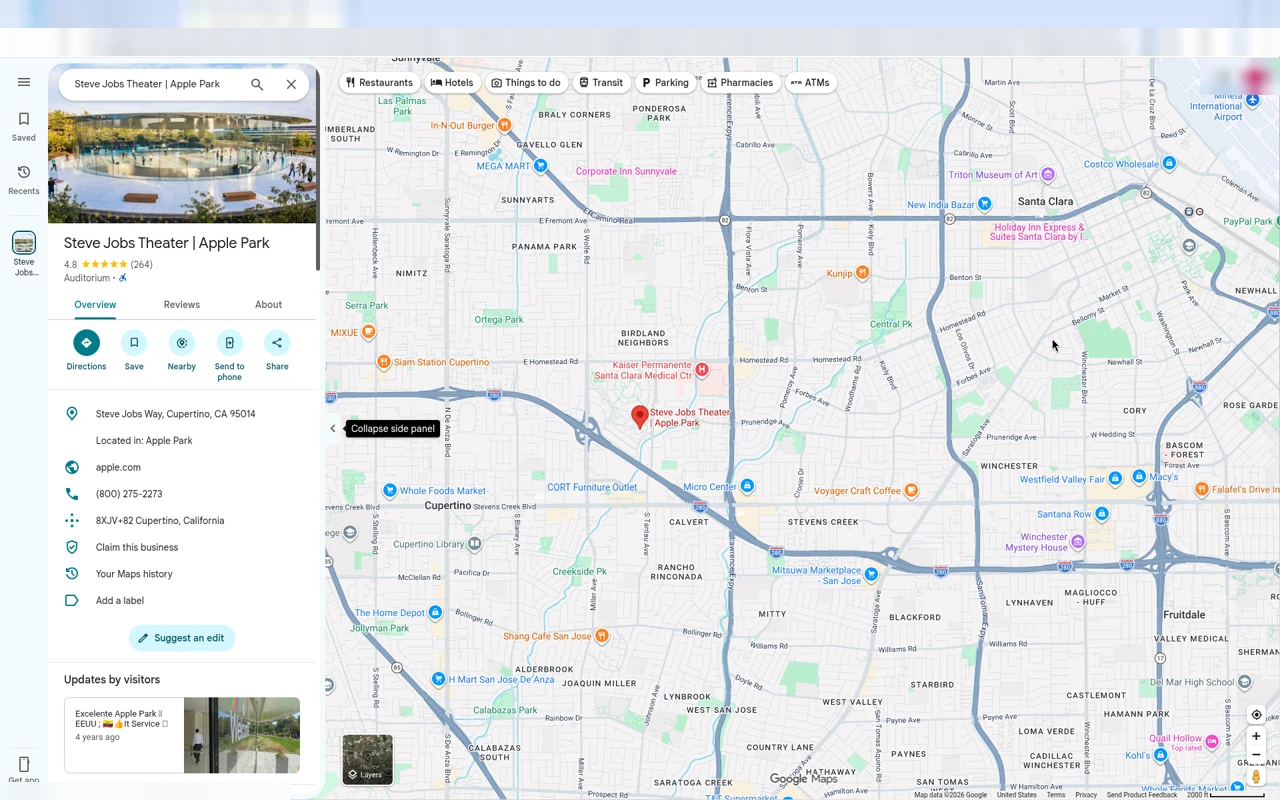
For example, a button with Open Webpage and a Google Maps link opens Google Maps.
Tips
Tips
- To move a block, drag it by its handle (the dots on the left). Click the arrow to fold it closed.
- To copy a block, click the Duplicate icon.
- To turn a setting on or off, click the switch itself, not the words next to it.
- After you save, open the page in the App Preview and check your changes.
Careful: The trash icon removes a block right away. Check before you click.
You're done when the block shows on your page in the App Preview.
Next step
Add a photo gallery (Photo Gallery block)
Related articles
האם זה עזר?
התוצאות מתעדכנות תוך כדי הקלדה. הקישו על לוכסן (/) כדי לעבור לחיפוש.
לא מצאתם?
צוות התמיכה שלנו יכול לעזור בהגדרה, בבנייה ובשאלות על החנויות.