
Let people upload photos (App Camera block)
Build Your App · התיעוד של AppPresser
Let people upload photos (App Camera block)
מאמר זה טרם תורגם, ולכן הוא מוצג באנגלית.
Your app journey: step 4 of 9, Add pages and features. New here? Read Start here: build your app with AppPresser first.
What you'll do: Add TAKE PHOTO and PHOTO LIBRARY buttons so people can take a photo, or pick one from their phone, and upload it to your WordPress website.
Before you start
- Install and activate the AppCamera plugin on your WordPress website.
- Turn on the Camera feature for your app. See Turn on app features (Features).
- If you choose This in the next section, find the ID number of the post or page the photos go to. See Show one post or page (Single Post or Page block) to learn how to find an ID.
Add the block
- In the left menu, under Customization, click Custom Pages.
- Click the name of the page you want to change. To make a new page instead, click Add New Page, type a title, keep Page Builder selected and click Create Page.
- Below the last block on the page, click Add Block.
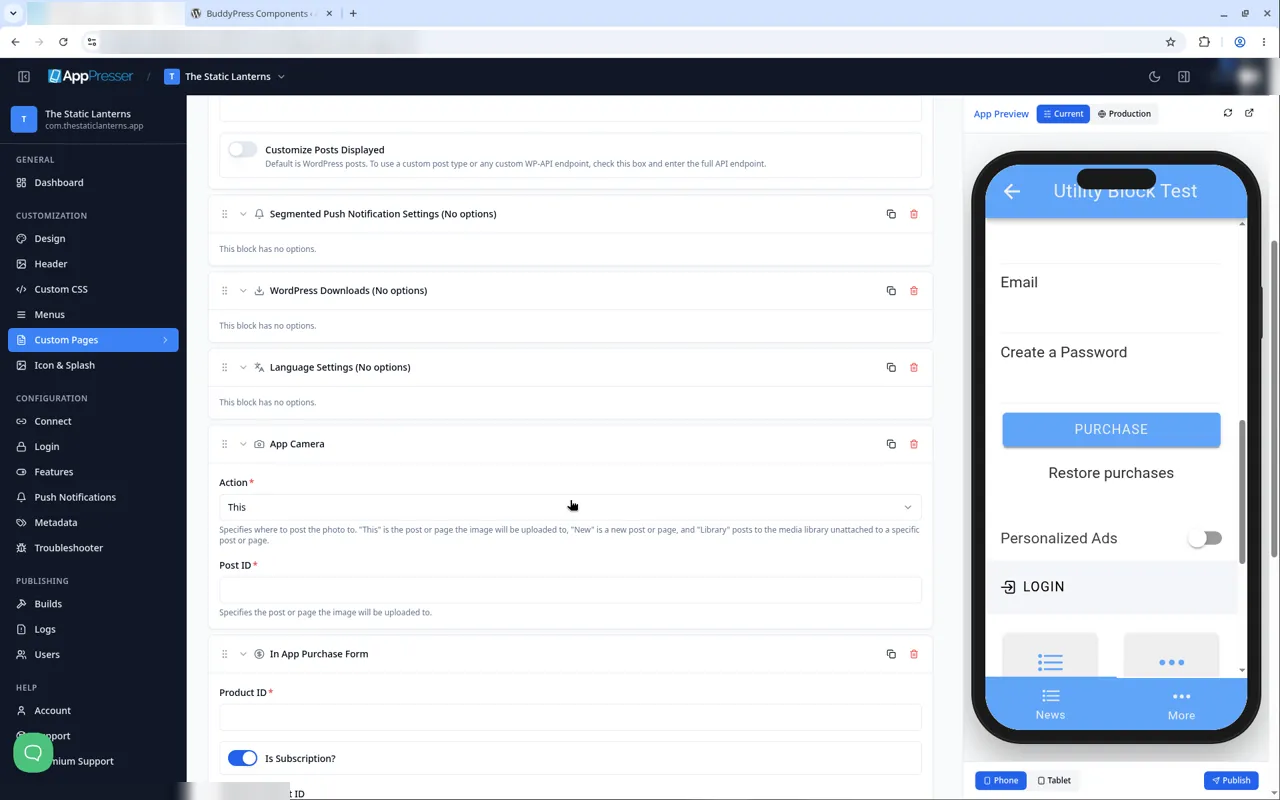
- In Search blocks…, type App Camera, then click the block. It is added to the bottom of the page.
- In Action, choose This, New or Library. This uploads the photo to the current post or page. New uploads it to a new post or page. Library saves it in the media library, not attached to any post or page.
- If you chose This, type the ID of the post or page in Post ID.
- Click Save Changes at the top of the editor.
- To see a new page in the App Preview, add it to a menu. See Add a page to your app menu.
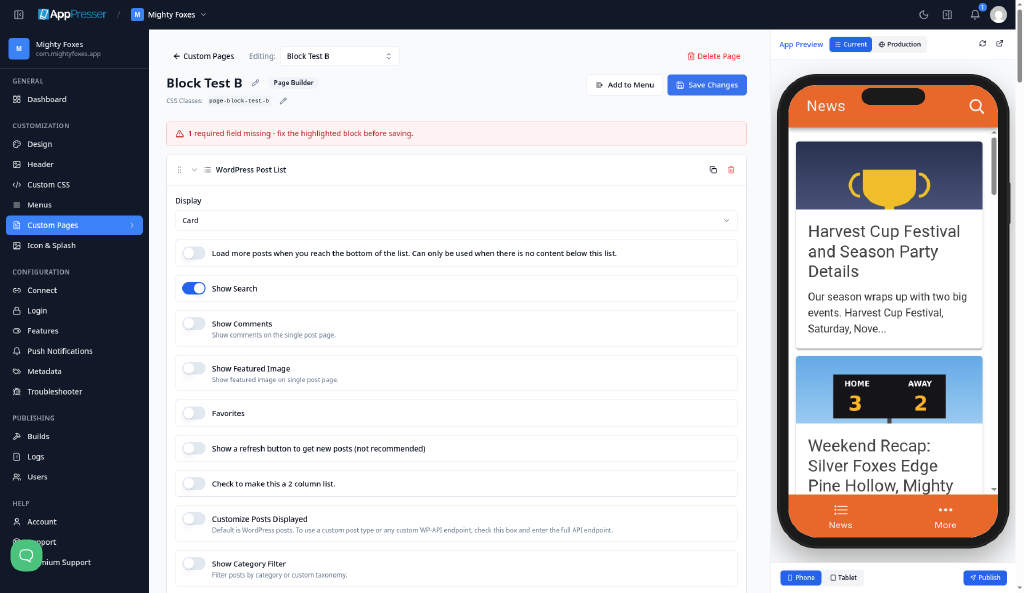
If a required box is empty when you save, a red banner at the top says a required field is missing and the block is highlighted. Fill in the box and click Save Changes again.
What you see in the app
The block shows the TAKE PHOTO and PHOTO LIBRARY buttons.
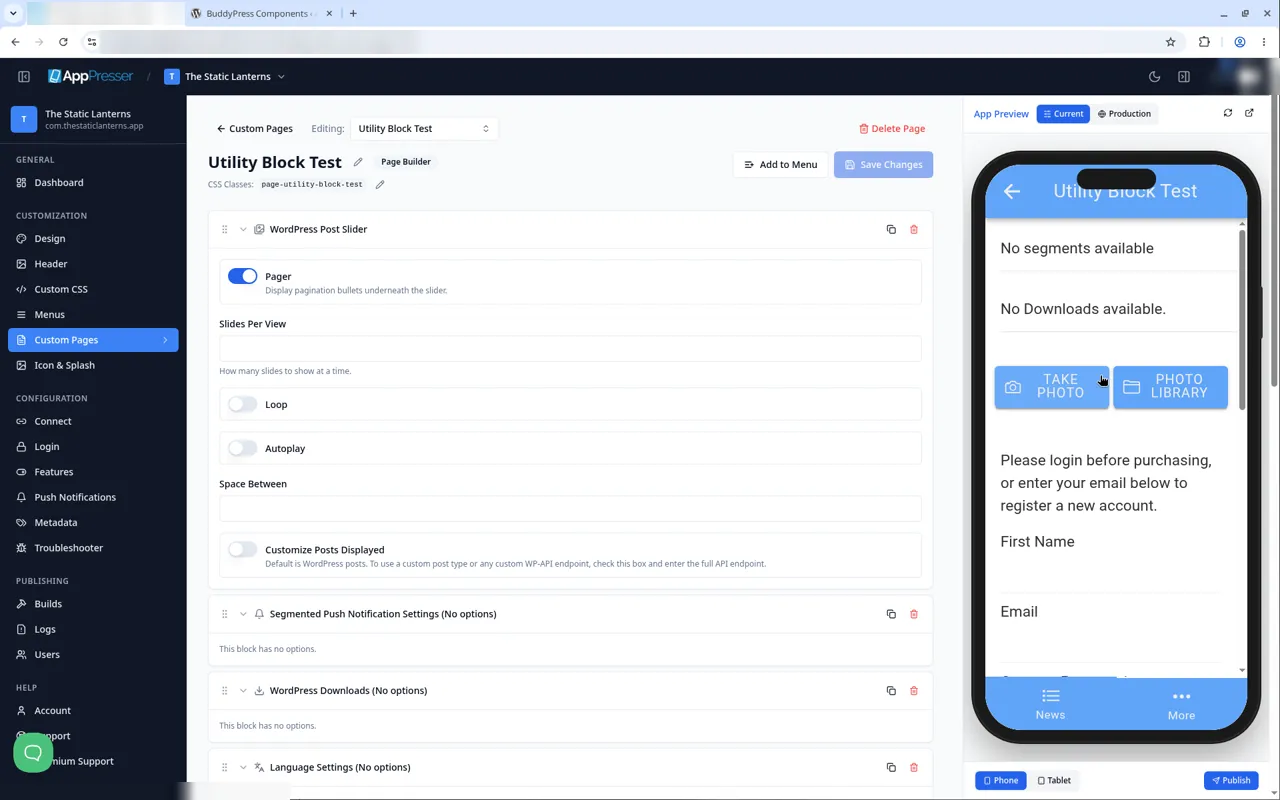
The camera works only in the app on a real phone, not in the App Preview.
Tips
Tips
- To move a block, drag it by its handle (the dots on the left). Click the arrow to fold it closed.
- To copy a block, click the Duplicate icon.
- To turn a setting on or off, click the switch itself, not the words next to it.
- After you save, open the page in the App Preview and check your changes.
Careful: The trash icon removes a block right away. Check before you click.
You're done when the block shows on your page in the App Preview.
Next step
Sell in-app purchases (In App Purchase Form block)
Related articles
האם זה עזר?
התוצאות מתעדכנות תוך כדי הקלדה. הקישו על לוכסן (/) כדי לעבור לחיפוש.
לא מצאתם?
צוות התמיכה שלנו יכול לעזור בהגדרה, בבנייה ובשאלות על החנויות.