
Sell in-app purchases (In App Purchase Form block)
Build Your App · התיעוד של AppPresser
Sell in-app purchases (In App Purchase Form block)
מאמר זה טרם תורגם, ולכן הוא מוצג באנגלית.
Your app journey: step 4 of 9, Add pages and features. New here? Read Start here: build your app with AppPresser first.
What you'll do: Let people buy something inside your app, such as a membership, and pay through the Apple App Store or Google Play.
Before you start
- Make sure you are on the Advanced plan. In-app purchases need this plan, which includes one subscription. More than one in-app purchase needs custom development.
- Set up the product in Apple's App Store Connect and, if you sell on Android too, in the Google Play Console. Note its product ID, the ID you gave it there.
- Turn on the In-App Purchases feature for your app. See Turn on app features (Features).
Add the block
- In the left menu, under Customization, click Custom Pages.
- Click the name of the page you want to change. To make a new page instead, click Add New Page, type a title, keep Page Builder selected and click Create Page.
- Below the last block on the page, click Add Block.
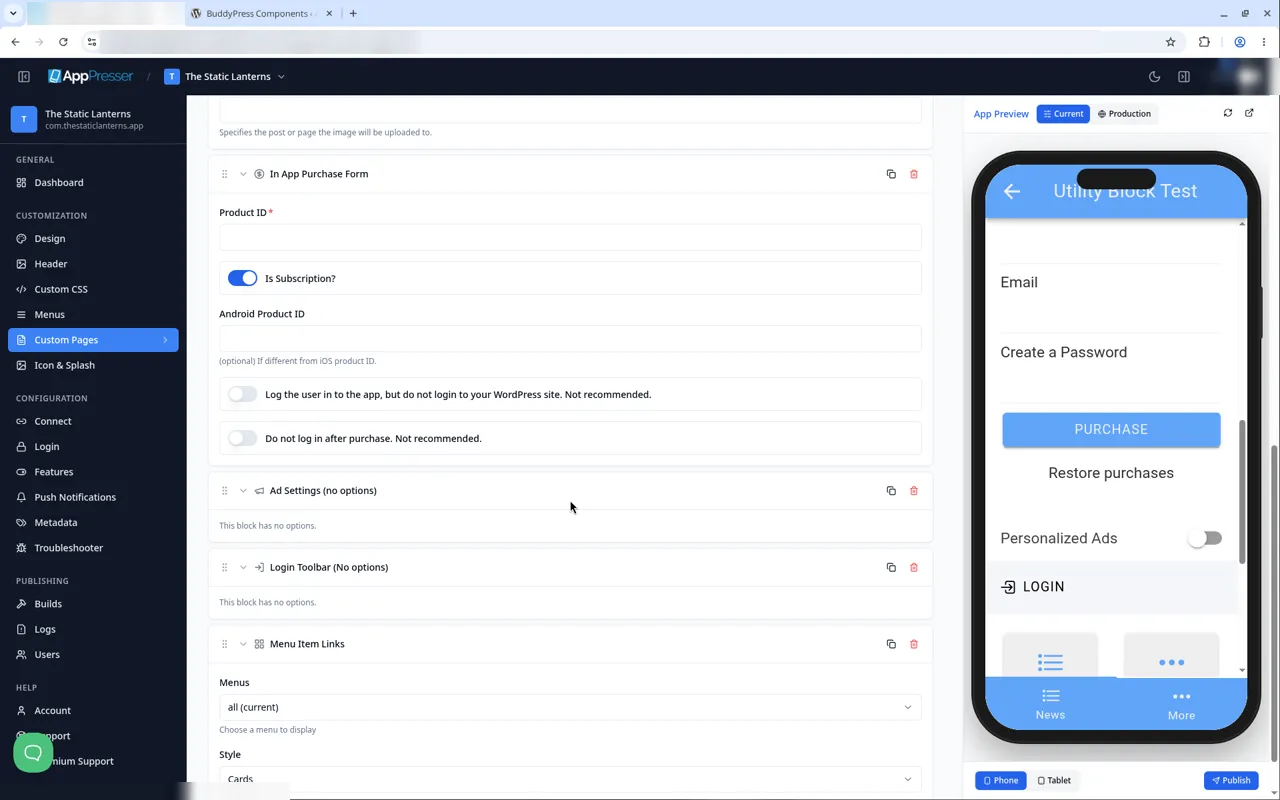
- In Search blocks…, type In App Purchase Form, then click the block. It is added to the bottom of the page.
- In Product ID, type the product ID from App Store Connect. This box is required.
- Leave Is Subscription? on for a repeating payment, or turn it off for a one-time purchase.
- If your Android product ID is different, type it in Android Product ID.
- Leave both login switches marked "Not recommended" turned off.
- Click Save Changes at the top of the editor.
- To see a new page in the App Preview, add it to a menu. See Add a page to your app menu.
What you see in the app
The form asks people to log in or sign up. It has boxes for First Name, Email and Create a Password, a PURCHASE button and a Restore purchases link. Restore purchases lets people who already paid get their purchase back, for example on a new phone.
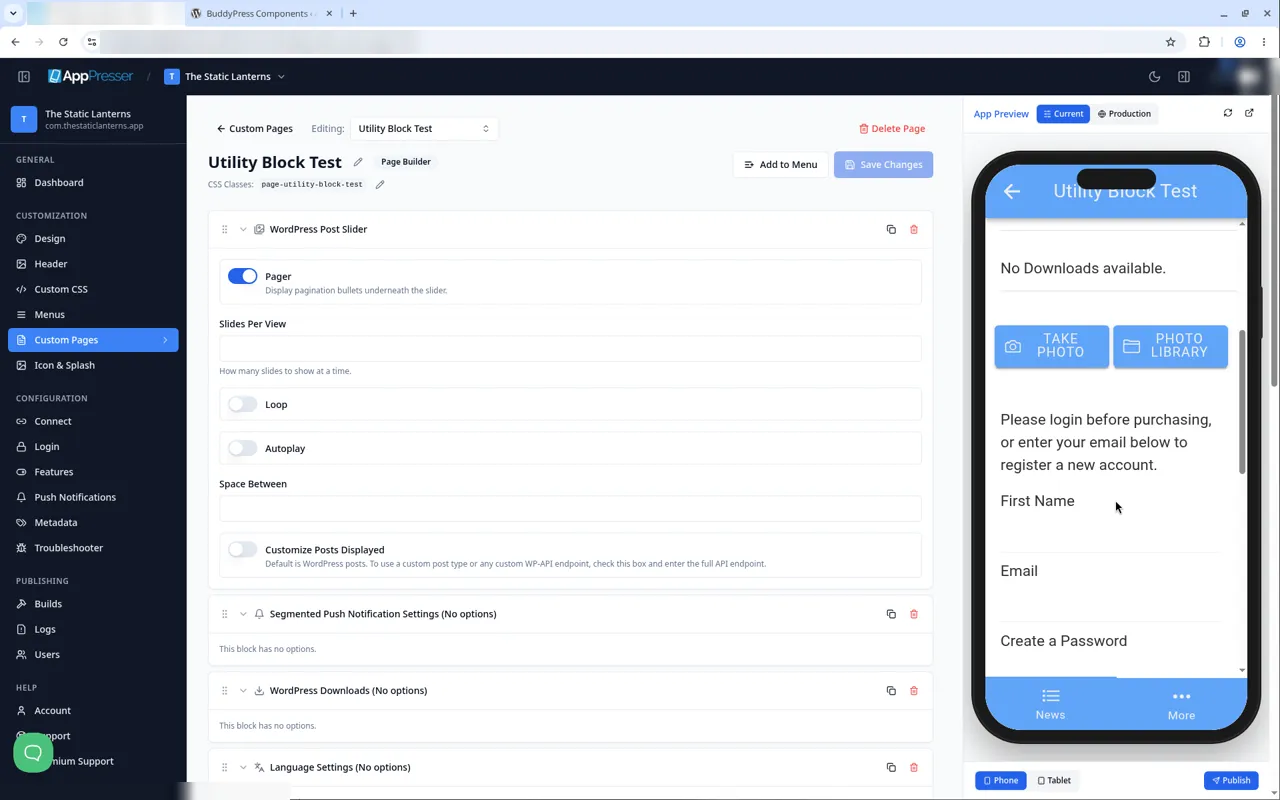
Buying works only in the app on a real phone, not in the App Preview.
Tips
Tips
- To move a block, drag it by its handle (the dots on the left). Click the arrow to fold it closed.
- To copy a block, click the Duplicate icon.
- To turn a setting on or off, click the switch itself, not the words next to it.
- After you save, open the page in the App Preview and check your changes.
Careful: The trash icon removes a block right away. Check before you click.
You're done when the block shows on your page in the App Preview.
Next step
Let people choose personalized ads (Ad Settings block)
Related articles
האם זה עזר?
התוצאות מתעדכנות תוך כדי הקלדה. הקישו על לוכסן (/) כדי לעבור לחיפוש.
לא מצאתם?
צוות התמיכה שלנו יכול לעזור בהגדרה, בבנייה ובשאלות על החנויות.