
Show your events (Events block)
Build Your App · AppPresser Docs
Show your events (Events block)
Your app journey: step 4 of 9, Add pages and features. New here? Read Start here: build your app with AppPresser first.
What you'll do: Show your events in your app as a calendar or a list with the Events block. People tap an event to see more.
Before you start
- Connect your app to your WordPress website. See Connect your WordPress site and turn on Features.
- Events is part of the AppPresser plugin, so you don't need a separate add-on. Add the Events block to a page to show your events.
- Publish your events on your website.
Add the block
- In the left menu, under Customization, click Custom Pages.
- Click the name of the page you want to change. To make a new page instead, click Add New Page, type a title, keep Page Builder selected and click Create Page.
- Below the last block on the page, click Add Block.
- In Search blocks…, type Events, then click the block. It is added to the bottom of the page.
- Under Default view, choose what people see first, for example Calendar.
- Turn Show List view and Show Calendar view on or off.
- To let people switch between the two, turn on Let app users switch views. The switch shows in the app only when both views are on.
- Under Display, choose how each event looks, for example Card.
- Under Show, choose which events, for example Upcoming events.
- In Number of events, type how many to show, for example 10.
- If you want, type a Category slug to show only some events. For more than one, put commas between them.
Turn Show category filter and Show featured image on or off.
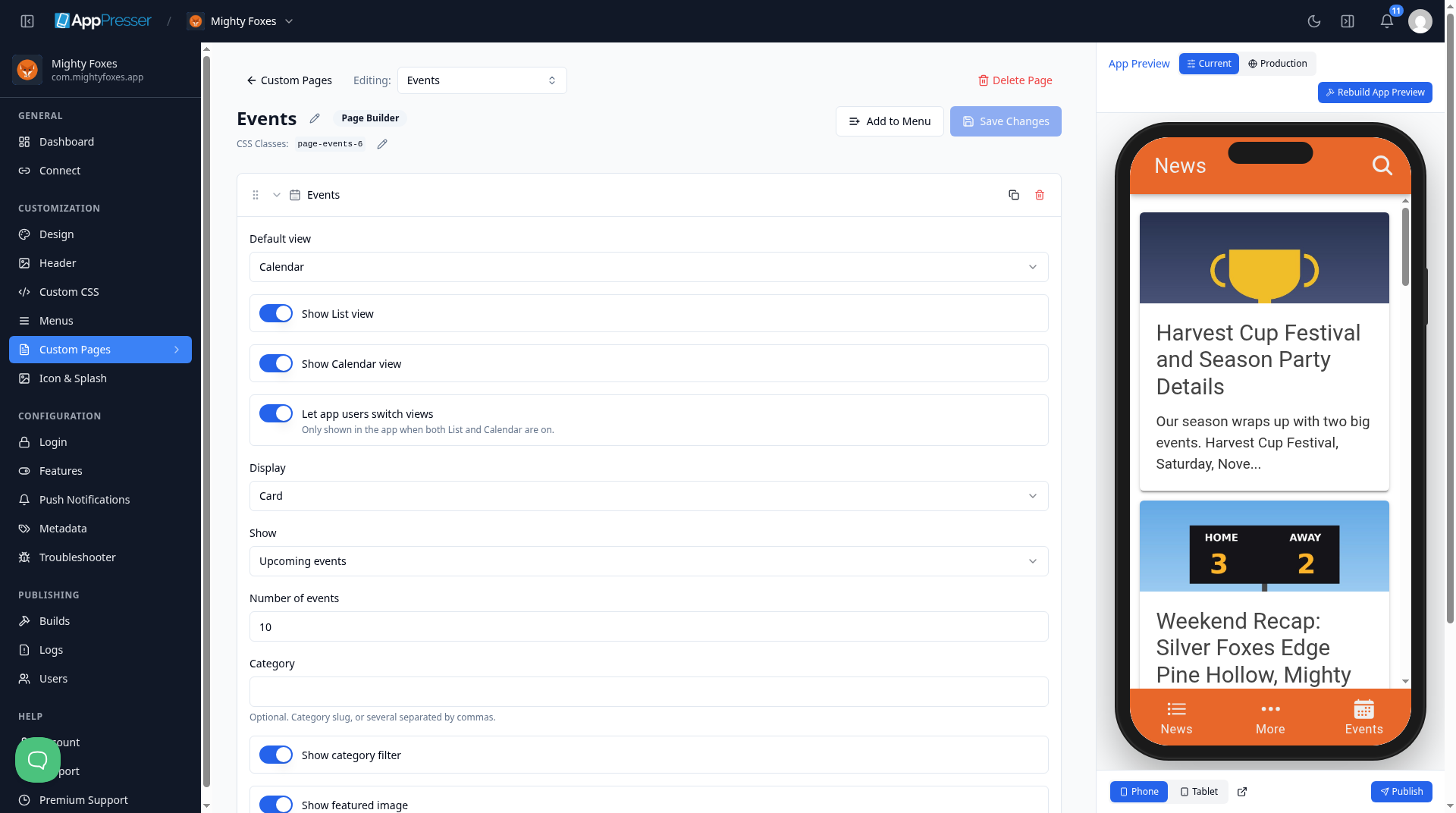
- Click Save Changes at the top of the editor.
- To see a new page in the App Preview, add it to a menu. See Add a page to your app menu.
What you see in the app
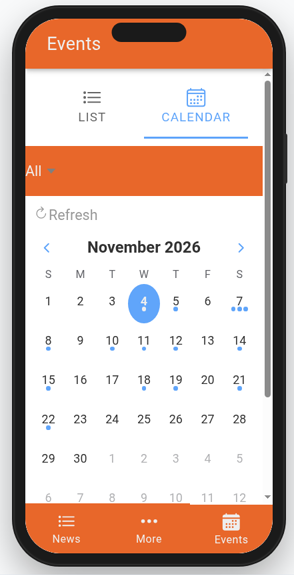
Your events show as a calendar or a list. If you turned on Let app users switch views, people can switch between them. In this example, the events come from the website.
Tips
Tips
- To move a block, drag it by its handle (the dots on the left). Click the arrow to fold it closed.
- To copy a block, click the Duplicate icon.
- To turn a setting on or off, click the switch itself, not the words next to it.
- After you save, open the page in the App Preview and check your changes.
Careful: The trash icon removes a block right away. Check before you click.
You're done when your events show as a calendar or a list on your page in the App Preview.
Next step
Show podcasts, audio and video (Podcasts/Media block)
Related articles
Was this helpful?
Results update as you type. Press slash to jump to search.
Can’t find it?
Our support team can help with setup, builds and app store questions.