
Show your post categories (WordPress Post Category List block)
Build Your App · AppPresser Docs
Show your post categories (WordPress Post Category List block)
Your app journey: step 4 of 9, Add pages and features. New here? Read Start here: build your app with AppPresser first.
What you'll do: Show your post categories as cards that people tap to see the posts in each one. A category is a group of posts, like "News" or "Events".
Before you start
- Connect your app to your WordPress website. See Connect your WordPress site and turn on Features.
- Put your posts into categories in WordPress.
Add the block
- In the left menu, under Customization, click Custom Pages.
- Click the name of the page you want to change. To make a new page instead, click Add New Page, type a title, keep Page Builder selected and click Create Page.
- Below the last block on the page, click Add Block.
- In Search blocks…, type WordPress Post Category List, then click the block. It is added to the bottom of the page.
- Leave the settings as they are, or change them. See Settings below.
- Click Save Changes at the top of the editor.
- To see a new page in the App Preview, add it to a menu. See Add a page to your app menu.
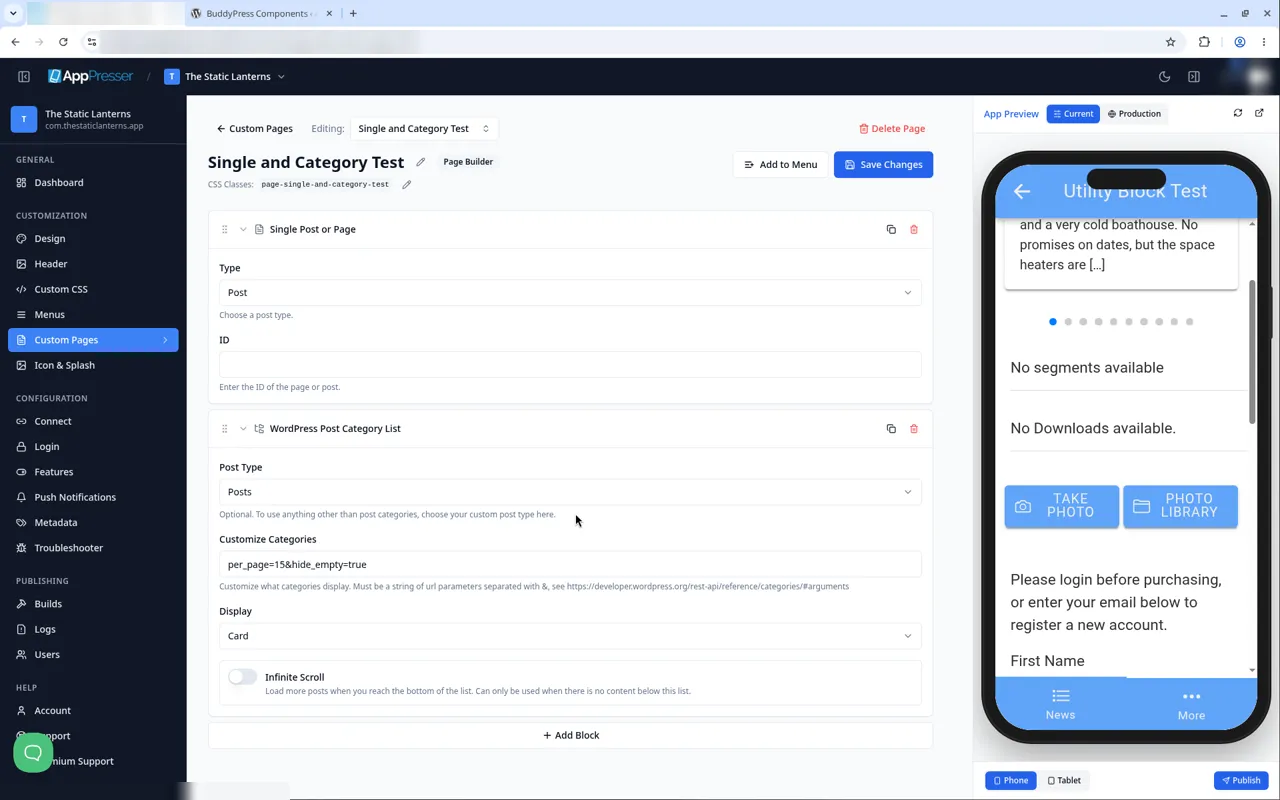
What you see in the app
Each category shows as a card. The block shows all your categories. You do not pick them one by one.
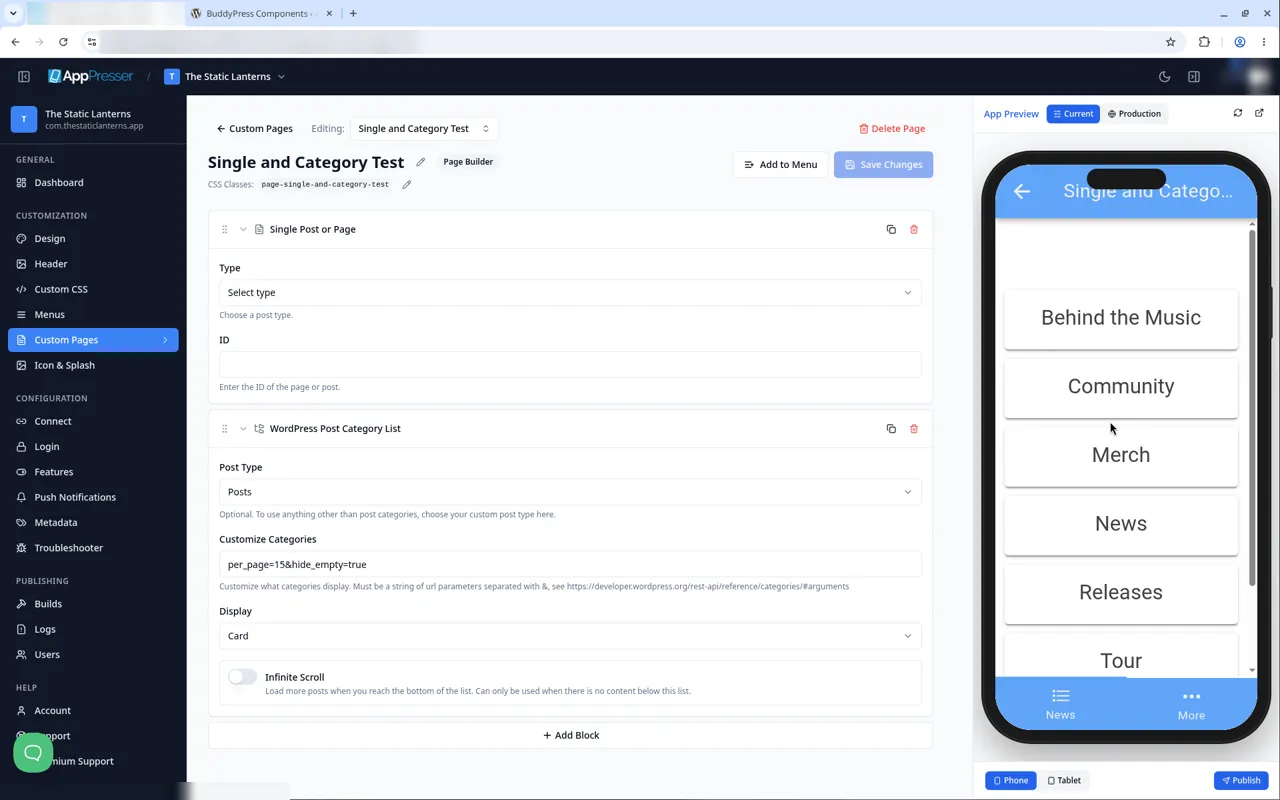
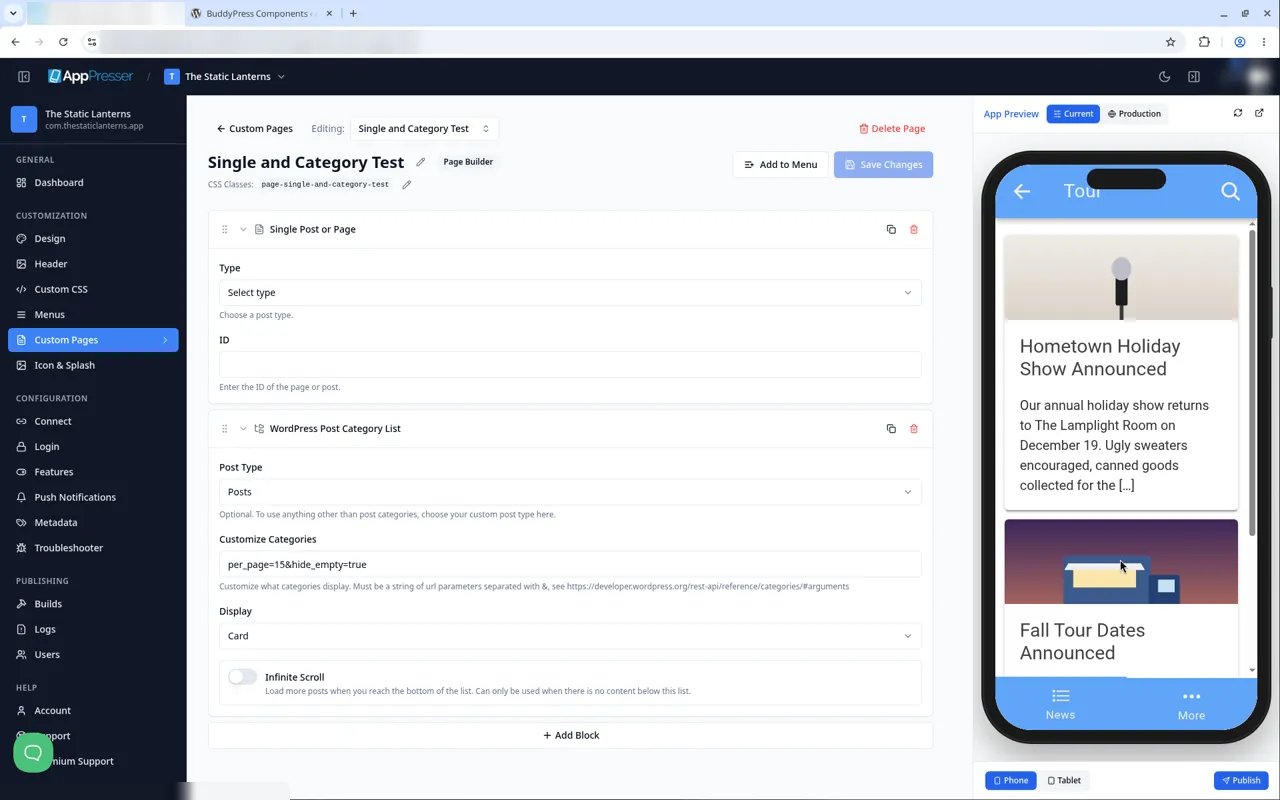
People tap a card to see the posts in that category, and tap the back arrow to return to the list.
Settings
Swipe sideways to see the rest of this table.
| Setting | What it does |
|---|---|
| Post Type | It starts on Posts. |
| Customize Categories | It starts as per_page=15&hide_empty=true. This shows up to 15 categories and hides empty ones. To show more, change 15 to a larger number. |
| Display | Card (the start setting) or List. |
| Infinite Scroll | Loads more when people reach the bottom. Off at the start. Use it only if nothing else is below this block. |
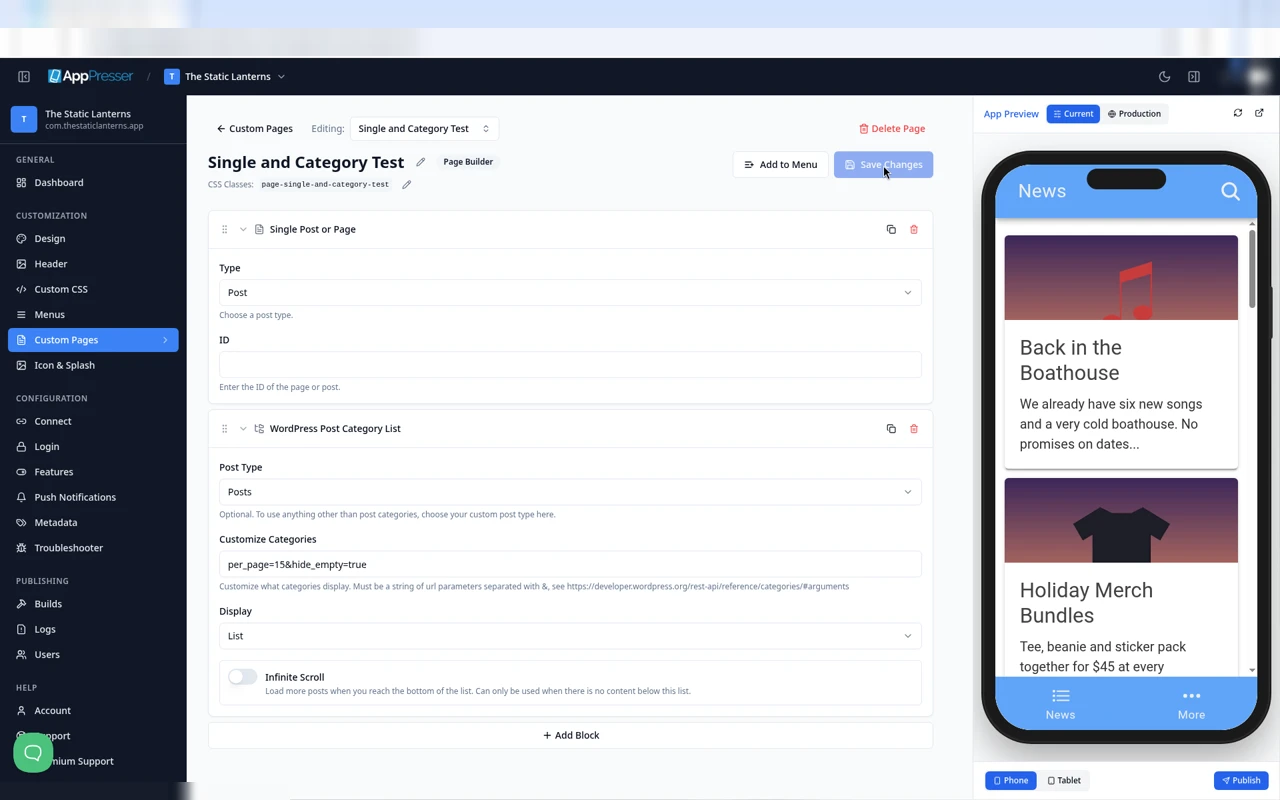
Tips
Tips
- To move a block, drag it by its handle (the dots on the left). Click the arrow to fold it closed.
- To copy a block, click the Duplicate icon.
- To turn a setting on or off, click the switch itself, not the words next to it.
- After you save, open the page in the App Preview and check your changes.
Careful: The trash icon removes a block right away. Check before you click.
You're done when the block shows on your page in the App Preview.
Next step
Show a post slider (WordPress Post Slider block)
Related articles
Was this helpful?
Results update as you type. Press slash to jump to search.
Can’t find it?
Our support team can help with setup, builds and app store questions.