
Show your events (Events block)
Build Your App · AppPresser Docs
Show your events (Events block)
এই নিবন্ধটি এখনও অনুবাদ করা হয়নি, তাই এটি ইংরেজিতে দেখানো হচ্ছে।
Your app journey: step 4 of 9, Add pages and features. New here? Read Start here: build your app with AppPresser first.
What you'll do: Show your events in your app as a calendar or a list with the Events block. People tap an event to see more.
Before you start
- Connect your app to your WordPress website. See Connect your WordPress site and turn on Features.
- Events is part of the AppPresser plugin, so you don't need a separate add-on. Add the Events block to a page to show your events.
- Publish your events on your website.
Add the block
- In the left menu, under Customization, click Custom Pages.
- Click the name of the page you want to change. To make a new page instead, click Add New Page, type a title, keep Page Builder selected and click Create Page.
- Below the last block on the page, click Add Block.
- In Search blocks…, type Events, then click the block. It is added to the bottom of the page.
- Under Default view, choose what people see first, for example Calendar.
- Turn Show List view and Show Calendar view on or off.
- To let people switch between the two, turn on Let app users switch views. The switch shows in the app only when both views are on.
- Under Display, choose how each event looks, for example Card.
- Under Show, choose which events, for example Upcoming events.
- In Number of events, type how many to show, for example 10.
- If you want, type a Category slug to show only some events. For more than one, put commas between them.
Turn Show category filter and Show featured image on or off.
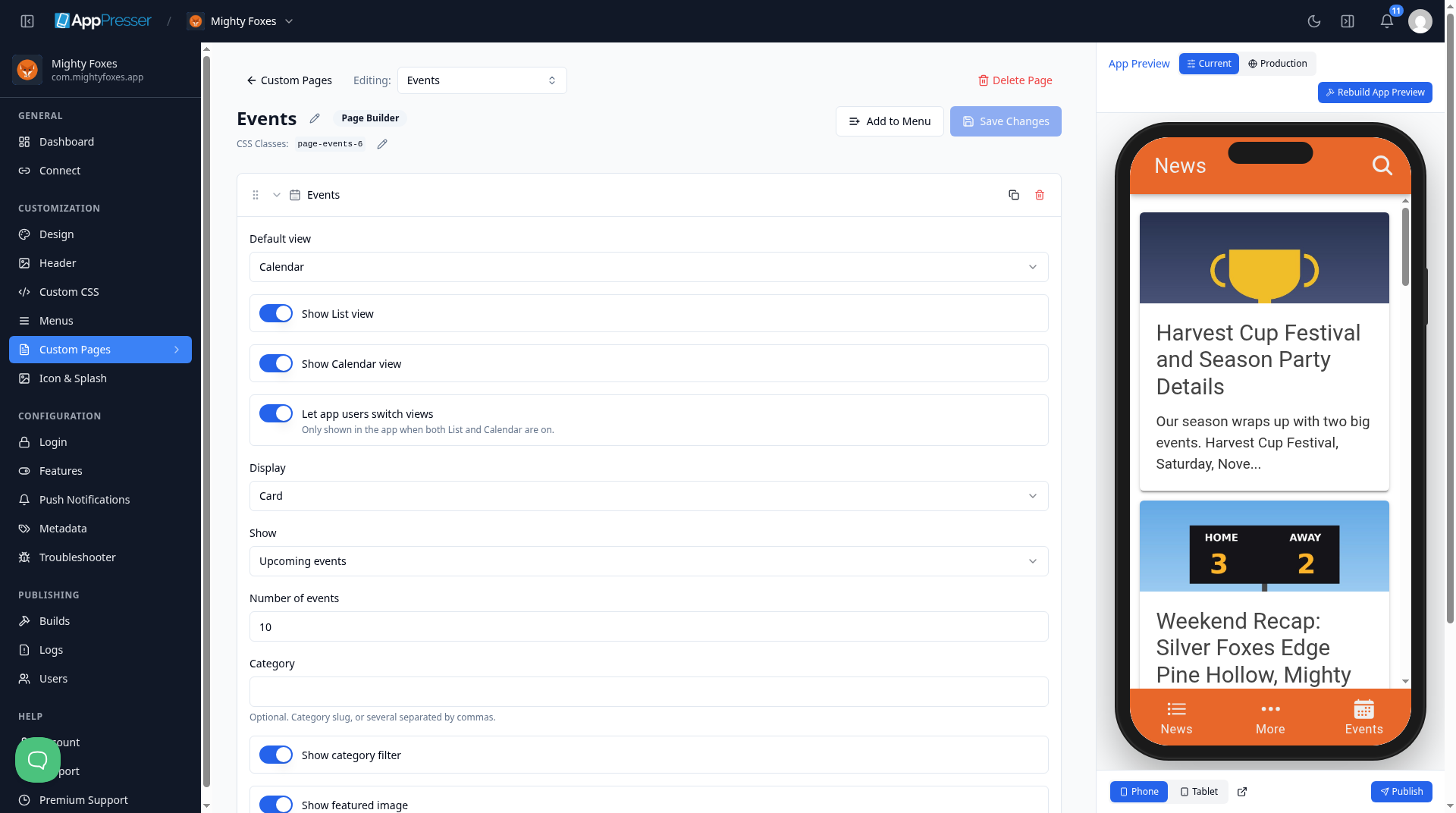
- Click Save Changes at the top of the editor.
- To see a new page in the App Preview, add it to a menu. See Add a page to your app menu.
What you see in the app
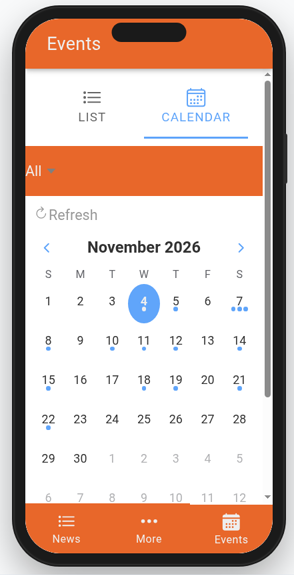
Your events show as a calendar or a list. If you turned on Let app users switch views, people can switch between them. In this example, the events come from the website.
Tips
Tips
- To move a block, drag it by its handle (the dots on the left). Click the arrow to fold it closed.
- To copy a block, click the Duplicate icon.
- To turn a setting on or off, click the switch itself, not the words next to it.
- After you save, open the page in the App Preview and check your changes.
Careful: The trash icon removes a block right away. Check before you click.
You're done when your events show as a calendar or a list on your page in the App Preview.
Next step
Show podcasts, audio and video (Podcasts/Media block)
Related articles
এটি কি সহায়ক ছিল?
টাইপ করার সাথে সাথে ফলাফল আপডেট হয়। অনুসন্ধানে যেতে স্ল্যাশ চাপুন।
খুঁজে পাচ্ছেন না?
আমাদের সাপোর্ট টিম সেটআপ, বিল্ড ও app store সংক্রান্ত প্রশ্নে সাহায্য করতে পারে।