
Add a member profile (BuddyPress/Boss Profile block)
Build Your App · AppPresser Docs
Add a member profile (BuddyPress/Boss Profile block)
এই নিবন্ধটি এখনও অনুবাদ করা হয়নি, তাই এটি ইংরেজিতে দেখানো হচ্ছে।
Your app journey: step 4 of 9, Add pages and features. New here? Read Start here: build your app with AppPresser first.
What you'll do: Add a profile page where logged-in members see their picture and latest activity, and can edit their profile, read messages and see notifications.
Before you start
- Install and activate the BuddyPress or BuddyBoss plugin on your WordPress website. These plugins add a community to your site, with members, groups and messages.
- Install and activate the AppCommunity plugin, AppPresser's add-on for BuddyPress and BuddyBoss, on your WordPress website.
- Connect your app to your WordPress website. See Connect your WordPress site and turn on Features.
- Let members log in to your app. They must be logged in to see a profile.
Add the block
This block has no settings.
- In the left menu, under Customization, click Custom Pages.
- Click the name of the page you want to change. To make a new page instead, click Add New Page, type a title, keep Page Builder selected and click Create Page.
- Below the last block on the page, click Add Block.
- In Search blocks…, type BuddyPress/Boss Profile, then click the block. It is added to the bottom of the page.
- Click Save Changes at the top of the editor.
- To see a new page in the App Preview, add it to a menu. See Add a page to your app menu.
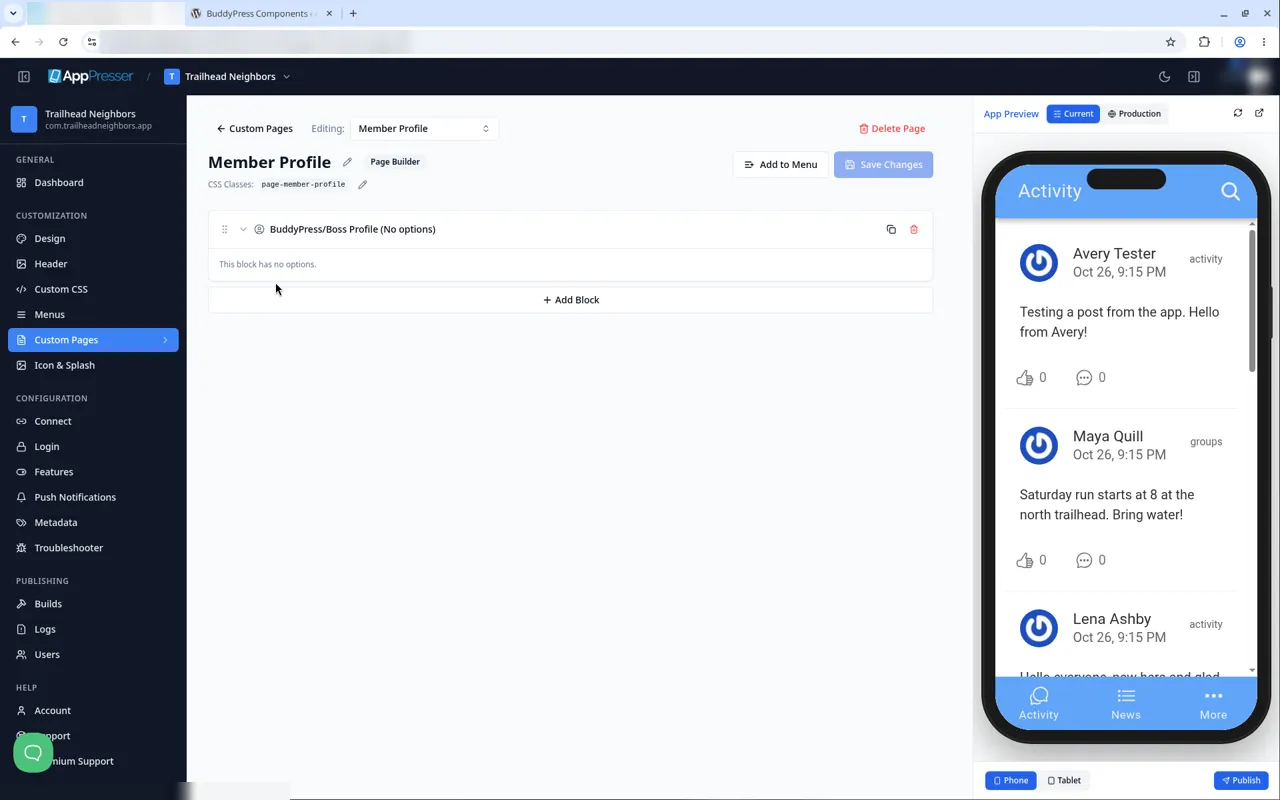
If you chose BuddyPress or BuddyBoss when you made your app, AppPresser already made a Member Profile page. It also added Member Profile to the More menu. That item shows only when someone is logged in.
What you see in the app
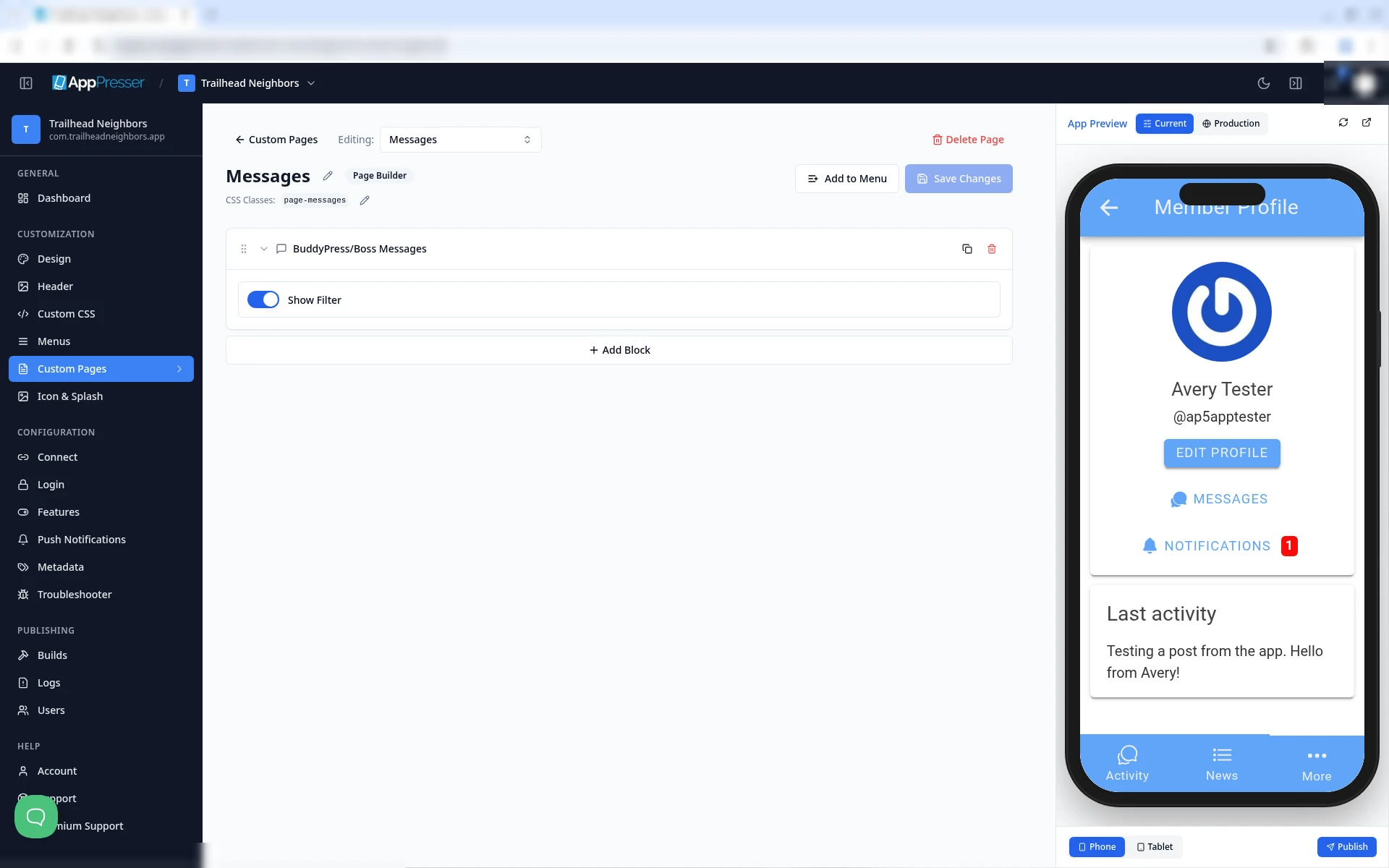
When a logged-in member taps More, then Member Profile, the page shows:
- The member's picture, name and @username.
- The buttons EDIT PROFILE, MESSAGES and NOTIFICATIONS. A red number shows when there is something new.
- A Last activity card with their latest post.
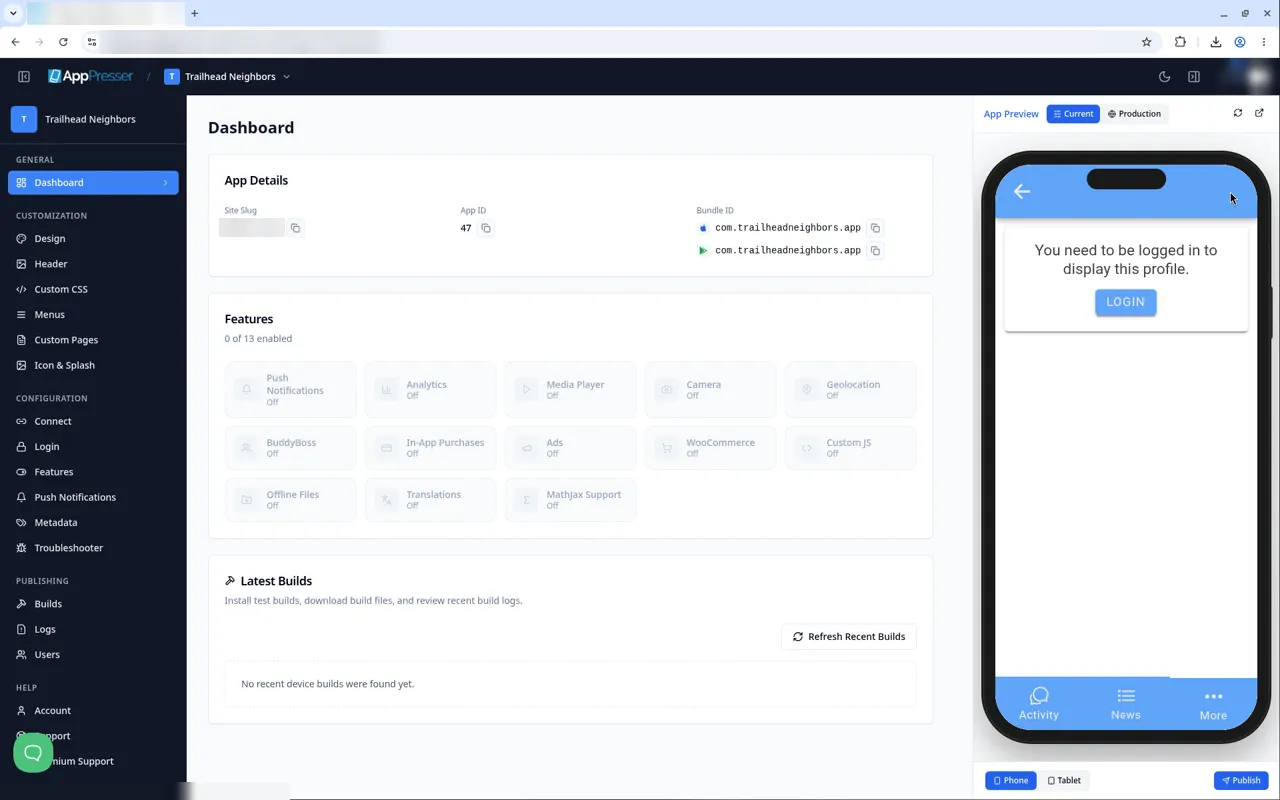
When nobody is logged in, the page says "You need to be logged in to display this profile." with a LOGIN button.
Check it as a logged-in member
- Make a test member on your WordPress website. Do not use your admin account.
- In the App Preview on the right, click More at the bottom, then click Members.
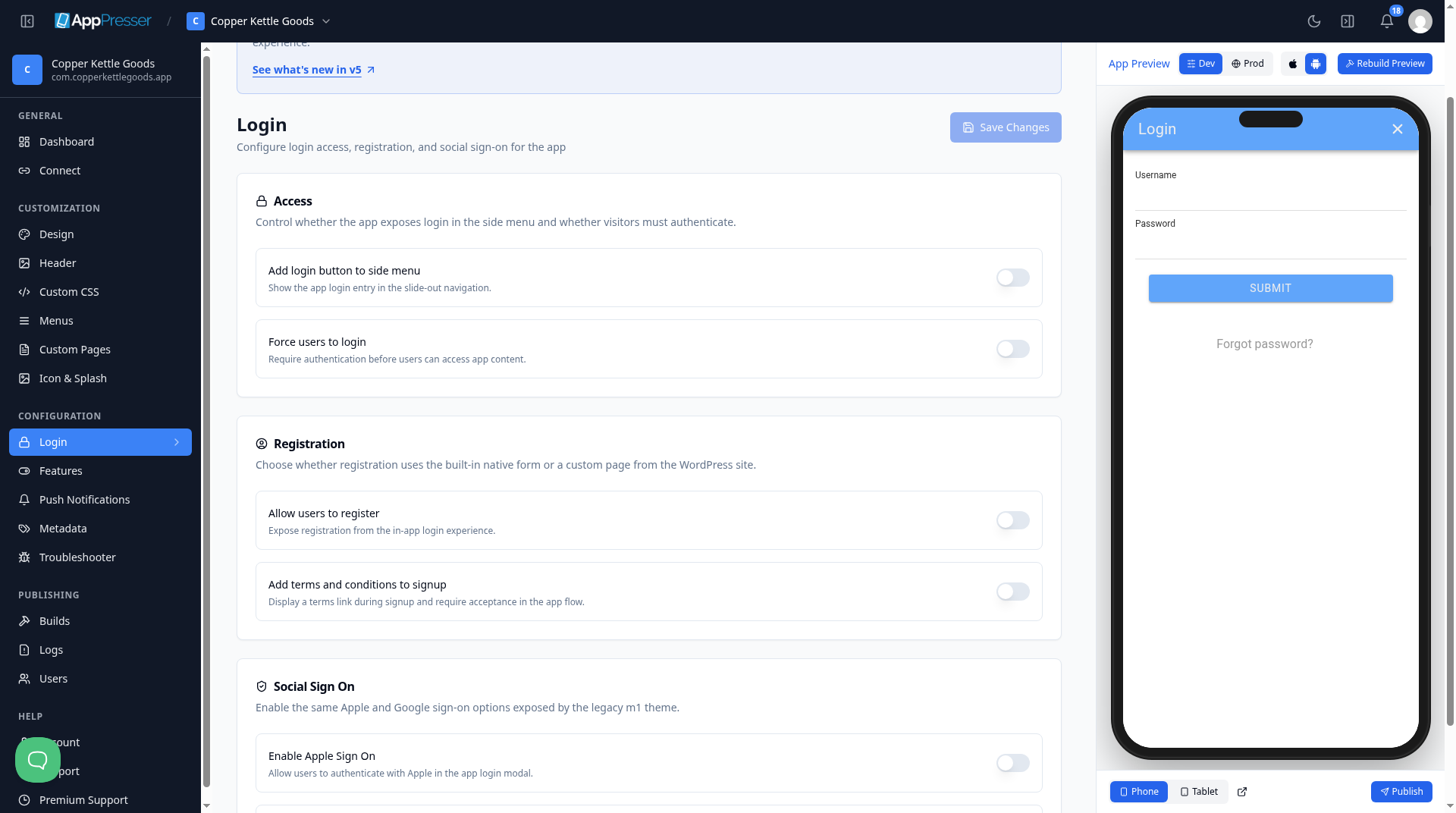
- Click any member in the list. A Login window opens.
- Type the test member's Username and Password, then click SUBMIT.
- Click More, then Member Profile.
Tips
Tips
- To move a block, drag it by its handle (the dots on the left). Click the arrow to fold it closed.
- To copy a block, click the Duplicate icon.
- To turn a setting on or off, click the switch itself, not the words next to it.
- After you save, open the page in the App Preview and check your changes.
Careful: The trash icon removes a block right away. Check before you click.
You're done when the block shows on your page in the App Preview.
Next step
Let people upload photos (App Camera block)
Related articles
এটি কি সহায়ক ছিল?
টাইপ করার সাথে সাথে ফলাফল আপডেট হয়। অনুসন্ধানে যেতে স্ল্যাশ চাপুন।
খুঁজে পাচ্ছেন না?
আমাদের সাপোর্ট টিম সেটআপ, বিল্ড ও app store সংক্রান্ত প্রশ্নে সাহায্য করতে পারে।