
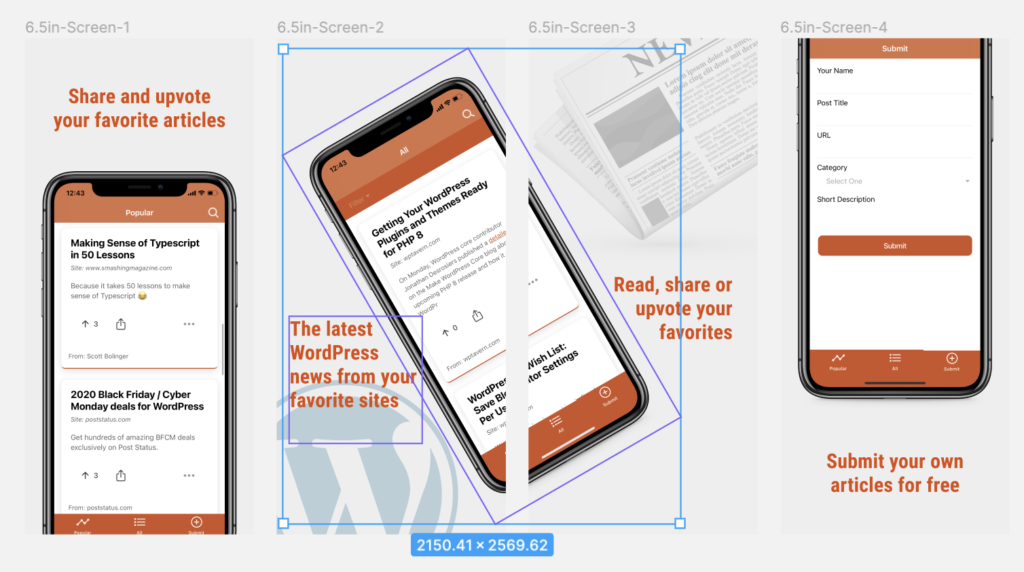
Great screenshots are critical to making your app store listing attractive to collect more app downloads.
In this article I’ll show you how to go beyond just grabbing screenshots from your app. Learn how to liven them up with attention grabbing titles background images, and device frames.
Free Figma and Photoshop files included.
Table of Contents
- What Do Great Screenshots Look Like?
- Required iOS and Android Screenshot Sizes and Formats
- How to Capture Screenshots of Your App
- How to Add Text and Device Frames
- Upload Screenshots to the App Store or Google Play
What Do Great Screenshots Look Like?
Before you create your screenshots, let’s look at a few great examples from the app stores.
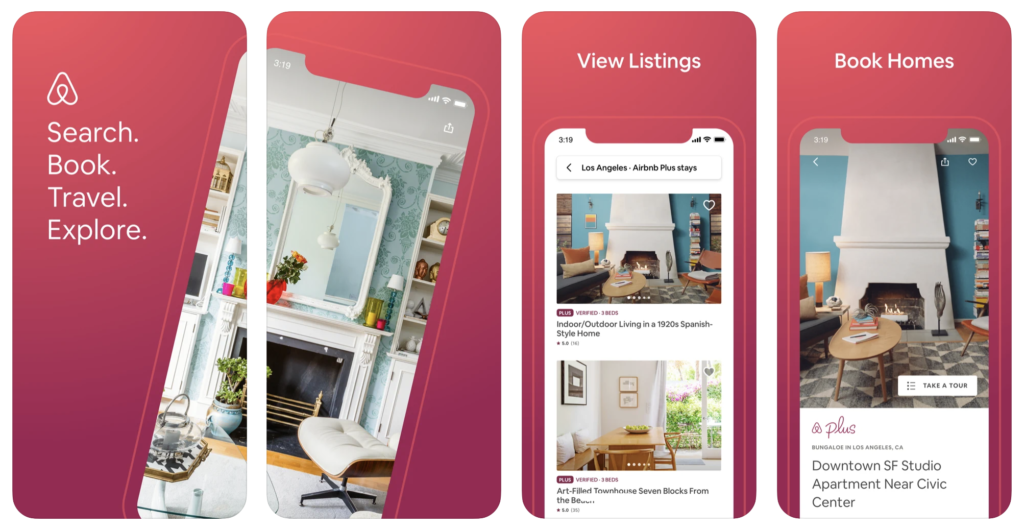
Airbnb
Airbnb uses their brand colors, along with short titles. They also have a nice cross-frame image for the first two screenshots.
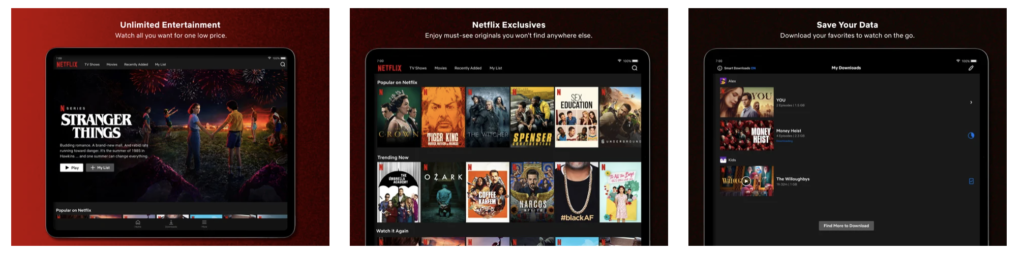
Netflix
Netflix chooses a simple layout for their iPad screenshots, with a title and subtitle, and large shots of the app in use.
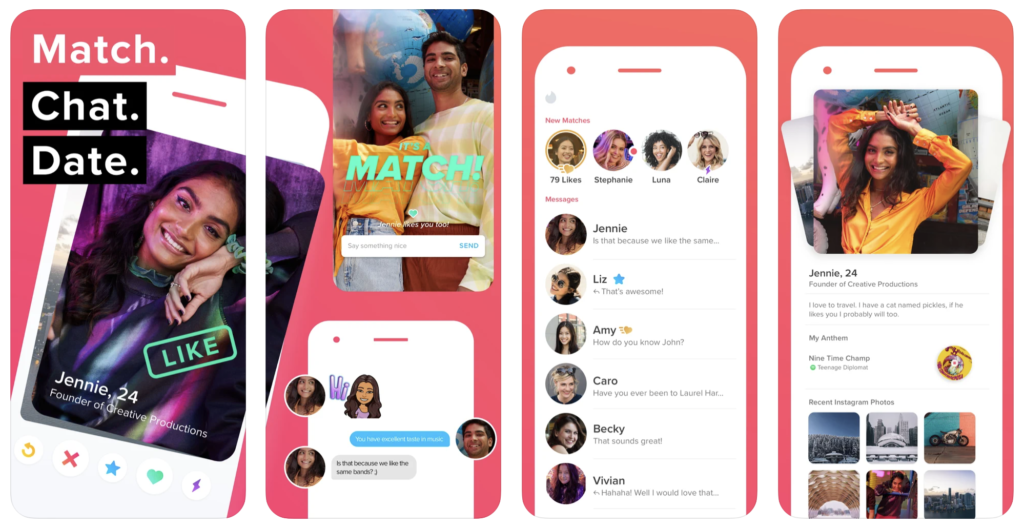
Tinder
Tinder uses bright colors and big images of people to make their listing more attractive.
Pandora
In this Google Play listing, Pandora blends the frames together and employs an artsy style to stand out.
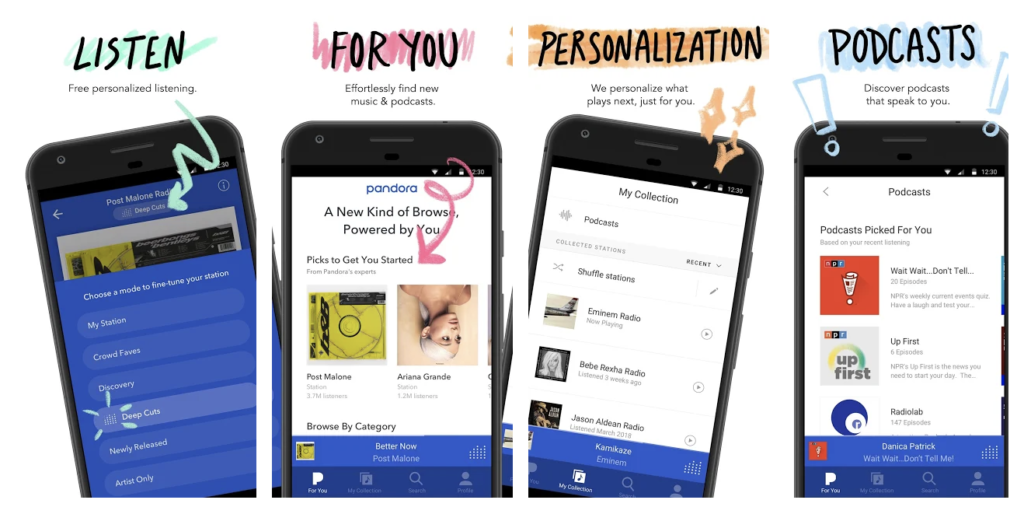
What do you want your app store listing to look like? Here are a few tips:
- Use your brand colors
- If you add text, keep it short and sweet
- Choose your best looking app screens
Required Screenshot Sizes for iOS and Android
When you create an app store listing, you are required to upload screenshots for phones and tablets. Here are the required sizes.
iOS Screenshot Sizes
Apple’s documentation on screenshot sizes is thorough, but also confusing.
Apple lists 11 device sizes, but only 3 sizes are required to submit your app:
6.5″ Display: 1284 x 2778 pixels
5.5″ Display: 1242 x 2208 pixels
12.9″ iPad: 2732 x 2048 pixels
Those dimensions can be either portrait or landscape (your choice). You can choose to upload different screenshots for each device size, you can see all sizes here.
The images must be jpg or png with no transparency (alpha channel).
Android Screenshot Sizes
Google Play does not have the same strict requirements as Apple. The only requirements are:
- JPEG or 24-bit PNG (no alpha)
- Minimum dimension: 320px
- Maximum dimension: 3840px
- The maximum dimension of your screenshot can’t be more than twice as long as the minimum dimension.
The easiest thing to do is to use your Apple screenshots for Google Play as well. However, you should at least change out the device frames so you don’t have an iPhone X on your Google Play store listing 😁
How to Capture Screenshots of Your App
This may sound obvious, but the first thing you need is screenshots of your app in the right size.
To get these, you can load up your app on a device, and press the power and volume buttons at the same time.
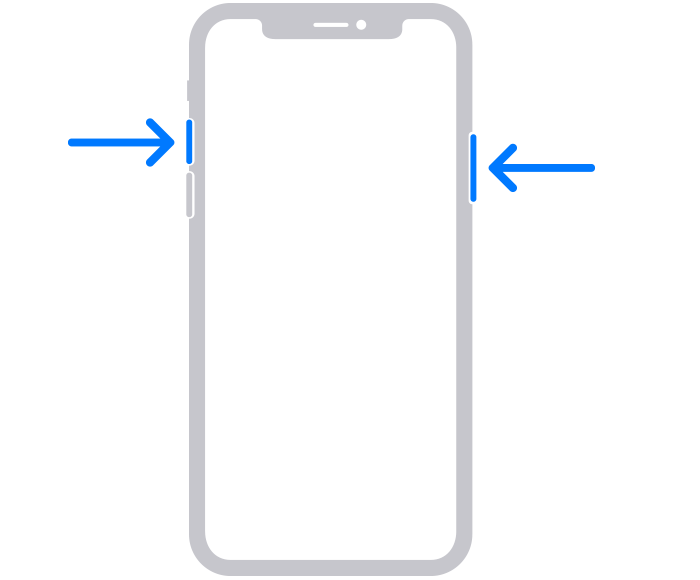
This should work for both iOS and Android, but you may need to look up different instructions for your device.
Do the same with a tablet, such as an iPad. If you take screenshots with an iPhone X and an iPad, those are all the screenshots you need.
Note: If you have a hybrid app that runs in the browser, like Ionic, you can also take screenshots in the browser using Chrome developer tools.
If you like, you can upload your screenshots as they are. If you want to spice them up a bit, see below.
How to Add Text and Device Frames
To add text and device frames like the Airbnb and Netflix examples at the beginning of the article, you can use a paid service, or do it yourself. Paid services are better for non-technical folks, but if you are so inclined you can use an image editing program like Figma or Photoshop.
Figma
Figma is a free browser based editing program. I have created a file that makes it easy for you to add your screenshots, change some text, and export all the images you need.
Here’s an example of what you can make with it:
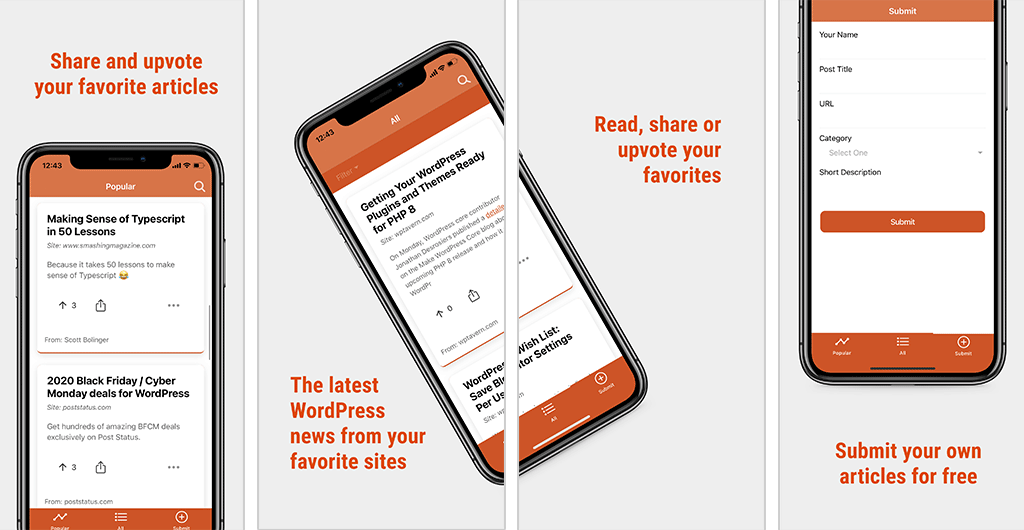
(Create a free account if you don’t have one)
To add your screenshots, click Edit Screenshots and Text on the left. Click on a frame, then drag and drop your image. Resize as needed. Repeat for all frames.
Edit the text as needed.
Click App Store or Google Play on the left to view the final layouts. Edit as needed.
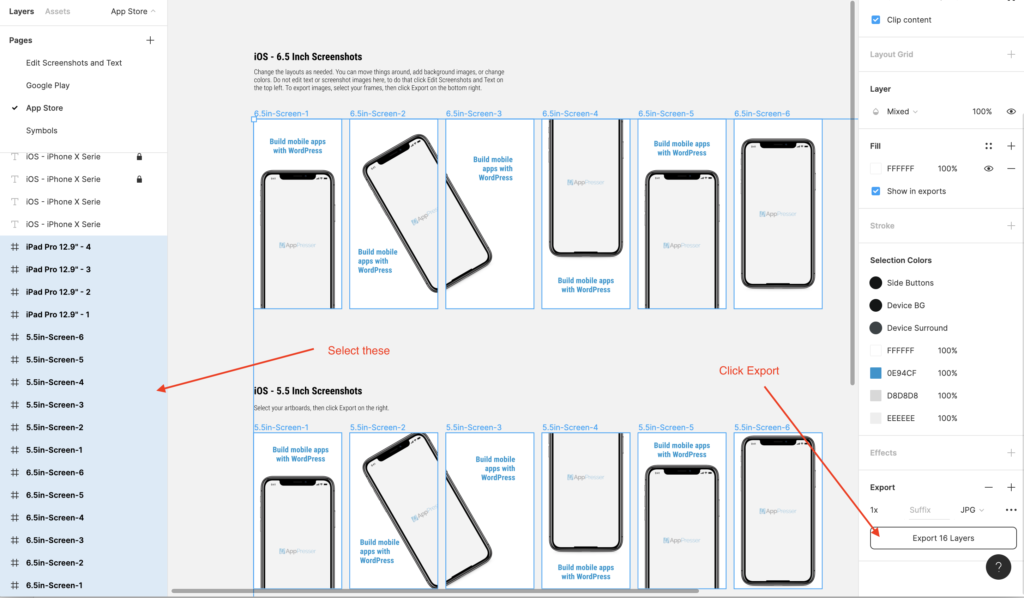
To export images, visit the App Store or Google Play on the left. Click select all the frames on the left side (they look like #6.5 in screen, # 5.5 in screen, etc). Click Export at the bottom right.
Photoshop
Download a 6.5in and a 5.5in screenshot file here.
This download does not include a tablet version or any of the custom layouts. I’d recommend using Figma instead.
I assume if you are downloading Photoshop files you know how to use Photoshop, so I won’t go into much detail here. Open the file, double-click the layer that says “your screen here.” That should open a .psb file, drop your screenshot there and save the .psb file. Go back to the Photoshop file and edit as needed.
Paid Screenshot Generators
If you aren’t good with image editing programs, you can use an online screenshot generator. Most generators have a free version, but if you want everything you need you’ll have to pay. The cost ranges from $10 and up.
Here are some services that you might find useful.
- Previewed – has some cool 3D layout options, can also make videos and animations.
- App Store Screenshot – no modern devices or complex layouts.
- AppScreens – intricate layout builder, nice starter templates to choose from
Upload Screenshots to the App Stores
Once you have your screenshots in hand, you need to add them to your app store listing.
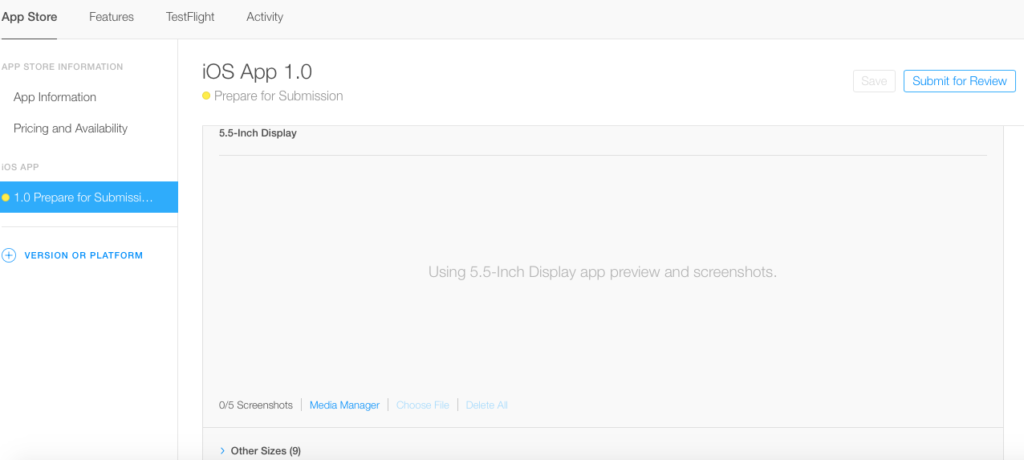
App Store
Visit your app listing in App Store Connect, and click on the the app version on the left.
Upload your 6.5 inch, 5.5 inch, and 12.9 inch iPad screenshots. You can use the same screenshots for both iPad sizes.
Google Play
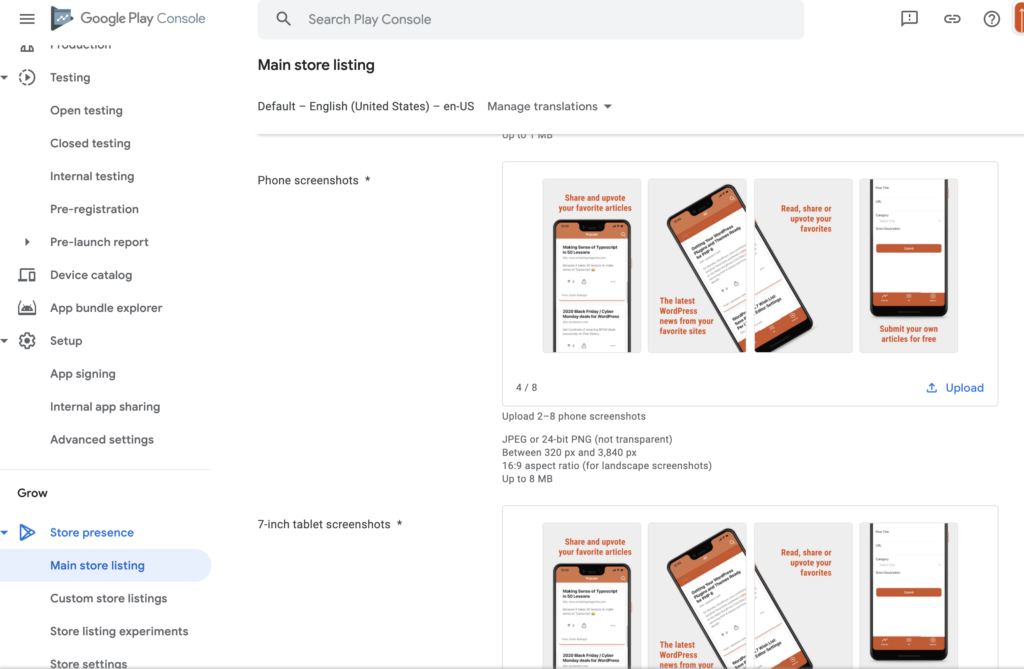
Visit the Google Play Console, and visit your app dashboard. Click on the Main Store Listing in the left navigation, and upload all of your images.
To change your screenshots, Apple requires submitting a new version of your app, while Google does not.



6 responses to “How To Create Great Looking App Store Screenshots”
I think in today’s online market, it’s necessary to make app stores more attractive than downloads because without attraction, not possible downloads. App Screenshots makes stores amazing.
Scott, thank you for sharing this article and the Figma template. Very helpful!
Thanks for sharing, your template for Figma is just what I was looking for!
This is more than amazing! Really glad you guys go above and beyond creating the Figma template. Really speeds up all the hassle of publishing apps
Excellent article Thank you!
Great Stuff.. Please keep it updated along the way!