
Show a list of courses (LearnDash Course List block)
Build Your App · AppPresser Docs
Show a list of courses (LearnDash Course List block)
ఈ వ్యాసం ఇంకా అనువదించబడలేదు, కాబట్టి ఇది ఇంగ్లీష్లో చూపబడుతోంది.
Your app journey: step 4 of 9, Add pages and features. New here? Read Start here: build your app with AppPresser first.
What you'll do: Show a list of your LearnDash courses that students tap to open. LearnDash is a WordPress plugin for selling and teaching online courses.
Before you start
- Install and activate the LearnDash LMS plugin on your WordPress website, with at least one published course.
- Install and activate the AppLMS plugin, AppPresser's add-on for LearnDash.
- Connect your app to your WordPress website. See Connect your WordPress site and turn on Features.
Add the block
- In the left menu, under Customization, click Custom Pages.
- Click the name of the page you want to change. To make a new page instead, click Add New Page, type a title, keep Page Builder selected and click Create Page.
- Below the last block on the page, click Add Block.
- In Search blocks…, type LearnDash Course List, then click the block. It is added to the bottom of the page.
- Leave the settings as they are to list every course, or change them. See Settings below.
- Click Save Changes at the top of the editor.
- To see a new page in the App Preview, add it to a menu. See Add a page to your app menu.
What you see in the app
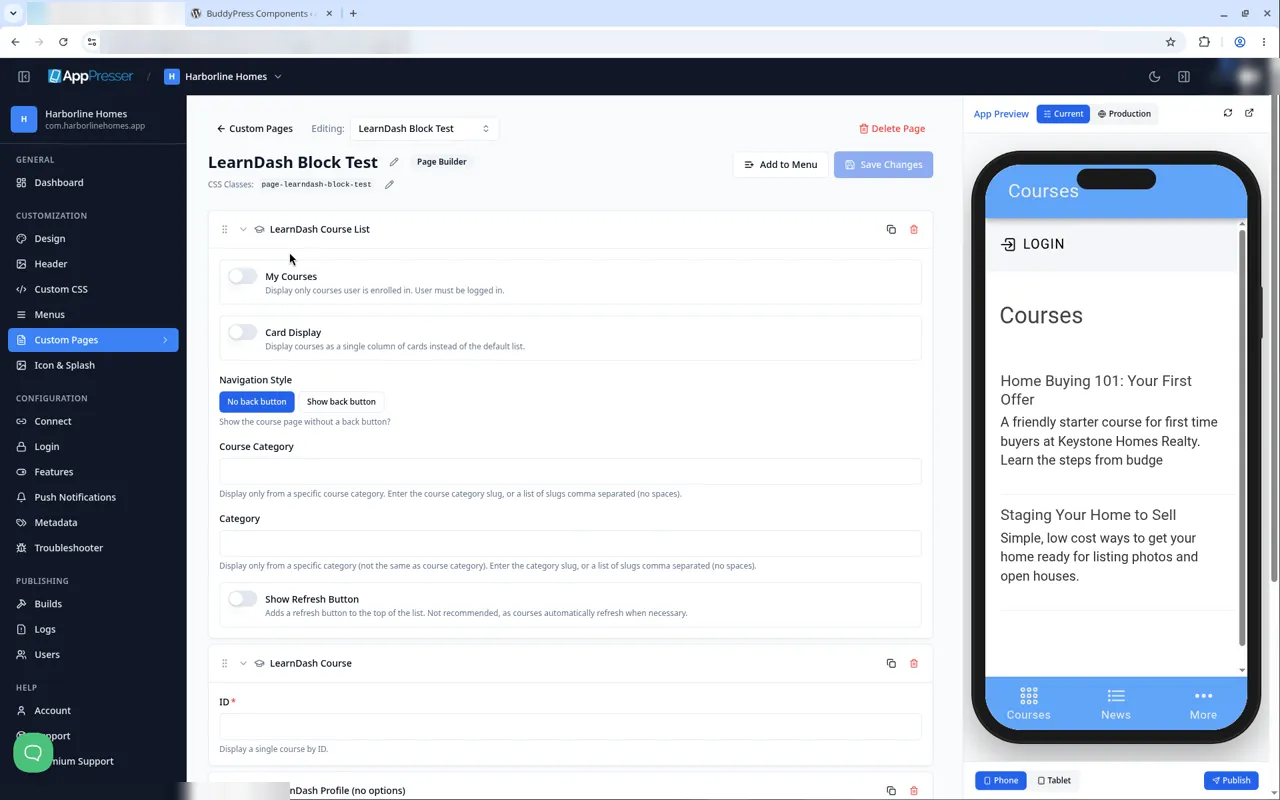
Your courses show as a list. Each one has its title and description. The list can take a few seconds to load.
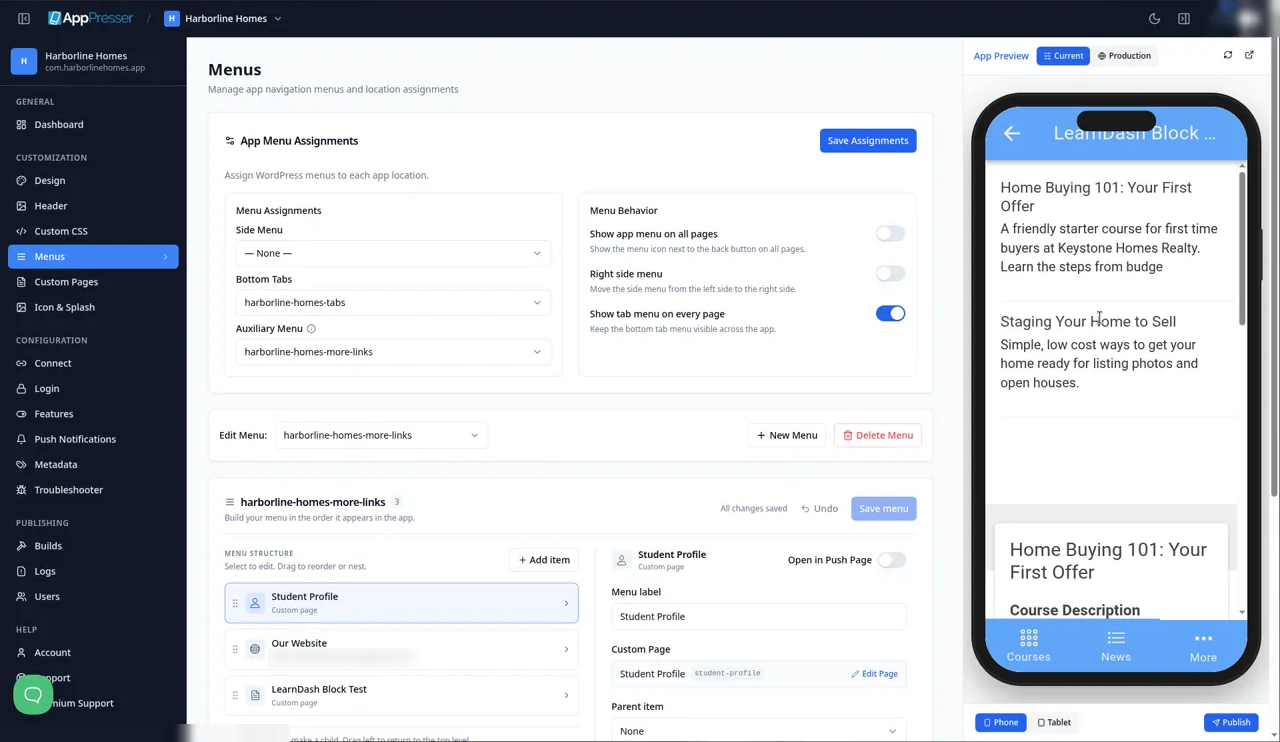
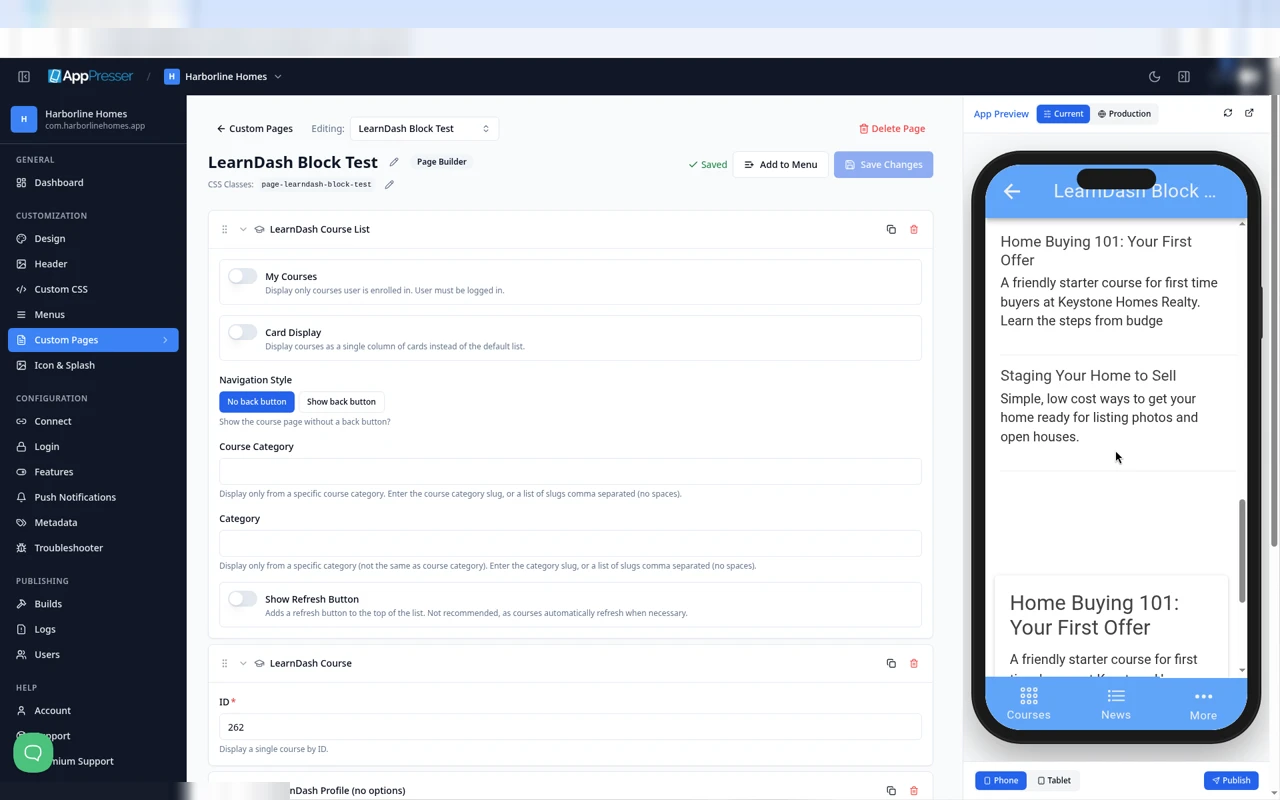
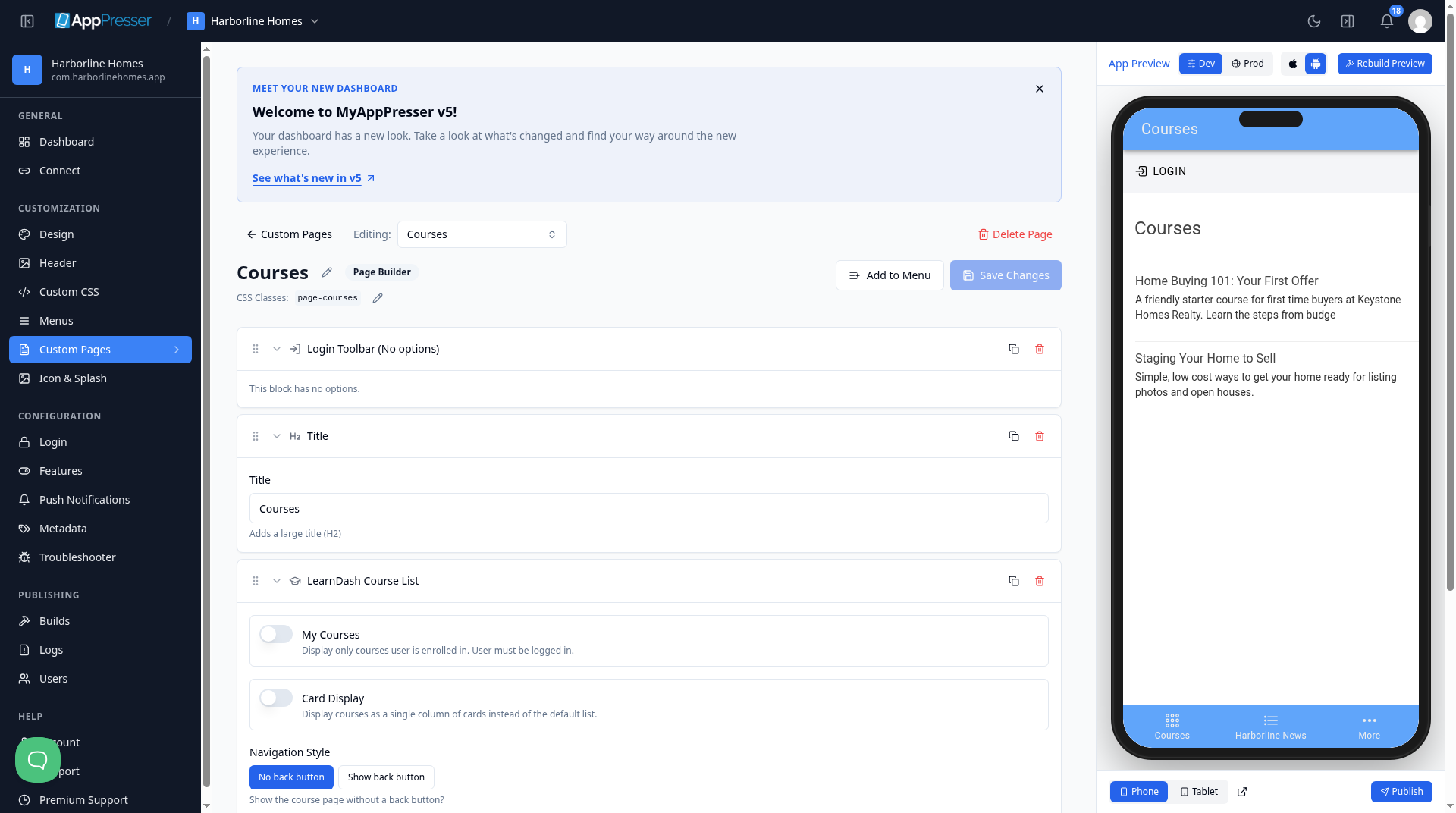
If you chose LearnDash when you made your app, AppPresser already made a Courses page with this block on it.
You cannot choose single courses or their order in this block. To show one course, use the Show one course (LearnDash Course block).
Settings
Swipe sideways to see the rest of this table.
| Setting | What it does |
|---|---|
| My Courses | Shows only the courses the student has joined. The student must be logged in. Off at the start. |
| Card Display | Shows each course as a card, one per row. Off at the start. |
| Navigation Style | No back button (the start setting) or Show back button. |
| Course Category | Shows only courses in one LearnDash course category. Type the category's short name (its slug). For more than one, put commas between them with no spaces. Leave it empty to show all courses. |
| Category | A normal WordPress category's short name (slug). This is not the same as the course category. |
| Show Refresh Button | Adds a refresh button. Off at the start and not recommended. |
Tips
Tips
- To move a block, drag it by its handle (the dots on the left). Click the arrow to fold it closed.
- To copy a block, click the Duplicate icon.
- To turn a setting on or off, click the switch itself, not the words next to it.
- After you save, open the page in the App Preview and check your changes.
Careful: The trash icon removes a block right away. Check before you click.
You're done when the block shows on your page in the App Preview.
Next step
Show one course (LearnDash Course block)
Related articles
ఇది సహాయకరంగా ఉందా?
టైప్ చేస్తూనే ఫలితాలు అప్డేట్ అవుతాయి. శోధనకు వెళ్లడానికి స్లాష్ నొక్కండి.
కనుగొనలేకపోయారా?
మా సపోర్ట్ టీమ్ సెటప్, బిల్డ్లు మరియు app store ప్రశ్నలలో సహాయపడగలదు.