
Show your product categories (WooCommerce Categories block)
Build Your App · AppPresser Docs
Show your product categories (WooCommerce Categories block)
ఈ వ్యాసం ఇంకా అనువదించబడలేదు, కాబట్టి ఇది ఇంగ్లీష్లో చూపబడుతోంది.
Your app journey: step 4 of 9, Add pages and features. New here? Read Start here: build your app with AppPresser first.
What you'll do: Show your product categories as cards that shoppers tap to see the products in each one. A category is a group of products, like "Shirts" or "Records".
Before you start
- Install and activate the WooCommerce plugin on your WordPress website, with some published products. WooCommerce is the WordPress plugin for running an online shop.
- Install and activate the AppCommerce plugin, AppPresser's add-on for WooCommerce, on your WordPress website.
- Connect your app to your WordPress website. See Connect your WordPress site and turn on Features.
Add the block
- In the left menu, under Customization, click Custom Pages.
- Click the name of the page you want to change. To make a new page instead, click Add New Page, type a title, keep Page Builder selected and click Create Page.
- Below the last block on the page, click Add Block.
- In Search blocks…, type WooCommerce Categories, then click the block. It is added to the bottom of the page.
- Leave the settings as they are to show every category, or change them. See Settings below.
- Click Save Changes at the top of the editor.
- To see a new page in the App Preview, add it to a menu. See Add a page to your app menu.
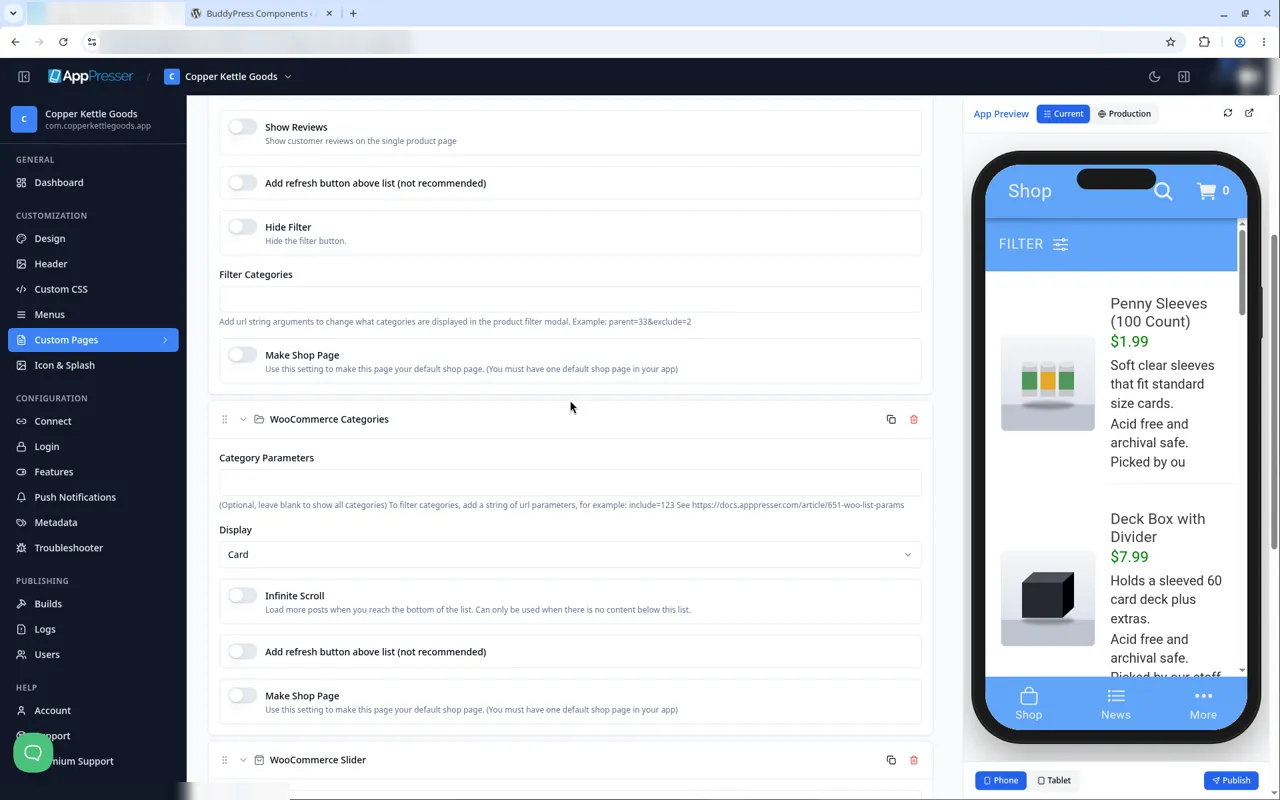
If you chose WooCommerce when you made your app, AppPresser already made a Categories page with this block on it.
What you see in the app
Each category shows as a card with its picture, name and description.
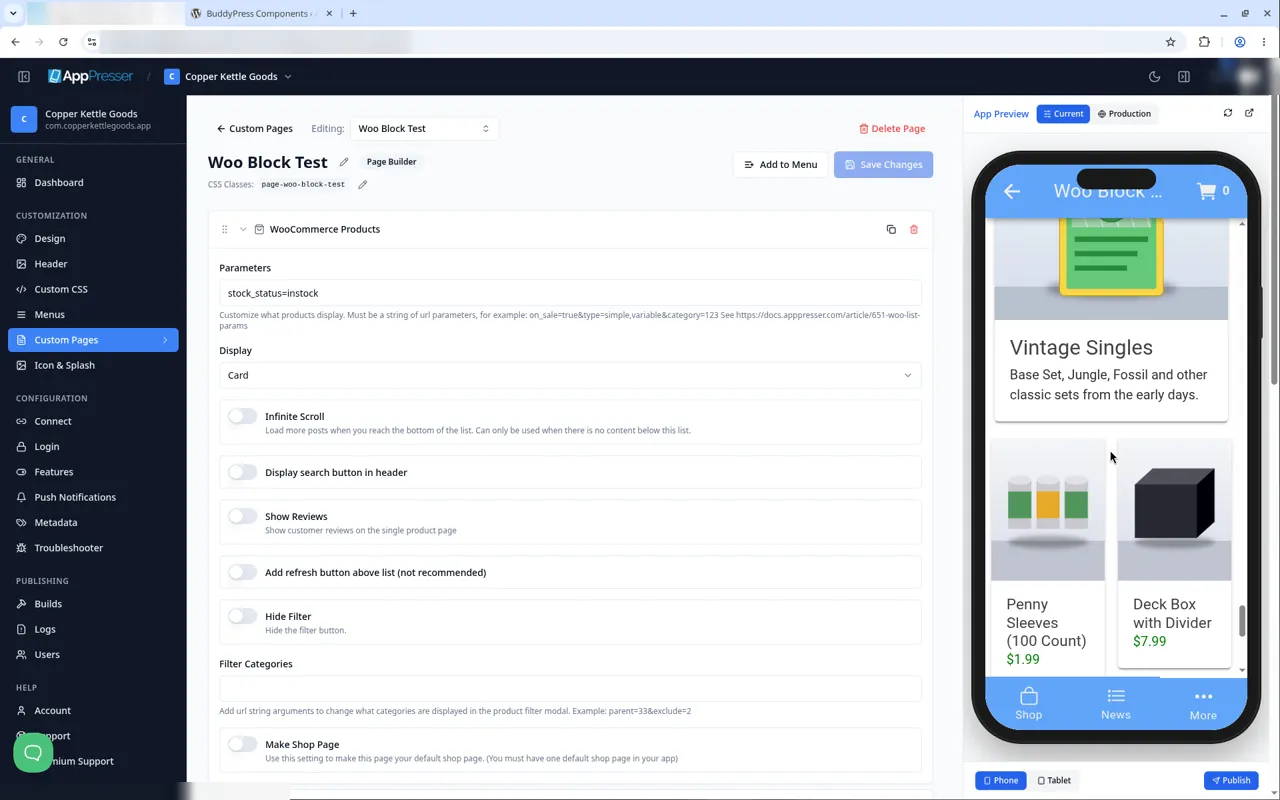
Settings
Swipe sideways to see the rest of this table.
| Setting | What it does |
|---|---|
| Category Parameters | Leave it empty to show all categories. For advanced users, it can limit which categories show. |
| Display | How each category looks. It starts on Card. |
| Infinite Scroll | Loads more when shoppers reach the bottom. Off at the start. |
| Add refresh button above list (not recommended) | Adds a refresh button. |
| Make Shop Page | Makes this page your app's main shop page. |
Tips
Tips
- To move a block, drag it by its handle (the dots on the left). Click the arrow to fold it closed.
- To copy a block, click the Duplicate icon.
- To turn a setting on or off, click the switch itself, not the words next to it.
- After you save, open the page in the App Preview and check your changes.
Careful: The trash icon removes a block right away. Check before you click.
You're done when the block shows on your page in the App Preview.
Next step
Show a product slider (WooCommerce Slider block)
Related articles
ఇది సహాయకరంగా ఉందా?
టైప్ చేస్తూనే ఫలితాలు అప్డేట్ అవుతాయి. శోధనకు వెళ్లడానికి స్లాష్ నొక్కండి.
కనుగొనలేకపోయారా?
మా సపోర్ట్ టీమ్ సెటప్, బిల్డ్లు మరియు app store ప్రశ్నలలో సహాయపడగలదు.