
Add team members (Users)
Publish and Grow · مستندات AppPresser
Add team members (Users)
لم تُترجم هذه المقالة بعد، لذا تُعرض بالإنجليزية.
Your app journey: step 8 of 9, Grow your audience. New here? Read Start here: build your app with AppPresser first.
What you'll do: Use the Users screen to let other people, like a co-worker or a developer, edit your apps in your AppPresser account. These people are called team members.
Before you start
- Make sure you are on the Professional or Advanced plan. Team members come with these plans. See Get your AppPresser account.
- Get the person's email address.
See who has access
- In the left menu, under Publishing, click Users.
- Check the table under Agency User Access. It lists everyone with access: App Access, Username, Email, Role and Action. If nobody has access yet, it says No users added yet.
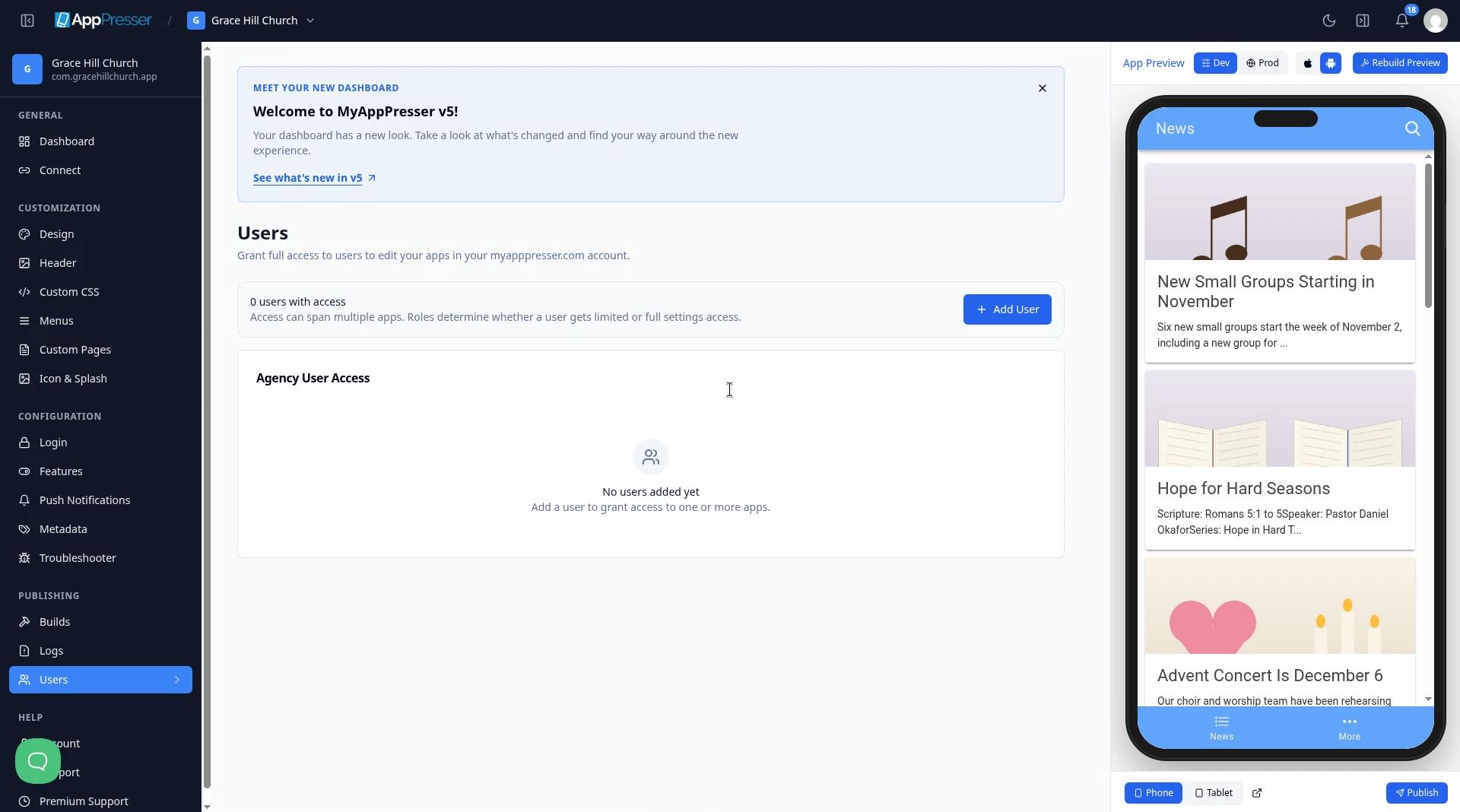
A person's role decides how much they can change: User gets limited access to app settings, and Developer gets full access. One person can have access to more than one app.
Add a team member
- Click Add User. The Add New User window opens.
- Under Select apps, check each app this person may work on.
- Type the person's Username.
- Type the person's Email.
- Under Role, choose one:
- User: "Limited access to app settings."
- Developer: "Full access to app settings."
- Check Support acknowledgement to confirm that AppPresser support is only available to account holders, not to added users.
- Click Add New User.
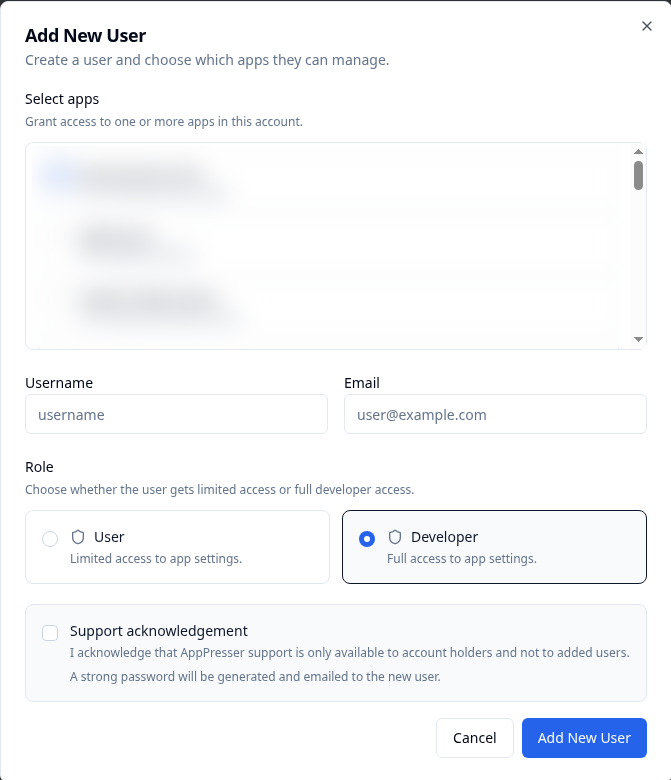
AppPresser generates a strong password and emails it to the new user, so you don't need to make one.
Careful: Only you, the account holder, can get help from AppPresser support. Added users can't.
Change or remove a team member
- Find the person in the table.
- To change their apps or role, click Edit.
- To take away their access, click Delete.
You're done when the person shows in the Agency User Access table with the right apps and role.
Next step
Related articles
هل كان هذا مفيدًا؟
تتحدّث النتائج أثناء الكتابة. اضغط الشرطة المائلة للانتقال إلى البحث.
لم تجده؟
يمكن لفريق الدعم المساعدة في الإعداد والبناء وأسئلة المتاجر.