
Add team members (Users)
Publish and Grow · AppPresser 文件
Add team members (Users)
本文尚未翻譯,因此以英文顯示。
Your app journey: step 8 of 9, Grow your audience. New here? Read Start here: build your app with AppPresser first.
What you'll do: Use the Users screen to let other people, like a co-worker or a developer, edit your apps in your AppPresser account. These people are called team members.
Before you start
- Make sure you are on the Professional or Advanced plan. Team members come with these plans. See Get your AppPresser account.
- Get the person's email address.
See who has access
- In the left menu, under Publishing, click Users.
- Check the table under Agency User Access. It lists everyone with access: App Access, Username, Email, Role and Action. If nobody has access yet, it says No users added yet.
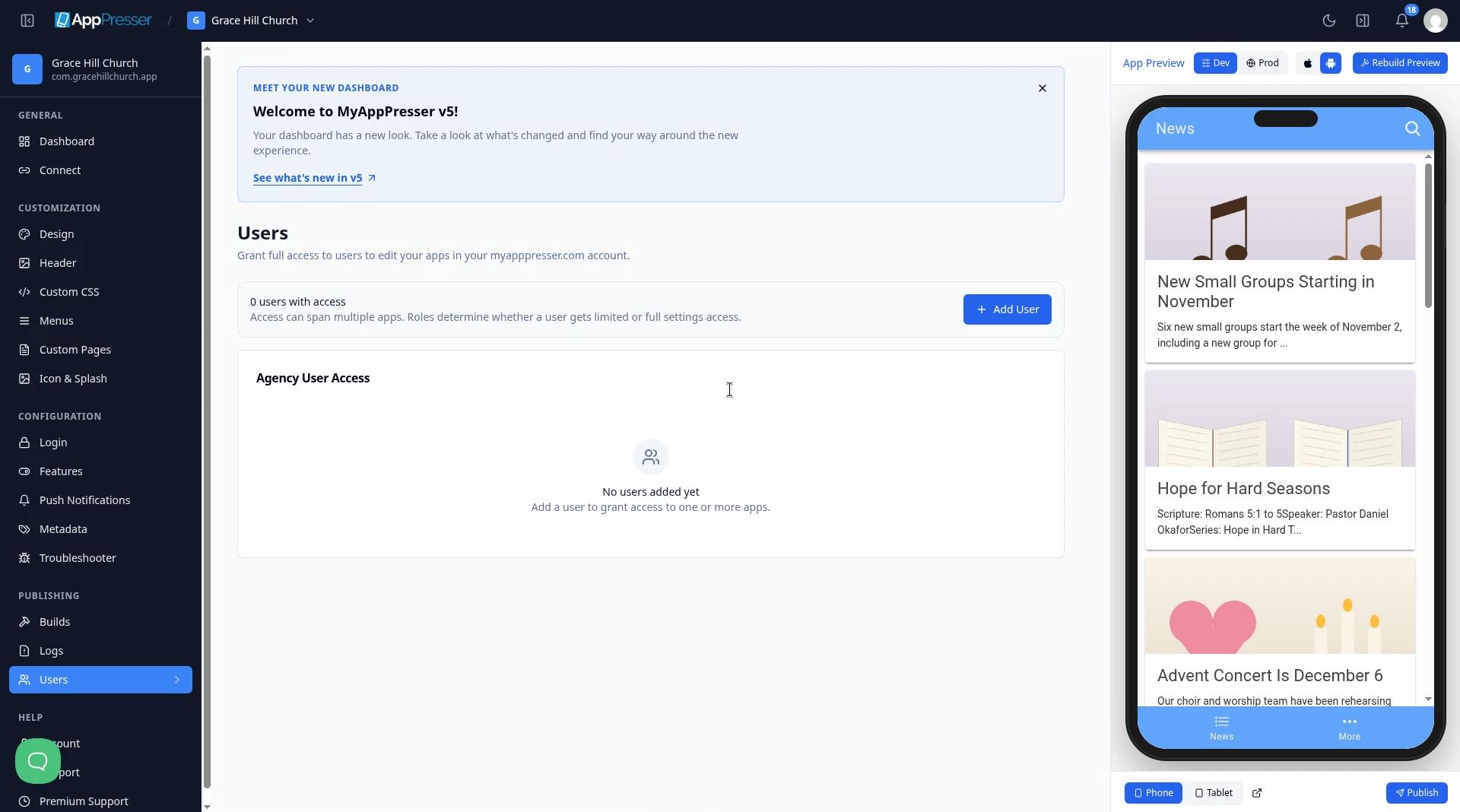
A person's role decides how much they can change: User gets limited access to app settings, and Developer gets full access. One person can have access to more than one app.
Add a team member
- Click Add User. The Add New User window opens.
- Under Select apps, check each app this person may work on.
- Type the person's Username.
- Type the person's Email.
- Under Role, choose one:
- User: "Limited access to app settings."
- Developer: "Full access to app settings."
- Check Support acknowledgement to confirm that AppPresser support is only available to account holders, not to added users.
- Click Add New User.
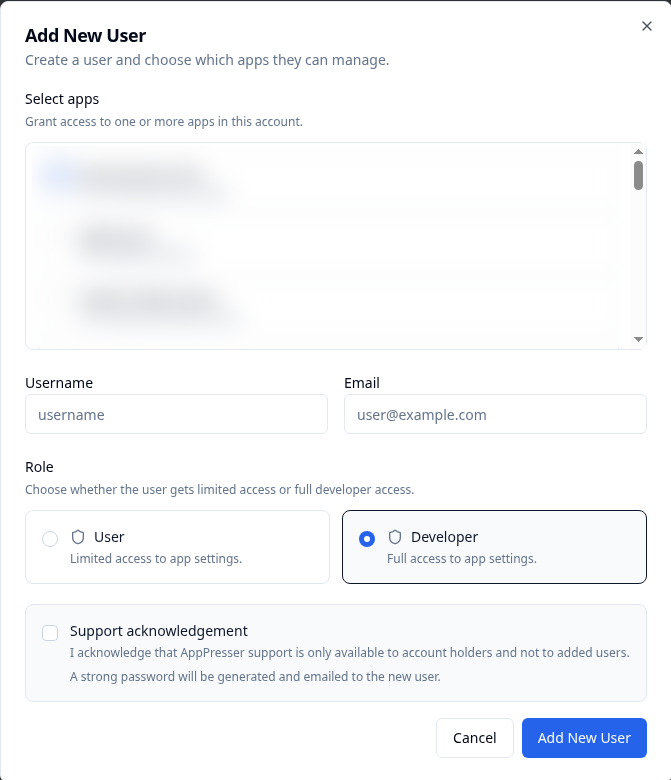
AppPresser generates a strong password and emails it to the new user, so you don't need to make one.
Careful: Only you, the account holder, can get help from AppPresser support. Added users can't.
Change or remove a team member
- Find the person in the table.
- To change their apps or role, click Edit.
- To take away their access, click Delete.
You're done when the person shows in the Agency User Access table with the right apps and role.
Next step
Related articles
這篇文章對您有幫助嗎?
輸入時結果會即時更新。按斜槓鍵(/)可跳轉到搜尋。
沒有找到?
我們的支援團隊可協助解決設定、建置和應用程式商店相關問題。