
Check your app logs (Logs)
Publish and Grow · مستندات AppPresser
Check your app logs (Logs)
لم تُترجم هذه المقالة بعد، لذا تُعرض بالإنجليزية.
Your app journey: step 6 of 9, Build your app. New here? Read Start here: build your app with AppPresser first.
What you'll do: Check the Logs screen for messages about your app's builds, push delivery and errors reported from phones. Look here when a build or push message doesn't work.
Before you start
- Open your app in the builder. See Get to know the app builder.
Open your logs
- In the left menu, under Publishing, click Logs.
- Click a tab. The number on each tab shows how many messages it has.
- System Logs: messages about build setup, build activity, push delivery and other dashboard events.
- App Logs: errors and messages your app sends from people's phones.
- Click Refresh to load the newest messages.
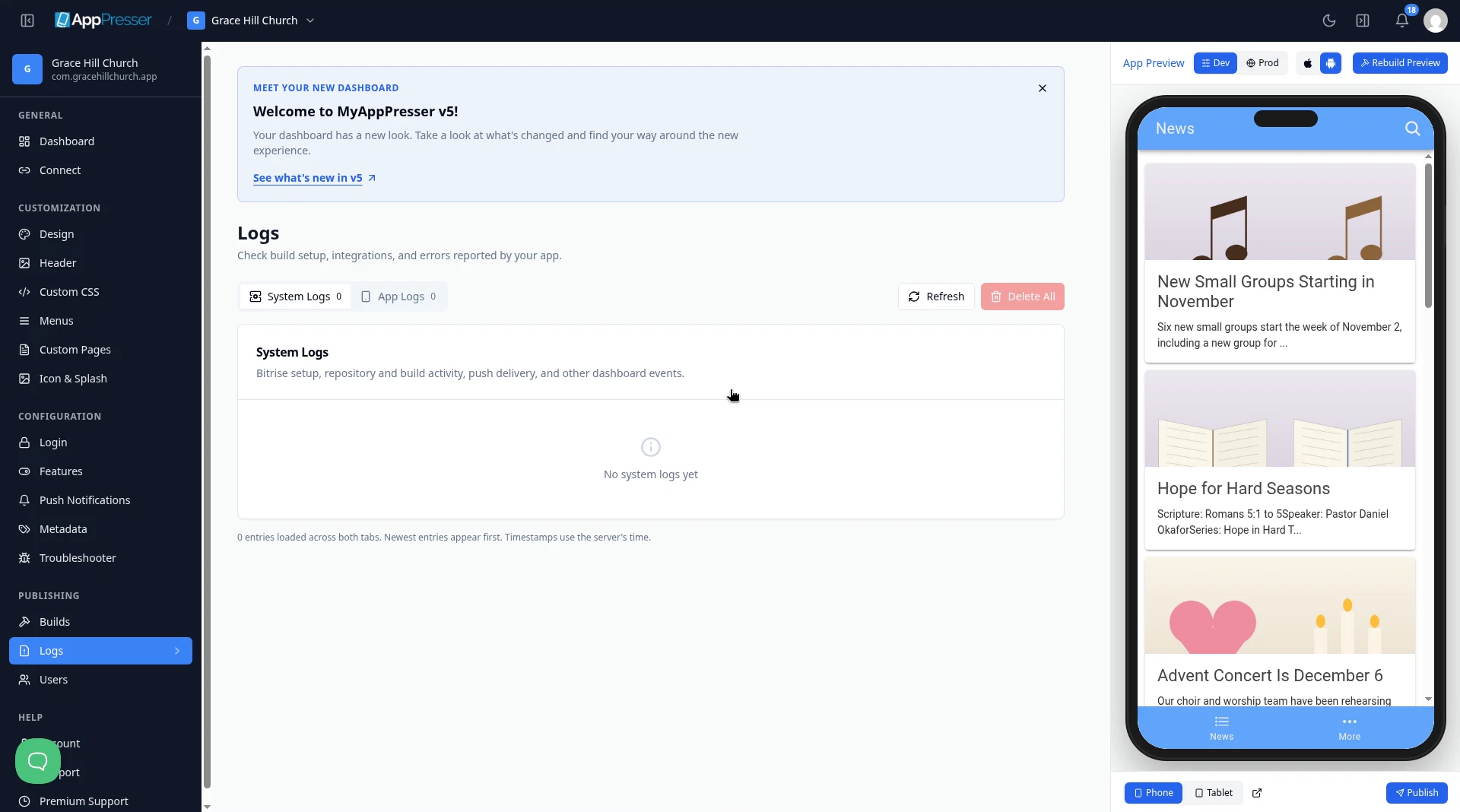
The newest messages are at the top. Each message has a label, such as Error, and the date and time. Times use the server's clock, which may not match your time zone.
Clean up old messages
- To remove one message, click Delete next to it.
- To remove every message, click Delete All.
Careful: Deleted messages can't be brought back. If you need help with an error, contact support before you delete it.
You're done when you can see the newest messages for your app.
Next step
Related articles
هل كان هذا مفيدًا؟
تتحدّث النتائج أثناء الكتابة. اضغط الشرطة المائلة للانتقال إلى البحث.
لم تجده؟
يمكن لفريق الدعم المساعدة في الإعداد والبناء وأسئلة المتاجر.