
Add a heading (Title block)
Build Your App · Документация AppPresser
Add a heading (Title block)
Эта статья ещё не переведена, поэтому показана на английском.
Your app journey: step 4 of 9, Add pages and features. New here? Read Start here: build your app with AppPresser first.
What you'll do: Add a big heading, like "Welcome" or "Our Menu", to any page of your app with the Title block.
Before you start
- Nothing extra. This block works on any Page Builder page. See Build app pages with blocks (Custom Pages).
Add the block
- In the left menu, under Customization, click Custom Pages.
- Click the name of the page you want to change. To make a new page instead, click Add New Page, type a title, keep Page Builder selected and click Create Page.
- Below the last block on the page, click Add Block.
- In Search blocks…, type Title, then click the block. It is added to the bottom of the page.
- In Title, type your heading.
- Click Save Changes at the top of the editor.
- To see a new page in the App Preview, add it to a menu. See Add a page to your app menu.
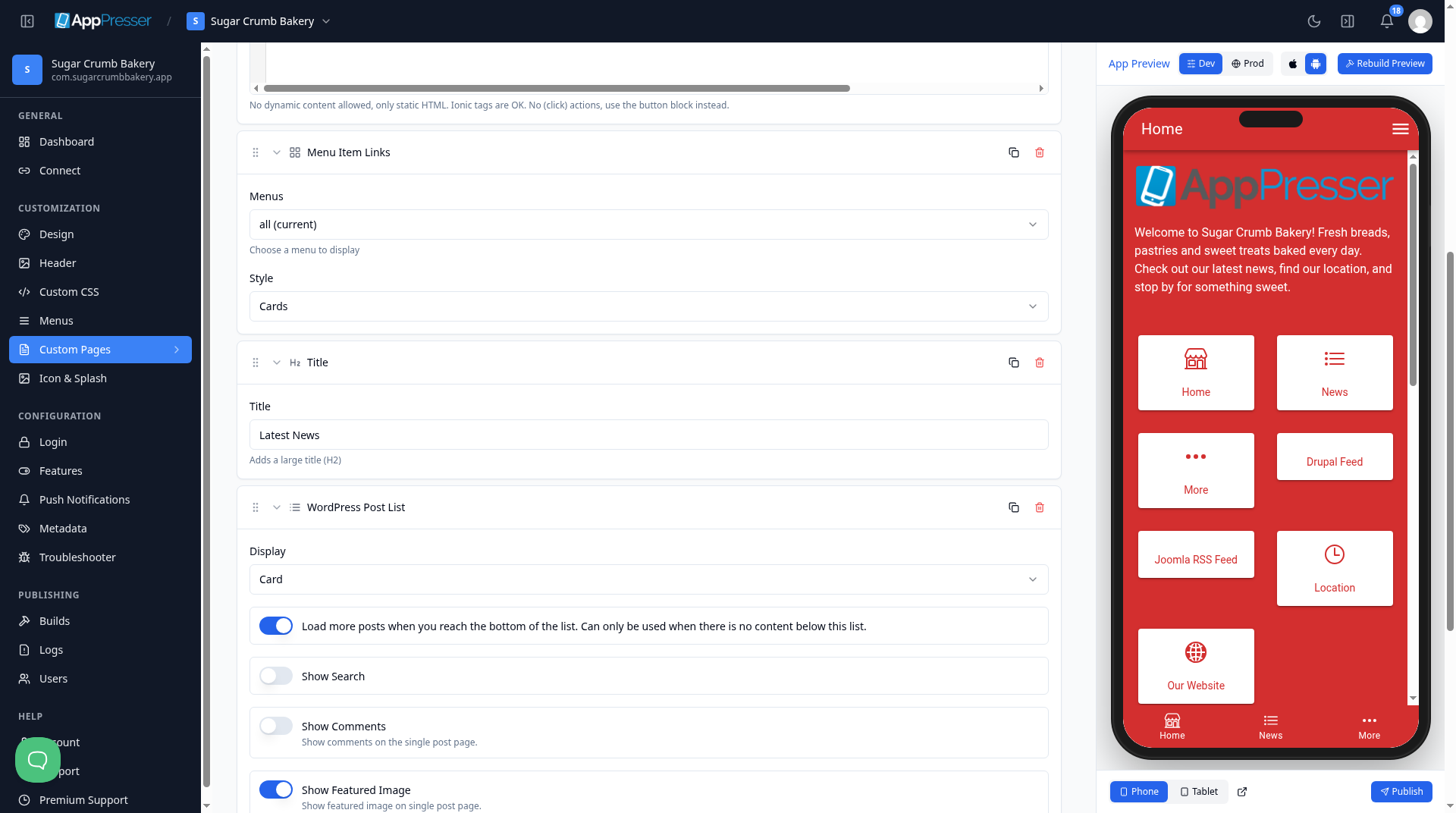
What you see in the app
Your words show as a big heading on the page.
Tips
Tips
- To move a block, drag it by its handle (the dots on the left). Click the arrow to fold it closed.
- To copy a block, click the Duplicate icon.
- To turn a setting on or off, click the switch itself, not the words next to it.
- After you save, open the page in the App Preview and check your changes.
Careful: The trash icon removes a block right away. Check before you click.
You're done when the block shows on your page in the App Preview.
Next step
Add your own text and pictures (Text or Custom Content block)
Related articles
Это было полезно?
Результаты обновляются по мере ввода. Нажмите «/», чтобы перейти к поиску.
Не нашли ответ?
Наша служба поддержки поможет с настройкой, сборками и вопросами о магазинах приложений.