
Help and troubleshooting FAQ
Help and Troubleshooting · Dokumentacja AppPresser
Help and troubleshooting FAQ
Ten artykuł nie został jeszcze przetłumaczony, dlatego jest wyświetlany po angielsku.
Your app journey: step 9 of 9, Get help. New here? Read Start here: build your app with AppPresser first.
What you'll do: Find quick answers to common questions. Each answer tells you what to do next.
Before you start
- Open your app in the builder. Most answers start there.
- If you can't find your answer, click the green chat bubble at the bottom left of your dashboard to ask the AppPresser team.
Making your app
My new app is taking a while to make. This is normal. After you click Create App, the button says Creating… for about 30 to 40 seconds. Wait for it to finish.
My website address is not accepted. Your address must start with https://, for example https://yoursite.com/.
The App Preview
The preview does not show my latest changes. Click Rebuild Preview at the top of the preview one time, then wait 3 to 5 minutes.
I can't find my new page in the preview. A new page only shows after you add it to a menu. See Add a page to your app menu.
I see gray boxes instead of my posts or photos. Wait a little. Lists and photos can take 10 to 20 seconds to load the first time.
PLAY says "Please try from a device." Media, the camera and purchases work only in the app on a real phone. Make a build and put it on your phone. See Build your iOS and Android apps (Builds tab).
Content from your website
My posts do not show. Check that your website is linked and the setup steps are done. See Connect your WordPress site and turn on Features.
My events don't show. Events is part of the AppPresser plugin, so you don't need a separate add-on. Add the Events block to a page to show your events. See Show your events (Events block).
My page says "Podcasts require setting up". Your media posts are not set up yet. See Show podcasts, audio and video (Podcasts/Media block).
My shop, courses or community blocks are empty. Your website needs the AppPresser add-on for that plugin: AppCommerce for WooCommerce, AppLMS for LearnDash or AppCommunity for BuddyPress and BuddyBoss. Check that it is turned on under Plugins in WordPress.
Features
A feature shows an Upgrade label. That feature needs a higher plan. Segmented notifications and team members come with Professional and Advanced. In-app purchases and Apple/Google Login come with Advanced. Custom Javascript needs a plan with Custom JS turned on. Compare plans at apppresser.com/pricing, or ask the AppPresser team with the chat bubble.
Push notifications
My push certificate says Valid, but nobody gets messages. Turn on the Enable Push Notifications switch at the top right of the Push Notifications screen. Valid means only that the certificate is good.
The Segmented Push Notification Settings block says "No segments available". Make a segment first. On Push Notifications, click the Send tab, then + New under Segments.
Android phones don't get push messages. On the Setup tab of Push Notifications, open the Android card. Add your Firebase files, click Save changes, then click Deploy Android push config. Saving alone is not enough. See Turn on push notifications and send a message.
I want to see if a push message went out. Open the Activity tab on Push Notifications. It counts Successful sends, Warnings and Errors.
Builds
My iOS builds say Not Validated. Your Apple signing files are not in place yet. See Get your iOS app signed: certificates, profiles and the AppPresser setup request.
The iOS card says "Some checks failed. Review issues before building." Read the list of problems. Fix them, then click Re-Validate.
My first Play Store build says Failed. This is expected the first time. You can still download your .aab file. See Publish your Android app to Google Play (step by step).
My App Store build failed with "Your Apple Account or password was entered incorrectly". Use your full Apple email address and a new app-specific password. See Publish your iOS app to TestFlight (step by step).
My app shows the AppPresser icon instead of mine. Upload your icon in Icon & Splash. Then make a new build. See Add your app icon and splash screen (Icon & Splash).
Where do I find error messages? In the left menu, under Publishing, click Logs. See Check your app logs (Logs).
Still stuck?
Chat with us
- Note your app name and, for a build problem, the build number.
- Click the green chat bubble at the bottom left of your dashboard.
- Type your email address and your question, then click Send a message.
Send a support ticket
- In the left menu, under Help, click Support.
- Under Submit a Support Ticket, choose your App.
- Type a short Subject.
- Choose a Category, such as Build Issue, Bug Report, Billing or Certificate Setup.
- In Message, describe the problem. Say what you did, step by step, and what happened.
- Click Submit Ticket.
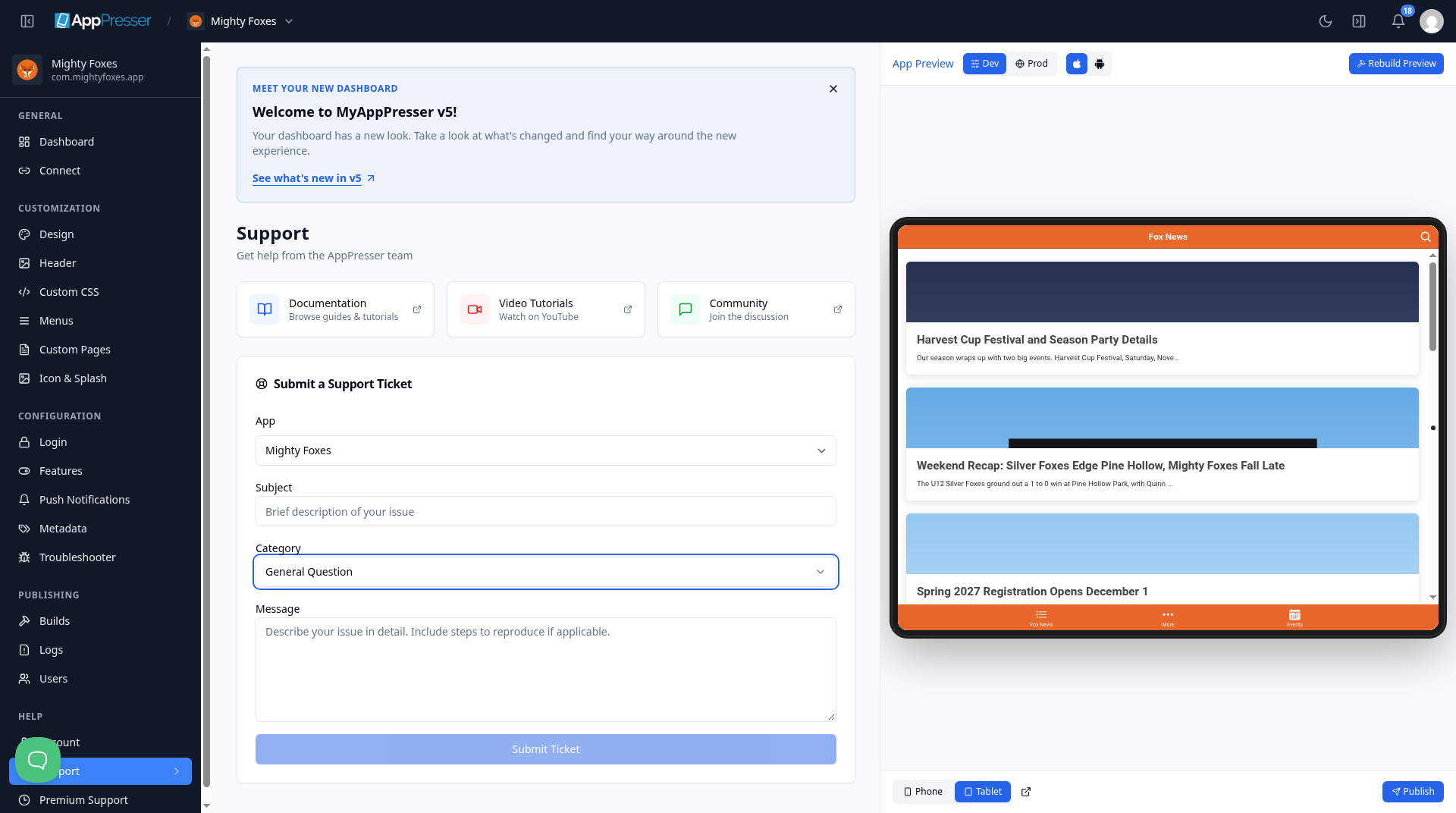
The Support screen also links to Documentation, Video Tutorials on YouTube and the Community.
Get hands-on help
If you want the AppPresser team to work with you, click Premium Support under Help in the left menu. You can buy a package of support hours there.
You're done when your question is answered, or you have sent it to the AppPresser team.
Next step
You have finished the journey. Go back to Start here: build your app with AppPresser any time to find a step.
Related articles
Czy to było pomocne?
Wyniki aktualizują się podczas pisania. Naciśnij ukośnik, aby przejść do wyszukiwania.
Nie mogą Państwo znaleźć?
Nasz zespół wsparcia pomoże w konfiguracji, buildach i sprawach sklepów z aplikacjami.