
Add menu tiles to a page (Menu Item Links block)
Build Your App · AppPresser Docs
Add menu tiles to a page (Menu Item Links block)
Dit artikel is nog niet vertaald en wordt daarom in het Engels getoond.
Your app journey: step 4 of 9, Add pages and features. New here? Read Start here: build your app with AppPresser first.
What you'll do: Show the items from one of your app menus as big tiles or as a list on a page. It is an easy way to make a home page with big buttons that lead to the rest of your app.
Before you start
- Set up at least one menu with items in it on the Menus screen. See Set up your menus and bottom tabs (Menus).
Add the block
- In the left menu, under Customization, click Custom Pages.
- Click the name of the page you want to change. To make a new page instead, click Add New Page, type a title, keep Page Builder selected and click Create Page.
- Below the last block on the page, click Add Block.
- In Search blocks…, type Menu Item Links, then click the block. It is added to the bottom of the page.
- Under Menus, choose the menu to show: Tab Menu, Side Menu, Auxiliary Menu (your extra links menu) or Choose Pages.
If you chose Choose Pages, click each page you want in the Select Pages row.
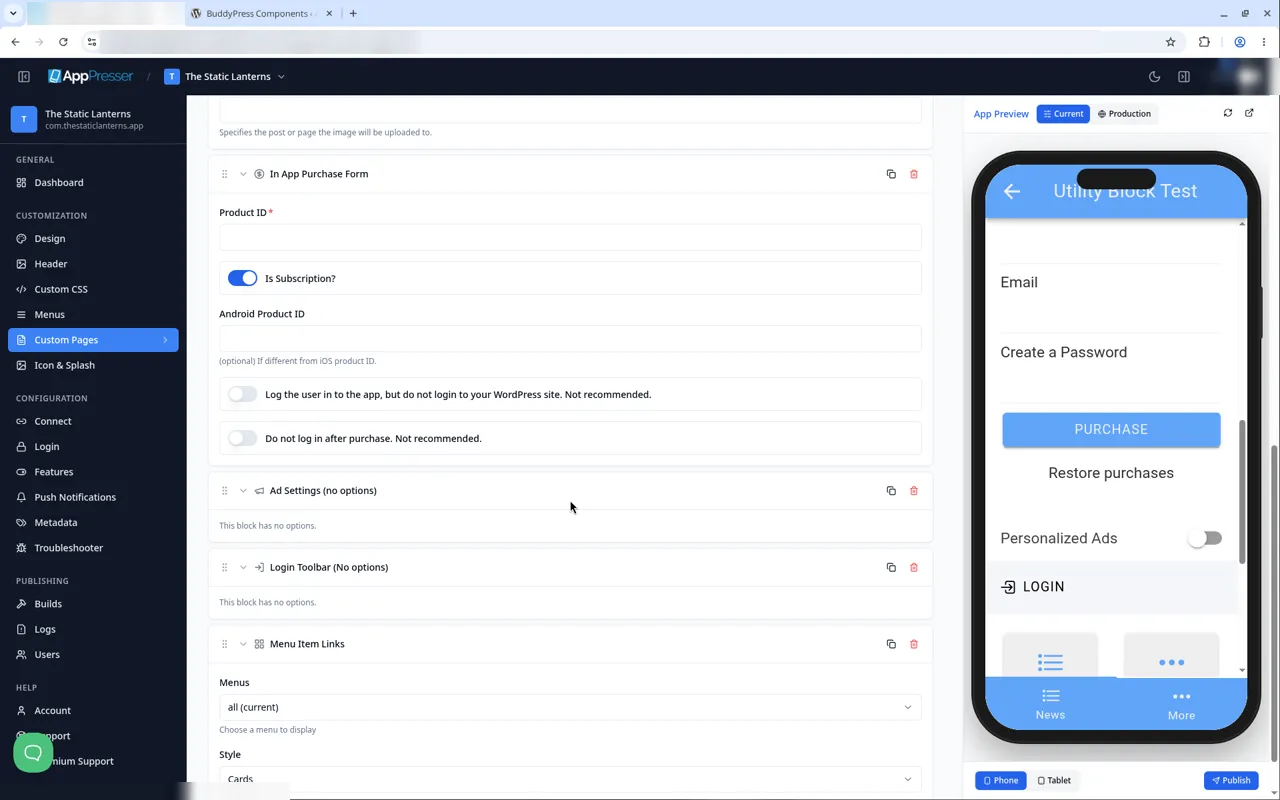
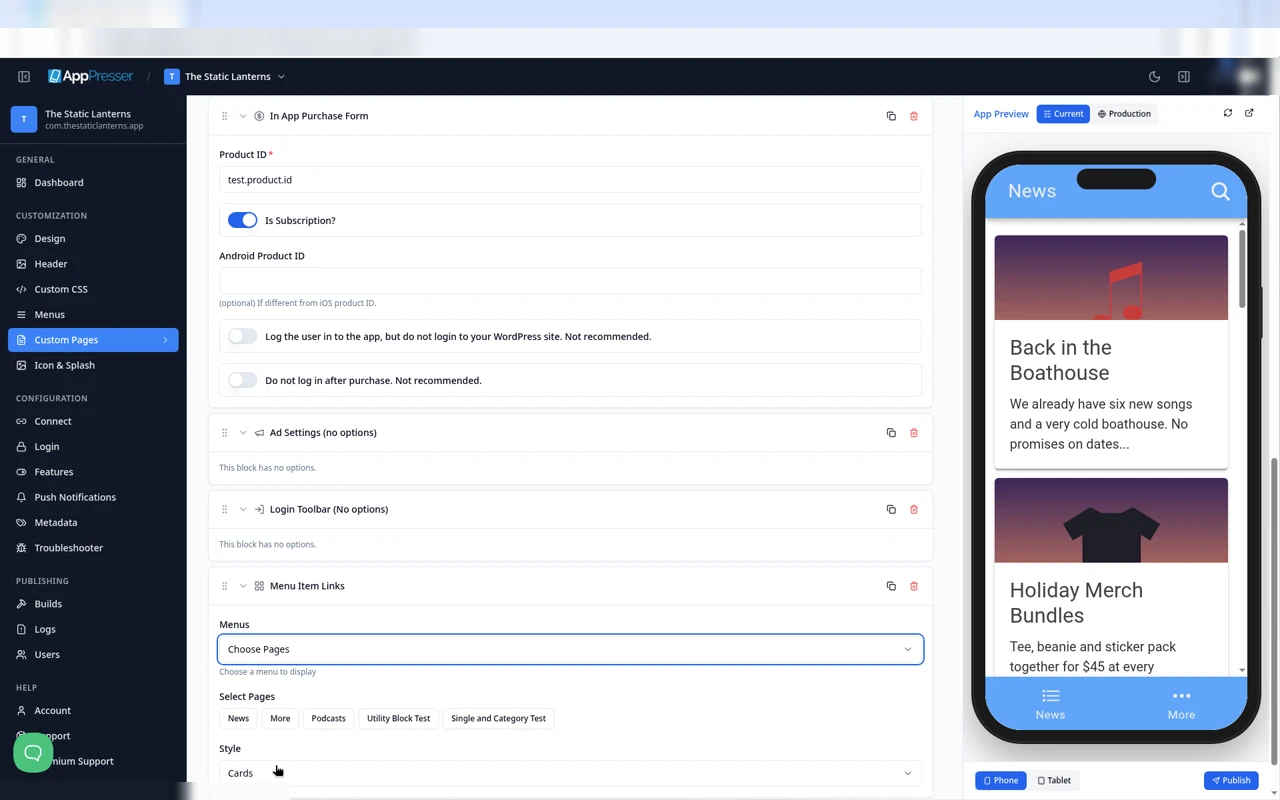
- Under Style, choose Cards (tiles) or List.
- Click Save Changes at the top of the editor.
- To see a new page in the App Preview, add it to a menu. See Add a page to your app menu.
What you see in the app
With Cards, each menu item shows as a tile. People tap a tile to open its page.
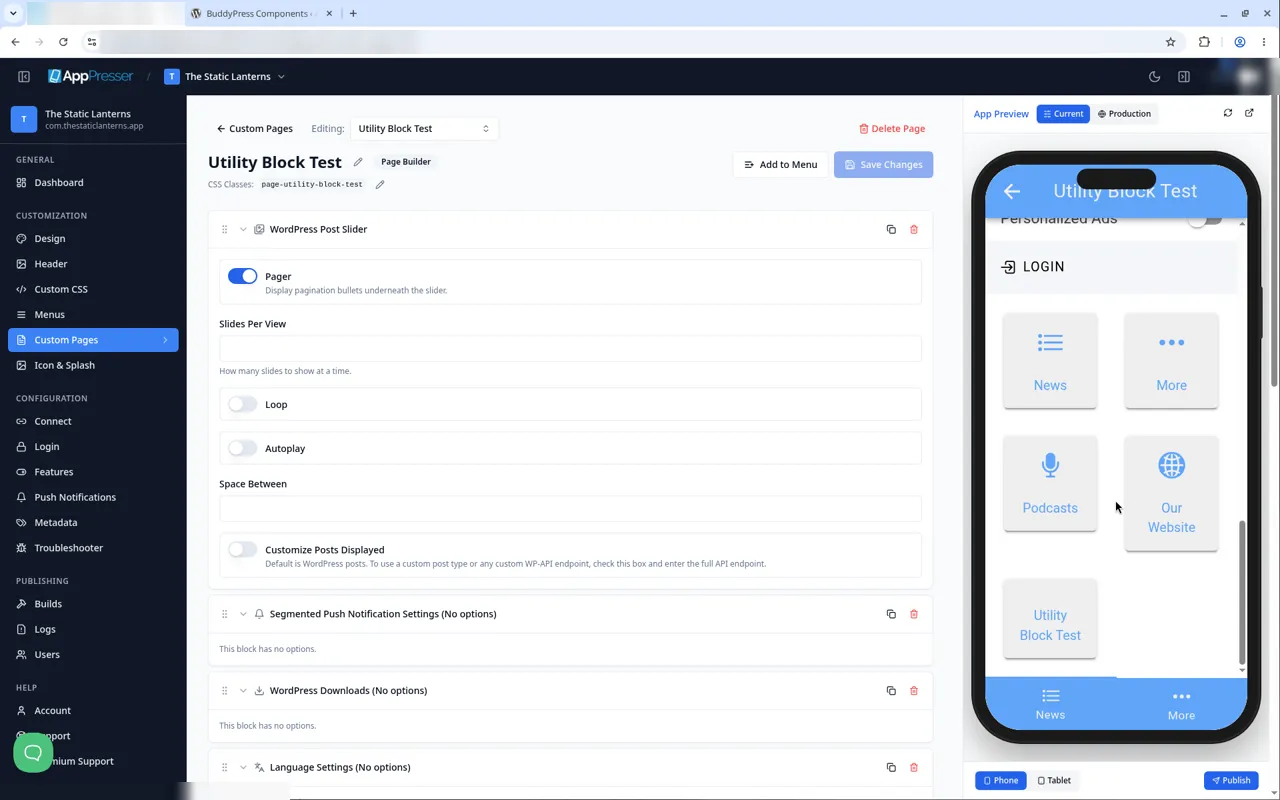
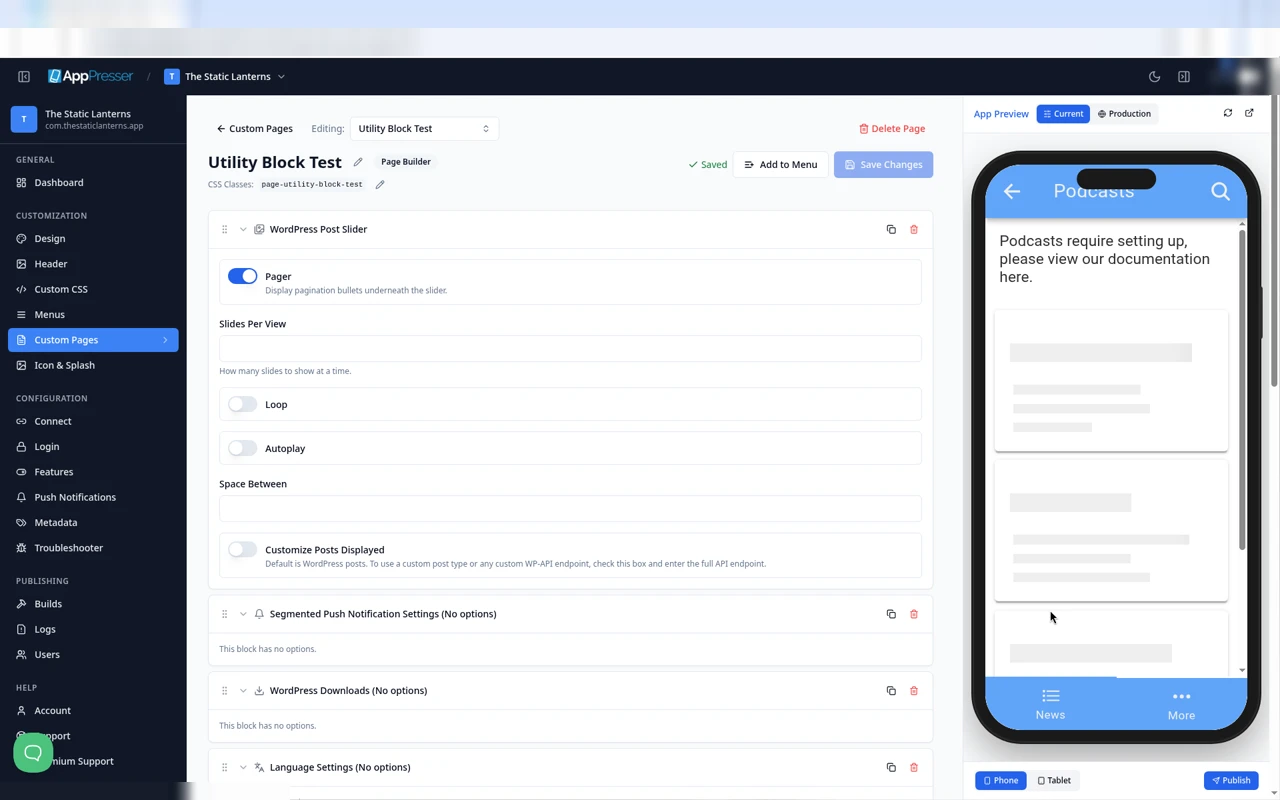
With List, the items show as a list.
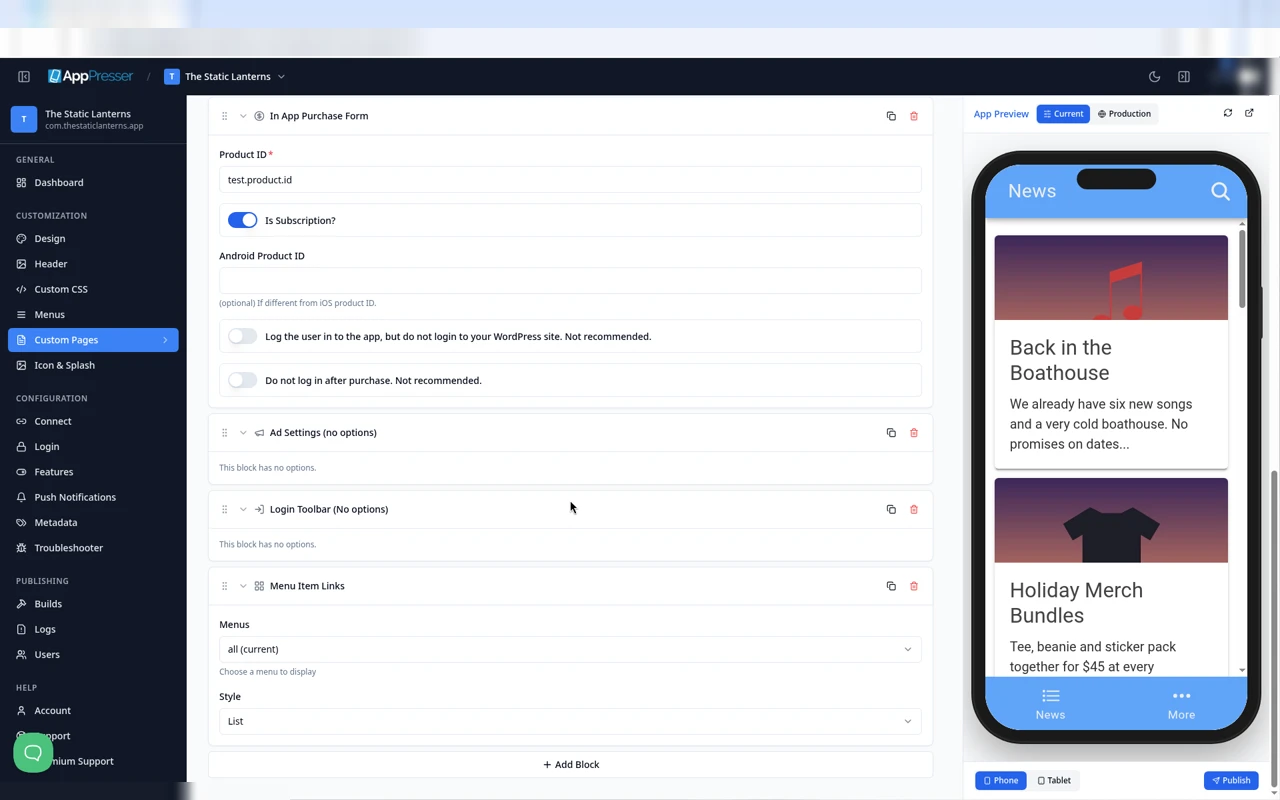
The block follows your menu. When you add an item to the menu, it shows up in this block too.
Tips
Tips
- To move a block, drag it by its handle (the dots on the left). Click the arrow to fold it closed.
- To copy a block, click the Duplicate icon.
- To turn a setting on or off, click the switch itself, not the words next to it.
- After you save, open the page in the App Preview and check your changes.
Careful: The trash icon removes a block right away. Check before you click.
You're done when the block shows on your page in the App Preview.
Next step
Add a login bar (Login Toolbar block)
Related articles
Was dit nuttig?
Resultaten worden bijgewerkt terwijl u typt. Druk op slash om naar zoeken te gaan.
Kunt u het niet vinden?
Ons ondersteuningsteam kan helpen bij het instellen, bouwen en app store vragen.