
Create your first app
Getting Started · התיעוד של AppPresser
Create your first app
מאמר זה טרם תורגם, ולכן הוא מוצג באנגלית.
Your app journey: step 2 of 9, Create your app. New here? Read Start here: build your app with AppPresser first.
What you'll do: Make a new app that shows content from your WordPress website. It takes about a minute, and you can change every choice later.
Before you start
- Sign in at myapppresser.com. See Sign in to your AppPresser dashboard.
- Have your website address ready. It must start with https://.
Make the app
In the sidebar, click New App. The Create Your App window opens.
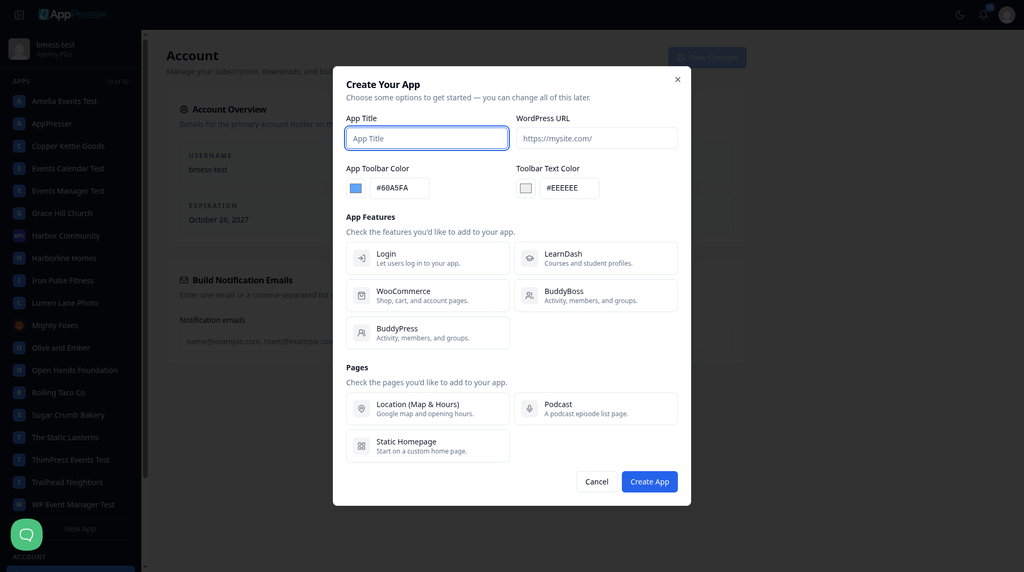
- In App Title, type a name for your app. For example: My Example App.
- In WordPress URL, type your website address, starting with https://. For example: https://yoursite.com/
- Pick an App Toolbar Color. The toolbar is the bar at the top of your app.
- Pick a Toolbar Text Color. Choose a color that is easy to read on the toolbar color.
- Under App Features, click the features you want: Login, LearnDash, WooCommerce, BuddyBoss or BuddyPress. Only pick a feature if its plugin is on your website. A plugin is an add-on for WordPress.
- Under Pages, click the starter pages you want: Location (Map & Hours), Podcast or Static Homepage.
Click Create App.
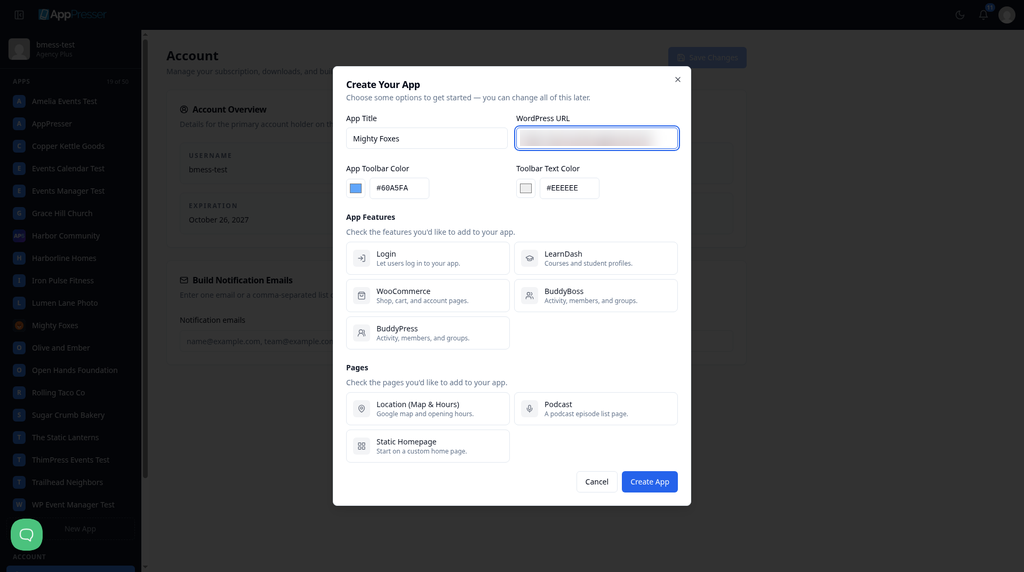
- Wait while the button says Creating…. This can take 30 to 40 seconds.
When it is done
Your app opens on its Dashboard, and its name appears in the sidebar.
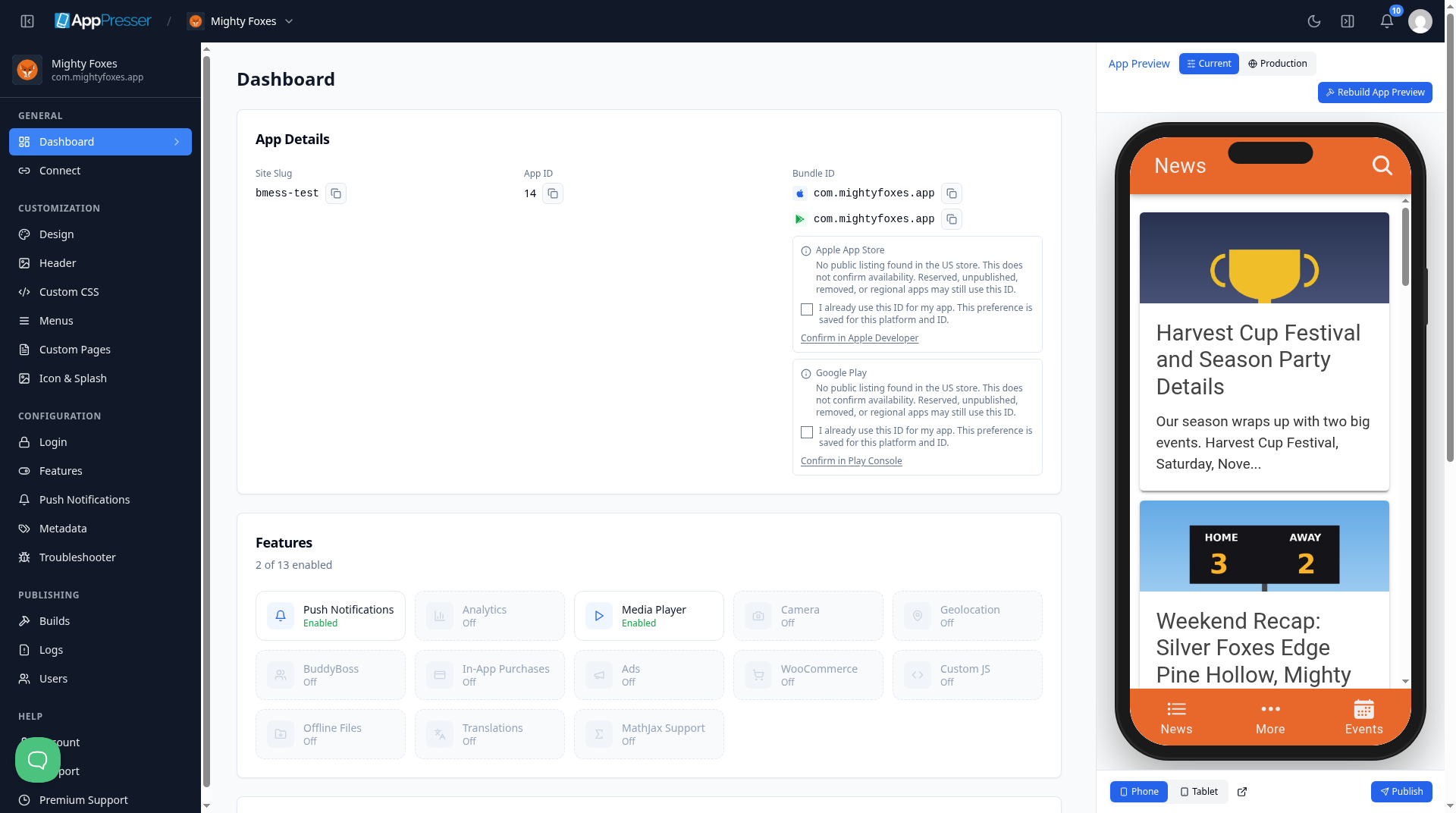
You're done when your app opens on its Dashboard and its name shows in the sidebar.
Next step
Related articles
האם זה עזר?
התוצאות מתעדכנות תוך כדי הקלדה. הקישו על לוכסן (/) כדי לעבור לחיפוש.
לא מצאתם?
צוות התמיכה שלנו יכול לעזור בהגדרה, בבנייה ובשאלות על החנויות.